
Are you tired of seeing the same hero section in your WordPress theme every time you visit your site? You’re not alone.
Many WordPress users find themselves wanting to tweak or completely remove the hero section to better align with their vision. But how do you go about editing out the hero in your WordPress theme? Don’t worry; you’re about to discover a straightforward method to customize your site just the way you want it.
Imagine a website that perfectly reflects your brand without the clutter or distractions of a hero section you didn’t ask for. By the end of this article, you’ll have the confidence to make these changes yourself and transform your website into something truly unique. Dive in, and let’s make your website truly yours.

Credit: bandtheme.com
Accessing Theme Files
FTP helps to connect your computer to the website server. It is like a bridge between them. You need to use a tool called FTP client. Popular ones are FileZilla and Cyberduck. Download and install it on your computer. Open the FTP client and enter your website details. You need your FTP username and password. Find these in your hosting account. Connect to the server using FTP client. Look for the folder named wp-content. Inside, find another folder named themes. Here are all your theme files. Choose the theme you want to edit. Open the theme folder and find the file you need. Edit the file carefully. Save your changes. Disconnect from the server when done.
WordPress Dashboard is a simple tool. It helps to edit theme files. Log into your WordPress account. Find the Appearance menu on the left. Click on Theme Editor. Here are your theme files. Choose the theme you want to edit. Click on the file you need. Edit the code carefully. Save your changes. Changes happen instantly. Be careful when editing. Mistakes can break your site.
Locating The Hero Section
WordPress themes use template files. These files decide the look. To find the hero section, check the main theme folder. Look for files like header.php, index.php, or front-page.php. These files often have hero sections. Sometimes, themes use custom templates. Custom templates might be in a folder named templates.
Theme files can be in different places. Check the theme’s root folder first. Also, look inside subfolders like parts or sections. They might store parts of the hero. If unsure, check the functions.php file. This file can tell where templates are. It’s like a map for your theme.
Editing The Code
The hero section is often in the index.php file or a custom template. Search for the with the class “hero.” Remove or comment out this block to hide it. Use for commenting. This will keep the code, but it won’t show. Be sure to save the changes. Check the website to see if the hero is gone. If needed, backup files before editing. This ensures you can restore them later.
CSS can hide the hero without changing HTML. Open the style.css file. Locate the class .hero in the CSS. Add display: none; to hide it. This method is safe and easy. Save your changes and refresh the browser. The hero should disappear. If unsure, use a child theme for edits. This keeps the original theme intact.
Using Custom Css
The hero section can be edited using custom CSS. First, go to your WordPress dashboard. Find the Appearance section. Click on Customize. Here, you can add custom CSS code. Locate the Additional CSS option. Click it. You will see a box for code.
Find the hero element’s class in your theme. Use the browser’s inspect tool. Right-click the hero section. Click on Inspect. Look for class names. Write down the class name. Now, type your CSS code in the box.
Use CSS to hide or edit the hero section. Example: .hero { display: none; }. This code hides the hero section. Save your changes. Preview your website. The hero should be gone or changed.
Utilizing Page Builders
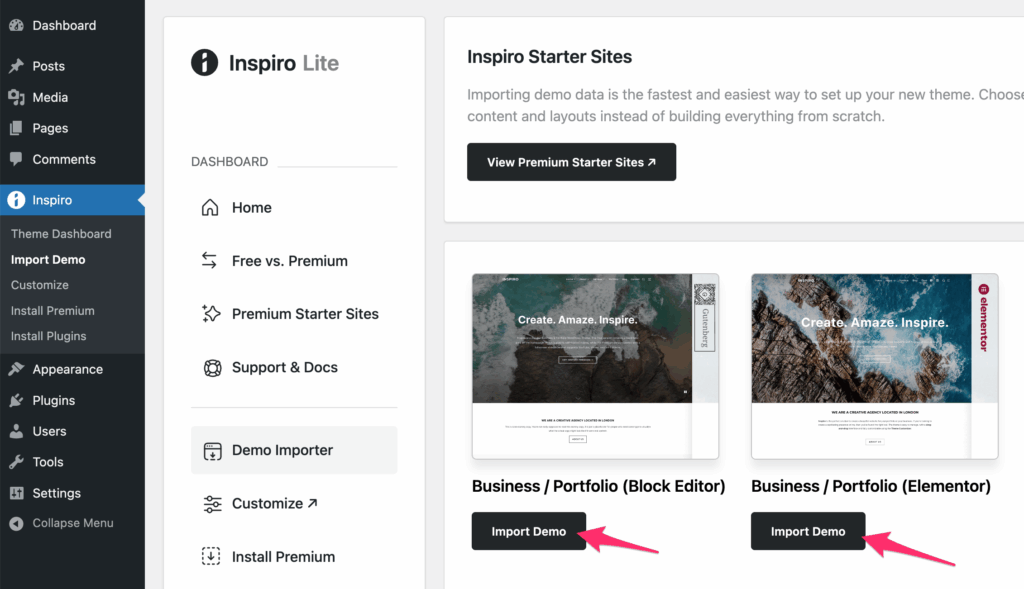
Page builders help to edit WordPress themes easily. They offer drag-and-drop features. You can change theme elements like Hero widgets. This makes your website look better. You don’t need to know coding. It is simple and user-friendly.
To remove Hero widgets, find them in the page builder. Click on the widget to edit. Then, choose the delete option. This removes it from the page. Your website will now have a different look. Check the preview to see changes.
Layouts show how your website looks. Page builders allow you to adjust these layouts. Move sections to different places. You can add or remove parts. Make sure your site looks neat. Keep important info visible.
Testing Changes
Always check the preview after making changes. This helps see the website’s new look. Ensure the changes fit well with other content. Make sure nothing looks out of place. The preview tool is easy to use. It’s like a sneak peek before going live.
Websites must look good on all devices. Use tools to check mobile and tablet views. Ensure buttons and text are not too small. Everything should be easy to read. A responsive website works well everywhere. This makes users happy.
Troubleshooting Issues
Common problems often occur when editing themes. Sometimes, the hero section won’t update. This can be due to caching issues. Clearing the cache might help. Another issue is theme settings not saving. Check permissions for theme files. They should be writable. Also, plugins can interfere. Disable plugins one by one. See if it fixes the problem.
Sometimes, custom code causes errors. Review your code for mistakes. If unsure, revert to the original theme. This can solve many issues.
Seeking Support
Help is available if you’re stuck. Look for support forums related to your theme. They have many users. Someone might have faced your issue. Ask detailed questions. Include theme name and version. This helps others give better advice.
Contact the theme developer directly. They know their product best. Provide screenshots if possible. It helps them understand your problem better.
Credit: www.dreamhost.com
Credit: www.wpzoom.com
Frequently Asked Questions
How Do I Edit A Hero In WordPress?
To edit a hero in WordPress, access your WordPress dashboard. Navigate to Appearance > Customize. Find the section labeled “Hero” or “Header. ” Make your desired changes, such as text, images, or styles. Save your changes and preview them to ensure they’re applied correctly.
How Do I Edit An Existing WordPress Theme?
To edit an existing WordPress theme, access the WordPress dashboard. Navigate to Appearance > Theme Editor. Select the desired theme file to modify. Make changes using the built-in code editor. Always backup your theme files before editing. Alternatively, use a child theme to preserve original files during updates.
How Do I Remove A Banner From A WordPress Theme?
Go to your WordPress dashboard. Navigate to Appearance > Customize. Locate the banner section. Remove or hide it. Save changes.
How Do I Change The Hero Image In WordPress Elementor?
Open Elementor editor. Click on the hero section. Select the background image in the style tab. Click “Choose Image” to change it. Update to save changes.
Conclusion
Editing the hero section in WordPress is simple. Follow the steps shared. Customize your theme to fit your needs. The process is straightforward. You can change images, text, and layout easily. Remember to save your changes. Check your site’s mobile view as well.
Consistent design enhances user experience. You now have the tools to make your site unique. Dive in and start customizing. Enjoy the creative process. Your website, your style.


