
Imagine having a website that truly represents you or your brand—one that captures the essence of what you want to communicate to the world. If you’re using WordPress, you have the power to customize your site’s theme and make it uniquely yours.
But how do you actually edit your theme in WordPress? This process can seem daunting, especially if you’re new to web design. Don’t worry; you’re not alone, and we’re here to guide you through it step by step. You’ll discover straightforward techniques that can turn your website vision into reality.
You’ll learn how to tweak colors, adjust layouts, and make your site visually compelling—all without needing a degree in design. Dive in, and let’s make your WordPress theme your own.

Credit: wordpress.com
Accessing The Theme Editor
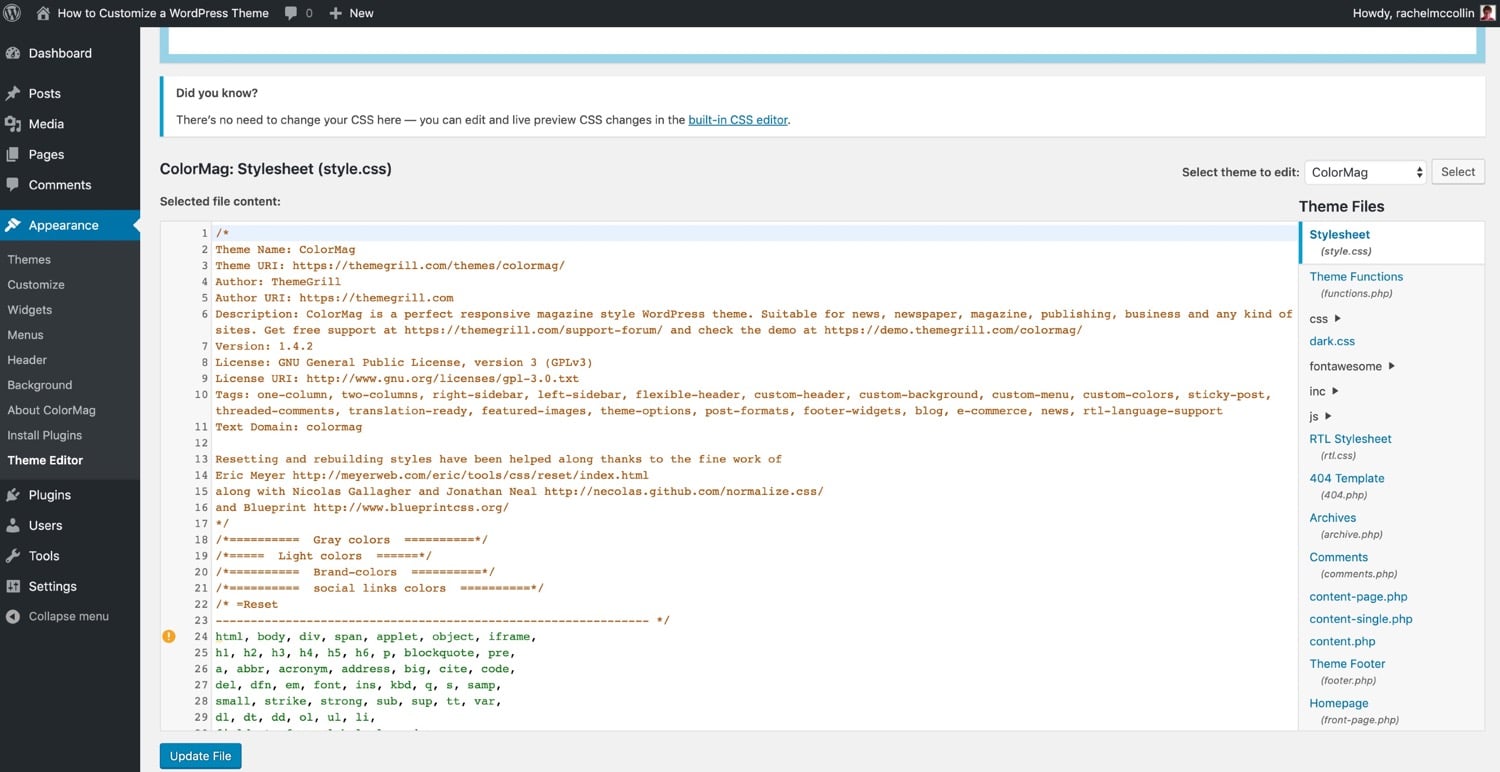
Find the Theme Editor in the WordPress dashboard. First, log into WordPress. Look for the Appearance option on the left menu. Click on it. Then find Theme Editor. This will open the editor. You can see your theme files here. Choose a file to edit. You can change the code. Always be careful when editing. Save changes when done. Your theme changes are now live.
Locating Theme Options
Theme options are in the Customizer. Go to Appearance. Click on Customize. You will see options here. Change colors or fonts. You can also add your logo. Preview changes live. Make sure to save your changes. Your site will look different now.
Navigating Appearance Menu
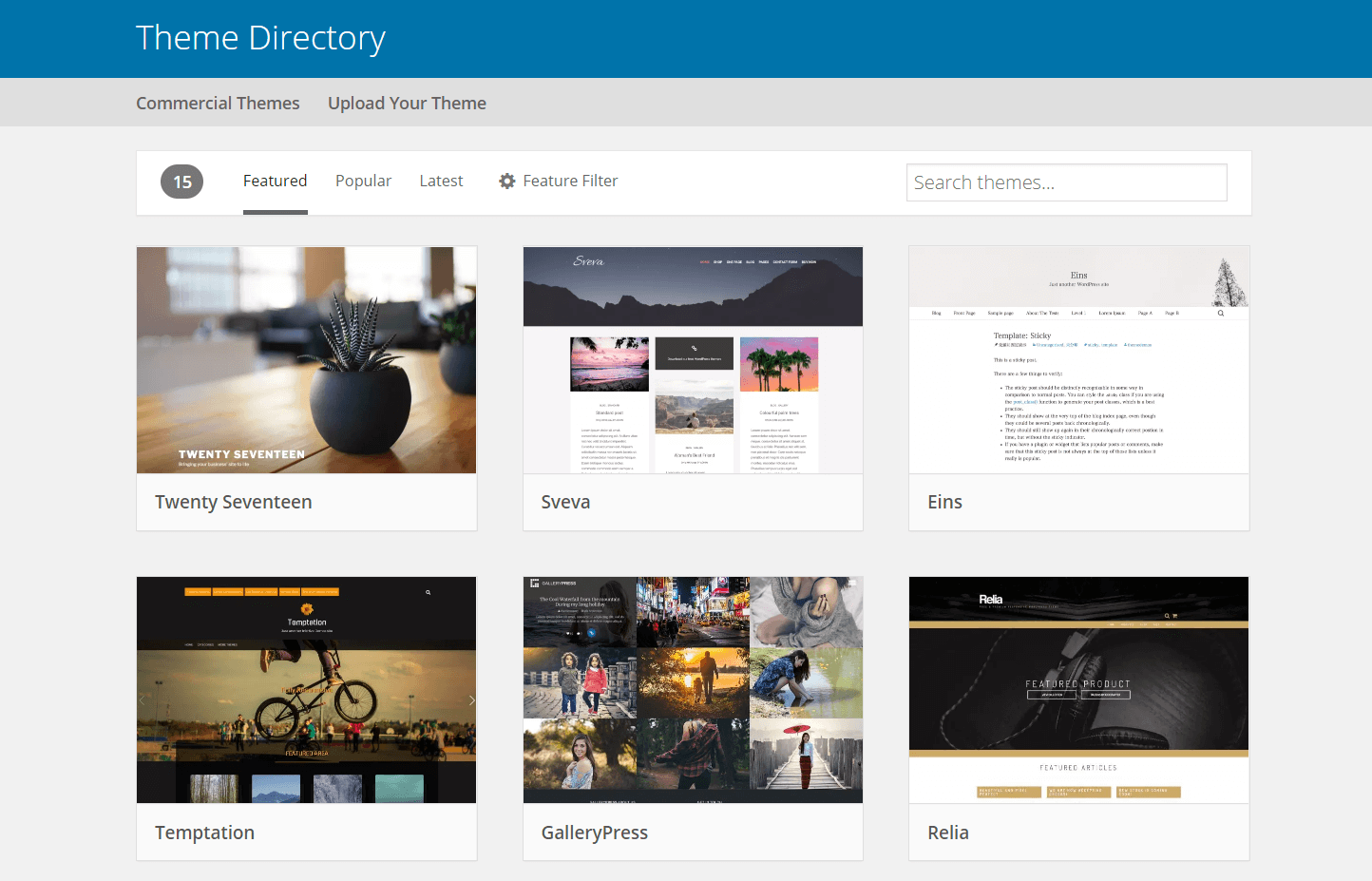
The Appearance Menu is important. It helps you change your site look. Find it on the left side. Click Appearance. You will see options like Themes and Widgets. Use these to edit your site. Always explore options. This helps you learn more. Your site will be unique.
Credit: wpengine.com
Using Customizer
Find the site identity section in the customizer. Change the site title and tagline. Upload a new logo if needed. Click publish to save changes.
Explore the colors section. Pick new colors for text and background. Check changes in the preview. Go to background settings. Choose a new image or color for the background. Save by clicking publish.
Locate menus in the customizer. Add or remove pages from the menu. Reorder menu items easily. Next, go to widgets. Add widgets to the sidebar or footer. Move them around if needed. Click publish to apply changes.
Editing Css
CSS changes the look of your website. It stands for Cascading Style Sheets. You can change colors, fonts, and sizes. CSS is like clothes for your website. You can make it look nice. It is important to know some basic CSS rules. This helps you make better changes.
Adding your own CSS is fun. You can do it in WordPress. Go to the dashboard. Find the Appearance section. Click on Customize. Then, look for Additional CSS. Here you can type your code. Make sure to save changes. This helps keep your edits.
Always check your work. Use the preview button. It shows what your changes look like. You can see them before saving. This is very helpful. If something looks wrong, you can fix it. This way, your website will always look good.
Modifying Theme Files
PHP files control how your theme works. Editing them can change your site. Use a text editor to open PHP files. Be careful. A small mistake can break your site. Always make a backup before editing. If unsure, ask for help.
FTP clients help you access your site’s files. You can download and upload files easily. First, connect to your server with FTP details. Then, find the theme folder and make changes. Save your edits and upload the files back.
Child themes let you edit themes safely. They protect original files. Create a new folder in your themes directory. Copy the main theme’s style.css to your new folder. You can now make changes without fear. Your original theme stays safe.
Installing Plugins For Theme Editing
Plugins help change your website look. Pick a plugin with good reviews. Check compatibility with your theme. Free plugins can be good. Some plugins need money. Try popular plugins first. They often have useful features. Keep your site safe. Avoid plugins with bad ratings.
Page builder plugins are easy. They help design pages fast. Drag and drop features make work simple. No need for coding knowledge. Many templates are available. Visual Composer is a popular choice. Elementor is another great tool. Both have free versions. These plugins save time. Design beautiful pages quickly.
Plugins can add features. They improve website performance. Choose plugins to add widgets. Some plugins enhance SEO. Others improve security. Plugins can help with speed. Make your site load faster. Add social media buttons for sharing. Always update plugins. Keep them secure and working well.
Credit: kinsta.com
Testing And Previewing Changes
Many people use phones to browse. Make sure your site looks good on small screens. Use tools to check how your theme appears on phones. Adjust if needed. It’s important for keeping visitors happy.
Different browsers can show your site in different ways. Test your theme on browsers like Chrome, Firefox, and Safari. Ensure everything looks right. Fix any issues quickly. This helps reach more users.
WordPress has a preview feature. Use it to see changes before they go live. Click the preview button after editing. Check if everything is fine. Make changes if needed. It saves you from mistakes.
Backing Up Before Making Changes
Backup plugins keep your website safe. They save your site in case of mistakes. Use plugins like UpdraftPlus and BackupBuddy. These plugins are easy to use. They copy your site and store it. You can restore your site anytime. Always backup before changes. This is very important. Backup protects your work.
Restoring helps fix errors. It returns your site to an old version. WordPress has restore options. Use it if you make a mistake. It is fast and simple. Click restore and your site is back. This keeps your site safe. Restoring saves time and effort. Always check your site after restoring.
Frequently Asked Questions
How Do You Edit Your Theme On WordPress?
Edit your WordPress theme by navigating to the “Appearance” section, then click “Editor” or “Customize. ” Make changes using the built-in tools. Always back up your theme files before editing to prevent data loss. Save your changes and preview them to ensure everything looks correct.
Why Can’t I Edit My WordPress Theme?
You can’t edit your WordPress theme due to insufficient permissions, theme restrictions, or needing to update your user role. Check if the theme allows customization or if your user role has editing rights.
How Do I Access My WordPress Theme Editor?
Access your WordPress theme editor by logging into your dashboard. Navigate to “Appearance,” then click “Theme Editor. “
How Do I Edit A Page Theme In WordPress?
To edit a WordPress page theme, navigate to the dashboard. Click on “Appearance”, then “Theme Editor”. Select the desired theme file to modify. Make changes, and click “Update File” to save. Always create a child theme before editing to prevent data loss during updates.
Conclusion
Editing your WordPress theme is simpler than you think. Use WordPress’s built-in features to customize it. Explore theme settings for more options. Experiment with color, font, and layout changes. Use the WordPress Customizer for live previews. Feel free to tweak CSS for advanced edits.
Remember to save your changes regularly. Keep backups to avoid losing progress. Don’t hesitate to seek help from the WordPress community. With practice, editing your theme becomes easier. Your website will reflect your style. Enjoy the process and let your creativity shine.


