
Your homepage is the first thing visitors see when they come to your website. It needs to look just right to keep them interested and make a great impression.
But if you’re wondering, “How do I edit my homepage in WordPress? ” you’re not alone. Changing your homepage might sound tricky, but it’s easier than you think. In this guide, you’ll discover simple steps to customize your homepage exactly how you want it—no tech skills needed.
Keep reading, and you’ll have a homepage that truly represents you and your brand in no time.

Credit: www.reddit.com
Accessing The WordPress Dashboard
Accessing the WordPress dashboard is the first step to editing your homepage. It is the control center where you manage your website’s content and settings. The dashboard gives you access to tools needed to customize your site easily.
Understanding how to reach and navigate the dashboard saves time. It lets you make changes without confusion or delay. Follow simple steps to log in and start editing your homepage quickly.
Logging Into Your WordPress Site
Open your web browser and type your site’s login URL. Usually, it looks like yourwebsite.com/wp-admin. Enter your username and password. Click the login button to access the dashboard.
Finding The Dashboard Menu
After login, the dashboard menu appears on the left side. It lists options like Posts, Pages, Appearance, and Settings. Use this menu to find tools for editing your homepage.
Understanding Dashboard Layout
The dashboard has a top bar and a main menu on the left. The center shows a quick overview of your site. You can customize widgets here to see recent activity or updates.
Locating The Homepage Settings
Finding where to change your homepage settings is the first step in editing your WordPress homepage. These settings control what visitors see first when they visit your site. Understanding where to locate them helps you customize your site easily.
WordPress offers a clear path to adjust your homepage. The process is simple and quick. Knowing the exact menu options saves time and avoids confusion.
Start by logging into your WordPress dashboard. This is the main control panel for your website. You can access it by adding “/wp-admin” to your website URL. For example, www.yoursite.com/wp-admin.
Finding The Reading Settings
After login, look at the left sidebar menu. Click on “Settings” to open a dropdown. Then, select “Reading.” This section holds the homepage display options.
Selecting Your Homepage Display
In the Reading settings, you see two main choices. One is “Your latest posts” and the other is “A static page.” Choose “A static page” to set a custom homepage.
Choosing The Homepage And Posts Page
Once you select “A static page,” dropdown menus appear. Pick the page you want as your homepage from the first dropdown. You can also select a page for your blog posts.
Choosing A Static Page Or Latest Posts
Choosing the right homepage display is key in WordPress. It shapes the first impression visitors get from your site. WordPress lets you pick between showing a static page or your latest posts.
This choice affects how your content appears and how users interact with your site. Understanding each option helps you decide what fits your goals best.
Static Page As Homepage
A static page shows fixed content that rarely changes. It works well for businesses, portfolios, and services. Visitors see the same welcome message or information each time.
This setup gives control over what visitors see first. You can design a clean, focused introduction. It is simple to update and keeps your message clear.
Latest Posts As Homepage
Showing your latest posts highlights new articles or blog updates. It suits blogs, news sites, and active content creators. Visitors get fresh content every time they visit.
This option keeps your homepage dynamic and engaging. It encourages visitors to explore new topics. It also helps with SEO by showing updated content regularly.
How To Choose Between Them
Think about your website’s purpose. Want to showcase specific info? Pick a static page. Want to share recent news or posts? Choose latest posts.
Consider your audience’s needs. A static page offers clarity. Latest posts offer variety and freshness. Match your choice to what fits best.
Using The WordPress Customizer
The WordPress Customizer is a simple tool to change your homepage. It shows a live preview as you edit. This helps you see changes before saving them. The Customizer is easy to use for beginners.
You can change text, images, colors, and layout. All edits happen in one place. It saves time and effort for website owners.
Navigating To Homepage Options
To start, go to your WordPress dashboard. Click on “Appearance” in the side menu. Then select “Customize” from the dropdown. This opens the Customizer panel with many options.
Look for “Homepage Settings” or “Homepage” section. Here, you can choose what your homepage shows. You can pick a static page or your latest posts. This is the first step to edit your homepage.
Editing Text And Images
Inside the Customizer, find the section for content. This might be called “Content,” “Widgets,” or “Homepage Sections.” Select the area with text or images you want to change.
Click on the text box to type new words. You can also upload new images by clicking the image area. The preview updates immediately as you make changes. This helps you check how it looks quickly.
Adjusting Layout And Colors
The Customizer lets you change the layout style. Find the “Layout” or “Design” section. Choose from options like full-width or boxed layout. This changes how your homepage is arranged.
To change colors, go to the “Colors” section. Pick new colors for backgrounds, text, and links. Use simple colors that match your brand. This keeps your site clean and easy to read.
Editing With Page Builders
Editing your homepage with page builders makes design simple. These tools let you change your site without coding. You see changes in real time. This helps you create a unique look fast. Page builders suit beginners and pros alike. They give control over layout, colors, and content blocks.
Popular Page Builder Plugins
Some page builders are very popular in WordPress. Elementor, Beaver Builder, and Divi are top choices. Each has free and paid versions. They come with many templates and styles. You can pick one that fits your needs. These plugins work well with most themes.
Drag-and-drop Features
Drag-and-drop is a key feature of page builders. You simply drag items to your page. Move text boxes, images, and buttons easily. This method saves time and effort. No need to write code or learn programming. You see exactly how your page looks while editing.
Adding Widgets And Elements
Widgets and elements add function and style to your homepage. Page builders include many options like sliders, forms, and galleries. You can add these with a click. Adjust sizes, colors, and positions quickly. This makes your homepage more interactive and attractive.
Credit: www.elon.edu
Saving And Previewing Changes
Saving and previewing changes on your WordPress homepage is a crucial step. It makes sure your edits are safe and look right before going live. This process helps avoid errors and keeps your site professional.
WordPress offers simple tools to save your work quickly. It also lets you see a preview of the homepage on different devices. These features give you control over how the page appears to visitors.
Saving Your Homepage Edits
After making changes, click the “Save Draft” button. This stores your work without publishing it. You can return later to continue editing.
To publish changes immediately, click “Update” or “Publish.” This makes your edits live on the site. Always save before leaving the editor.
Previewing Changes Before Publishing
Use the “Preview” button to see how your homepage looks. This opens a new tab with the current version. It shows the page exactly as visitors will see it.
Previewing helps spot layout or content issues. You can test how images and text appear on phones or tablets. This ensures a smooth user experience.
Troubleshooting Common Issues
Editing your WordPress homepage is usually simple. Sometimes, issues may stop your changes from showing. These common problems can be fixed with quick steps. Understanding these issues saves time and stress. Let’s explore the main troubles and how to solve them.
Homepage Not Updating
Changes not appearing on your homepage can be frustrating. First, check if you saved your edits properly. Sometimes, a simple save error causes the problem. Refresh your browser to ensure you see the latest version.
Look for theme settings that might override your changes. Some themes use custom homepage options that need separate editing. Verify you are editing the correct page or section assigned as the homepage.
Plugin Conflicts
Plugins add features to WordPress but can clash with each other. A plugin conflict might stop homepage edits from working. Deactivate all plugins except the ones needed for the homepage. Check if edits appear after this step.
Activate plugins one by one to find the troublemaker. Update plugins regularly to avoid bugs. Use only trusted plugins from reliable sources.
Caching Problems
Caching stores website data to make loading faster. Sometimes, cache shows an old version of your homepage. Clear your browser cache first. Then, clear your WordPress cache if you use a caching plugin.
Some web hosts also use server-level caching. Contact your host if clearing cache does not help. Caching can delay showing your recent homepage changes.

Credit: wordpress.com
Tips For Faster Customization
Editing your homepage in WordPress can be quick and easy. Using smart strategies helps save time and effort. These tips focus on faster customization. They help you create a better homepage without stress.
Using Pre-built Templates
Pre-built templates offer ready-made designs. They save time by providing a layout instantly. Choose a template that fits your style. Customize colors, fonts, and images quickly. This avoids building your homepage from scratch.
Many themes include templates for homepages. Use the WordPress block editor to insert these templates. Change text and images to match your brand. It speeds up the design process and keeps your site consistent.
Optimizing Images
Large images slow down your site. Optimize images before uploading. Compress files to reduce size without losing quality. Use tools like TinyPNG or ShortPixel for this task.
Smaller images load faster, improving user experience. Fast-loading pages also boost search engine rankings. Name your images with clear, relevant words. This helps SEO and makes your site easier to find.
Regular Backups
Backups protect your work from loss. Create backups before making big changes. Use plugins like UpdraftPlus or BackWPup to automate backups. Store backups off-site for added security.
Regular backups let you restore your homepage quickly. They prevent frustration from errors or crashes. Keeping backups saves time and stress during customization.
Frequently Asked Questions
How Do I Change My WordPress Homepage Content?
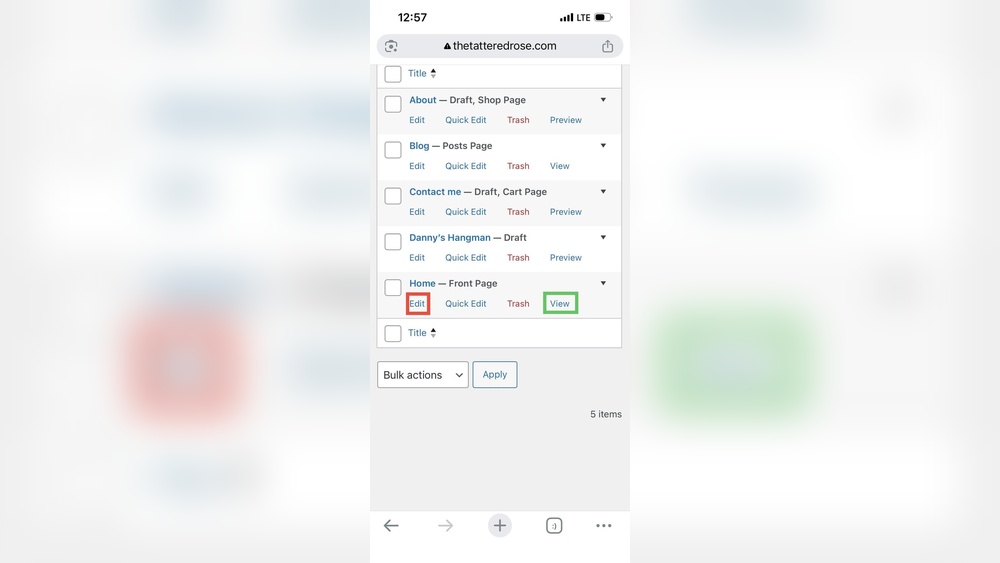
To change your WordPress homepage content, go to your dashboard. Navigate to Pages and edit the page set as your homepage. Update the text, images, or layout as needed. Save changes, then refresh your site to see the update live.
Can I Customize My WordPress Homepage Layout Easily?
Yes, you can customize your WordPress homepage layout using the built-in Customizer or a page builder plugin. These tools allow drag-and-drop editing, section rearrangement, and style changes without coding knowledge. Choose a method that fits your comfort level.
How Do I Set A Static Homepage In WordPress?
To set a static homepage, go to WordPress dashboard > Settings > Reading. Select “A static page” and choose the desired page for your homepage. Save changes. This replaces the default blog feed with your chosen page.
What Plugins Help Edit My WordPress Homepage?
Popular plugins like Elementor, Beaver Builder, and WPBakery help edit WordPress homepages. They offer intuitive drag-and-drop interfaces, pre-built templates, and customization options. These plugins make homepage editing quick and beginner-friendly.
Conclusion
Editing your WordPress homepage is simple and quick. Just follow the steps clearly. You can change text, images, and layout easily. This helps your site look better and work well. Regular updates keep visitors interested and improve your site’s rank.
Try different designs to see what fits best. Keep practicing and you will get better. Your homepage can truly reflect your style and message. Start editing today and enjoy the results!


