
Are you wondering how to edit your WordPress site without feeling overwhelmed? Whether you want to update text, change images, or tweak your site’s layout, editing your WordPress website can be simpler than you think.
With just a few clicks, you can take full control of your site’s look and content—no coding skills required. In this guide, you’ll discover step-by-step how to easily make changes that bring your vision to life. Keep reading, and you’ll gain the confidence to update your site anytime, making it truly yours.
Access WordPress Dashboard
The WordPress dashboard is the control center of your website. It lets you manage content, design, and settings. Accessing it is the first step to editing your site.
The dashboard is user-friendly and made for easy navigation. It helps you update pages, posts, and themes quickly. Knowing how to reach the dashboard saves time and effort.
Login To Admin Panel
To start, open your browser and go to your website’s login page. The usual address is yourwebsite.com/wp-admin. Enter your username and password here.
Make sure to use the correct credentials given during setup. After logging in, you will see the WordPress dashboard. This panel gives you access to all site functions.
Navigate To Site Editor
From the dashboard, look at the left menu. Find and click on Appearance. Then select Editor or Site Editor.
This opens the editor where you can change your site’s layout. You can modify headers, footers, menus, and page content. The editor shows a live preview of your changes.
Edit Pages And Posts
Editing pages and posts in WordPress is simple and essential for keeping your site fresh. This process allows you to change content, add new information, and improve your site’s look. It helps your visitors get the latest updates and better information.
WordPress offers easy tools to edit both pages and posts without needing technical skills. You can update text, images, and layout quickly. Here is how to do it step-by-step.
Select Page Or Post To Edit
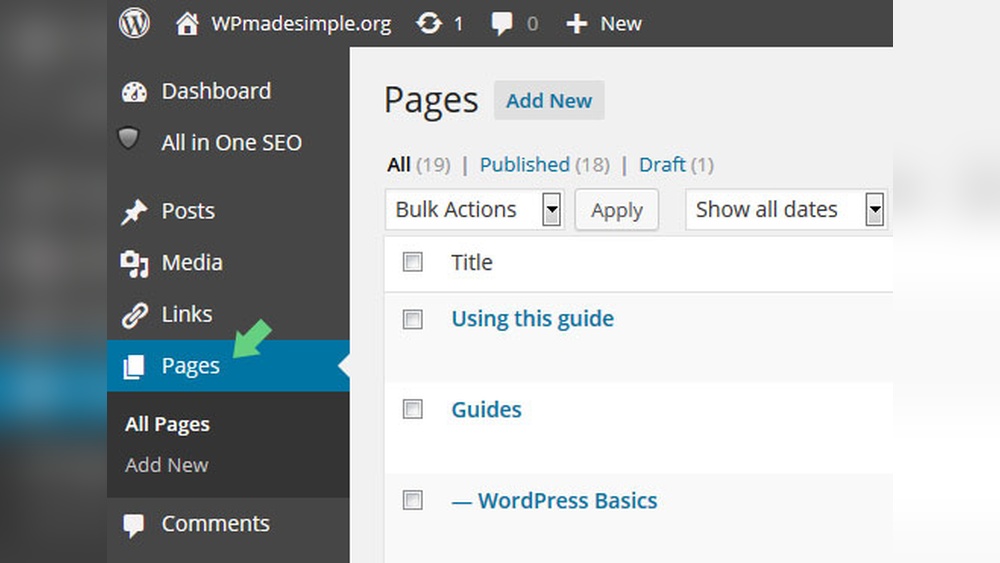
Start by logging into your WordPress dashboard. On the left menu, find “Pages” or “Posts.” Click the one you want to change. A list will appear showing all your pages or posts. Choose the title you want to edit by clicking on it. This opens the editor screen.
Use Visual Editor Tools
The visual editor looks like a simple word processor. It shows your content as it appears on the site. Use the toolbar to format text. You can bold, italicize, or add links with a click. The editor also lets you add blocks for images, videos, or other content types. This makes editing easy and visual.
Update Text And Images
Click inside any text area to start typing or deleting. Change words to update your message. To change images, click on the picture you want to replace. Upload a new image or select one from the media library. Adjust image size or alignment as needed. After changes, click the “Update” button to save your edits and publish them live.
Customize Site Appearance
Customizing your WordPress site appearance helps make your website unique. It lets you control how visitors see your content. Simple changes can improve user experience and brand identity. WordPress offers easy tools to adjust menus, headers, footers, colors, and fonts. These options shape the overall look and feel of your site.
Modify Menus And Navigation
Menus guide visitors through your website. To modify menus, go to the WordPress dashboard. Click on Appearance, then Menus. Here, you can add, remove, or reorder menu items. Create clear navigation for easy browsing. Organize links to pages, posts, or custom URLs. Save changes to update your site instantly.
Edit Header And Footer
The header and footer show on every page. Edit these areas to add logos, contact info, or social links. Access the WordPress Customizer by clicking Appearance and then Customize. Select Header or Footer sections. Use available options to change text, images, or layout. Preview edits live before publishing for best results.
Change Colors And Fonts
Colors and fonts create your site’s style and mood. In the Customizer, find the Colors and Typography settings. Pick colors that match your brand or theme. Choose easy-to-read fonts to improve visitor engagement. Save changes to see the new look. Consistent design keeps your site professional and inviting.

Credit: stackoverflow.com
Manage Widgets And Plugins
Managing widgets and plugins is essential for customizing your WordPress site. Widgets add content and features to sidebars, footers, and other areas. Plugins extend the functionality of your site. Learning how to manage them helps keep your site effective and user-friendly.
Add Or Remove Widgets
To add a widget, go to the WordPress dashboard. Click on Appearance, then Widgets. You will see available widgets on the left and widget areas on the right. Drag the widget you want to a widget area. To remove a widget, drag it back to the available widgets section or click the delete option inside the widget settings. Widgets allow you to add search bars, calendars, menus, and more.
Configure Plugin Settings
Plugins often come with their own settings page. To configure a plugin, go to Plugins in the dashboard. Find the plugin you want to set up and click Settings or a similar link. Adjust the options based on your needs. Some plugins offer simple toggles, while others have detailed controls. Proper configuration ensures the plugin works well and improves your site’s performance.
Use Browser Developer Tools
Browser developer tools are powerful features built into modern web browsers. They let you view and change your WordPress site’s code directly on the page. This helps you see how edits will look before making permanent changes. Using these tools saves time and helps avoid mistakes.
These tools are easy to open by right-clicking on any part of your website and selecting “Inspect” or pressing F12. You can explore your site’s HTML and CSS, test changes instantly, and find the exact code you need to edit in WordPress.
Inspect Elements On Page
Start by opening the developer tools and selecting the inspect option. Hover your mouse over parts of your site to highlight their code. This shows the HTML structure behind each element. You can see classes, IDs, and styles applied to each part. This helps you understand how your site is built.
Make Temporary Edits
In the developer tools, you can change text, colors, and layout instantly. Click on any HTML or CSS code to edit it. The changes appear right away on the page but only last until you refresh. This lets you try different looks without changing your site permanently. It is a safe way to test ideas.
Identify Code For Permanent Changes
Use developer tools to find the exact code you need to edit in WordPress. Copy the HTML or CSS selectors shown in the inspector. Then, go to your WordPress dashboard and open the theme editor or customizer. Paste or edit the code there to make lasting changes. This method ensures you update the right parts of your site without guesswork.

Credit: wordpress.org
Edit Website Files Locally
Editing website files locally gives full control over your WordPress site. You can work on files safely using your computer. This method helps avoid mistakes on the live site. It also allows you to test changes before making them public.
Local editing needs a few steps. First, download your site files using FTP. Then, edit the HTML, CSS, or PHP files on your computer. Finally, upload the updated files back to the server. This process keeps your site organized and secure.
Download Site Files Via Ftp
Use an FTP client like FileZilla to access your server. Enter your FTP credentials to connect. Find your WordPress directory, usually named “public_html” or “www.” Select all files and folders inside. Download them to a folder on your computer. This saves a copy of your website locally.
Edit Html, Css, Or Php
Open downloaded files with a text editor like VS Code or Notepad++. Edit HTML to change content structure. Modify CSS files to update styles and colors. PHP files control site functions and templates. Be careful when editing PHP to avoid errors. Save your changes after editing each file.
Upload Updated Files To Server
Return to your FTP client and reconnect to the server. Navigate to the WordPress directory on the server. Upload the edited files from your computer, replacing old files. Wait for the upload to finish before closing the client. Refresh your website to see the changes live.
Troubleshoot Common Issues
Troubleshooting common issues helps keep your WordPress site running smoothly. Editing problems can block your progress. Understanding simple fixes saves time and frustration. Below are common issues and how to resolve them quickly.
Fix Blog Page Editing Problems
The blog page may not allow direct editing. WordPress often sets the blog page as the default post page. This means you cannot edit it like a normal page.
To fix this, go to Settings > Reading in your dashboard. Check if a page is assigned as the “Posts page.” If yes, edit your blog posts through the Posts menu, not the Pages menu.
For custom blog page layouts, use a page builder or theme options. Avoid editing the blog page directly in the Pages section. This keeps your posts organized and editable.
Resolve Permission Errors
Permission errors stop you from editing pages or posts. These errors happen when your user role lacks editing rights. Sometimes, plugin conflicts or server settings cause permission problems.
Start by checking your user role in Users > All Users. Make sure you have the Editor or Administrator role. Ask the site owner to update your role if needed.
Next, deactivate plugins one by one to find conflicts. Some security plugins block editing access. Also, check file permissions on your server. Files should have 644 and folders 755 permissions for editing.
Contact your hosting provider for help if server permissions are unclear. Fixing these errors ensures smooth access to edit your WordPress site.
Save And Publish Changes
After making edits to your WordPress site, saving and publishing changes is key. This step ensures your updates appear correctly to visitors. You can check edits before they go live. Then, you make them visible to the public with one click. Proper saving and publishing keeps your site fresh and accurate.
Preview Edits
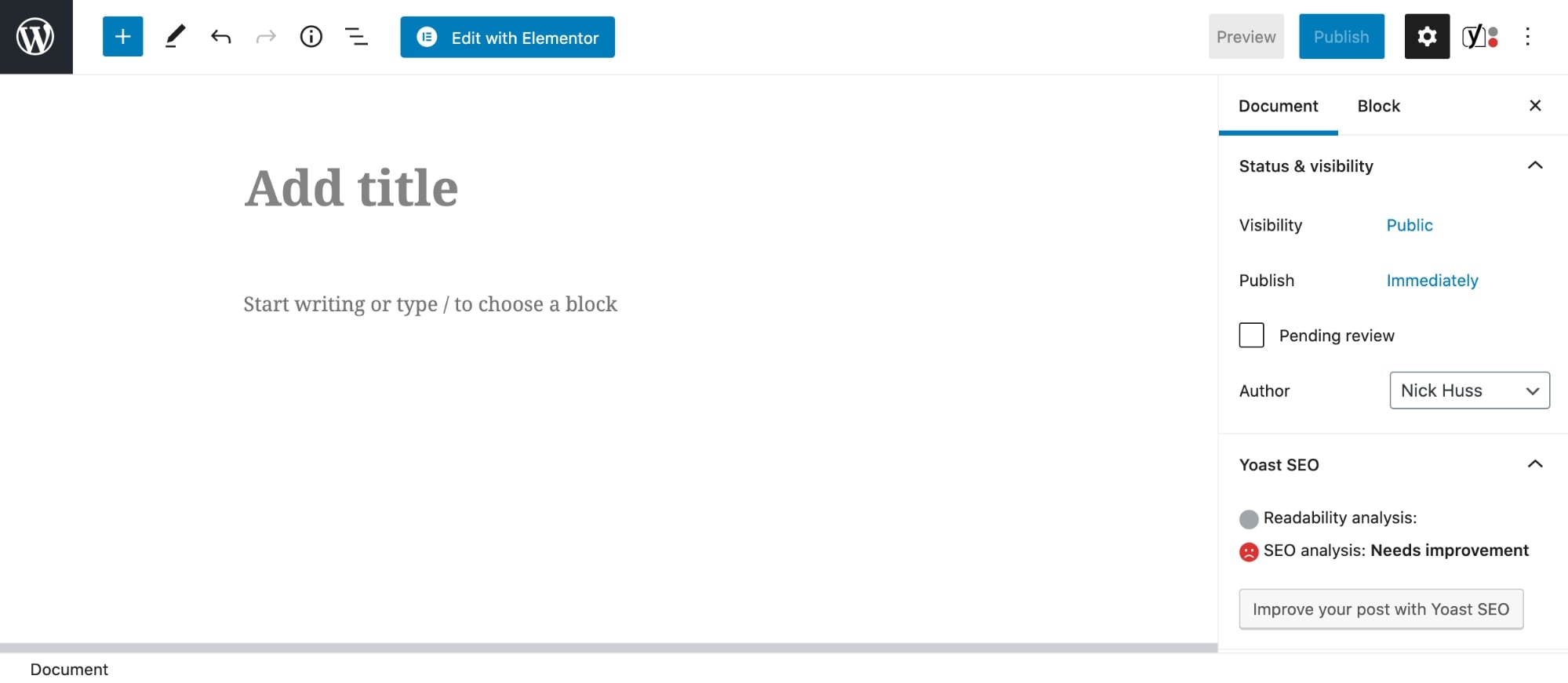
Previewing edits lets you see changes before they publish. This view shows how your site looks on different devices. You can catch errors or design issues early. Use the preview button found near the save options. It opens a temporary version of your page. This helps you confirm everything looks right without affecting live visitors.
Publish Updates Live
Publishing makes your saved changes visible to all visitors. Click the publish button once you are happy with edits. WordPress updates the site immediately. Your new content or design will appear on your domain. Publishing keeps your site current and engaging for users. Always double-check your preview before publishing to avoid mistakes.
Credit: siteefy.com
Frequently Asked Questions
How Do I Edit An Existing WordPress Site?
Log in to your WordPress dashboard and go to Appearance → Editor. Edit pages, posts, menus, or widgets directly. Save changes to update your site.
How Easy Is It To Edit A WordPress Website?
Editing a WordPress website is easy with its intuitive visual editor and dashboard tools. Users can update text, images, and layouts quickly without coding. Simple sites take minutes, while complex ones need more time. Overall, WordPress offers user-friendly editing for beginners and experts alike.
Why Can’t I Edit My Website On WordPress?
You can’t edit your WordPress site if the blog page is set as the default posts page. Check your dashboard under Settings → Reading and adjust page assignments. Also, lack of proper user permissions or plugin conflicts can block editing access.
How Do I Edit An Already Made Website?
Log in to your website’s CMS or builder dashboard. Navigate to the editor or pages section. Click elements to edit text, images, or layout. Use the editor panel for design changes. Save or publish to apply updates live on your site.
Conclusion
Editing a WordPress site is simple once you know the steps. Use the WordPress dashboard to access the editor easily. Change text, images, and layouts with just a few clicks. Save your changes and preview them before publishing. Regular updates keep your site fresh and user-friendly.
Practice often to become comfortable with the tools. With patience, managing your WordPress site becomes a smooth task. Keep exploring features to improve your website over time.


