
Have you ever wished you could quickly copy a post in WordPress without starting from scratch? Maybe you want to save time, keep your formatting intact, or create similar content with ease.
If that sounds like you, you’re in the right place. You’ll discover simple, step-by-step ways to duplicate your WordPress posts effortlessly. By the end, you’ll be able to speed up your workflow and focus more on creating great content. Let’s dive in and make your WordPress experience smoother and smarter!
Credit: www.wpbeginner.com
Reasons To Duplicate A Post
Duplicating a post in WordPress offers many benefits. It helps manage your content more efficiently and keeps your website organized. Copying posts saves effort and keeps your site looking professional. Here are some key reasons why duplicating posts is useful.
Save Time On Content Creation
Copying a post cuts down the time needed to create new content. Instead of starting from scratch, you get a ready-made draft. This lets you focus on updating details rather than writing everything again. It is especially helpful for similar posts or regular updates.
Maintain Consistent Formatting
Duplicating posts keeps the same style and layout across your site. You avoid mistakes in fonts, colors, or design. This consistency makes your website look neat and reliable. Visitors trust sites that have a uniform appearance.
Reuse Popular Content
Some posts get more views and engagement than others. Copying these posts lets you reuse good content with small changes. This extends the value of your best work and reaches more readers. It also saves time compared to writing new posts from zero.
Methods To Duplicate A Post
Duplicating a post in WordPress can save time and keep your content consistent. There are several ways to do this. Each method suits different needs and skill levels. Explore built-in options, plugins, and manual copying. Choose the best one for your workflow.
Using Built-in WordPress Features
WordPress does not offer a direct duplicate button by default. But you can use the “Copy to a new draft” option if your theme or editor supports it. This option creates a draft copy of your post. You can then edit and publish it as a new post.
Another way is to use the Block Editor’s reusable blocks. Save content blocks and reuse them in new posts. This approach works well for repeating sections.
Leveraging Plugins
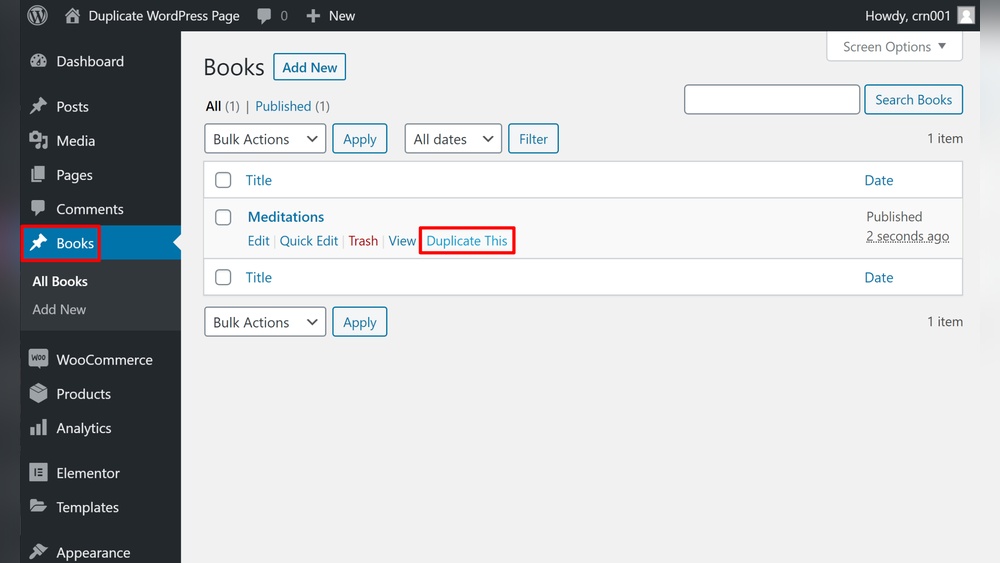
Plugins offer easy ways to duplicate posts. Popular plugins like “Duplicate Post” or “Yoast Duplicate Post” add a clone button. This button appears on your posts list.
With one click, you get an exact copy of your post. The copy includes content, images, and SEO settings. Plugins simplify duplication, especially for many posts.
Manual Duplication Via Copy-paste
Manual copying means creating a new post and pasting the content. Open your original post in the editor. Select all content and copy it.
Then create a new post and paste the content inside. You must re-upload images or media separately. This method works without plugins but needs more effort.
Top Plugins For Post Duplication
Duplicating posts in WordPress saves time and effort. It helps create similar content quickly without starting from scratch. Several plugins make this task simple and efficient. Each plugin offers unique features to suit different needs. Below are some of the best plugins for post duplication.
Duplicate Post Plugin
This plugin is popular for copying posts and pages easily. It adds a “Clone” option to your post list. Click it, and a duplicate appears immediately. The copy keeps the original’s content, title, and settings. Users find it simple and reliable for quick duplication.
Yoast Duplicate Post
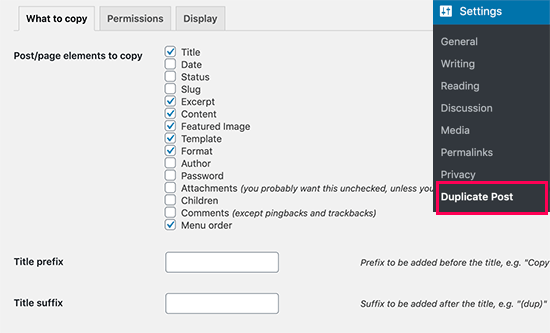
Yoast Duplicate Post integrates well with the Yoast SEO plugin. It allows copying posts, pages, and custom post types. The plugin lets you choose what to copy, like content or metadata. It offers control over permissions and access. This makes it a good choice for many WordPress users.
Post Duplicator Plugin
Post Duplicator creates exact copies of your posts with one click. It duplicates all post data, including custom fields. The plugin works fast and keeps URLs unique. It is lightweight and easy to use. Perfect for users who want a straightforward duplication tool.

Credit: kinsta.com
Step-by-step Duplication Process
Duplicating a post in WordPress is a useful way to save time. It helps when you want to create similar content quickly. The process is simple and can be done in a few easy steps. This guide will show you how to duplicate a post using a plugin. Follow the steps carefully to avoid errors.
Install And Activate A Plugin
First, log in to your WordPress dashboard. Go to the “Plugins” menu and select “Add New.” Search for a post duplication plugin like “Duplicate Post” or “Yoast Duplicate Post.” Click “Install Now” on the plugin you choose. After installation, click “Activate” to enable the plugin on your site.
Duplicate A Post In WordPress Dashboard
Go to the “Posts” section in your dashboard. Find the post you want to duplicate. Hover over the post title to see extra options. Click on “Clone” or “Duplicate” provided by the plugin. A new draft copy of the post will appear in your list.
Edit And Publish The Duplicated Post
Open the duplicated post by clicking its title. Make all the changes you want to the content. Check the title, images, and links to avoid confusion. After editing, click “Publish” or “Update” to make the post live. Your duplicated post is now ready for visitors.
Tips For Managing Duplicated Content
Duplicating posts in WordPress saves time but needs careful handling. Managing duplicated content helps keep your site clean and SEO-friendly. Follow these tips to avoid problems and improve user experience.
Avoid Seo Issues
Search engines do not like duplicated content. It can lower your rankings or cause penalties. Use canonical tags to tell search engines which version is original. This stops confusion and keeps your SEO safe. Also, avoid publishing identical posts on multiple pages.
Update Titles And Slugs
Change the title of the duplicated post to make it unique. Use different words that still describe the content well. Edit the slug (URL) to match the new title. This helps users and search engines see the post as new and different.
Customize Content For Freshness
Rewrite parts of the duplicated post to add new information. Update images, links, or examples to make it more useful. Fresh content attracts visitors and improves your site’s authority. Keep changes clear but simple to maintain the original message.

Credit: kinsta.com
Frequently Asked Questions
How Can I Duplicate A Post In WordPress Easily?
You can duplicate a post using a plugin like “Duplicate Post. ” Install it, then click “Clone” under the post. This creates an exact copy for quick editing.
Is There A Built-in WordPress Feature To Copy Posts?
WordPress doesn’t have a built-in copy feature. Using plugins like “Duplicate Post” is the easiest way to duplicate posts without manual copying.
Will Duplicating Posts Affect Seo Rankings?
Duplicating posts can cause duplicate content issues. Use plugins that set the duplicate post status to “Draft” to avoid SEO penalties.
Can I Duplicate Pages As Well As Posts In WordPress?
Yes, most duplication plugins support both posts and pages. You can clone any content type for faster content management.
Conclusion
Duplicating a post in WordPress saves time and effort. It helps keep your content consistent and organized. You can easily copy posts with plugins or built-in features. Just follow simple steps to avoid mistakes. Practice a few times to get comfortable.
This skill will improve your workflow and content management. Try duplicating posts today and see the difference.


