
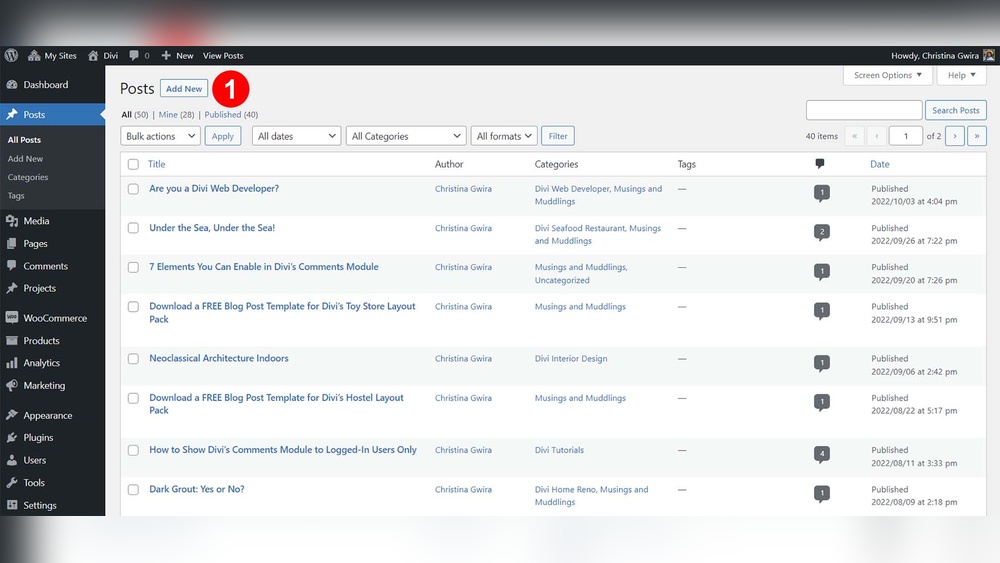
Are you looking to save time and effort when building or updating your WordPress site? Duplicating a page can be a real game-changer.
Whether you want to create a similar layout, test new designs, or simply keep a backup, knowing how to duplicate a page in WordPress gives you a quick and efficient way to work smarter. You’ll discover simple methods—both with and without plugins—that anyone can use right away.
By the end, you’ll have the confidence to clone your pages effortlessly and keep your website workflow smooth and stress-free. Let’s dive in and make your WordPress editing faster and easier!
Credit: www.elegantthemes.com
Plugin Method
The Plugin Method is the easiest way to duplicate a page in WordPress. It saves time and avoids manual copying. This method uses a plugin to create a copy of your page with just one click. Plugins add a new option to your WordPress dashboard for quick duplication. This method is ideal for beginners and non-technical users.
Find And Install Plugin
Log in to your WordPress dashboard. Navigate to Plugins > Add New. In the search bar, type Duplicate Page or Yoast Duplicate Post. Choose a plugin with good ratings and many installs. Click the Install Now button. Wait until the installation finishes.
Activate And Configure
After installation, click Activate to enable the plugin. Go to the plugin settings page if available. Adjust options like duplicate post status or user roles allowed to duplicate. Most plugins work well with default settings. Save any changes before leaving the page.
Duplicate With One Click
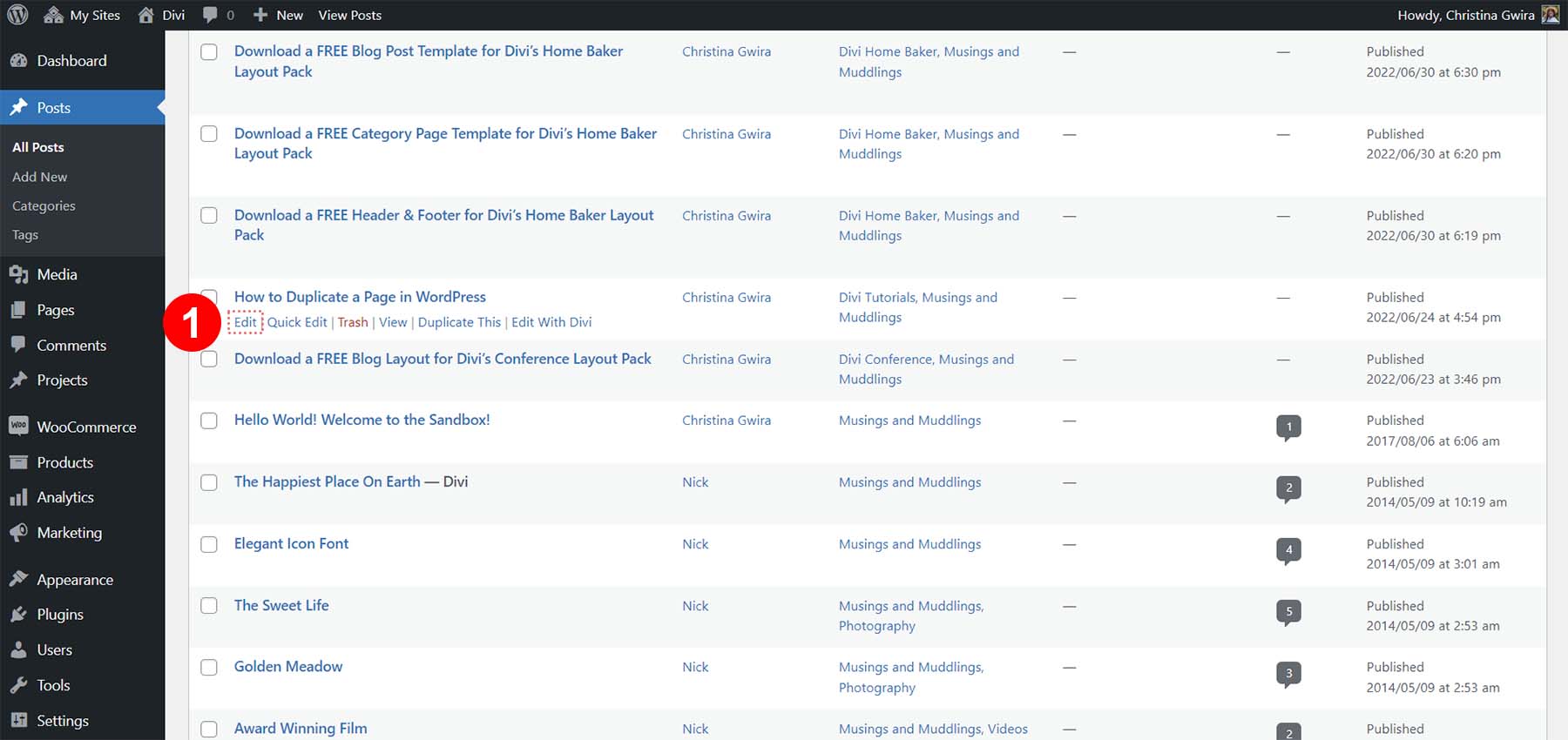
Go to Pages > All Pages in your dashboard. Find the page you want to copy. Hover over it to see extra options. Click Duplicate or Clone button added by the plugin. The plugin instantly creates a draft copy of the page. Edit the new page’s title and content as needed. Publish or save the duplicated page when ready.
Manual Copy Method
The manual copy method lets you duplicate a WordPress page without using plugins. It requires opening the original page and copying all its content. Then, create a new page and paste the copied material. This process gives full control over what you duplicate and edit.
This method works well for simple pages or when you want to avoid adding extra plugins. It is straightforward and safe for all WordPress users.
Open Original Page Editor
First, log in to your WordPress dashboard. Go to Pages > All Pages and find the page you want to copy. Click Edit under that page. This opens the WordPress block editor with the page content.
Copy All Content
In the editor, select all the blocks or content inside the page. You can press Ctrl + A (Windows) or Cmd + A (Mac) to select everything. Next, copy the selected content using Ctrl + C or Cmd + C. This saves all text, images, and layouts to your clipboard.
Create New Page And Paste
Now, go back to the dashboard menu and click Pages > Add New. This opens a blank page editor. Click inside the editor area and paste the copied content using Ctrl + V or Cmd + V. The page content appears just like the original.
Adjust Title And Settings
Change the new page title to avoid confusion. Update the URL slug to something unique and clear. Review page settings like template, featured image, and SEO options. Save or publish the new page once everything looks good.
Popular Plugins
Many WordPress users prefer plugins to duplicate pages quickly. Plugins simplify the process by adding a clone button to your pages list. This method saves time and reduces errors compared to manual copying. Here are some popular plugins to help you duplicate pages with ease.
Yoast Duplicate Post
Yoast Duplicate Post is a widely used plugin for cloning pages and posts. It adds a “Clone” and “New Draft” link under each page title. The plugin keeps all content, including SEO settings, intact. It also lets you choose what elements to copy. This plugin works well for simple and complex pages alike.
Duplicate Page Plugin
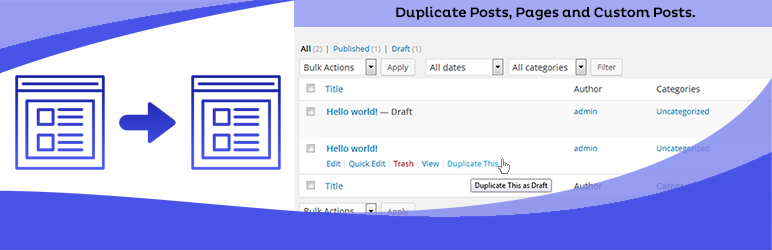
The Duplicate Page plugin offers a straightforward way to copy pages and posts. It adds a “Duplicate This” option in the page and post lists. You can select where the duplicate is saved, such as draft or published. The plugin supports custom post types, making it very flexible. It’s light and easy to use for beginners.
Jetpack And Elegant Themes Tools
Jetpack includes a feature that allows page duplication, but it requires enabling the “Site Accelerator” module. Elegant Themes, known for Divi, offers a built-in page cloning tool within its builder. These tools integrate well with their ecosystems. Users of Jetpack or Elegant Themes benefit from duplication without extra plugins. These options suit users already using these services.
Credit: wordpress.org
Duplicate Posts And Pages
Duplicating posts and pages in WordPress saves time and keeps your site consistent. It allows you to reuse layouts, styles, and content without rebuilding from scratch. This process is simple and useful for creating similar pages or posts quickly.
Cloning Posts
Cloning posts means creating an exact copy of an existing post. WordPress plugins like Yoast Duplicate Post add a clone button near your post list. Click it, and a new draft appears with the same content. This lets you edit the copy without affecting the original post.
Handling Multiple Duplications
Sometimes, you may need to duplicate many posts or pages at once. Some plugins offer bulk duplication features. Select multiple items, then choose the duplicate option. This speeds up your workflow and keeps your content organized. Always check the copies to avoid confusion.
Editing After Duplication
After duplication, edit your new post or page to make it unique. Change titles, images, and any text that needs updating. This improves SEO and prevents duplicate content issues. Save your changes and publish when ready. The new page works just like the original.
Tips To Save Time
Saving time while duplicating pages in WordPress makes your work smoother. Simple habits and tools help speed up the process. These tips ensure you manage duplicated content quickly and efficiently.
Use Keyboard Shortcuts
Keyboard shortcuts reduce clicking and save seconds. Use Ctrl + C (Windows) or Cmd + C (Mac) to copy content fast. Then paste with Ctrl + V or Cmd + V. Shortcuts work in both block and code editors.
Learn shortcuts for your editor to avoid using the mouse often. This small change speeds up duplication tasks significantly.
Organize Duplicated Pages
Keep duplicated pages easy to find by using clear titles. Add prefixes like “Copy” or dates to page names. Group similar pages into folders or categories.
Good organization helps you update or delete pages later. It also prevents confusion between original and copied content.
Regular Plugin Updates
Plugins that help duplicate pages need updates. Updated plugins work faster and avoid bugs. Check for updates in your WordPress dashboard often.
Use popular, well-reviewed plugins for better support. Staying current keeps your site safe and duplication smooth.
Common Issues
Duplicating a page in WordPress seems simple but can come with some common issues. These problems may affect how the duplicated page looks and performs. Understanding these issues helps avoid mistakes and saves time. Below are some common challenges users face while duplicating pages.
Plugin Compatibility
Not all plugins work well with duplication tools. Some plugins may block duplication features or cause errors. This can stop the “Duplicate” button from showing or create broken pages. Testing the plugin before use helps catch these issues early. Always keep plugins updated for better compatibility.
Content Formatting Errors
Copying content can change its formatting. The new page might lose styles, images, or layouts. This happens often with complex blocks or custom code. Manual fixes may be needed after duplication. Checking the page carefully ensures it looks right before publishing.
Seo Considerations
Duplicating a page without changes can hurt SEO. Search engines may see the new page as duplicate content. This can lower site rankings. Editing titles, meta descriptions, and URLs is important. Use SEO plugins to manage duplicates and avoid penalties.

Credit: wordpress.org
Frequently Asked Questions
How Do I Duplicate An Entire Page?
To duplicate an entire page, install a plugin like “Yoast Duplicate Post. ” Then, go to Pages, hover over the page, and click “Duplicate. ” Alternatively, copy all content in the editor, create a new page, and paste it. Update the new page’s title and settings as needed.
How To Duplicate A Page In WordPress Without A Plugin?
Open the page in WordPress editor. Click the three-dot menu, select Code Editor. Copy all content. Create a new page and paste the content. Update the title and settings.
How To Duplicate A Single Page In Pages?
Open the page in Pages, click the three-dot menu, and select “Duplicate Page. ” Rename and edit the new copy as needed.
How Do I Clone A Web Page In WordPress?
Install a plugin like “Yoast Duplicate Post” or “Duplicate Page. ” Then, go to Pages, hover over your page, and click the “Duplicate” or “Clone” button to create a copy instantly. Alternatively, copy content manually from the editor and paste it into a new page.
Conclusion
Duplicating a page in WordPress saves time and effort. Using a plugin makes the process quick and simple. The manual method works well without extra tools. Choose the approach that fits your needs best. Now, you can easily create copies of your pages.
This helps keep your website consistent and organized. Try these steps to duplicate pages with confidence. Keep your content fresh and your workflow smooth.


