

Are you ready to remove your WordPress site but not sure where to start? Deleting a WordPress site might sound tricky, but it doesn’t have to be.
Whether you want to clear up space, start fresh, or simply say goodbye to your old site, this guide will walk you through every step. By the end, you’ll feel confident and in control, knowing exactly how to delete your WordPress site safely and quickly.
Keep reading—you’re just moments away from making your site disappear for good.
Credit: www.fixrunner.com
Reasons To Delete A WordPress Site
Deleting a WordPress site can seem like a big step. Many reasons can lead to this decision. Understanding these reasons helps you decide if deleting is right for you.
Some people delete their site because it no longer serves a purpose. Others want to start fresh. Some switch to another platform for better features.
Switching To A New Platform
Some users find another platform fits their needs better. This might be for easier use or more tools. Moving to a new platform means the old site is no longer needed. Deleting the WordPress site clears space and avoids confusion.
Site No Longer Needed
Sites can become outdated or irrelevant. Businesses may close or change focus. Personal blogs might be paused or stopped. Keeping a site that is not used wastes resources. Deleting removes clutter and improves online presence management.
Starting Fresh With A New Design
Sometimes a site needs a complete makeover. Old themes or layouts can feel limiting. Starting fresh allows for new ideas and better user experience. Deleting the old site helps avoid conflicts with new designs. This makes launching a new site easier and cleaner.

Credit: wpmarmite.com
Backup Your WordPress Site
Backing up your WordPress site is a crucial first step before deleting it. This process ensures you keep your data safe. It helps avoid losing important content, settings, and files forever.
A complete backup includes your posts, pages, database, and media files. Taking time to back up gives you peace of mind. It allows you to restore your site later if needed.
Exporting Content
Export your WordPress content using the built-in export tool. Go to the WordPress dashboard and find the Export option under Tools. Choose to export all content or select specific items like posts and pages. The tool creates an XML file with your content. Save this file on your computer for future use.
Backing Up Database
The database holds your site’s settings and content structure. Use a plugin or your hosting control panel to back up the database. Export the database as a SQL file. This file stores all your site data and settings. Keep this file in a safe place to restore your site later.
Saving Media Files
Media files include images, videos, and documents uploaded to your site. These files are stored separately from your content. Use an FTP client or your hosting file manager to download the wp-content/uploads folder. This folder contains all your media files. Save this folder to ensure you keep your images and other media safe.
Delete WordPress Site Via Hosting Control Panel
Deleting a WordPress site through your hosting control panel is a direct way to remove your website completely. This method allows you to delete all files and databases associated with your site. It gives you full control over your site’s removal without needing WordPress dashboard access. Follow these simple steps to cleanly delete your WordPress site from the hosting side.
Accessing Your Hosting Account
Start by logging into your hosting control panel. Use the username and password provided by your hosting provider. Most hosts use cPanel, Plesk, or a custom dashboard. Once logged in, look for sections like “File Manager” or “Databases.” These areas hold the files and data for your WordPress site. If you cannot find your control panel, check your hosting welcome email or contact support.
Locating The WordPress Installation
Inside the file manager, locate the folder where WordPress is installed. Usually, this folder is named “public_html,” “www,” or the domain name of your site. Open this folder to see the WordPress files like wp-config.php, wp-content, and wp-admin. This confirms you found the right place. You may also find subfolders if you installed WordPress in a subdirectory.
Removing Files And Database
Select all WordPress files and folders in the installation directory. Use the delete option to remove them permanently. Next, go to the database section, often named “MySQL Databases” or “phpMyAdmin.” Identify the database used by your WordPress site. You can find the database name in the wp-config.php file before deleting files. Delete this database to remove all your site’s data. This step ensures complete removal of your WordPress site from the hosting server.
Delete WordPress Site Using WordPress Dashboard
Deleting a WordPress site through the WordPress dashboard is simple and direct. This method helps you remove content without touching the hosting or database. It is perfect for cleaning up your site or preparing for a fresh start.
Follow the steps carefully to clear your site fully. Begin by deleting posts and pages, then remove themes and plugins. Finish by clearing the media library to free up space.
Deleting Posts And Pages
Start by going to the Posts menu in your dashboard. Select all posts and click on “Move to Trash.” Repeat the process for the Pages section. Empty the Trash folder to remove them permanently.
Removing Themes And Plugins
Next, visit the Appearance section for themes. Activate a default theme like Twenty Twenty-Three before deleting others. In the Plugins menu, deactivate all plugins first. Then, delete them one by one to avoid errors.
Clearing Media Library
Open the Media Library and switch to the list view. Select all files and click “Delete Permanently.” This step removes images, videos, and other files from your site.
Cancel Domain And Hosting Services
Cancelling your domain and hosting services is an important step when deleting a WordPress site. It stops all charges and removes your website from the internet. You must handle this process carefully to avoid losing important data or access to services.
Start by cancelling your domain registration. Then, move on to end your hosting account. Both steps need attention to ensure everything is properly closed.
Domain Cancellation Steps
Log in to your domain registrar account. Find the domain management section. Select the domain you want to cancel. Look for the option to delete or cancel the domain. Follow the prompts to confirm cancellation. Keep in mind, some registrars may hold the domain for a grace period.
Hosting Account Termination
Access your hosting control panel. Locate the account or service settings. Choose the option to cancel or terminate your hosting. Confirm your choice carefully. Save any backups before ending the service. Once cancelled, your website files and databases will be deleted.
Considerations Before Canceling
Check for any active subscriptions or payments. Backup all website data and emails. Think about domain transfer if you want to keep it. Understand cancellation policies and possible fees. Make sure you have access to all login details. Plan the timing to avoid service disruption.
Credit: wordpress.com
Common Mistakes To Avoid
Deleting a WordPress site might seem easy, but many make avoidable errors. These mistakes can cause data loss, SEO problems, or even deleting the wrong site. Knowing what to avoid helps keep your site safe and your work intact.
Not Backing Up Data
Many skip backing up before deletion. This is risky. Without a backup, your content and settings are lost forever. Always save a full backup. Use plugins or your hosting service to create a copy. This ensures you can restore your site if needed.
Deleting The Wrong Site
Confusing sites is common for users with multiple WordPress installs. Double-check the URL and site name before deleting. Deleting the wrong site wastes time and effort. Take a moment to confirm. This simple step can prevent big headaches.
Ignoring Seo Impacts
Deleting a site affects your search rankings. Pages disappear from Google and other search engines. This can hurt your online presence. Inform search engines about the deletion using tools like Google Search Console. Redirect old URLs if possible. This helps keep your SEO healthy.
Tips For Starting A New WordPress Site
Starting a new WordPress site can feel hard. But with simple steps, it becomes easy. This section shares key tips to begin your site the right way. Follow these tips to save time and avoid common mistakes. Your site will be ready to grow and attract visitors fast.
Choosing The Right Hosting
Good hosting keeps your site fast and safe. Pick a host that offers strong security and good speed. Check for easy WordPress installation options. Look for hosts with 24/7 support to help if problems happen. Avoid very cheap hosts, as they often cause slow loading.
Installing WordPress Correctly
Install WordPress through your hosting control panel for best results. Use the latest WordPress version to get all new features. Set a strong admin username and password to protect your site. Choose a simple theme to start, then customize it later. Double-check your site settings before going live.
Essential Plugins To Install
Plugins add useful features to your site. Start with a security plugin to protect your content. Install a caching plugin to speed up your pages. Use an SEO plugin to help search engines find your site. Add a contact form plugin so visitors can reach you easily.
Frequently Asked Questions
How Do I Permanently Delete My WordPress Site?
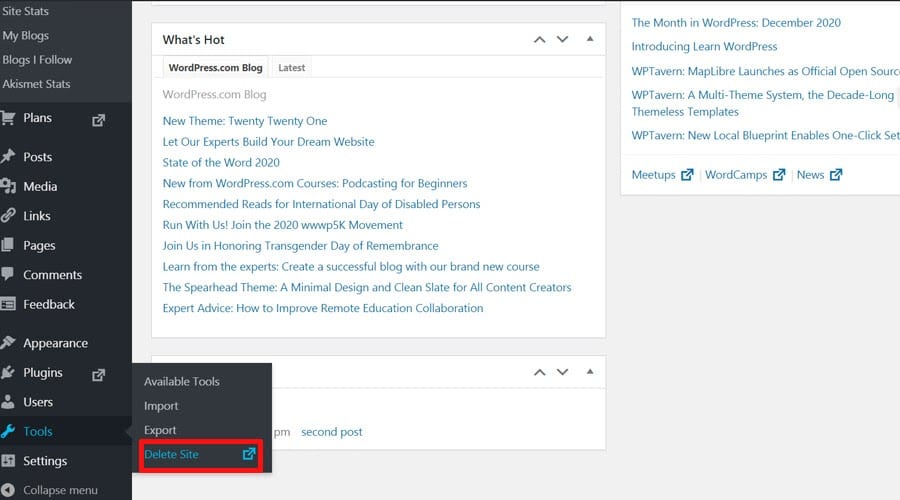
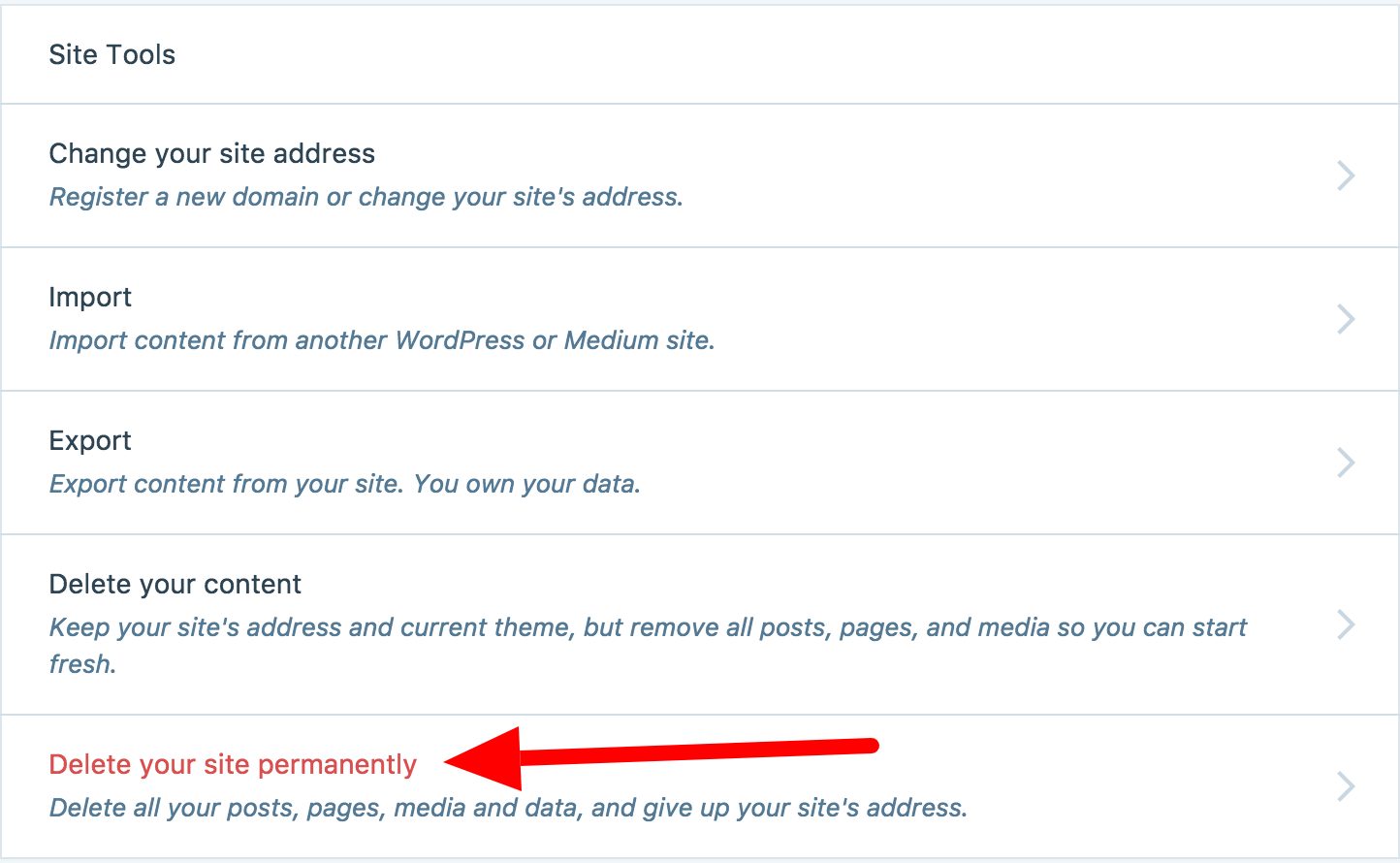
To permanently delete your WordPress site, log into your WordPress dashboard. Go to Settings > Delete Site or use your hosting provider’s control panel to remove files and databases. Always back up your data before deletion to prevent loss.
Can I Delete My WordPress Site Without Losing Content?
No, deleting your WordPress site removes all content. To keep your content, export it first via Tools > Export in your dashboard. This saves your posts, pages, and media for future use or migration.
What Happens After Deleting A WordPress Site?
After deletion, your site becomes inaccessible and all data is removed from the server. Search engines will eventually remove it from their index. Ensure you have backups if you want to restore or move your site later.
How Do I Delete A WordPress Site From Hosting?
Log into your hosting account’s control panel. Find the File Manager or FTP access, then delete WordPress files. Also, drop the associated database in your hosting database manager to fully remove the site.
Conclusion
Deleting a WordPress site is a simple process with the right steps. Always back up your data before starting. Take your time to follow each step carefully. This helps avoid mistakes or data loss. Knowing how to delete your site gives you control over your online content.
Use this guide whenever you need to remove a WordPress site safely. You can manage your website easily and confidently.


