
Are you finding your WordPress dashboard cluttered with unused themes? It’s not just an aesthetic issue; these dormant themes can pose security risks and slow down your website.
Imagine a cleaner, faster, and more secure WordPress experience. You’re just steps away from achieving that. By learning how to delete unused WordPress themes, you’ll streamline your site, enhance its performance, and protect it from potential vulnerabilities. Are you ready to transform your WordPress environment into a lean, efficient machine?
Let’s dive into the straightforward process of removing those unnecessary themes and reclaiming your digital space.
Reasons To Remove Unused Themes
Old themes can be a risk. Hackers look for weak spots. Unused themes might not get updates. Updates keep your site safe. Removing them can protect your site. Don’t leave the door open for trouble.
Too many themes slow down your site. Your site can be fast with less clutter. Deleting unused themes frees up space. A fast site is happy visitors. Happy visitors stay longer.
Many themes can confuse you. You might forget which theme is active. Keeping only needed themes makes it easy to manage. Clean dashboard, clean mind. Easier to find what you need.
Preparing For Theme Deletion
Deleting unused WordPress themes can enhance site speed and security. First, navigate to the Themes section in your dashboard. Select the theme you want to remove, click “Theme Details,” then hit “Delete” for a cleaner, more efficient site.
Backup Your Site
Backing up your site is crucial. It saves your data. Use a plugin to make a backup. Many plugins can do this. Choose one you trust. Ensure all files are saved. Keep the backup safe. Store it in a secure place. This prevents data loss. If something goes wrong, you can restore it. Always backup before deleting themes.
Check Active Theme
Before deleting, check the active theme. Go to the WordPress dashboard. Click on “Appearance” then “Themes”. Find the theme that says “Active”. This is your current theme. Do not delete this theme. You need it for your site. Delete only unused themes. It keeps the site safe. Always check twice before deleting.
Accessing The WordPress Dashboard
To access your WordPress dashboard, open a browser. Type your website URL and add “/wp-admin” at the end. Press enter. A login page will appear. Enter your username and password. Click the login button. Now you are in the dashboard. It is the main area to manage your site.
On the left side, find the menu. Look for “Appearance” in the list. Click on it. A new page will open. Here, you can see all your themes. You can activate, customize, or delete them. Choose the theme you want to manage. Be careful before deleting any theme.
Identifying Unused Themes
First, open your WordPress dashboard. Find the Appearance section. Click on Themes. Here, all your installed themes show up. Each theme has a name and a picture. Some themes may be active, others are not. Look for those you never use. Note them down. This list helps you decide which ones to remove.
Choose themes you do not use. Active themes stay safe. Focus on the inactive ones. Click on theme details. Check if updates are frequent. A theme with no updates might be old. Consider removing it. Make sure you do not need them anymore. Removing unused themes saves space. Your site runs smoother.
Deleting Themes Via Dashboard
Access your WordPress dashboard. Go to the Appearance section. Click on Themes to see all installed themes. Find the theme you want to delete. Click on Theme Details for more information. Look for the Delete button at the bottom-right corner. Click it to remove the theme.
A confirmation message will appear. It asks if you really want to delete the theme. This step is important to avoid mistakes. Click OK or Confirm to proceed. The theme is now gone from your site.
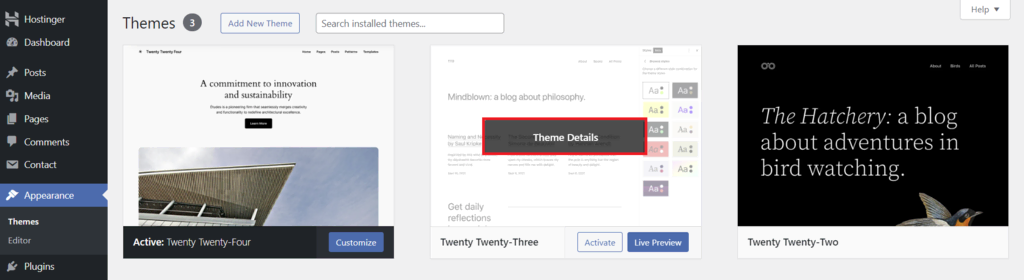
Credit: www.hostinger.com
Removing Themes Via Ftp
Use an FTP client to connect to your server. Fill in your server details like username and password. This will help you access your WordPress files.
Go to the wp-content/themes folder. This is where all your themes are stored. Look for the theme you want to delete.
Select the theme folder you want to remove. Right-click and choose Delete. This will remove the theme files from your server.
Using Wp-cli For Theme Removal
Installing WP-CLI is simple. First, download the WP-CLI package. Save it in your chosen folder. Next, open your terminal or command prompt. Navigate to the folder where the package is saved. Type chmod +x wp-cli.phar to make it executable. Finally, move the file to your local bin. Use the command sudo mv wp-cli.phar /usr/local/bin/wp. Now, WP-CLI is ready to use.
To delete unused themes, use WP-CLI. First, list all installed themes. Type wp theme list. Find the themes you don’t need. To delete a theme, use the command wp theme delete theme-name. Replace theme-name with the theme you want to remove. Repeat the command for each unused theme. This keeps your site clean and fast.
Post-deletion Checks
Deleting unused WordPress themes streamlines your website and enhances security. Navigate to the Appearance menu, select Themes, and delete the ones not in use. Confirm post-deletion by checking your theme directory to ensure removal.
Verify Site Functionality
Ensure your site works smoothly. Test each page carefully. Click links to verify they lead to the right places. Check if images display correctly. Confirm forms submit without errors. Look for missing content. Verify menus and buttons respond quickly. Site speed should remain fast. Keep an eye on loading times.
Check For Errors
Errors can disrupt user experience. Examine the site’s error log. Look for PHP warnings or notices. Check the console for JavaScript issues. Use tools like Google Search Console. Identify crawl errors. Ensure there are no broken links. Correct any problems found immediately. Regular checks prevent future issues.
Tips For Managing Themes
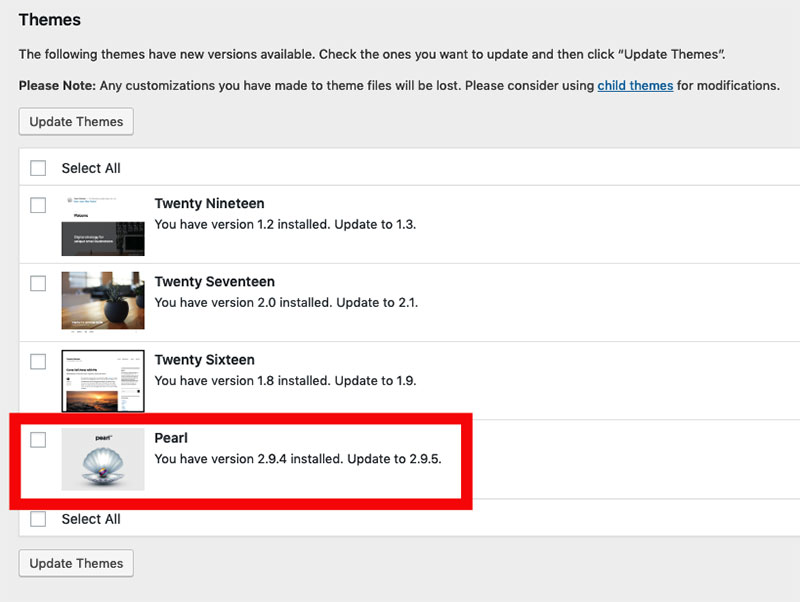
Keep your WordPress themes in check. Remove any unused themes. This will make your site run faster and smoother. Regular checks help keep your site safe from hackers. Themes that are not updated can have bugs. This means they can cause problems.
Too many themes can slow down your site. Keep only the ones you need. Three themes are usually enough. One for active use and two as backups. Check your themes every month. This helps you stay organized. A clean site is a happy site.

Credit: deeperlook.com.au
Credit: wpdatatables.com
Frequently Asked Questions
How Do I Delete Unused Themes In WordPress?
Go to your WordPress dashboard, click “Appearance,” then “Themes. ” Hover over the theme you want to delete, click “Theme Details,” then “Delete” at the bottom-right corner. Confirm the deletion to remove the theme. Ensure you only delete themes you don’t need to keep your site organized and secure.
Why Can’t I Delete A Theme On WordPress?
You can’t delete a WordPress theme currently in use. Switch to another theme first. Also, ensure you have the necessary permissions or administrative rights. If the theme is part of a multi-site network, only the network admin can delete it.
How Do I Remove Unused Plugins From WordPress?
Log in to WordPress dashboard. Navigate to “Plugins. ” Identify unused plugins and click “Deactivate. ” After deactivation, choose “Delete” to remove them completely. Regularly clean up plugins to improve site performance. Always back up your site before making changes.
How To Get Rid Of Themes?
To remove themes, go to your device settings. Select “Themes” or “Appearance” and choose the default option. Confirm your selection to revert to the original theme. If on a website platform, navigate to the theme settings and deactivate or delete the theme.
Always save changes to apply.
Conclusion
Deleting unused WordPress themes is important. It keeps your site clean. It enhances performance and security. Fewer themes mean less clutter. Your dashboard becomes more manageable. Regular maintenance ensures smooth operations. It’s an easy task, even for beginners. Follow the steps in this guide.
You’ll maintain a lean, efficient WordPress site. Stay organized with minimal effort. Enjoy a faster, more secure website. It’s simple and rewarding. Clean up your themes today. Your site will thank you.


