
Are you ready to delete your WordPress website but don’t know where to start? Maybe your site no longer fits your needs, or you want a fresh start.
Whatever your reason, deleting a WordPress website can feel tricky and even a bit scary. But don’t worry—this guide will walk you through every step clearly and simply. By the end, you’ll know exactly how to remove your site safely and completely.
Keep reading, and take control of your online presence with confidence.
Credit: www.godaddy.com
Backup Your Website Data
Before deleting your WordPress website, save your data first. Backing up helps you keep your content safe. It also lets you restore your site later if needed. Follow these steps to back up your site properly.
Export Content And Media
Go to your WordPress dashboard. Click on Tools, then Export. Choose “All content” to download posts, pages, and media files. This creates an XML file. Save this file to your computer for future use.
Download Database Backup
Your database stores all site information like users and settings. Use your hosting control panel to find the database section. Export your database as an SQL file. Keep this file safe on your device.
Save Theme And Plugin Files
Themes and plugins control your site’s look and functions. Use an FTP client or your hosting file manager to access these files. Download the entire wp-content folder. It contains themes, plugins, and uploads.
Deactivate Plugins And Themes
Before deleting your WordPress website, it is important to deactivate all plugins and switch to a default theme. This step ensures no active components interfere during deletion. It also helps avoid errors and makes the process smoother.
Deactivate All Plugins
Start by going to your WordPress dashboard. Find the “Plugins” section on the menu. Click on “Installed Plugins” to see all active plugins. Select all plugins by checking the box at the top. Choose “Deactivate” from the bulk action dropdown menu. Click “Apply” to deactivate every plugin at once. This action stops all plugin functions immediately. It prevents conflicts during website removal.
Switch To Default Theme
Next, go to “Appearance” and select “Themes.” Find a default WordPress theme like Twenty Twenty-One or Twenty Twenty-Two. Activate the default theme by clicking the “Activate” button. This step disables your current theme and sets a clean base. A default theme reduces the chance of errors. It helps maintain website stability for the deletion process.
Delete WordPress Files
Deleting WordPress files is a key step in removing your WordPress website completely. The files hold all your site’s content, themes, and settings. Without removing these, your site may still exist on the server. This guide will help you remove WordPress files safely and fully.
Access Hosting Control Panel
First, log in to your hosting control panel. Most hosts offer cPanel or a similar dashboard. This panel lets you manage website files easily. Find the file manager tool. It shows all folders and files for your website.
Remove WordPress Directory
Locate the WordPress directory, often named “public_html” or “www.” This folder contains all your WordPress files. Select the entire WordPress folder. Use the delete option to remove the folder and its contents. This clears most of your website data from the server.
Delete .htaccess And Wp-config Files
These two files control important settings for your site. The .htaccess file manages site redirects and permalinks. The wp-config.php file contains your database connection details. Both may remain outside the main WordPress folder. Find and delete these files separately to remove all traces of your WordPress site.
Remove WordPress Database
Removing the WordPress database is an important step to fully delete your website. The database stores all your content, settings, and user information. Without the database, your WordPress site cannot function or be restored. This section guides you through accessing and deleting the database safely.
Access Database Via Phpmyadmin
phpMyAdmin is a tool for managing your database. You can find it in your web hosting control panel. Log in to your hosting account and open phpMyAdmin. Select the database linked to your WordPress site from the list on the left side. Be sure you choose the correct database to avoid deleting important data.
Drop WordPress Database
After selecting the database, you can delete it entirely. Click on the “Operations” tab at the top. Find the option to “Drop the database” or “Delete.” Confirm the action carefully. Dropping the database removes all tables and data inside it. This step clears your WordPress content permanently.
Delete Database User
Deleting the database user improves security after removing the site. Go back to your hosting control panel. Find the section for managing database users. Select the user connected to your WordPress database. Delete this user to prevent unauthorized access. This step completes the cleanup process.
Cancel Hosting And Domain Services
Cancelling hosting and domain services is an important step when deleting your WordPress website. This process stops your website from being online and frees you from future charges. It also helps protect your personal information linked to the domain and hosting account.
Follow clear steps to end hosting and manage your domain properly. This ensures a smooth and complete shutdown of your site.
Terminate Hosting Account
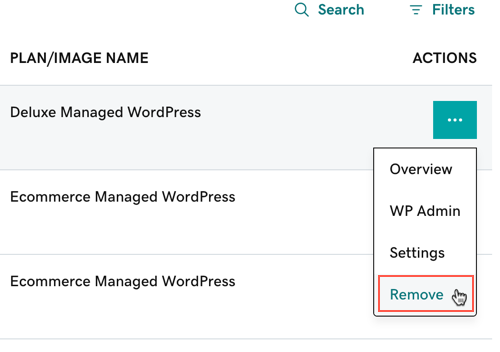
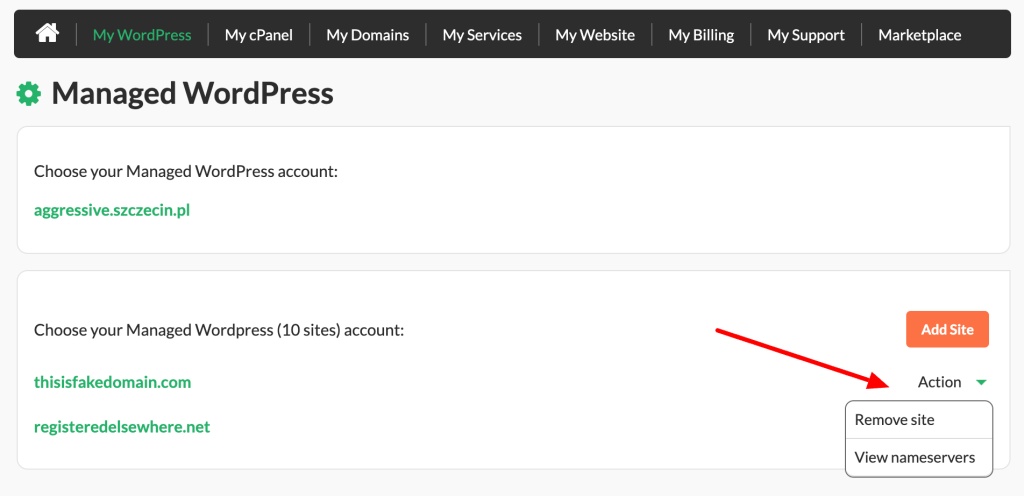
Start by logging into your hosting provider’s control panel. Find the section for account or service management. Look for an option to cancel or terminate your hosting plan. Confirm the cancellation carefully to avoid accidental loss of other services. Some hosts may ask for feedback or offer pauses instead of full cancellation.
Make sure you download any important files or backups before ending the account. After termination, your website files and databases will no longer be accessible.
Manage Domain Registration
Check your domain registrar’s website where you registered your domain name. Decide if you want to keep the domain or let it expire. If you do not renew, your domain will become available for others to buy. Update your contact details to avoid missing renewal notices if you plan to keep it.
You can also choose to delete the domain from your account. This action differs by registrar, so read their instructions carefully.
Set Up Domain Redirects Or Transfers
Before deleting your website, think about redirecting your domain. Redirects send visitors to a new website or page automatically. This helps maintain traffic or inform users about your site’s closure. Redirects can be set in your domain or hosting settings.
Alternatively, transfer your domain to another registrar or owner. Domain transfers require authorization codes and confirmation emails. Transfers protect your domain’s ownership and can be useful if you sell your site or move services.
Credit: quvor.com
Clear Cache And Check Removal
After deleting your WordPress website, clearing the cache is important. Cached files may show old content. This makes it seem like your site still exists. Checking removal ensures your site is truly gone.
Purge Browser Cache
Your browser saves website data to load pages faster. This is called cache. Clear your browser cache to see changes immediately. Go to your browser settings. Find the option to clear browsing data. Choose cached images and files. Then, refresh the page to confirm deletion.
Use Online Tools To Verify Deletion
Online tools help confirm your website is deleted. Use website status checkers or ping services. Enter your website URL in these tools. They show if your site is still online. If results say “site not found,” your deletion worked. Repeat the check after a few hours for accuracy.
Handle Residual Backups
Backups store copies of your site data. These backups may restore your site unintentionally. Find all backups saved by your hosting or plugins. Delete these backups to avoid unwanted restoration. Confirm with your host support if unsure about backup locations.
Credit: www.hostpapa.com
Frequently Asked Questions
How Do I Permanently Delete My WordPress Website?
To permanently delete your WordPress website, log into your hosting account. Locate the website files and database, then delete both. Also, remove any backups and cancel your hosting plan if needed. This ensures your site is completely removed from the server.
Can I Delete A WordPress Site Without Losing Content?
No, deleting a WordPress site removes all content, including posts, pages, and media. To keep your content, back up your site before deletion. Use plugins or manual export tools to save your data safely.
How Do I Delete A WordPress Site On WordPress.com?
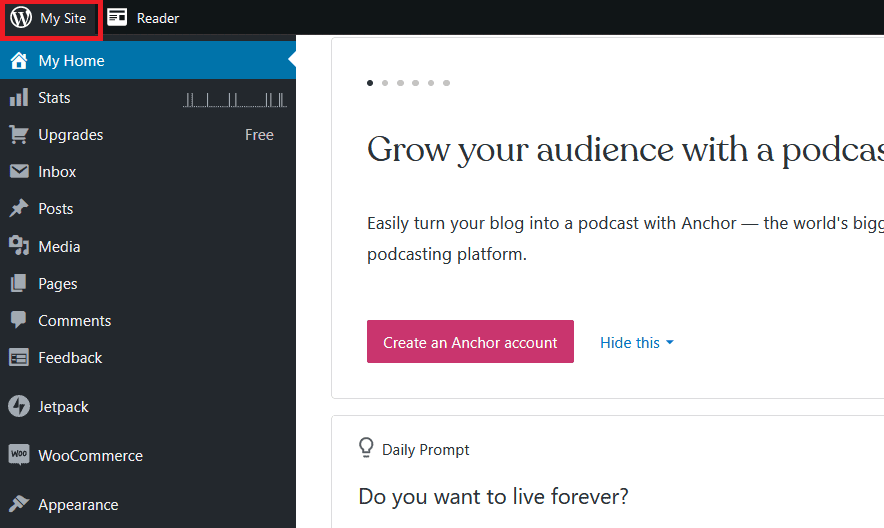
On WordPress. com, go to your site dashboard. Navigate to Settings > General, scroll down, and select “Delete your site permanently. ” Follow the prompts to confirm. This removes your site and its content from WordPress. com servers.
Will Deleting WordPress Remove My Domain Name?
Deleting your WordPress site does not automatically cancel your domain name registration. You must manage your domain separately through your registrar to avoid ongoing charges or renewal.
Conclusion
Deleting your WordPress website is simple with the right steps. Always back up your content before starting. Follow the instructions carefully to avoid mistakes. This process helps keep your online space clean and organized. Take your time and double-check each step.
Now, you can remove your site safely and easily.


