
Are you tired of that old WordPress theme cluttering your dashboard? Maybe you switched to a new look but can’t figure out how to get rid of the old one.
Deleting a theme might seem tricky, but it’s easier than you think—and it can help keep your site clean and running smoothly. In this guide, you’ll learn exactly how to delete a theme in WordPress step-by-step. By the end, you’ll feel confident managing your themes like a pro and freeing up space for what really matters—your content.
Keep reading, and let’s simplify your WordPress experience together.
Credit: blog.hubspot.com
Accessing The WordPress Dashboard
Accessing the WordPress dashboard is the first step to managing your website’s themes. The dashboard is the control center where you can change settings, add content, and manage themes. It is user-friendly and designed for easy navigation.
You need to log in to your WordPress account to open the dashboard. Use your username and password to sign in. Once logged in, you will see the main menu on the left side. This menu lets you access different parts of your website quickly.
Logging Into Your WordPress Account
Open your web browser and go to your website’s login page. Usually, it is yoursite.com/wp-admin. Enter your username and password carefully. Click the “Log In” button to access the dashboard.
Finding The WordPress Dashboard
After login, the dashboard appears automatically. The screen shows various options and tools. The left sidebar contains navigation links for posts, pages, and themes. This sidebar helps you move through the dashboard easily.
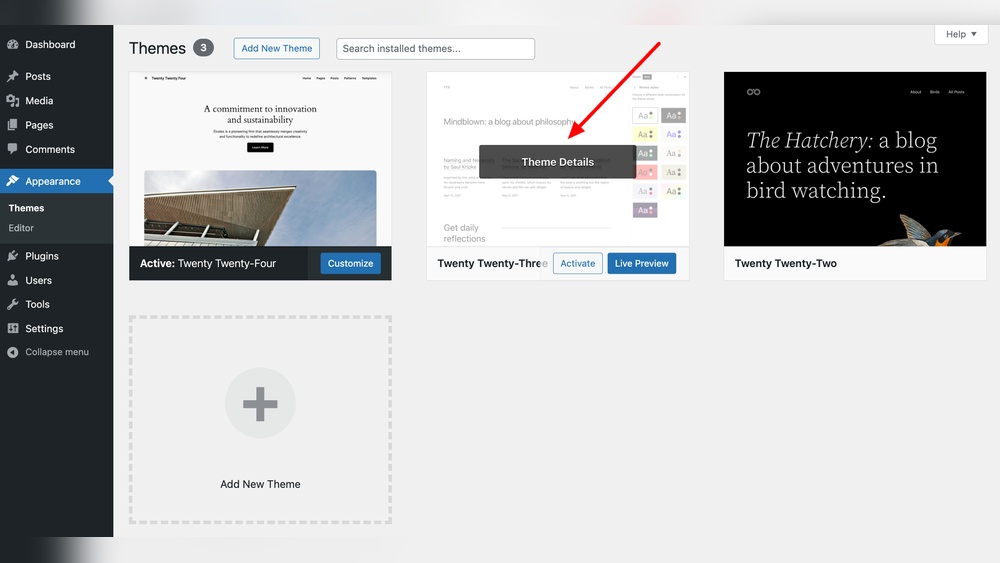
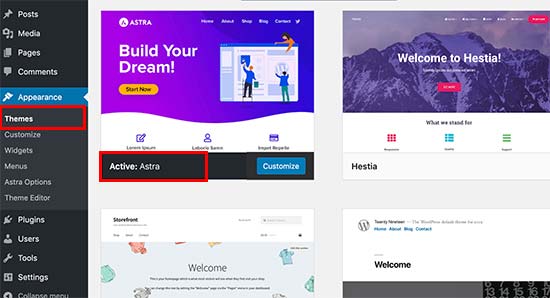
From the left sidebar, locate the “Appearance” menu. Click on it to expand the options. Select “Themes” from the list. This will open the themes page where you can manage, activate, or delete themes.
Credit: www.wpbeginner.com
Navigating To The Themes Section
Navigating to the themes section is the first step to delete a theme in WordPress. It helps you find all installed themes on your site. Accessing this area is quick and easy. You can manage your themes directly from the WordPress dashboard.
This section shows all active and inactive themes. You can browse, preview, or delete themes here. Knowing how to reach this area saves time and effort.
Logging Into Your WordPress Dashboard
Start by opening your website’s admin login page. Enter your username and password. Click the login button to access the dashboard. This area controls your entire WordPress site.
Locating The Appearance Menu
Once logged in, look at the left sidebar. Find the menu item called “Appearance.” It has a paintbrush icon. This menu contains all design options for your site.
Selecting The Themes Option
Click on “Appearance” to open its submenu. Choose the “Themes” option from the list. This takes you to the themes page. Here, all installed themes appear in grid format.
Selecting The Theme To Delete
Choosing the right theme to delete is important in WordPress. Deleting the wrong theme can cause problems on your site. It is best to check and confirm which theme you no longer need. This keeps your site clean and organized.
Unused themes take up space and might slow down your site. Identifying the theme to delete is the first step before removal. This helps avoid mistakes and keeps your website safe.
Accessing The Themes Menu
Start by logging into your WordPress dashboard. On the left menu, find and click “Appearance.” Then choose “Themes.” This opens the page where all installed themes show up.
Reviewing Installed Themes
Look through the list of themes carefully. Active themes are usually marked clearly. Do not delete the active theme. Focus on themes that are inactive and unused.
Identifying Unused Themes
Check the details of each inactive theme. Consider deleting themes you do not plan to use again. Keep only themes that are useful or backups. This reduces clutter and risk.
Confirming The Theme To Delete
Double-check the theme’s name and version. Make sure it is not linked to any current site design. Confirm your choice before moving to deletion. This step avoids deleting important files by mistake.
Deleting The Theme Via Dashboard
Deleting a theme via the WordPress dashboard is simple and safe. It lets you remove unused themes and keep your site clean. This process does not affect your active theme or site content.
Follow clear steps to delete themes directly from the dashboard. No need for extra tools or plugins. Just a few clicks and the theme is gone.
Accessing The Themes Section
First, log into your WordPress admin dashboard. Look for the “Appearance” menu on the left side. Click “Themes” to open the theme list. This page shows all installed themes, including the active one.
Scroll through the themes and find the one to delete. Remember, you cannot delete the active theme. Click on the theme’s thumbnail to open its details.
Deleting The Theme
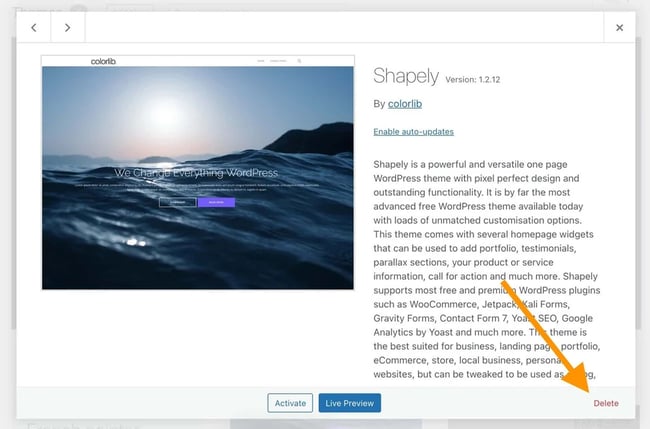
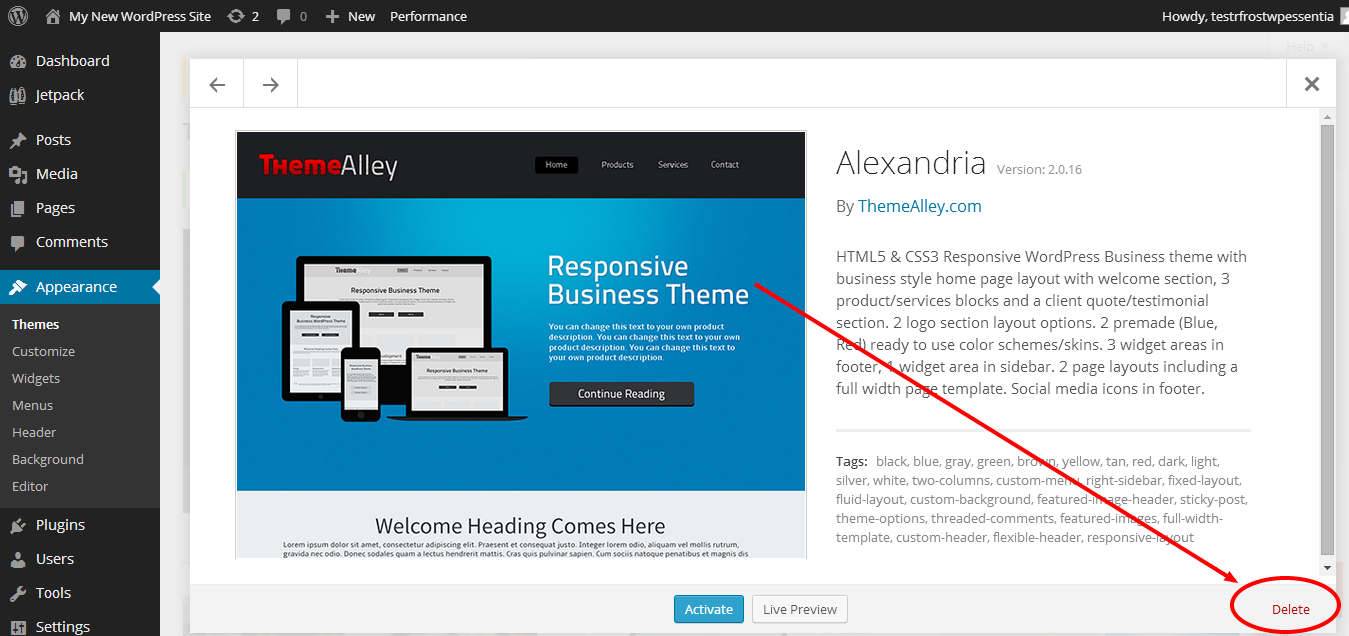
In the theme details window, find the “Delete” button at the bottom right. Click it. WordPress will ask for confirmation. Confirm to delete the theme completely from your site.
Using Ftp To Remove Themes
Using FTP to remove themes is a direct way to manage your WordPress files. This method helps when you cannot delete themes through the WordPress dashboard. It gives you full control over your site’s files and folders.
FTP stands for File Transfer Protocol. It lets you connect to your website’s server and manage files easily. Deleting a theme via FTP means you remove its folder from the server. This stops the theme from appearing in your WordPress dashboard.
Connecting To Your Site Via Ftp
First, you need an FTP client like FileZilla or Cyberduck. Open the FTP client and enter your site’s FTP details. These include the server address, username, and password. You get these details from your web host. After entering them, connect to your website server.
Locating The Theme Folder
Once connected, find the WordPress root folder. It often is named public_html or www. Inside this folder, open the wp-content folder. Here, look for the themes folder. All your installed themes are inside this folder in separate subfolders.
Deleting The Theme Files
In the themes folder, find the folder of the theme you want to delete. Right-click on the theme folder and select the delete option. Confirm the deletion. This action removes the theme completely from your WordPress site. Make sure you do not delete the active theme.
Removing Themes With File Manager
Removing themes using the File Manager is a direct way to clean your WordPress site. It helps when themes do not delete from the dashboard. You can access your site files and remove any theme manually. This method needs care to avoid deleting the wrong files.
Accessing File Manager In Hosting Panel
Start by logging into your hosting account. Look for the control panel, often called cPanel. Inside, find the File Manager tool. This tool lets you browse your website files easily. Open File Manager to see all folders and files.
Finding The Themes Directory
In File Manager, open the folder named public_html or the root directory of your site. Navigate to wp-content folder next. Inside, find the themes folder. This folder holds all installed WordPress themes. Each theme has its own folder here.
Deleting Theme Files Safely
Before deleting, make sure the theme is not active. Check your WordPress dashboard to confirm. In File Manager, select the theme folder you want to remove. Use the delete option to remove the folder completely. Empty the trash if your host offers this option. This prevents recovering deleted files accidentally.
Precautions Before Deleting Themes
Deleting a WordPress theme is not difficult. Yet, it needs careful steps. Doing this without care can cause problems. Your website might break or lose data. Taking precautions keeps your site safe and working well.
Backing Up Your Website
Backups save your website’s current state. They protect your content and settings. Use a plugin or hosting service to create backups. Store backups on your computer or cloud. This step helps restore your site if issues occur.
Avoiding Active Theme Deletion
Do not delete the theme your site uses. WordPress will not allow deleting an active theme. Changing to a different theme first is important. This prevents your website from going offline. Check the active theme in your dashboard before deleting.
Credit: www.ipage.com
Troubleshooting Common Issues
Deleting a WordPress theme should be simple. Sometimes, issues block the process. Knowing how to fix common problems helps save time. This section explains common troubles and easy fixes.
Theme Not Showing In Dashboard
The theme you want to delete might not appear in your dashboard. This happens if the theme is active or corrupted. Switch to a different theme first. Then check the dashboard again. Refresh the page to see changes. If still missing, clear your browser cache. Try logging out and back into WordPress. These steps often reveal the hidden theme.
Permission Errors During Deletion
Permission errors stop you from deleting a theme. This means your WordPress files lack the right access. Check the file permissions using your hosting control panel. Set permissions to 755 for folders and 644 for files. Use an FTP client to adjust permissions if needed. Contact your host if you cannot change permissions. Fixing permissions allows smooth theme deletion.
Frequently Asked Questions
How Do I Delete A Theme In WordPress Safely?
To delete a WordPress theme safely, first activate a different theme. Then, go to Appearance > Themes, select the unwanted theme, and click “Delete. ” This ensures your site remains active and avoids errors caused by deleting an active theme.
Can I Delete A WordPress Theme Without Ftp Access?
Yes, you can delete a WordPress theme without FTP access. Use the WordPress dashboard under Appearance > Themes. Select the theme you want to remove and click “Delete” in the theme details window, all within the admin panel.
What Happens If I Delete An Active WordPress Theme?
Deleting an active theme is not allowed by WordPress. You must activate a different theme first. This prevents your site from breaking or going offline due to the missing active theme files.
Why Should I Delete Unused WordPress Themes?
Deleting unused themes improves website security by reducing vulnerabilities. It also frees up server space and keeps your WordPress dashboard organized and easier to manage.
Conclusion
Deleting a WordPress theme is simple and quick. You just need to follow a few clear steps. Removing unused themes helps keep your site clean and safe. Always double-check which theme you delete to avoid problems. Keeping only the themes you use makes managing your site easier.
Now you can manage your themes with confidence and ease.


