
Are you ready to give your WordPress website a fresh new look? Customizing your theme’s CSS can be a game-changer, allowing you to stand out and reflect your unique style.
Imagine having complete control over how your site looks and feels, making every visitor’s experience memorable. Whether you’re looking to change colors, tweak fonts, or adjust layouts, diving into WordPress theme CSS can seem daunting. But fear not, it’s easier than you think! I’ll guide you step-by-step through the process, ensuring you gain the confidence and skills needed to transform your website.
By the end, you’ll not only know how to customize your theme but also feel empowered to experiment with creative design ideas. Stick with me, and let’s unlock the potential of your WordPress site together!
Credit: tommcfarlin.com
Choosing A WordPress Theme
Every website needs a good theme. A theme makes your site look nice. It is important to find a theme that fits your needs. Think about what you want your website to do. Do you want a blog, a store, or a gallery?
Many popular themes are available. Some themes are free, while others cost money. Free themes are good for beginners. They are easy to use. Premium themes offer more features. They give a professional look to your website.
Choose a theme that is easy to customize. Make sure it works well on phones and tablets. Look for themes with good reviews. Check how often they get updates. A well-updated theme is more secure.
Understanding Css Basics
CSS is like a set of instructions for your webpage. It tells the browser how to display elements. The syntax of CSS is simple. First, you have a selector. This tells which HTML element you want to style. After the selector, you have a pair of curly braces.
Inside these braces, you put properties and values. A property is what you want to change, like color or font-size. The value tells how you want it to look. For example, color: red; makes text red. Always end with a semicolon.
Selectors are like pointers. They choose parts of your page. Common selectors include classes and IDs. Classes start with a dot, like .myClass. IDs start with a hash, like #myID. Properties change how things look. Text-align centers text. Background-color adds color to the background.
Accessing Theme Files
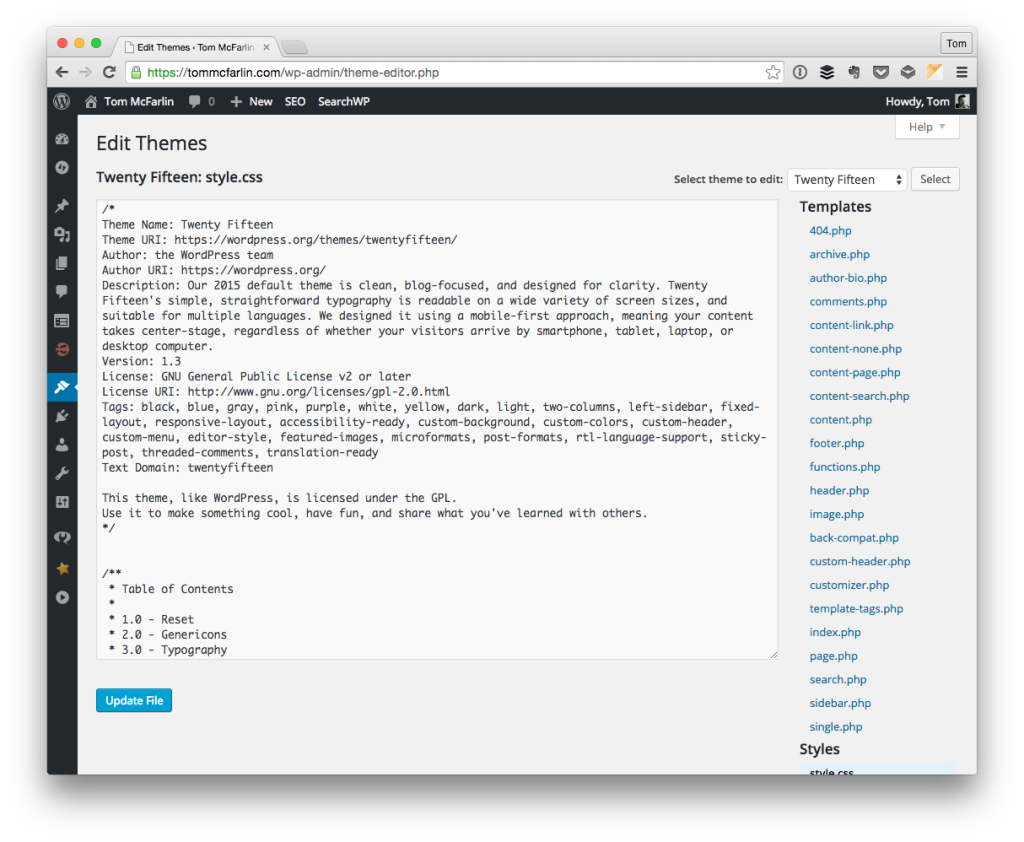
The Theme Editor is in your WordPress dashboard. Find it under Appearance and then click Theme Editor. Here, you can see all your theme files. Look for the style.css file. This file controls the look of your site. It’s important to be careful. A small change can affect your whole site. Always make a backup before editing. This helps you restore things if needed.
FTP is another way to access theme files. Use a FTP client like FileZilla. Connect to your server with your FTP credentials. Navigate to the wp-content folder. Find the themes folder. Locate your theme and open it. Here, you can edit files directly. Remember to always keep a backup copy. This ensures you can fix mistakes easily.
Credit: themelooks.com
Making Css Changes
Style.css is the main file for your theme’s looks. Editing this file lets you change the site’s design. You can find it in your theme’s folder. Open it using a text editor. Make small changes and save. Refresh your site to see the new design. Be careful. Wrong changes can break the site. Always keep a backup.
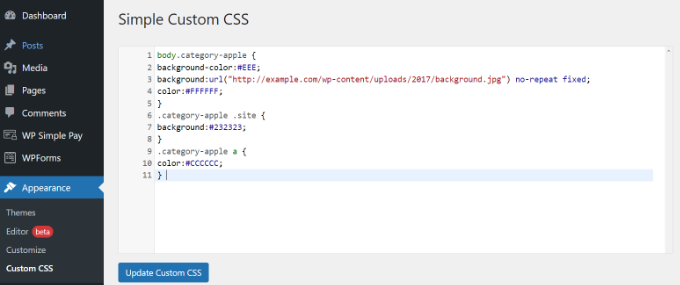
Custom CSS adds new styles without editing the main file. You can use the WordPress Customizer. Go to “Appearance” and then “Customize.” Find the “Additional CSS” option. Type your CSS code there. Preview changes right away. This way, your main style.css stays safe. Always use simple CSS to avoid problems. This keeps your site looking nice.
Using WordPress Customizer
Exploring WordPress Customizer helps you change theme CSS effortlessly. Adjust colors, fonts, and layouts using simple tools. Enhance your site’s appearance with easy-to-follow steps in the Customizer.
Navigating The Customizer
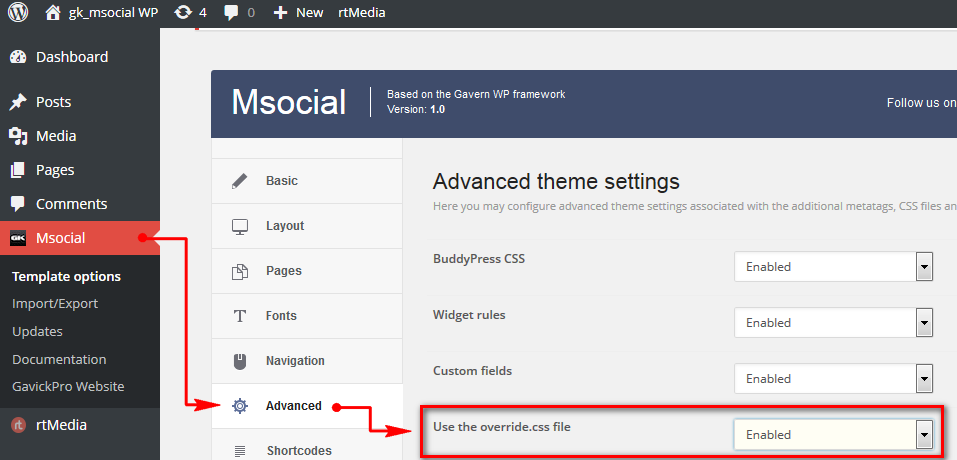
The WordPress Customizer helps you change your theme easily. First, go to your WordPress dashboard. Find the Appearance menu. Click on Customize. This opens the Customizer screen. Here, you see different options on the left side. Your site preview is on the right. You can change colors, fonts, and layout. Try exploring each option. Click on Colors to change the theme colors. Choose new colors from the color picker. Watch changes in the live preview. This makes it easy to see how your site looks. Remember, changes are not saved until you click Publish. So, feel free to experiment. You can always reset if you don’t like it. Customizing is fun. Make your site unique. Enjoy your new design!
Credit: www.gavick.com
Employing Child Themes
A child theme is like a copy of your main theme. It allows you to make changes without touching the original. This way, you can update the main theme without losing changes. To start, you need to create a new folder. Name it something like mytheme-child. Inside, you need two files: style.css and functions.php.
In the style.css file, you add the theme name and template. This tells WordPress which main theme to use. In the functions.php, you enqueue the parent and child styles. This way, you get the main theme’s look plus your changes.
Child themes offer many benefits. They keep your changes safe during updates. You can try new styles without fear. If you make a mistake, just remove the change. Your main theme remains untouched. This makes experimenting easy and safe.
Using child themes also helps you learn. You can see how themes work. You can play with CSS and PHP. This is a good way to improve your skills. Over time, you can make more complex changes. But with no risk to your site.
Testing And Troubleshooting
Previewing Changes is key before making them live. Always use the WordPress Customizer to see changes. This helps in checking if everything looks right. Check your site on different devices. This ensures that your design is responsive and user-friendly. Look for any odd spacing or misaligned text. It’s important to see how your site looks on both desktop and mobile.
Common CSS Errors can happen often. Missing semicolons can break your design. Always double-check your code. Ensure all brackets and quotes match. Wrong selectors might not style the right elements. Use the browser’s developer tools to catch errors. This tool shows exactly what went wrong.
Utilizing Plugins For Css
Plugins can make customizing CSS easy. They offer tools for design. Some plugins are free. Others may need payment. They often have user-friendly interfaces. This helps beginners a lot. CSS Hero is popular. It allows edits without coding. YellowPencil is another option. It offers live editing. Simple Custom CSS is basic but effective. It is good for small changes. SiteOrigin CSS is easy to use. It provides visual controls. These plugins help in styling websites.
Plugins save time. They simplify tasks. Beginners find them useful. They can avoid complex coding. Efficiency is a key benefit. Many plugins have drag-and-drop features. This speeds up work. Flexibility is another advantage. They allow changes at any time. Plugins often come with updates. This ensures compatibility. They help maintain site performance. Ease of use makes plugins attractive. Designers appreciate their simplicity.
Tips For Effective Customization
Keep your CSS neat and tidy. Use clear and simple names. This helps you find things fast. Group similar styles together. It makes your code easier to read. Use comments to explain your code. It helps others understand your work. A clean code saves time and avoids mistakes.
Always make backup copies of your files. This is very important. If something goes wrong, you can fix it quickly. Use tools like cloud storage. They keep your files safe. Save copies often to avoid data loss. A backup is like a safety net. It protects your hard work.
Frequently Asked Questions
How Do I Change The Css Of My WordPress Theme?
To change the CSS of your WordPress theme, use the WordPress Customizer. Navigate to “Appearance,” then “Customize. ” Select “Additional CSS” and enter your custom code there. Alternatively, use a child theme to ensure changes aren’t lost during updates. Always save and preview your changes to ensure they display correctly.
How Do I Create A Custom Css File In WordPress?
Create a custom CSS file by accessing WordPress’s theme directory via FTP. Use a text editor to add your CSS code. Save the file as “custom-style. css” in the theme’s folder. Link the CSS file in your theme’s functions. php using the wp_enqueue_style function.
Ensure the file path is correct.
How Do I Customize My WordPress Theme?
Customize your WordPress theme by accessing the Appearance menu. Use the Theme Editor or Customizer for changes. Add plugins for advanced customization. Use child themes to preserve original settings. Always backup your site before making modifications.
How Do I Add A Custom Css Class In WordPress?
To add a custom CSS class in WordPress, use the WordPress dashboard. Navigate to Appearance > Customize > Additional CSS. Add your CSS code there. Alternatively, use a theme’s customizer or a plugin like Simple Custom CSS. Save changes to apply the custom class to your site.
Conclusion
Customizing WordPress theme CSS is simple with practice. Start small. Experiment with colors and fonts. Always back up your site before changes. Use a child theme to keep your customizations safe. Online resources and forums offer great help. Remember, patience is key when learning new skills.
Consistent practice will improve your confidence. Soon, you’ll create unique and attractive designs. Explore different styles and have fun. Your website can reflect your personality. Enjoy the process and watch your creativity flourish. Keep learning and experimenting with new ideas.
Your WordPress skills will grow over time.


