
Imagine crafting a website that not only looks stunning but also provides an intuitive navigation experience for your visitors. When you create theme locations for menus in WordPress, you’re taking a crucial step toward achieving this goal.
You might be wondering: why is this important for my website? Well, without clearly defined theme locations, your website could feel like a maze, confusing visitors and leading them away from your key content. Now, picture your website with seamless menu navigation, where every visitor knows exactly where to go next.
This is not only possible but also easier than you might think. You’ll discover how to create these theme locations in WordPress, ensuring that your site’s navigation is both user-friendly and efficient. We’ll break down the process into simple steps, making it accessible for everyone, regardless of your technical expertise. Ready to transform your website’s navigation into a powerful tool? Let’s dive in and make it happen.

Credit: visualmodo.com
Setting Up WordPress Environment
Start with a basic WordPress installation. Check the theme folder. Ensure you have access to the functions.php file. A text editor is needed. Use tools like Notepad++ or Sublime Text. These make editing easier. You also need FTP access. This helps you reach files on the server.
Open the theme folder. Look for functions.php. This file is key. It controls theme functions. Use FTP or your host’s file manager. Download the file. Open it in your text editor. Make changes carefully. Save your work. Upload the updated file back.
Credit: totalwptheme.com
Understanding Theme Locations
Theme locations help in placing menus on a WordPress site. Developers use them to set where menus appear. It can be the header, footer, or sidebar. This helps users find pages easily. Each theme can have one or more locations. This offers flexibility. You can have different menus for different areas. Themes often come with predefined locations. You can also add custom ones. This makes the site unique and user-friendly.
They ensure menus are in the right spots. This keeps your site organized. Visitors can find what they need quickly. It improves the user experience. Correct placement of menus is crucial. It makes navigation simple. Users stay longer on the site. They feel comfortable exploring more pages. This is why theme locations matter.
Good theme locations improve site navigation. Visitors find pages without trouble. They know where to click next. This helps in better browsing. It also boosts site engagement. Menus guide visitors through the site. They act like a map. Proper use of theme locations is important. It makes navigation smooth and easy.
Registering Menu Locations
WordPress makes it easy to add menu spots. Use the register_nav_menus function. This function helps in adding multiple menu locations. Each location can have a unique name. Names should be easy to remember. This helps in identifying them later. The function is added in the theme’s files.
The functions.php file is important. It controls many theme features. Open this file in the theme folder. Add the register_nav_menus code inside it. This will activate the menu spots. Save the file after adding the code. Now, the menu locations are ready to use.
Integrating Menus Into Theme
The wp_nav_menu function helps show menus in themes. It makes it easy to add custom menus. Use this function inside your theme file to display menus. Add code to your theme where you want the menu.
Set parameters like theme location or menu ID for different looks. This function works with the menu system in WordPress. You can use it to create dynamic menus for easy navigation.
Customizing menu appearance is simple. Use CSS to change styles. Adjust colors, fonts, and sizes to match your theme. Use classes and IDs for more control over menu design.
Add custom styles in your theme’s style.css file. Check how changes look in different devices. Keep menus clear and easy to use. Make sure your menu fits well with your theme’s design.
Testing Menu Locations
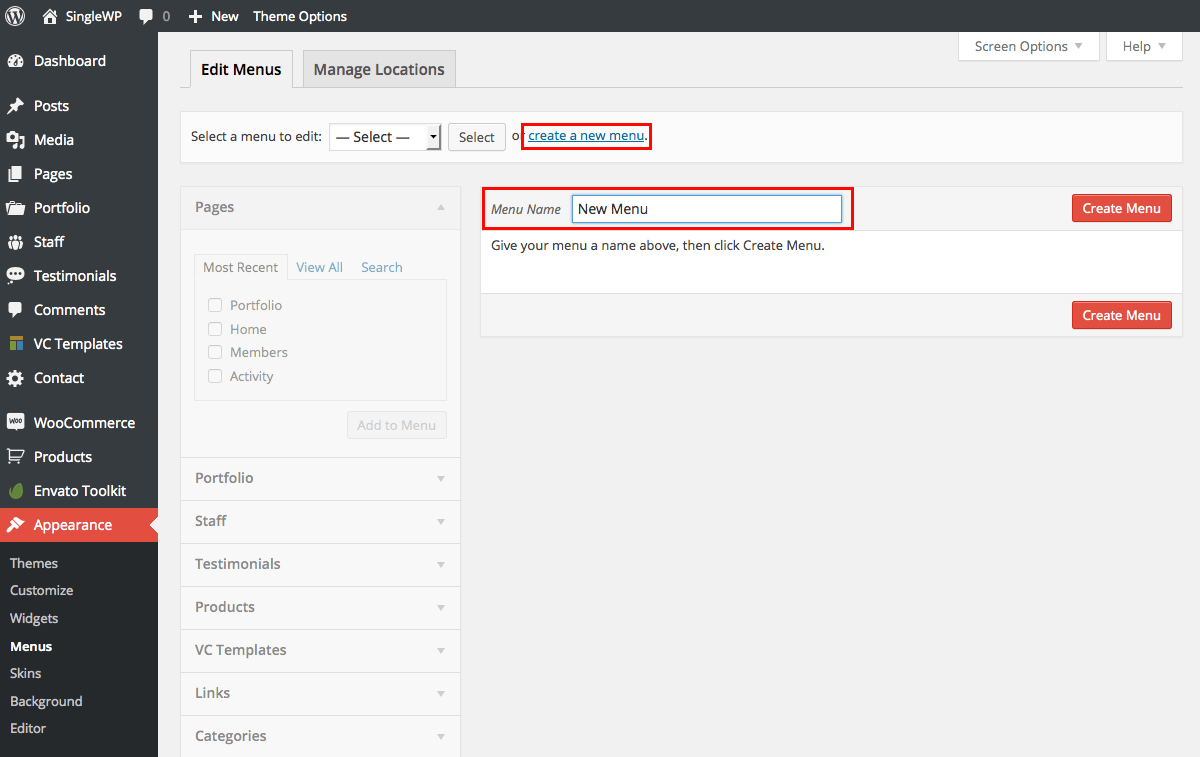
Menus help users navigate a website. After creating theme locations, always check if they work correctly. First, visit the WordPress admin panel. Click on “Appearance” and then “Menus”. Here, you can see all menu locations. Assign menus to each location.
After assigning menus, check their visibility on your site. Open your site in a browser. Look at the menu locations. Make sure they appear correctly. Sometimes menus don’t show up. This can be frustrating.
If menus don’t appear, check theme settings. Some themes have special settings for menus. Make sure your theme supports menu locations. Also, check if your menus are saved. If all fails, consult WordPress support forums. They offer helpful advice.
Enhancing Menu Features
Submenus help organize links under a main menu. This makes navigation easy. Click the main menu item to see more options. Use WordPress to add submenus. Go to the menu section in the dashboard. Select a menu item. Drag it under another item. This creates a submenu. Remember to save changes. Submenus can have their own submenus too. This is called a multi-level menu. Users find what they need faster with submenus.
Menus should work on all devices. This is called responsive design. Mobile users need easy access. Use themes that adapt to screen size. Small screens need collapsible menus. These menus hide until clicked. WordPress has plugins for responsive menus. Test menus on phones and tablets. Make sure links are easy to click. A good responsive menu improves user experience.
Best Practices For Menu Management
Creating theme locations in WordPress menus enhances navigation. Start by accessing your theme’s functions. php file. Use the register_nav_menus function to define menu locations. Ensure unique names for each location to prevent confusion. This setup allows you to assign menus to specific areas on your site.
Organizing Menu Structure
Creating a good menu helps users navigate your site. Keep the menu simple and clear. Use categories and sub-categories for easy navigation. Avoid too many items in the menu. This makes it easier to find what they need. Group similar items together. Think about what users need most. Make those items easy to reach. Use clear and short names for menu items. This helps users understand them quickly.
Ensuring Accessibility
Menus should be easy for everyone to use. Some users might use screen readers. Make sure your menu works with them. Use alt text for images in menus. This helps users who can’t see them. Make sure the menu is easy to use on all devices. Test it on phones and tablets. Use colors that are easy to see. Avoid using only color to show information. This helps users who can’t see colors well.

Credit: docs.themegrill.com
Frequently Asked Questions
How To Create A Menu Location In WordPress?
Go to the WordPress dashboard. Navigate to “Appearance” and select “Menus. ” Click “Manage Locations” and then “Edit. ” Assign a menu to the new location and save changes.
How Do I Customize The Theme Menu In WordPress?
Go to your WordPress dashboard. Click on “Appearance” and select “Menus. ” Customize your theme menu by adding, removing, or rearranging menu items. Save changes to update. Ensure your theme supports menus for optimal customization.
Where Is Manage Locations In WordPress Menu?
Find “Manage Locations” in the WordPress menu under “Appearance” and then “Menus. ” It’s for managing menu locations on your site.
Where Are WordPress Theme Locations?
WordPress themes are located in the wp-content/themes directory. Access them via FTP or the WordPress dashboard. Use the Appearance menu to manage and customize your themes easily. Ensure themes are updated for security and performance enhancements. Install new themes directly from the WordPress theme repository.
Conclusion
Creating theme locations for menus in WordPress can be simple. Start by exploring the menu settings. Choose the best location for your menu items. Customize your menus to suit your site’s style. Use clear labels for easy navigation. Test your menu to ensure it works well.
Remember, a well-organized menu enhances user experience. Users find information faster and stay longer on your site. Regularly update your menu to keep it relevant. Happy website building!


