
Thinking about creating your own WordPress website but not sure where to start? You’re in the right place.
Building a website might sound tricky, but with WordPress, it’s easier than you think—whether you want a blog, a business site, or an online store. In this guide, you’ll discover simple, step-by-step instructions that anyone can follow, even if you have zero technical skills.
By the end, you’ll have a clear path to launching a professional-looking website that works exactly how you want. Ready to turn your idea into a real website? Let’s dive in!

Credit: gretathemes.com
Choose A Domain And Hosting
Choosing the right domain and hosting is the first step in building your WordPress website. This choice affects your site’s identity and performance. A good domain makes your site easy to find. Reliable hosting keeps your site online and fast. Spend time on this step to set a strong foundation.
Picking The Right Domain Name
Your domain name is your website’s address on the internet. It should be simple, short, and easy to remember. Use words that describe your site or business clearly. Avoid using numbers or hyphens as they confuse visitors. Choose a domain extension like .com or .net that fits your purpose. Check if the name is available and not trademarked.
Selecting A Hosting Provider
Hosting is where your website files live online. Choose a hosting provider that offers good speed and uptime. Look for providers with easy WordPress installation. Customer support is important for solving technical problems fast. Compare prices but focus on quality and reliability. Select a plan that fits your website size and traffic needs.
Credit: www.websitebuilderexpert.com
Install WordPress
Installing WordPress is the first step to building your website. It sets up the platform where you will add content and design your pages. WordPress installation is simple and can be done in two main ways. Each method suits different user needs and skill levels.
Using One-click Installers
One-click installers are the easiest way to install WordPress. Many web hosts offer this feature in their control panel. You only need to log in to your hosting account. Find the WordPress installer tool, usually under software or website sections.
Click the WordPress icon, then fill in basic details like site name and admin username. The installer handles the rest automatically. It creates the database and uploads WordPress files. This process takes just a few minutes and requires no coding skills.
Manual Installation Steps
Manual installation gives more control but requires some technical knowledge. First, download the latest WordPress package from wordpress.org. Next, upload the files to your web server using FTP software.
Create a MySQL database and user in your hosting control panel. Note the database name, username, and password carefully. Open your website URL in a browser to start the WordPress installation wizard.
Follow the prompts to enter your database details and site information. The wizard will connect WordPress to your database and finish the setup. After this, your WordPress site is ready to use and customize.
Select A Theme
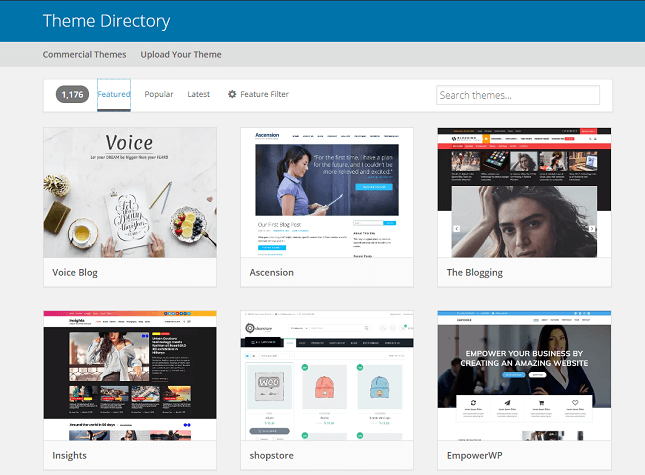
Selecting a theme is a key step in creating your WordPress website. The theme controls your site’s look and feel. It affects layout, colors, fonts, and more. Choose a theme that matches your website’s purpose and style. A good theme helps visitors enjoy your content and navigate easily.
Free Vs Premium Themes
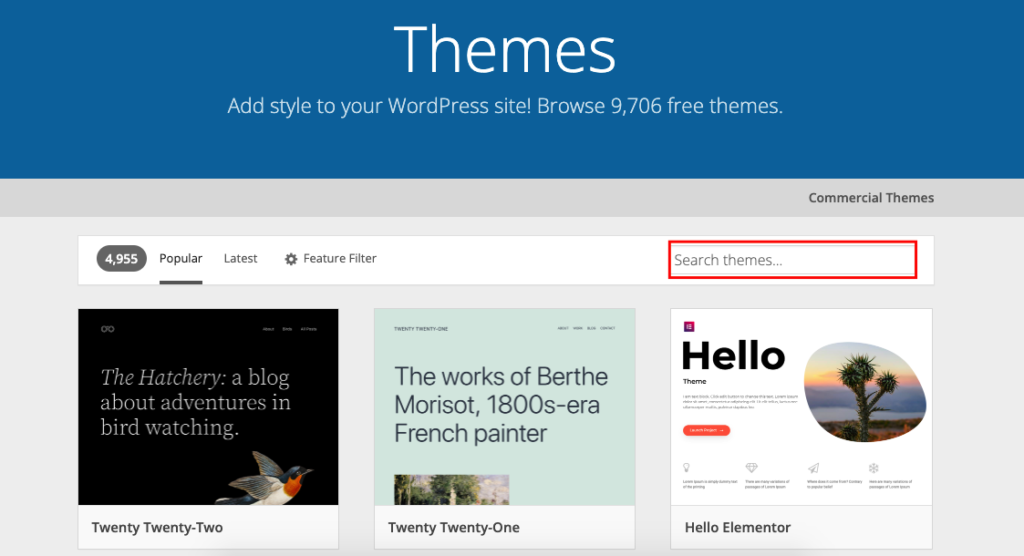
Free themes come at no cost and offer basic features. They are easy to find in the WordPress theme directory. These themes suit simple blogs or small websites. Premium themes cost money but provide more options. They include advanced designs and better support. Premium themes often have extra tools for customization. Choose based on your budget and needs. Start simple, then upgrade if needed.
Installing And Activating A Theme
To install a theme, go to your WordPress dashboard. Click on “Appearance” then “Themes.” Use the “Add New” button to find themes. You can upload a theme file or browse free themes. Click “Install” to add the theme to your site. After installation, click “Activate” to use it. Your website will change to the new theme’s design. Check your site to see how it looks. Customize the theme settings to fit your brand.
Customize Your Website
Customizing your WordPress website lets you make it truly yours. It helps your site reflect your style and purpose. Personal touches improve user experience and keep visitors engaged.
WordPress offers simple tools to change your site’s look and feel. You can adjust colors, fonts, layouts, and more without coding. These changes create a unique and professional appearance.
Using The WordPress Customizer
The WordPress Customizer is a built-in tool for live editing. You see changes immediately as you make them. Access it by clicking “Customize” in the dashboard menu under “Appearance.”
Use the Customizer to change site identity like title and logo. Adjust colors and background images to match your brand. Modify header and footer settings to improve navigation.
Some themes add extra options in the Customizer. Explore these to enhance your site’s style and layout. Save your changes once satisfied to update your live website.
Adding Menus And Widgets
Menus help visitors find important pages quickly. Create menus in the “Menus” section under “Appearance.” Add pages, posts, or custom links to build your menu.
Widgets add useful features to sidebars or footers. Common widgets include search bars, recent posts, and social media links. Manage widgets in the “Widgets” area under “Appearance.”
Drag and drop widgets to your preferred widget areas. Customize each widget’s content and settings. This makes your site easier to use and more interactive.
Install Essential Plugins
Installing essential plugins is a crucial step in creating a WordPress website. Plugins add important features and improve your site’s performance. They help with security, SEO, design, and more. Choosing the right plugins can save time and effort.
Many plugins are free and easy to use. Some come highly recommended for beginners. Knowing how to install and manage plugins keeps your website running smoothly. This section guides you through must-have plugins and simple installation steps.
Must-have Plugins For Beginners
Start with plugins that boost your site’s security and speed. Install a security plugin to protect your website from hackers. Use SEO plugins to improve your ranking on search engines. A caching plugin helps your website load faster for visitors. Contact form plugins make it easy for users to reach you. Image optimization plugins reduce file sizes without losing quality. These plugins create a strong foundation for any new WordPress site.
How To Install And Manage Plugins
Log in to your WordPress dashboard to install plugins. Go to the “Plugins” menu and click “Add New.” Use the search bar to find the plugin you want. Click “Install Now” and then “Activate” to start using it. Manage your plugins by updating them regularly. Updates improve security and add new features. Deactivate or delete plugins you no longer need to keep your site fast and secure.
Create Content
Creating content is a key step in building your WordPress website. Content helps visitors understand your message and explore your site. Clear and simple content improves user experience and search engine ranking.
Start by organizing your content into pages and posts. Pages are for static information like About or Contact. Posts are for regular updates or blog articles. Both play important roles in your website’s structure.
Adding Pages And Posts
To add a new page, go to the WordPress dashboard and select “Pages” then “Add New.” Enter a title and start writing your content in the editor. Use headings, paragraphs, and images to make it clear and engaging.
For blog posts, select “Posts” then “Add New.” Posts often have categories and tags to help organize content. This makes it easier for visitors to find related topics on your site.
Using The Gutenberg Editor
The Gutenberg editor is WordPress’s built-in content editor. It uses blocks to build content. Each block can be a paragraph, image, heading, list, or other element.
Click the “+” button to add a new block. You can drag blocks to reorder them. This block system helps create visually appealing content without coding.
Use headings to structure your text. Short paragraphs and bullet points improve readability. Insert images and videos to make your content more engaging.
Set Up Basic Seo
Setting up basic SEO on your WordPress website helps improve its visibility on search engines. It ensures your site reaches more people who search for topics related to your content. Simple SEO steps can make a big difference in how your website ranks and attracts visitors.
Choosing An Seo Plugin
Select an SEO plugin to help manage your site’s SEO settings easily. Popular plugins like Yoast SEO and All in One SEO are user-friendly and offer essential tools. These plugins guide you through optimizing content, generating sitemaps, and improving site performance.
Install the plugin from the WordPress dashboard. Activate it and follow the setup wizard to configure basic settings. This step saves time and helps avoid manual errors in SEO setup.
Optimizing Titles And Meta Descriptions
Titles and meta descriptions appear in search results and influence click rates. Write clear, concise titles that include your main keywords. Keep titles under 60 characters so they display fully on search engines.
Create meta descriptions that summarize the page content in 150-160 characters. Use simple language to describe what visitors will find on the page. Well-written meta descriptions attract more clicks and improve your site’s ranking.
Credit: wedevs.com
Secure Your Website
Securing your WordPress website protects your data and builds trust with visitors. A secure site blocks hackers and keeps your content safe. Taking simple steps strengthens your website’s defenses and improves performance. Focus on essential security tasks for better protection.
Setting Up Ssl
SSL encrypts data sent between your website and visitors. It creates a secure connection that prevents interception. Most hosting providers offer free SSL certificates. Activate SSL in your hosting control panel or use plugins like Really Simple SSL. After setup, your site URL shows “https” with a padlock icon. This tells visitors your site is safe and trustworthy. Search engines also favor sites with SSL, helping your rankings.
Keeping WordPress Updated
WordPress updates fix bugs and close security gaps. Running the latest version reduces risks from hackers. Update your core WordPress software regularly. Also, update themes and plugins to avoid vulnerabilities. Enable automatic updates or check your dashboard weekly. Before updating, back up your website to prevent data loss. Staying current keeps your site stable and secure.
Launch Your Website
Launching your WordPress website is the final step in your site creation journey. This moment marks the transition from building to sharing your work with the world. Preparing carefully ensures your site runs smoothly and attracts visitors effectively.
Before you hit the publish button, complete essential checks and plan your promotion. These steps help your website perform well and reach your target audience quickly.
Final Checks Before Going Live
Review all your pages and content for errors. Check spelling and grammar to keep your site professional. Test all links to make sure they work correctly. Confirm that images load fast and display properly on different devices.
Make sure your website is mobile-friendly. Most visitors use phones or tablets. Also, check your site speed using free tools online. Fast loading times keep visitors happy and improve search rankings.
Set up basic SEO settings. Add meta titles and descriptions to your pages. Use keywords that match your site’s topic. Install security plugins to protect your site from hackers. Finally, backup your website before launch to avoid data loss.
Promoting Your New Site
Share your website link on social media platforms. Tell friends, family, and colleagues about your new site. Consider writing guest posts on other blogs to get noticed. Submit your site to search engines like Google for indexing.
Create an email list to keep visitors informed about updates. Use simple, clear messages to engage your audience. Join online communities related to your site’s topic and participate actively. This builds trust and drives traffic to your website.
Regularly update your content to keep visitors coming back. Monitor your site’s performance with analytics tools. Adjust your promotion strategies based on visitor behavior for better results.
Frequently Asked Questions
Why Are People Moving Away From WordPress?
People move away from WordPress due to security risks, frequent updates, slow performance, complex customization, and better alternatives available.
Can I Create A WordPress Website For Free?
Yes, you can create a basic WordPress website for free using WordPress. com or WordPress. org with free hosting and themes.
Can A Beginner Make A WordPress Website?
Yes, beginners can easily create WordPress websites using its user-friendly drag-and-drop tools and tutorials. No coding skills are needed.
How Much Does It Cost To Create A WordPress Site?
Creating a WordPress site costs between $50 to $200 annually. Expenses include hosting, domain, premium themes, and plugins. Basic sites can be free using WordPress. com, but paid plans offer more features and flexibility for business or professional use.
Conclusion
Creating a WordPress website is simpler than it seems. Follow each step carefully and stay patient. Choose the right theme and plugins to fit your needs. Keep your content clear and organized for visitors. Regularly update your site to keep it secure.
Practice makes perfect, so keep improving your skills. Soon, your website will be ready to share with the world. Enjoy the process and watch your online presence grow.


