

Wondering how to create a website with WordPress but don’t know where to start? You’re in the right place.
Whether you want a simple blog, a portfolio, or an online store, WordPress gives you the tools to build your site your way. No complicated coding or expensive designers needed—you can take control and make your vision real. In this guide, you’ll discover clear, easy steps to set up your WordPress website quickly and confidently.
Ready to turn your idea into a stunning online presence? Let’s dive in and get your website live today.
Credit: wedevs.com
Choosing WordPress.com Or WordPress.org
Choosing between WordPress.com and WordPress.org is a key step in creating your website. Both platforms offer unique benefits and come with different requirements. Understanding these differences will help you pick the right option for your needs.
Free Vs Paid Options
WordPress.com offers a free plan with basic features. You get a website hosted on their servers and a subdomain like yoursite.wordpress.com. This option suits beginners or small projects. Paid plans on WordPress.com unlock more storage, remove ads, and offer a custom domain.
WordPress.org is free software you install yourself. The software costs nothing, but you must buy hosting and a domain name. This means extra expenses but more control over your website’s features and design.
Hosting And Domain Differences
WordPress.com hosts your website for you. This means no need to find a web hosting provider or manage server settings. Your domain can be a free subdomain or a custom domain if you pay for a plan.
WordPress.org requires you to choose and pay for hosting separately. You also register a domain name through a registrar. Hosting providers offer various plans and control over server settings. This setup allows more flexibility but needs technical handling.
Customization Limits
WordPress.com limits customization on free and lower-paid plans. You cannot install custom plugins or themes. The platform controls updates and security, reducing your workload but limiting options.
WordPress.org lets you install any plugins and themes. You can change the website code and add advanced features. This freedom suits users who want full control and have some technical skills.
Picking A Domain Name
Choosing the right domain name is the first big step in creating your WordPress website. It is the web address people type to find your site. Picking a good domain helps your visitors remember you and improves your site’s visibility on search engines.
Importance Of A Good Domain
A good domain name builds trust and shows professionalism. It makes your website easier to find and share. A clear and simple domain helps your brand stand out. Avoid complicated or long names that are hard to spell or remember.
Where To Register
You can register your domain name through many services called domain registrars. Popular ones include GoDaddy, Namecheap, and Google Domains. These sites let you check if your desired name is available. Prices vary, so compare before you buy.
Tips For Memorable Names
Keep your domain short and simple. Use keywords that relate to your site’s topic. Avoid numbers and hyphens because they confuse people. Make sure it is easy to pronounce and spell. Choose a .com extension if possible, as it is the most trusted.
Selecting A Hosting Provider
Selecting a hosting provider is a key step in creating your WordPress website. Hosting is where your website lives online. It stores your files and makes your site accessible to visitors. Choosing the right hosting affects your website speed, security, and uptime. Picking a reliable host ensures your website runs smoothly and loads fast.
Many hosting options exist, but they mostly fall into two main types. Understanding the difference helps you make a better choice. Below, we explain shared and managed hosting to guide your decision.
Shared Vs Managed Hosting
Shared hosting is affordable and simple. Your website shares server resources with other sites. This keeps costs low but can affect speed if traffic grows. It suits beginners or small sites with low traffic.
Managed hosting offers more power and support. The host handles technical tasks like updates, backups, and security. It costs more but saves time and reduces stress. Managed hosting fits sites expecting growth or needing better performance.
Recommended Hosts For Beginners
For beginners, finding a host with easy setup is important. Hosts like Bluehost, SiteGround, and HostGator are popular choices. They offer good support and beginner-friendly tools. These hosts provide one-click WordPress installs and helpful guides.
Choose a host with a strong uptime record and fast servers. Check if they offer free SSL certificates for security. Good customer support is essential for beginners facing issues.
Setting Up Hosting Account
Start by visiting your chosen host’s website. Select a plan that fits your website’s needs. Enter your domain name or buy a new one through the host. Create an account with your email and payment details.
After payment, find the WordPress installation option in your hosting dashboard. Most hosts offer one-click install to simplify this step. Follow the prompts to set your site title and admin login. Once done, your WordPress site is ready to customize and launch.
Installing WordPress
Installing WordPress is the first step in creating your website. It sets the foundation for your site’s design and functionality. WordPress offers easy installation options for beginners and advanced users alike. Choose the method that fits your skills and hosting environment.
One-click Install Methods
Many web hosts offer one-click WordPress installation. This method saves time and effort. Simply log in to your hosting control panel. Find the WordPress installer under the software or app section. Click install and follow the on-screen instructions. The installer sets up the database and files automatically. You get a ready-to-use WordPress site in minutes.
This method is perfect for beginners. It avoids complex steps like manual setup. Most popular hosts like Bluehost, SiteGround, and HostGator support one-click installs.
Manual Installation Steps
Manual installation gives you more control over the process. Start by downloading the latest WordPress package from wordpress.org. Next, upload the files to your web server using FTP. Create a MySQL database on your hosting account. Edit the wp-config.php file with your database details. Finally, run the WordPress installation script by visiting your site URL in a browser.
This method requires basic knowledge of FTP and databases. It is useful for custom server setups or if your host does not offer one-click installs.
Accessing The Dashboard
After installation, access your WordPress dashboard to start building your site. Visit yoursite.com/wp-admin in a browser. Enter the username and password you created during installation. The dashboard is the central hub for managing your site. Here, you can add posts, pages, themes, and plugins. It also lets you adjust settings and monitor site activity.
Familiarize yourself with the dashboard to make site creation easier. It is designed to be user-friendly for all skill levels.
Choosing A Theme
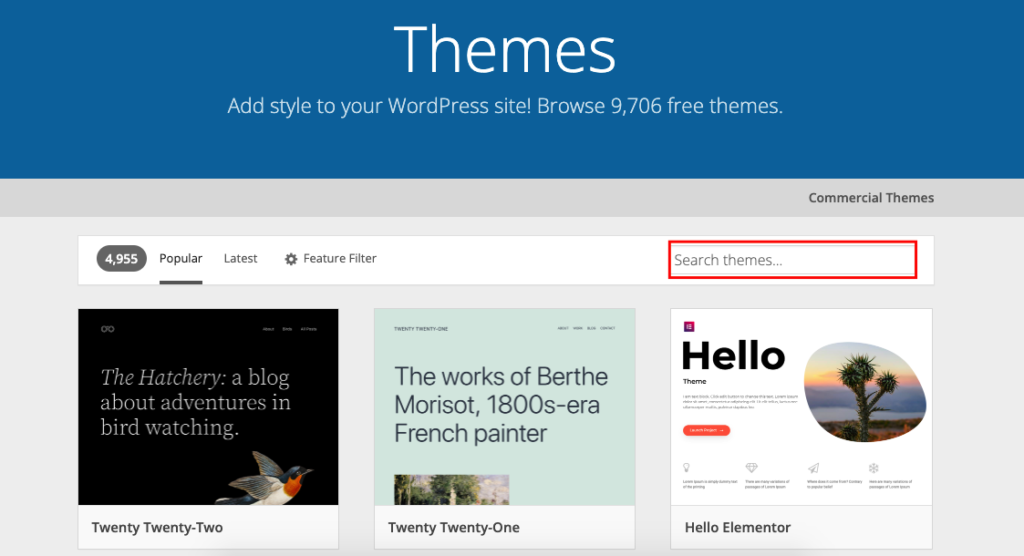
Choosing the right theme is a key step in building your WordPress website. The theme controls the look and feel of your site. It affects layout, colors, fonts, and user experience. A good theme matches your site’s purpose and style.
The market offers many themes. Some are free, others cost money. Each type has pros and cons. Understanding these helps you pick the best one for your needs.
Free Vs Premium Themes
Free themes are available directly in WordPress. They are easy to install and use. Free themes suit simple blogs or small websites. They often have fewer features and less support.
Premium themes cost money but offer more options. They include advanced features and customization tools. Premium themes come with professional support. These themes are better for business sites or complex projects.
Theme Installation
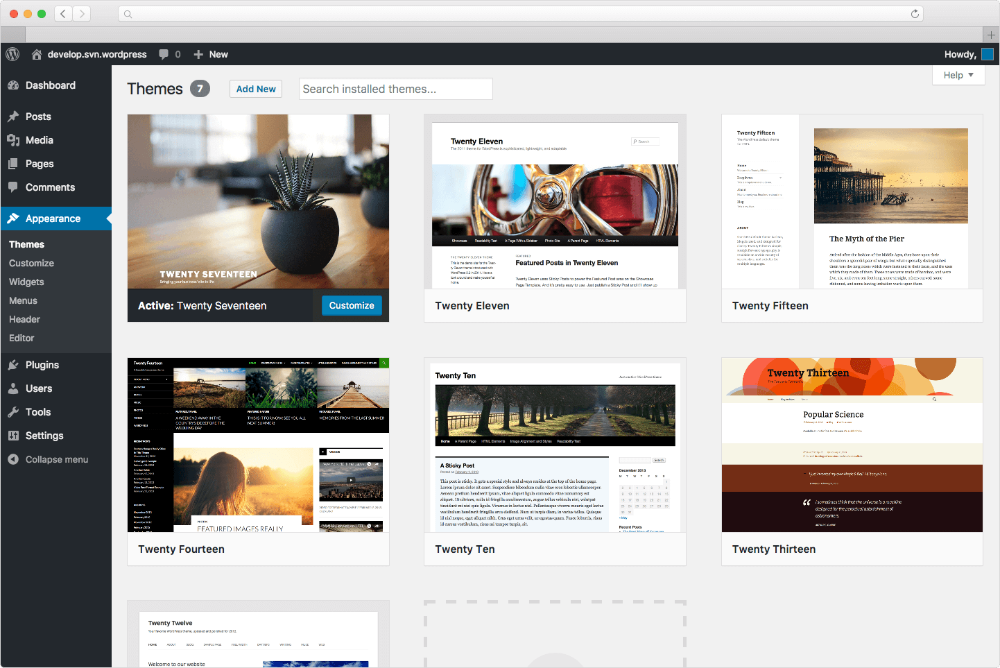
Installing a theme on WordPress is simple. Go to your dashboard and click “Appearance,” then “Themes.” Click “Add New” to browse available themes.
To install, click “Install” and then “Activate.” Your website will use the new theme right away. You can switch themes anytime without losing content.
Customizing Appearance
After installation, customize your theme to fit your brand. Use the WordPress Customizer under “Appearance.” Here, you can change colors, fonts, and layouts.
Many themes have extra settings for headers, menus, and widgets. Customization helps your site stand out. Keep your design simple and user-friendly for the best results.
Adding Essential Plugins
Adding essential plugins is a key step in building your WordPress website. Plugins add new features and improve your site’s performance. They help customize your site without coding.
Choosing the right plugins can make your site faster, safer, and easier to use. Start with a few basic plugins to cover important functions. You can add more plugins as your site grows.
Must-have Plugins For Beginners
For beginners, focus on plugins that improve security, SEO, and site speed. A security plugin keeps your site safe from hackers. SEO plugins help your site rank better on search engines. Speed plugins make your site load faster for visitors.
Some popular beginner plugins include Wordfence for security, Yoast SEO for search optimization, and WP Super Cache for speed. These cover the basics to help your site run smoothly.
Installing And Activating Plugins
To install plugins, go to your WordPress dashboard. Click on “Plugins” and select “Add New.” Search for the plugin you want by name. Click “Install Now” to add it to your site.
After installation, click “Activate” to start using the plugin. Some plugins may ask for extra setup or permissions. Follow the on-screen instructions to complete activation.
Managing Plugin Settings
Each plugin has its own settings to customize how it works. Access settings from the plugin list or a new menu added to the dashboard. Adjust options to fit your site’s needs.
Check settings regularly to keep plugins updated and working well. Avoid installing too many plugins to prevent slow site performance. Delete any plugins that you no longer use.
Creating Key Pages
Creating key pages is the first step to building a solid WordPress website. These pages form the foundation of your site and guide visitors to important information. Focus on clear, simple content that tells your story and makes it easy for visitors to connect with you.
Home
The Home page is your website’s front door. It should introduce your site and highlight what you offer. Use a clean layout with a welcome message and clear calls to action. Add images or banners that reflect your brand. Keep text brief and inviting to encourage visitors to explore more.
About
The About page tells your story. Share who you are, your mission, and what makes you unique. Write in a friendly, honest tone. Add photos or videos to make it personal. This page helps build trust and lets visitors understand your purpose quickly.
Contact Pages
Contact pages make it easy for visitors to reach you. Include a simple contact form, your email address, and phone number. Add your business address and a map if you have a physical location. Clear contact details improve user experience and boost credibility.
Using The Block Editor
WordPress uses the Block Editor to build pages easily. Each section of your page is a block. Blocks can be text, images, buttons, or other elements. Drag and drop blocks to arrange your content. This editor lets you design pages without coding skills. Preview your changes to see how pages look before publishing.
Publishing Your Content
Once your pages are ready, it is time to publish. Click the Publish button to make your page live. Review your content for typos and layout issues first. After publishing, check your site on different devices to ensure it looks good everywhere. Update pages regularly to keep your site fresh and relevant.
Setting Up Navigation Menus
Setting up navigation menus is essential for a good website. Menus help visitors find pages quickly. A clear menu improves user experience and keeps visitors longer. WordPress makes it easy to create and manage menus. You can customize menus to match your site’s style. Follow these steps to set up your navigation menus in WordPress.
Creating Menus
Go to the WordPress dashboard and open the “Appearance” tab. Click on “Menus” to start. Enter a name for your new menu. Click the “Create Menu” button to save it. Your menu is now ready to add items.
Adding Pages And Links
On the left, find your pages, posts, or custom links. Check the boxes next to the items you want to add. Click “Add to Menu” to include them. Drag and drop items to reorder them. You can also create sub-menus by moving items slightly right.
Menu Placement Options
WordPress themes offer different menu locations. Common spots include header, footer, or sidebar. Choose the location that fits your design best. Check the box next to your preferred location. Save your changes to make the menu live. Preview your site to see the menu in action.
Optimizing For Search Engines
Optimizing your WordPress website for search engines is essential to attract visitors. Search Engine Optimization (SEO) helps your site rank higher in search results. This increases your site’s visibility and drives more traffic. Simple SEO steps can make a big difference in your website’s success.
Basic Seo Practices
Start by choosing clear and relevant keywords for each page. Use these keywords in titles, headings, and throughout your content. Keep your URLs short and descriptive. Add alt text to images to help search engines understand them. Write unique and useful content that answers visitors’ questions. Make sure your website loads quickly and works well on mobile devices. These basics create a strong SEO foundation.
Using Seo Plugins
SEO plugins make optimization easier. Popular options like Yoast SEO and All in One SEO help you add meta titles and descriptions. They also analyze your content for keyword use and readability. These plugins guide you to improve your SEO without coding. They can create SEO-friendly sitemaps and handle technical SEO tasks. Installing and setting up an SEO plugin is a smart step for WordPress beginners.
Creating Sitemap
A sitemap lists all your website pages in a simple format for search engines. It helps search engines find and index your content faster. Most SEO plugins can generate a sitemap automatically. Submit your sitemap to Google Search Console to improve indexing. Keep your sitemap updated as you add or remove pages. This small action helps search engines understand your site better.

Credit: wordpress.org
Securing Your Website
Securing your WordPress website is essential for protecting your content and visitors. Cyberattacks happen often, and weak security can leave your site vulnerable. Taking simple steps can strengthen your site’s defense. Focus on strong passwords, security plugins, and regular backups. These actions help keep your website safe and running smoothly.
Choosing Strong Passwords
Start by creating strong passwords for your WordPress login. Use a mix of letters, numbers, and symbols. Avoid common words or easy-to-guess phrases. Change passwords regularly to reduce risks. Strong passwords make it hard for hackers to break in.
Installing Security Plugins
Security plugins add a layer of protection to your website. They monitor suspicious activity and block attacks. Popular plugins include Wordfence and Sucuri. These tools scan your site for malware and vulnerabilities. Installing one is a simple way to enhance security.
Regular Backups
Back up your website regularly to prevent data loss. Use plugins like UpdraftPlus or BackupBuddy for easy backups. Store backups in multiple locations, such as cloud storage or your computer. Backups help you restore your site if something goes wrong.
Launching And Maintaining Site
Launching your WordPress website is an exciting step. It means your site is ready for visitors. Maintaining it keeps your site safe and fast. Regular care helps your website grow and stay useful. Let’s explore how to launch and maintain your WordPress site effectively.
Testing Before Launch
Test your website on different devices. Check how it looks on phones and computers. Make sure all links work and pages load fast. Review your content for spelling and grammar. Test contact forms and other interactive features. Fix any errors before going live. This step ensures visitors have a smooth experience.
Regular Updates
Keep WordPress, themes, and plugins up to date. Updates improve security and add new features. Old versions can make your site vulnerable. Set a schedule to check for updates weekly. Backup your website before updating. Updating regularly keeps your site running smoothly and safely.
Monitoring Site Performance
Track your site’s speed and uptime. Use tools like Google PageSpeed Insights or Uptime Robot. Watch for slow pages or broken links. Monitor visitor behavior to improve your site. Check your site’s security for threats. Monitoring helps you fix problems quickly and keep visitors happy.
Credit: docs.presscustomizr.com
Frequently Asked Questions
Can I Create My Own Website Using WordPress?
Yes, you can create your own website using WordPress. Choose a domain, pick a design, and start building easily.
Why Are People Moving Away From WordPress?
People move away from WordPress due to security risks, frequent updates, plugin conflicts, and complex customization needs.
Is It Free To Create A Website On WordPress?
Yes, creating a website on WordPress. com is free but includes a subdomain and limited features. WordPress. org software is free but requires paid hosting and a domain.
How To Create A WordPress Website For Beginners?
Choose a domain and hosting, install WordPress, select a theme, customize your site, and add content to launch your website.
Conclusion
Creating a website with WordPress is simple and flexible. Choose between WordPress. com for easy setup or WordPress. org for full control. Both options let you build a site that fits your needs. Focus on picking a theme, adding content, and customizing your design.
Regular updates and backups keep your site safe and running well. Start small, learn as you go, and watch your website grow over time. WordPress makes website creation accessible for everyone.


