
Are you feeling like your WordPress site could use a fresh look? Changing your WordPress theme is one of the quickest and most effective ways to revamp your website’s appearance and enhance user experience.
But before you dive into the world of themes, it’s crucial to understand the steps involved to make a smooth transition. You might be wondering, “How do I change WordPress themes without disrupting my site? ” Don’t worry, you’re not alone! Many website owners share the same concern, and this guide is here to help you navigate this process effortlessly.
By the end of this article, you’ll have all the knowledge you need to switch themes without a hitch, ensuring your site remains as captivating as ever for your visitors. Ready to give your website a makeover? Let’s get started!

Credit: www.templatemonster.com
Choosing The Right Theme
Think about what you want from your website. Do you need a blog, an online store, or a photo gallery? Different themes offer different features. Make a list of the most important things. This will help you choose a theme that fits your needs. Choosing the right theme makes your site look good and work well.
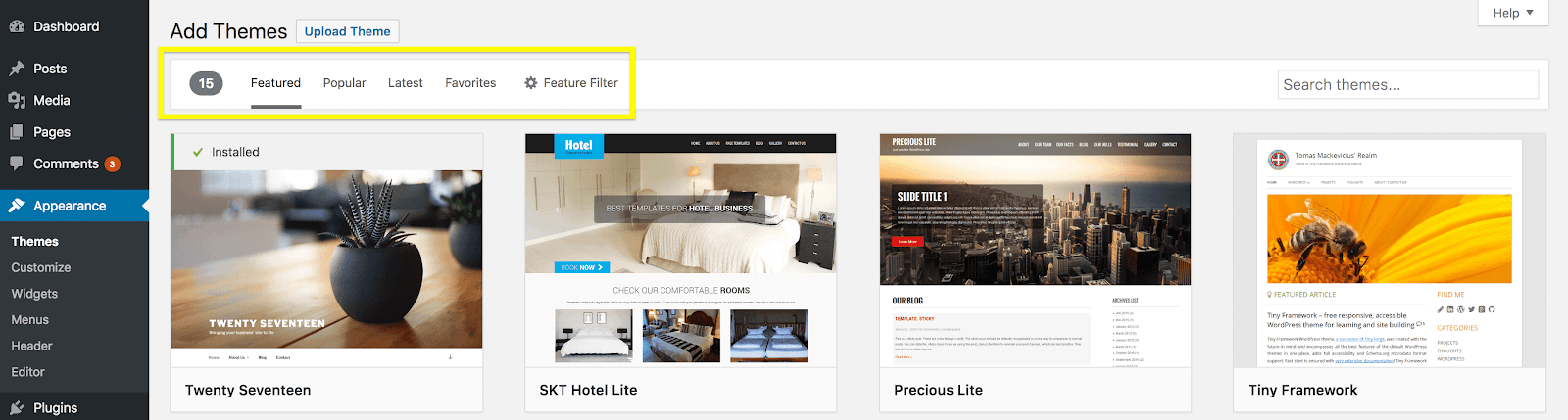
Visit the WordPress theme directory. You will find many free themes. Each theme has a preview button. Click to see how it looks. Pay attention to the colors and fonts. Make sure they match your style. There are also premium themes you can buy. They often have more features and support.
Ensure the theme works with your version of WordPress. A theme must be compatible with popular plugins. This is important for adding extra features later. Check if the theme is mobile-friendly. Many people use phones to view websites. A mobile-friendly theme will look good on any device.
Credit: wpengine.com
Preparing For Theme Change
Backup is important. Losing data is a big risk. Use plugins for backup. Some plugins are free. They save your site data. Files and settings are safe. Always backup before changing themes. Keep your site secure.
A child theme is helpful. Preserve changes you make. Create it from the main theme. It keeps your custom edits safe. No coding skills needed. Plugins can help create child themes. Your site stays updated.
Test features before use. Explore options in the theme. Check if plugins work well. Look at the design and layout. Compatibility matters. Ensure all functions work smoothly. Testing prevents errors.
Installing The New Theme
Switching WordPress themes is easy. Go to your dashboard, click “Appearance,” then “Themes. ” Choose a new theme and click “Activate. ” Your website will have a fresh look instantly.
Using WordPress Dashboard
Access the WordPress Dashboard. Click on Appearance, then Themes. Choose Add New. Search for themes you like. Click on Install under your chosen theme. Wait for the installation to finish. Click Activate to use the theme. It’s simple and quick.
Uploading Via Ftp
Use an FTP client like FileZilla. Connect to your website server. Open the wp-content folder. Then go to themes folder. Upload the theme folder here. Ensure the folder isn’t zipped. Wait for upload to complete. Go to WordPress Dashboard. Click Appearance, then Themes. Activate the uploaded theme.
Activating The Theme
Go to WordPress Dashboard. Click on Appearance. Click on Themes. Find your installed theme. Click on Activate. Your website now uses the new theme. Check your site. Ensure everything looks good. Enjoy your new theme.
Customizing The New Theme
Start by checking the layout options. Many themes offer different layouts. Choose one that fits your style. Look at the design settings next. You can change colors and fonts. Make sure they match your brand. Keep it simple. Too many colors can be confusing. Always save your changes. This will keep your design safe.
Widgets add extra features to your site. Find them in the customize menu. Drag them to the right spots. Common widgets include search bars and social links. Next, work on the menus. Menus help people navigate your site. Add important pages to your menu. Keep it short and clear. Test your widgets and menus. Make sure they work well.
Each theme has its own options. Find these in the theme settings. You might see options for logos or backgrounds. Some themes let you add custom CSS. This is for advanced users. Be careful with these settings. Wrong changes can break your site. Always preview before saving. This helps avoid mistakes. Check your site on different devices. It should look good everywhere.
Troubleshooting Common Issues
Switching WordPress themes can sometimes lead to unexpected issues. Themes might not display correctly, or custom settings may disappear. Resolving these problems involves checking theme compatibility and ensuring proper installation.
Resolving Compatibility Problems
Sometimes, a new theme may not work with your website. This happens due to compatibility problems. Always check if your theme supports your WordPress version. Look for theme updates if it doesn’t. Update your WordPress too. This can fix many issues. Ensure all plugins are also updated. Themes and plugins should work together smoothly.
Fixing Design Flaws
New themes might have design flaws. These could be strange layouts or missing elements. Use the customizer tool to adjust your theme. This tool helps fix many design problems. If issues persist, consider a different theme. Not all themes fit every site. Test several options to find the best one.
Addressing Plugin Conflicts
Plugins can sometimes conflict with themes. This can break your site. Deactivate plugins one by one to find the problem. Start with the most recent ones. Reactivate them once identified. Choose plugins that are popular and updated often. This reduces conflicts with themes.
Maintaining Your Theme
Themes need regular updates. This keeps them working well. New updates fix bugs. They also add new features. Always check for updates. Update your theme when needed. This protects your site. It also makes your site better.
Security is very important. A safe site is a happy site. Use strong passwords. Do not use simple ones. Keep plugins updated. Old plugins can be risky. Backup your site often. Backups save you from data loss. Never share your login details.
Themes affect site speed. A fast site is good for users. Remove unused plugins. They slow down your site. Compress images to save space. This helps your site load faster. Use caching plugins for speed. Check your site’s speed often.

Credit: jetpack.com
Frequently Asked Questions
How Do I Switch Themes In WordPress?
To switch themes in WordPress, go to your dashboard. Click on “Appearance” and then “Themes. ” Choose your desired theme and click “Activate. ” Ensure compatibility and backup your site before switching.
How Do I Edit An Existing WordPress Theme?
To edit a WordPress theme, access the WordPress dashboard. Navigate to Appearance > Editor. Choose the theme file to edit. Make changes using HTML, CSS, or PHP. Save the file after editing. Always back up your theme before making changes to prevent data loss.
Why Can’t I Customize My WordPress Theme?
Customizing your WordPress theme may be restricted due to theme limitations, lack of permissions, or missing knowledge. Ensure you have admin rights and compatible theme options. Some themes require coding skills for advanced customization. Consider consulting theme documentation or contacting support for guidance.
How Do I Change The Template Of My WordPress Site?
To change your WordPress template, go to your dashboard, select “Appearance,” then “Themes. ” Choose a new theme and activate it. Customize the template using the “Customize” option under “Appearance. ” Ensure the new theme is compatible with your site’s plugins and content for smooth functionality.
Conclusion
Changing WordPress themes is simple with the right steps. Start by backing up your site. This ensures data safety. Navigate to the Appearance section. Choose “Themes” and click “Add New. ” Pick a theme that suits your style. Preview it before activating.
Check your site’s appearance. Ensure plugins and widgets work well. Keep customization options in mind. Make adjustments as needed. Regularly update your theme for security. Enjoy your website’s fresh look. Explore new features and designs. Your WordPress journey continues with creativity.
Dive in and have fun with your theme choice!


