
Are you looking to give your WordPress site a fresh new look by changing the header? The header is the first thing visitors see, and it sets the tone for your entire website.
If you’re wondering, “How do I change the header in WordPress? ” you’re in the right place. This guide will walk you through simple steps that anyone can follow, even if you’re not tech-savvy. By the end, you’ll know exactly how to customize your header to match your style and make your site stand out.
Let’s get started!
Accessing The Header Settings
Changing the header in WordPress starts with finding the right settings. The header is the top section of your site. It often shows your logo, site title, and navigation menu. Accessing the header settings lets you change its look and content easily.
There are a few ways to access these settings. Each method depends on your WordPress theme and what tools it offers. Some themes use the WordPress Customizer. Others have special theme options. Widgets can also control parts of the header.
Using The WordPress Customizer
The WordPress Customizer is the easiest way to change your header. Go to your WordPress dashboard. Click on “Appearance” and then “Customize.” This opens the live preview of your site.
Look for the “Header” or “Site Identity” section. Here you can upload a logo, change the site title, or adjust the header layout. Changes show in real-time. Save your changes to update the site.
Navigating Theme Options
Some themes have a dedicated settings panel. Find “Theme Options” or the theme name in your dashboard menu. This panel may offer more header controls than the Customizer.
You can change header styles, colors, and fonts here. Options vary by theme. Explore the panel carefully to find header settings. Save settings after making changes.
Editing Header Via Widgets
Widgets can add or change header content. Go to “Appearance” and then “Widgets.” Find the widget area labeled “Header” or similar.
Drag and drop widgets like text, images, or menus into this area. This changes what appears in your header. Widgets are useful for adding custom content without code.

Credit: www.interserver.net
Changing The Header Image
Changing the header image in WordPress can refresh your website’s look quickly. This simple update makes your site more personal and inviting. You can upload a new image, adjust it, or remove the old one. Each step is easy to follow, even for beginners.
Uploading A New Header Image
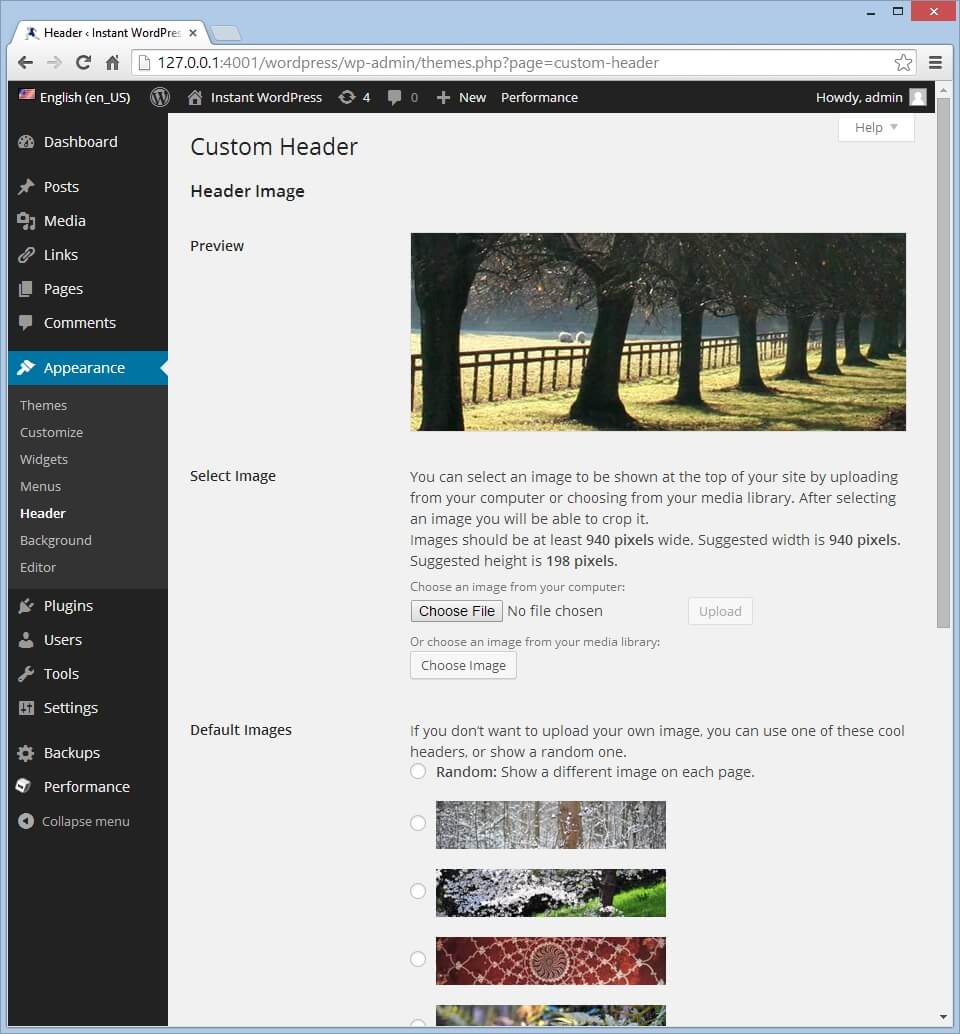
Start by logging into your WordPress dashboard. Go to Appearance and select Header or Customize. Click the option to add a new image. Choose a file from your computer or select one from the media library. After uploading, save your changes to see the new header.
Adjusting Image Size And Position
Once the image is uploaded, WordPress lets you crop or resize it. Use the cropping tool to fit the header area perfectly. You can drag the image to reposition it. This helps highlight the most important part of your header.
Removing Or Replacing The Existing Image
To remove the current header image, go back to the Header settings. Select the option to remove or hide the image. You can replace it by uploading a new one right after. This keeps your site fresh without extra steps.
Modifying Header Text
Changing the header text in WordPress is simple and helps your site look unique. The header usually shows your site’s name and a short description called a tagline. Modifying these elements lets visitors know what your site is about. You can also adjust the style and add a logo for a personal touch.
Editing Site Title And Tagline
To change the site title and tagline, go to the WordPress dashboard. Click on “Settings” and then “General.” Here, you will see fields for the site title and tagline. Type your new header text in these boxes. After updating, click “Save Changes” at the bottom.
The new text will appear at the top of your website. This change helps visitors quickly understand your site’s purpose. Keep the title short and clear for the best impact.
Customizing Fonts And Colors
Fonts and colors in your header affect how your site looks. WordPress themes often have options to change these styles. Go to “Appearance” and select “Customize.” Then, find the “Typography” or “Colors” section.
Pick fonts that are easy to read. Choose colors that match your brand or style. These changes make your header stand out and look professional. Small tweaks can improve your site’s overall feel.
Adding A Logo Instead Of Text
You can replace the text header with a logo image. Many themes let you upload a logo via the “Customize” menu. Look for the “Site Identity” or “Header” section. Click “Select Logo” and upload your image.
A logo helps visitors recognize your brand quickly. Make sure the image is clear and fits well in the header space. This change gives your website a polished and unique look.
Using Plugins For Advanced Header Customization
Using plugins for advanced header customization offers many options to enhance your WordPress site. Plugins let you change headers without coding. They provide tools to create unique headers easily. This method suits users who want more than basic header changes. Plugins also help add special effects and features.
Popular Header Customization Plugins
Several plugins help customize headers simply and quickly. Elementor and Beaver Builder offer drag-and-drop header design. Header Footer Elementor allows easy header and footer editing. WP Sticky adds sticky header options. These plugins work with most WordPress themes. They provide templates and tools to create headers that fit your style.
Adding Sticky Headers
Sticky headers stay visible when scrolling down the page. They improve navigation and user experience. Plugins like WP Sticky and myStickymenu make adding sticky headers easy. After installing, you choose the header area to stick. Sticky headers keep important links always accessible. This feature helps visitors move around your site faster.
Creating Transparent Headers
Transparent headers blend with the background for a modern look. Many plugins let you set header transparency with simple controls. Elementor and Header Footer Elementor allow this effect with one click. Transparent headers work well with large images or videos behind. They make your site appear clean and stylish. Adjust transparency level for the best visual effect.
Editing Header Code Directly
Editing the header code directly in WordPress gives you full control over your website’s header. You can customize the header’s layout, add scripts, or change styles beyond what the theme options allow. This method requires some care because incorrect changes can break your site. Always back up your files before making edits.
Accessing The Theme Editor
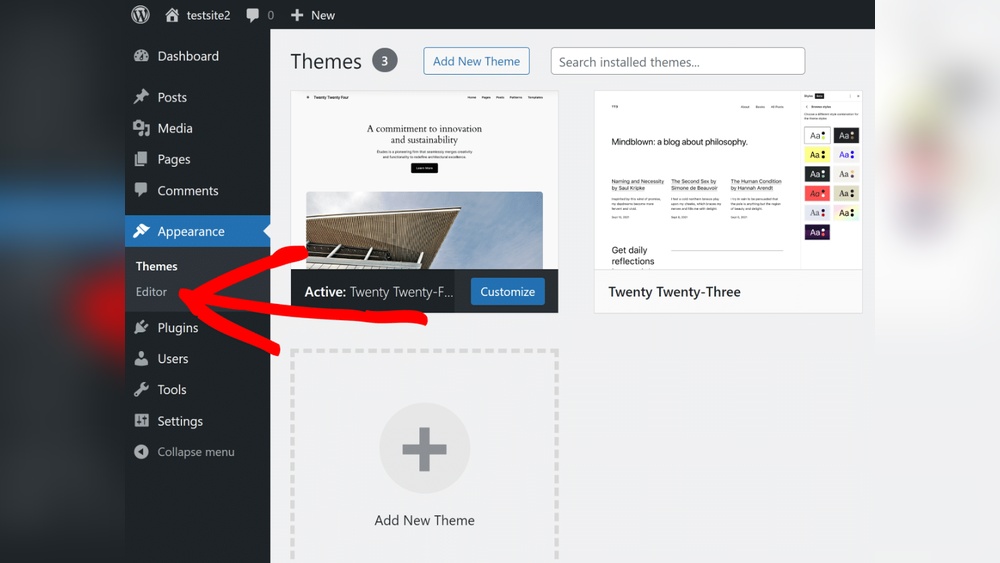
Start by logging into your WordPress dashboard. Go to Appearance, then click on Theme Editor. This opens the built-in editor where you can see all theme files. Look for the file named header.php. This file controls the content and structure of your site’s header.
Modifying Header.php Safely
Before editing, download a copy of header.php to your computer. This helps you restore the original if something goes wrong. Make small changes and save the file. Check your website after each change to ensure it works well. Avoid deleting important code like tags or PHP functions.
Using Child Themes For Custom Code
Editing a parent theme file can be risky because updates overwrite your changes. A child theme keeps your custom code safe. Create a child theme and copy header.php into it. Edit the copied file in the child theme folder. WordPress loads the child theme first, so your header changes appear without losing them during updates.
Credit: www.theblogstarter.com
Tips For Responsive Header Design
Creating a responsive header is key to a good website. A responsive header looks great on all devices. It helps visitors use your site with ease. Simple design choices make your header flexible. This section shares tips to design a responsive header that works well everywhere.
Ensuring Mobile Compatibility
Mobile devices need special care for headers. Use a header layout that fits small screens. Keep logos and menus clear and easy to tap. Avoid large images that slow down loading. Choose font sizes that are readable on phones. A mobile-friendly header improves user experience greatly.
Testing Header Appearance Across Devices
Check how your header looks on different screens. Use tools or real devices to test appearance. Look for issues like cut-off text or misplaced buttons. Adjust your design to fix these problems. Testing helps keep your header consistent everywhere.
Optimizing Header Load Time
A fast-loading header keeps visitors happy. Compress images used in the header for quicker loading. Limit the number of fonts and scripts. Use clean and simple code for the header. Fast headers reduce bounce rates and improve SEO.
Credit: www.youtube.com
Frequently Asked Questions
How Do I Change The Header Image In WordPress?
To change the header image, go to Appearance > Customize > Header Media. Upload a new image or select one from your library. Save and publish the changes to update your header image instantly.
Can I Edit The WordPress Header Text?
Yes, you can edit header text via Appearance > Customize > Site Identity. Here, change the site title and tagline. Save changes to update your header text site-wide.
How To Customize The WordPress Header Menu?
Navigate to Appearance > Menus to customize the header menu. Add, remove, or reorder menu items. Assign the menu to the header location and save your changes.
Is It Possible To Add A Logo To WordPress Header?
Yes, add a logo by going to Appearance > Customize > Site Identity. Upload your logo image, adjust size if needed, and publish the changes to display it in the header.
Conclusion
Changing the header in WordPress is simple and quick. You just need to follow a few clear steps. This helps make your website look unique and fit your style. You can try different designs and see what works best. Keep practicing to get comfortable with the process.
Your site will look better and attract more visitors. Enjoy customizing your WordPress header today!


