

Are you looking to make your WordPress website stand out by customizing its footer? The footer is more than just the bottom part of your site—it’s a powerful spot to share important info, links, or branding that visitors see on every page.
But how do you change it without breaking your site or getting lost in complicated code? You’re in the right place. This guide will walk you through simple, clear steps to update your WordPress footer quickly and confidently. Whether you want to add widgets, tweak text, or completely redesign the footer layout, you’ll find easy-to-follow methods that anyone can use.
Keep reading to transform your footer into a smart, stylish feature that keeps visitors engaged and coming back.
Access Footer Settings
Changing the footer in WordPress starts with finding the right settings. The footer is usually managed through different parts of your dashboard. Each method offers simple ways to customize your footer content and style.
You can choose to use the Appearance Customize menu, the Site Editor, or the Widgets area. These options give control over text, links, and layout in the footer. Let’s explore how to access and use these settings.
Using Appearance Customize
Go to your WordPress dashboard. Hover over Appearance and click Customize. This opens the live preview of your site with editable options.
Look for the Footer section in the menu. Inside, you can change footer text, colors, and layout. Some themes offer more detailed footer settings here.
Make your changes and see them update in real-time. When satisfied, click Publish to save the footer edits.
Editing With Site Editor
From the dashboard, go to Appearance and select Editor. This opens the full site editor in block format.
Scroll down to the footer area or use the block navigation to find it quickly. Click on the footer block to edit text, add blocks, or change styling.
This method offers more flexibility if your theme supports full site editing. Make sure to save your changes after editing.
Navigating Widgets Area
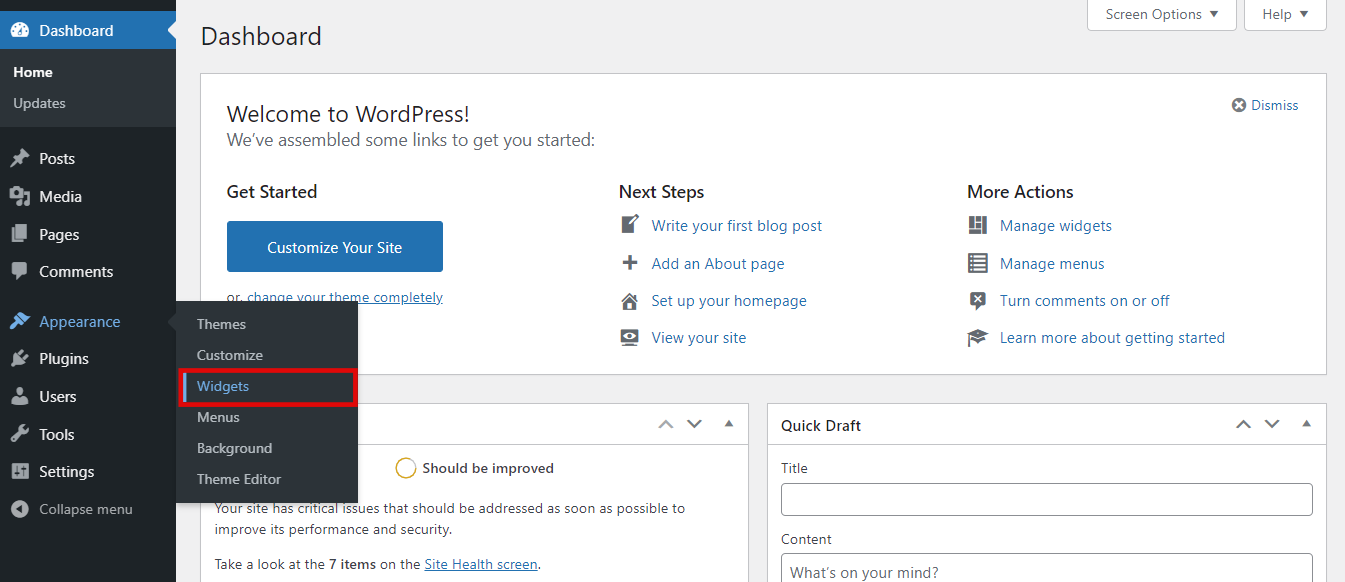
Many footers use widgets to display content. To edit these, go to Appearance and select Widgets.
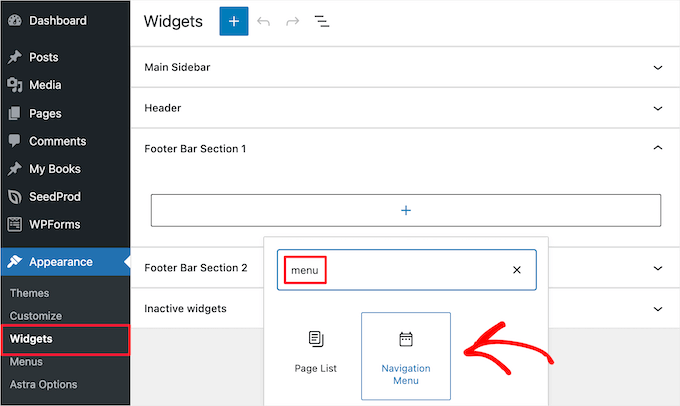
Find the footer widget areas, usually named Footer 1, Footer 2, etc. Here you can add, remove, or customize widgets like text, menus, or social icons.
Drag and drop widgets to reorder or update their settings. Changes here update the footer display instantly.
Credit: www.hostinger.com
Edit Footer Content
Editing the footer content in WordPress lets you personalize the bottom section of your website. The footer often contains important information, links, or social media icons. Changing this content helps visitors find useful details quickly. It also improves your site’s look and feel.
WordPress makes it easy to update the footer without coding. You can add text, links, icons, and copyright info. This section guides you through simple steps to edit your footer content effectively.
Adding Text And Links
To add text or links, go to Appearance > Customize > Footer. Use the available widget areas to insert new text blocks. Write short, clear messages that visitors need. For links, highlight the text and add URLs to direct users to other pages. Keep links relevant and easy to find.
Inserting Social Media Icons
Social media icons connect your site to your profiles. Many themes offer built-in options for this. In the footer settings, select the social media block or widget. Add the URLs of your social accounts. Icons will appear automatically, linking visitors to your pages. Choose only the platforms you use regularly.
Customizing Copyright Info
The copyright notice shows your website ownership and the year. Find this option under Footer settings or widgets. Edit the text to include your business name and the current year. Use simple wording like “© 2024 YourSiteName. All rights reserved.” This small detail boosts your site’s professionalism.
Style Footer Design
Styling your WordPress footer is key to making your website look complete and professional. A well-designed footer draws attention without distracting from your main content. It also improves user experience by making important links and information easy to find.
Simple changes like colors, fonts, layout, and backgrounds can transform your footer. These adjustments create a consistent look that matches your brand. Let’s explore how to style your footer design effectively.
Changing Colors And Fonts
Colors set the mood and highlight key areas in your footer. Use colors that fit your website’s theme for a balanced look. Fonts should be clear and readable. Choose font styles and sizes that match the rest of your site. You can change these settings in the WordPress customizer or theme options. Select colors for text, links, and headings to make the footer stand out.
Adjusting Layout And Spacing
Layout controls how the footer content is arranged. You can organize items in columns or rows depending on your design. Spacing between elements prevents clutter and keeps the footer clean. Use padding and margins to create breathing room. Many WordPress themes allow you to customize these settings easily. Proper layout and spacing improve footer readability and user navigation.
Applying Background Images
Background images add style and personality to your footer. Choose subtle images that do not overpower the text. Patterns or gradients work well for footers. You can upload a background image through the WordPress customizer or theme settings. Adjust opacity or add overlays to keep the content visible. A well-chosen background image enhances your site’s visual appeal.
Use Page Builders
Page builders simplify footer changes in WordPress. They offer visual tools to customize footers without coding. This makes editing easier and faster. Many popular page builders include footer editing features. You can design footers to match your site style precisely. Below are methods for editing footers with popular page builders.
Editing Footer With Elementor
Elementor lets you create and edit footers visually. Open Elementor and navigate to the Theme Builder. Select the Footer section to modify or create a new footer template. Use widgets to add text, images, or social icons. Drag and drop elements to arrange the layout. Save and assign the footer to display across your site.
Creating Footer In Divi Theme Builder
Divi Theme Builder offers a simple way to build custom footers. Go to Divi → Theme Builder in your WordPress dashboard. Click to add a new footer template or edit an existing one. Use Divi’s drag-and-drop modules to design your footer. You can customize colors, fonts, and layouts easily. After designing, assign the footer globally or to specific pages.
Working With Thrive Theme Builder
Thrive Theme Builder provides a flexible footer editor. Access the Thrive Dashboard and open the Theme Builder area. Choose the Footer template to edit or create a new one. Use Thrive’s visual editor to add content blocks like menus or contact info. Adjust styles using simple controls for colors and spacing. Publish the footer and set its display rules.
Advanced Footer Editing
Advanced footer editing allows you to customize your website’s footer beyond basic options. It gives control over design, layout, and content. This approach needs some technical knowledge but offers great flexibility. You can change the footer to fit your brand style and information needs precisely.
There are several ways to edit the footer in WordPress. Using code directly or child themes are common methods. Adding custom code snippets can also enhance footer functionality. Each method suits different skill levels and customization goals.
Modifying Footer.php File
The footer.php file controls the footer area in most WordPress themes. Editing this file lets you change the footer structure and content directly. Access the file through Appearance > Theme Editor in your WordPress dashboard.
Be careful when editing footer.php because errors can break your site. Always back up the file before making changes. Use simple HTML or PHP to add or remove elements from the footer. This method works best for users who understand basic coding.
Using Child Themes
Child themes protect your changes from being lost during theme updates. Create a child theme to override the parent theme’s footer.php file safely. Copy the footer.php file into the child theme folder and edit it there.
With a child theme, you can customize the footer without touching the original files. This keeps your site updates smooth and your custom footer intact. It is the recommended way to make advanced footer changes.
Adding Custom Code Snippets
Custom code snippets allow you to add features or style to the footer without editing theme files. Use plugins like Code Snippets or add code in your child theme’s functions.php file. This method helps insert scripts, widgets, or tracking codes.
Snippets can modify footer text, add social icons, or load extra styles. Keep snippets short and test them carefully. This technique is ideal for small tweaks and adding functionality without deep coding.

Credit: www.interserver.net
Add Footer Widgets
Adding footer widgets in WordPress lets you enhance your site’s footer area. Widgets can show important info, links, or images. They help make your footer useful and attractive. WordPress themes usually have specific widget areas in the footer. You can place different widgets in these areas to customize the footer content.
Choosing Footer Widget Areas
Most WordPress themes offer multiple footer widget areas. These areas are sections where you can place widgets. To find them, go to Appearance > Widgets in your dashboard. Look for areas named “Footer,” “Footer 1,” “Footer 2,” and so on. Choose the widget areas based on the layout you want. Some themes allow up to four widget columns in the footer. Pick the areas that match your footer style and needs.
Adding And Removing Widgets
To add a widget, drag it from the available widgets list to a footer widget area. WordPress supports many widget types like text, menus, images, and social links. Remove a widget by dragging it out of the footer area or clicking the delete option inside the widget. You can rearrange widgets by dragging them up or down within a footer area. This control lets you organize footer content easily and quickly.
Customizing Widget Appearance
After placing widgets, customize how they look. Some widgets have settings for titles, colors, or links. Use these options to match your website’s design. You may also add custom CSS in the theme customizer for advanced styling. Keep widget appearance simple and clear for visitors. Well-styled widgets improve footer usability and site professionalism.
Fix Footer Position
Fixing the footer position in WordPress improves site appearance. A well-placed footer stays visible and neat. It creates a professional look on every page. Fixing the footer prevents it from floating or hiding. This section shows simple ways to fix the footer position.
Setting Fixed Footer In Theme Builder
Open your WordPress dashboard and go to the Theme Builder. Choose to edit or create a global footer layout. Select the section with your footer elements. Find the Advanced tab and click on Position settings. Set the position to “Fixed” to keep the footer always visible. This setting locks the footer at the bottom of the screen. Save changes and check your site to see the fixed footer.
Aligning Footer At Bottom Center
To center the footer, use the alignment options in your theme or builder. In the footer section, look for alignment or layout settings. Choose “Bottom Center” for a balanced footer look. This places the footer content neatly in the middle at the page bottom. It helps visitors find important links and info easily. Check on different pages to confirm the footer alignment is correct.
Handling Responsive Footer Layout
A good footer works well on all devices. Test your footer on phones, tablets, and desktops. Use responsive settings in your theme builder to adjust the footer layout. Change font size, spacing, or element order for smaller screens. Ensure footer text and links remain readable and clickable. Responsive footers improve user experience and site navigation. Keep checking and adjusting for the best look on every device.
Credit: www.wpbeginner.com
Save And Preview Changes
After customizing your WordPress footer, saving and previewing changes is essential. This step ensures your edits appear correctly before going live. It helps catch any errors or layout issues early. Follow simple steps to save your work and see a preview of your updated footer. This process makes footer editing smooth and efficient.
Using Preview Mode
Preview mode shows your changes without publishing them. Click the “Preview” button in the customizer or editor. This action opens a new tab with your website. Check the footer to confirm it looks as expected. Use preview mode to test different devices and screen sizes. This way, your footer appears perfect for all visitors.
Publishing Footer Updates
Once satisfied with the preview, publish your changes. Click the “Publish” or “Save” button in the editor. This step makes the new footer visible to all visitors. Publishing finalizes your edits and updates the live website. Always double-check before publishing to avoid mistakes.
Clearing Cache For Changes
Sometimes, changes don’t show immediately due to caching. Clear your browser cache to see the latest footer. If you use a caching plugin, clear its cache too. This action forces the website to load updated files. Clearing cache prevents confusion and ensures your footer update is visible.
Frequently Asked Questions
How Do I Change The Footer Of WordPress?
Go to Appearance > Customize in your WordPress dashboard. Select Footer or Widgets to edit content and style. Use widgets or block editor to add or change footer elements. Save changes to update your site footer instantly.
How Do I Edit An Existing Footer?
To edit an existing footer, go to Appearance > Customize or Appearance > Editor in WordPress. Select the footer area, then add, remove, or style content using widgets or the block editor. Save changes to update the footer immediately. Avoid editing footer.
php directly unless using a child theme.
How Do I Edit The Footer Of My Website?
Go to your website dashboard and select Appearance > Customize or Appearance > Editor. Click the footer section to edit content, widgets, or style. Use the block editor or widgets to add or modify footer elements. Save changes to update your website footer instantly.
How To Set A Footer At The Bottom Of The Page In WordPress?
Go to Appearance > Customize in WordPress dashboard. Select Footer or Widgets. Add or edit content using available options. Save changes to set the footer at the page bottom. Use Theme Builder or page builders like Divi for advanced footer positioning.
Conclusion
Changing the footer in WordPress is simple and flexible. Use the Customizer for quick edits or the Site Editor for block themes. Widgets help add new sections easily. Page builders like Elementor offer more design options. Avoid editing core files unless using a child theme.
This keeps your changes safe during updates. Now you can make your website footer fit your style and needs. Keep experimenting until it looks just right.


