
Are you looking to make your WordPress site truly your own? One of the easiest ways to personalize your website and grab your visitors’ attention is by changing the font.
The right font can make your content easier to read, highlight your brand’s personality, and create a memorable experience for your audience. But how do you change the font in WordPress without getting lost in complicated settings or coding? You’ll discover simple, step-by-step methods to update your site’s font quickly and effectively.
Whether you want a bold headline style or a clean, professional look, you’ll learn how to achieve it—all without stress. Keep reading to unlock the secrets to transforming your WordPress font and elevating your site’s style instantly!
Changing Fonts With WordPress Editor
Changing fonts in WordPress is simple with its built-in editor tools. Fonts help make your website more readable and attractive. WordPress offers easy ways to pick and apply fonts directly within the editor. This saves time and keeps your site design consistent.
The WordPress editor lets you customize typography for your whole site or individual blocks. You do not need extra plugins for basic font changes. The editor’s options are user-friendly and clear. You can quickly choose fonts that match your style and brand.
Using The Site Editor Typography Options
The Site Editor controls your entire site’s look. To change fonts, open the Site Editor from your WordPress dashboard. Click the “Styles” tab to find typography settings. This section lets you adjust the font family, size, and weight.
Select the font style for headings, paragraphs, and menus. The changes apply to your whole website. The Site Editor shows a live preview of your font choices. This helps you see how the fonts look before saving.
This method works best with themes that support the Site Editor. It keeps your site design uniform and easy to update. You can change fonts anytime without coding skills.
Selecting Fonts In Block Editor
The Block Editor allows font changes on specific blocks or sections. Click a text block in your post or page. On the right side, open the “Typography” panel in the block settings.
Here, pick the font size and style for that block. Some blocks let you choose font family too. This gives you control over fonts for titles, paragraphs, and other elements.
Font changes in the Block Editor affect only the selected block. This helps highlight important text or create visual variety. It is a quick way to customize fonts without affecting the whole site.
Credit: wordpress.com
Customizing Fonts Via Theme Settings
Customizing fonts via theme settings lets you change your site’s look fast. Most WordPress themes include options to adjust fonts without plugins. This method keeps your site simple and loads quickly. Fonts set through the theme apply consistently across your pages and posts.
Using theme settings is beginner-friendly. It requires no coding or extra tools. Explore your theme’s font options to match your brand style. Adjust font types, sizes, and weights easily in one place.
Accessing Theme Customizer
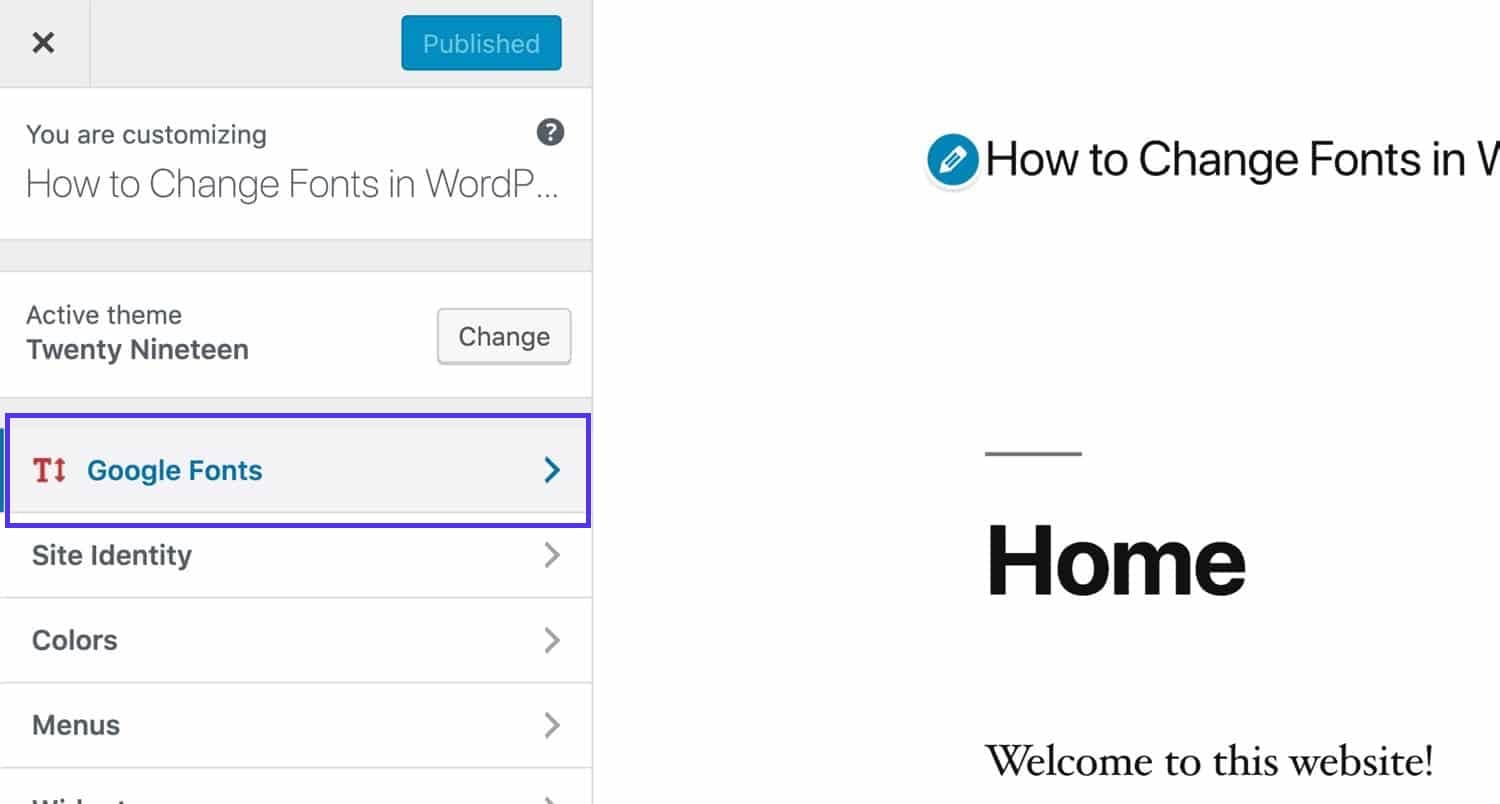
Start by logging into your WordPress dashboard. Go to Appearance, then select Customize. This opens the Theme Customizer panel. It shows live previews of your site changes. Find the Typography or Fonts section in the menu. Different themes label it differently but look for font-related names. Click to open font controls. You can now explore font choices available in your theme.
Adjusting Font Styles And Sizes
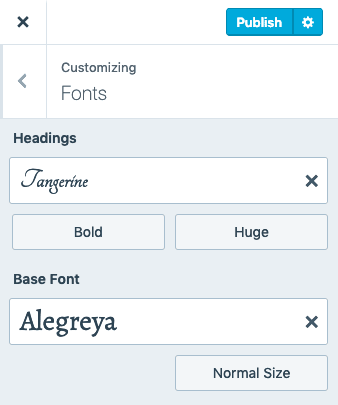
Inside the font settings, select the area to edit. Common options include Body, Headings, and Menus. Choose a font family from the dropdown list. Pick simple fonts for easy reading. Adjust font size using sliders or input boxes. Increase size for headings to create clear sections. Change font weight to make text bold or light. Preview your changes in real time before saving. Save settings once satisfied to apply fonts site-wide.
Using Plugins For Font Control
Using plugins is a simple way to control fonts in WordPress. Plugins offer many font choices and easy customization. They work well for users who want more font options without coding. Plugins also let you change fonts site-wide or for specific sections.
This method fits any skill level. It saves time and ensures font changes look good on all devices. Most font plugins include popular fonts and tools to adjust size, style, and weight.
Popular Font Plugins
Several font plugins stand out for their ease and features. Easy Google Fonts lets you add Google Fonts easily. Use Any Font allows custom fonts upload. WP Google Fonts provides fast integration of Google Fonts. Each plugin supports font control for paragraphs, headings, and menus.
Installing And Activating Plugins
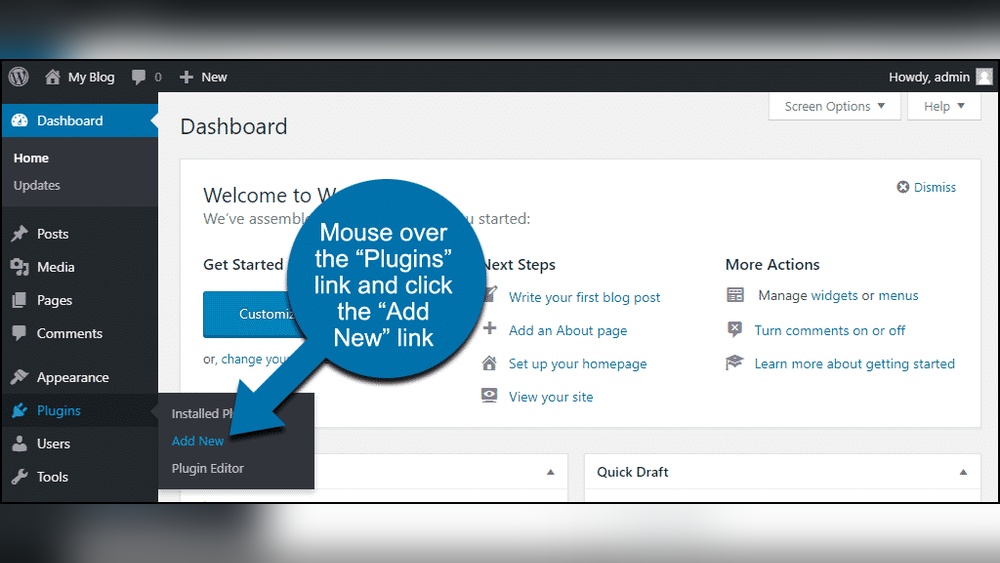
Start by logging into your WordPress dashboard. Go to Plugins > Add New. Type the plugin name in the search box. Click Install Now next to the plugin you want. After installation, click Activate. The plugin will appear in your dashboard menu for easy access.
Configuring Plugin Font Options
Open the plugin settings from the dashboard menu. Choose the font family you want to use. Adjust font size, style, and weight as needed. Some plugins offer live previews to see changes instantly. Save settings after making changes. Check your site to ensure fonts display correctly.
Adding Custom Fonts Manually
Adding custom fonts manually in WordPress gives full control over your site’s typography. This method works well for unique designs and brand consistency. It requires uploading font files and editing your theme’s CSS.
Manual font addition avoids relying on plugins. It keeps your site faster and cleaner. The process has two main steps: uploading the fonts and linking them with CSS.
Uploading Fonts Via Ftp
First, prepare your font files. Common formats include .woff, .woff2, .ttf, and .otf. Organize them in a folder on your computer.
Next, connect to your WordPress server using an FTP client. FileZilla is a popular free option. Log in using your hosting details.
Locate your active theme folder under wp-content/themes/your-theme-name/. Create a new folder named fonts inside it. Upload your font files into this new folder.
Uploading fonts to this location keeps everything organized and easy to find.
Editing Css For Font Integration
After uploading, open your theme’s stylesheet. Usually, it is style.css in the theme folder. You can edit it via WordPress dashboard or FTP.
Define your custom fonts with the @font-face rule. This tells the browser where to find and how to use the fonts.
Example:
@font-face { font-family: 'CustomFont'; src: url('fonts/customfont.woff2') format('woff2'), url('fonts/customfont.woff') format('woff'); font-weight: normal; font-style: normal; } Replace customfont.woff2 and customfont.woff with your actual file names.
Next, apply the font to elements using CSS selectors. For instance:
body { font-family: 'CustomFont', Arial, sans-serif; } This code sets the custom font as the default for your website text.
Save changes and refresh your site. Your new font should appear correctly.
Tips For Stunning Font Design
Designing stunning fonts for your WordPress site improves user experience and site appeal. Fonts should look good and be easy to read. Good font design keeps visitors engaged and helps your message stand out.
Simple choices make your content clear. Avoid cluttered or hard-to-read fonts. Focus on style that supports your site’s purpose. Use fonts to create a visual hierarchy and highlight key points.
Choosing Readable Fonts
Pick fonts that are clear on all screen sizes. Sans-serif fonts like Arial or Helvetica often work well. Avoid overly decorative fonts for body text. Use simple fonts for paragraphs and more creative ones for headings.
Check font size and spacing. Small or tight letters strain the eyes. Aim for a font size that is easy to scan quickly. Good readability keeps visitors on your page longer.
Combining Fonts Effectively
Limit font types to two or three per page. Too many fonts create visual noise. Pair a serif font with a sans-serif for balance. Use contrasting styles to separate headings from body text.
Match fonts with your site’s tone. Formal sites suit classic fonts. Casual blogs benefit from friendly, rounded fonts. Consistent font use builds brand identity.
Maintaining Mobile Font Compatibility
Test fonts on different devices. Mobile screens show fonts differently than desktops. Choose fonts that scale well on phones and tablets. Avoid fonts that lose shape or become unreadable on small screens.
Use responsive typography settings in WordPress. Adjust font size and line height for mobile views. Mobile-friendly fonts improve user comfort and reduce bounce rates.

Credit: wordpress.com
Troubleshooting Font Issues
Changing fonts in WordPress can sometimes lead to unexpected issues. Fonts may not update as expected or display incorrectly on your site. Troubleshooting font problems helps ensure your website looks just right and improves user experience.
Problems often arise from caching, plugin conflicts, or theme settings. Tackling these issues step-by-step can restore your font changes quickly. The following sections explain common fixes to solve font-related troubles in WordPress.
Fixing Font Not Changing
First, check if your font changes are saved properly. Sometimes, the theme or customizer does not apply updates immediately. Try reapplying the font settings and save them again. Confirm that you are editing the correct section or element of your website.
Verify your theme supports custom fonts or font changes. Some themes restrict font options. If you use custom CSS, ensure it targets the right selectors without errors. Incorrect CSS rules can prevent fonts from updating on the front end.
Clearing Cache And Refreshing
Browser cache often stores old font files, causing display issues. Clear your browser cache and reload your site. This step forces the browser to fetch the latest font styles.
WordPress caching plugins can also serve outdated content. Clear your site’s cache from any caching plugin dashboard. If you use a CDN, purge its cache too. These actions help show font changes immediately.
Resolving Plugin Conflicts
Plugins can sometimes interfere with font settings. Disable all plugins temporarily and check if the font updates work. If fonts change correctly, reactivate plugins one by one.
This method identifies the plugin causing the conflict. You can then seek alternatives or contact the plugin developer. Ensuring plugins do not block font changes keeps your site design consistent.
Credit: kinsta.com
Frequently Asked Questions
How Do I Change The Text Font On WordPress?
Open the WordPress Site Editor, click the ‘Styles’ tab, then select ‘Typography’. Choose your desired font to change the text font.
How Do I Change The Font Style Of A Text?
Select the text you want to change. Open the font menu in your app or editor. Choose your preferred font style. Apply changes to update the text’s appearance instantly.
How Do I Change The Style In WordPress?
Open your WordPress dashboard, go to Appearance > Customize > Styles or Typography. Choose and apply your preferred font style there. Save changes to update your site’s style instantly.
How To Use Custom Fonts In WordPress?
To use custom fonts in WordPress, upload font files via a plugin or theme. Then, add CSS to apply fonts site-wide or to specific elements. Alternatively, use the WordPress Site Editor’s Typography settings to select available fonts easily.
Conclusion
Changing fonts in WordPress is simple and enhances your site’s look. Use the Site Editor or theme options to pick fonts easily. Custom fonts help make your content clear and attractive. Experiment with styles until you find what fits best.
Keep your fonts readable on all devices for better user experience. Regular updates ensure your fonts display correctly and stay fresh. Start customizing today to give your website a unique feel.


