
Are you ready to give your WordPress website a fresh new look? Changing the colors in your WordPress theme can be one of the easiest and most effective ways to transform your site and make it stand out.
Imagine the power of colors—they can evoke emotions, convey messages, and create a memorable experience for your visitors. Yet, you might be wondering how to make these changes without getting tangled in complicated coding. Don’t worry; you’re in the right place.
In this guide, you’ll discover simple and straightforward steps to update your theme colors, making your website more visually appealing and aligned with your brand identity. Whether you’re aiming for a sleek and modern design or something more vibrant and bold, we’ve got you covered. Let’s dive in and unlock the potential of your WordPress theme. Your website’s transformation is just a few clicks away!
Credit: www.wpbeginner.com
Accessing Theme Customizer
First, log in to your WordPress dashboard. Look for the Appearance tab on the left side. Click on it. This opens more options.
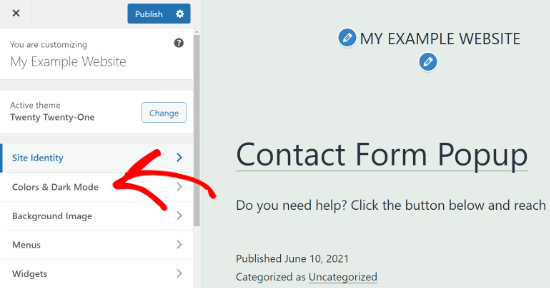
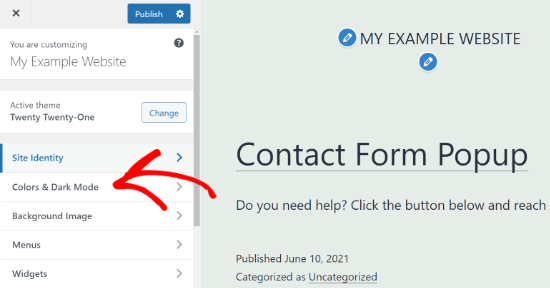
You will see the Customize option. Click it. Now, you are in the Theme Customizer. This is where you can change colors and more.
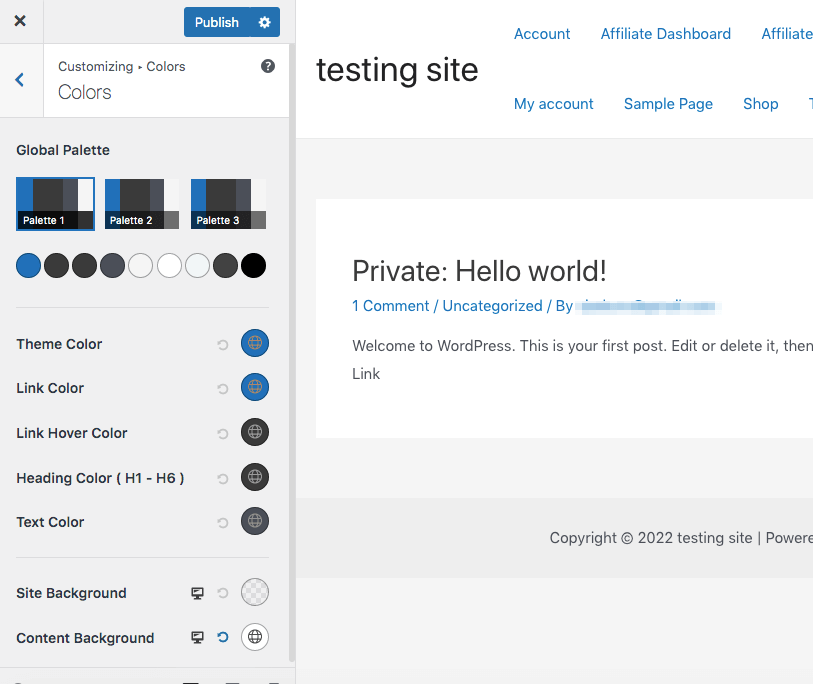
Inside the Customizer, find the Colors section. Click on it. Now, you can see all color options. You can change the background and text colors. Try different colors to see what looks best.
Always click Publish to save changes. If you don’t, changes will not show. Now, enjoy your colorful WordPress site!
Exploring Color Options
Most themes have unique settings. These settings help change colors easily. Start by finding the theme options panel. Often, this is in the WordPress dashboard. Look for the Appearance section. Click it to find your theme settings. Here, you might see a customizer. This tool lets you change colors. Themes can have different settings. Some themes offer more color choices. Others have limited options. Always check your theme’s documentation. This helps understand where to find color settings. Also, explore the live preview feature. It shows changes in real-time.
Color settings are usually in the customizer. Access the customizer through the dashboard. Click Appearance, then choose Customize. Inside, find the Colors section. It might be named differently. Some themes call it Styling or Design. Once inside, you can change background, text, and link colors. Preview changes before saving. This ensures the theme looks good. Experiment with different colors. Remember, you can always reset changes if needed.
Modifying Background Colors
Open your WordPress dashboard. Go to Appearance and click on Customize. Look for Background settings. Choose a new color. Click Save to apply the changes. Check if the new color looks good. You can change it again if needed.
Navigate to the Header or Footer section in the Customizer. Find color options for these areas. Select your preferred colors. Ensure the text is still easy to read. Click Publish to save your settings. Refresh your site to view the changes.
Customizing Text Colors
Changing the body text color in WordPress is easy. Start by accessing the Theme Customizer from your dashboard. Navigate to Colors or Typography settings. Look for options labeled Body Text or similar. Select a color that fits your style. Make sure the color is readable. Dark colors on a light background work well. Light colors on a dark background can be stylish. Preview your changes before saving. This ensures your text is easy to read.
Adjusting link and heading colors adds flair. Go to the same Theme Customizer. Locate Link Color settings. Choose colors that match your theme. For headings, find Heading Color options. Use contrasting colors for links. This helps them stand out. Ensure headings are bold and clear. This makes reading easier. Preview changes to see how they look. Save your adjustments once satisfied.
Tweaking Button Colors
Changing the button background is easy. Start in the WordPress dashboard. Go to Appearance and click Customize. Find the section for buttons. It might be under Colors or Buttons. Look for the background color option. Click to choose a new color. A color picker will help you. Choose the color you like. Then, save your changes. Now, your buttons have a new look!
Adjust the text color in the same area. Look for text color settings. It should be near the background settings. Click to change the color. Use the color picker again. Pick a color that stands out. Make sure it is readable. Save the changes once you are happy. Your buttons will now have new text colors!
Using Additional Css
Change colors in your WordPress theme by using Additional CSS. Add custom CSS code to alter elements like headers, backgrounds, and text. This tool makes it easy to personalize your site’s appearance without touching the theme’s core files.
Understanding Css Basics
CSS stands for Cascading Style Sheets. It helps change website looks. With CSS, you can change colors, fonts, and more. Think of CSS as a way to style your site. Each part of your site can have different styles. For colors, you use codes like #FFFFFF for white. Remember, small changes can make a big difference. CSS is like magic for your site.
Applying Custom Css For Color Changes
To change colors, go to your WordPress dashboard. Click on Appearance, then choose Customize. Find the Additional CSS section. Here, you can add your custom CSS code. For example, to change the background color, use body { background-color: #000000; }. This will make it black. Always check your changes. Make sure they look good on your site. Experiment with different codes. Find the best colors for your theme.
Checking Mobile Responsiveness
Changing colors in your WordPress theme can enhance mobile responsiveness. Navigate to the WordPress dashboard and select ‘Customize’. Then, adjust colors under the ‘Colors’ section for a consistent look across devices. This simple tweak ensures your site looks appealing on any screen size.
Previewing Changes On Mobile
Use your WordPress theme’s preview tool. This helps check changes on mobile. Make sure the colors look good. They should match your site’s style. Sometimes, colors might look different on phones. Adjust them if needed. This makes your site look good everywhere.
Ensuring Consistent Color Scheme
Keep your color scheme the same across all pages. This helps users recognize your brand. Choose a set of colors that work well together. Apply these colors to all elements. Like headers, buttons, and links. Consistent colors make your site visually appealing. It also makes it easier to read.
Credit: themelooks.com
Saving And Publishing Changes
Changing colors in your WordPress theme is simple. Use the customizer to select new colors for your site. Save and publish changes to update your theme instantly.
Reviewing Final Adjustments
Check your new theme colors. Make sure they look good. Look at different pages on your site. See if all colors match. Fix anything that looks wrong. Ask a friend for feedback. They might see things you missed. Use their advice to make changes. Small changes can make a big difference.
Publishing Your Customized Theme
Press the save button to keep your work. Your colors are not live yet. Click the publish button. Now, everyone can see your changes. Visit your site to see it live. Does everything look right? If not, go back and edit. Your site should look the way you want. Enjoy your new colors. You did a great job!
Credit: www.wpbeaverbuilder.com
Frequently Asked Questions
How Do I Change The Color In A WordPress Theme?
Change theme colors via WordPress Customizer under “Appearance. ” Select “Colors” to adjust as desired. Save changes.
How To Change Theme Colors?
Go to the settings or customization section of your theme. Find the color options. Select and save your desired colors. Refresh the page to see changes.
How Do I Edit An Existing WordPress Theme?
To edit a WordPress theme, use a child theme. Access the WordPress Dashboard, navigate to Appearance, then Theme Editor. Make changes in the child theme’s CSS or PHP files. Always backup your site before editing to prevent data loss. Use FTP for deeper customizations if needed.
How Do I Customize My WordPress Theme?
Customize your WordPress theme by accessing the Appearance tab in your dashboard. Use the Theme Customizer for adjustments. Modify CSS using the Additional CSS option for styling. Install a child theme for advanced changes without affecting the main theme. Always backup your site before major edits.
Conclusion
Changing colors in your WordPress theme is simple. Just follow the steps outlined. With practice, you’ll get faster at it. Customize your site to reflect your brand. A good color scheme enhances user experience. It also makes your content more appealing.
Explore different options in your theme settings. Experiment with color combinations. Don’t hesitate to seek help if needed. Online forums and tutorials are available. Keep your website looking fresh and engaging. Now, enjoy your newly customized WordPress site!


