
Want to build a website but don’t know where to start? You’re not alone.
WordPress makes it simple and powerful, even if you have no technical skills. Imagine having your own space online that looks great and works exactly how you want. You’ll discover easy, step-by-step tips to create your WordPress website quickly. By the end, you’ll feel confident and ready to show your site to the world.
Ready to get started? Let’s dive in!
Choosing A Domain And Hosting
Choosing a domain and hosting is the first step in building a website with WordPress. The domain is your website’s address on the internet. Hosting is the service that stores your website files and shows them online. Both must be chosen carefully to ensure your website runs smoothly and is easy to find.
Picking The Right Domain Name
Your domain name should be simple and easy to remember. Use short words that reflect your website’s purpose. Avoid numbers and hyphens as they can confuse visitors. Choose a domain extension like .com or .net that fits your site’s goal. Make sure the domain is unique and not already taken. A clear domain name helps people find and trust your site.
Selecting A Reliable Hosting Provider
A reliable hosting provider keeps your website online and fast. Choose a host with good uptime, at least 99.9%, to avoid downtime. Look for plans that offer enough storage and bandwidth for your needs. Check if the host provides easy WordPress installation. Good customer support is important for solving issues quickly. Secure servers with SSL certificates protect your site and visitors.
Installing WordPress
Installing WordPress is the first step to building your website. This process sets up the WordPress software on your hosting server. It makes your site ready for content, themes, and plugins. There are two common ways to install WordPress. One is fast and easy. The other gives you more control.
Using One-click Installation
Many web hosts offer one-click WordPress installation. It is simple and quick. You log into your hosting account. Find the WordPress installer tool. Click the install button. Fill in basic details like site name and admin info. The installer does the rest. It sets up the database and files automatically. Your WordPress site is ready within minutes. No technical skills are needed for this method.
Manual Installation Steps
Manual installation gives you full control over setup. First, download the WordPress package from the official website. Next, upload the files to your web server using FTP. Then, create a MySQL database from your hosting control panel. Open your browser and run the WordPress setup script. Enter your database details and site info. WordPress will create the necessary tables. After this, you can log in to your new site dashboard. This method takes more time but is useful if one-click is unavailable.
Configuring Basic Settings
Configuring basic settings is an important step in building a WordPress website. These settings help shape your site’s identity and improve how users and search engines see it. Taking time to adjust these options makes your site more professional and easier to use.
Setting Site Title And Tagline
The site title is the name of your website. It shows in browser tabs and search results. Choose a clear and simple title that matches your site’s purpose.
The tagline is a short phrase that describes your site. Keep it brief and informative. This helps visitors understand what your site offers at a glance.
To set these, go to the WordPress dashboard. Click on “Settings” then “General”. Enter your site title and tagline in the provided fields. Save the changes to update your site’s identity.
Adjusting Permalinks
Permalinks are the URLs for your posts and pages. Clean and simple URLs help visitors remember your links. They also improve your site’s SEO.
WordPress lets you choose different permalink styles. The best choice is usually the “Post name” option. It shows the title of your post in the URL.
To change permalinks, open “Settings” and select “Permalinks”. Choose “Post name” and save your changes. This makes your URLs neat and user-friendly.
Credit: wordpress.com
Picking A Theme
Picking the right theme is the first step in building your WordPress website. It sets the look and feel of your site. A good theme makes your site attractive and easy to use. The theme also controls how your content appears to visitors. Choose a theme that matches your site’s purpose and style.
Exploring Free Themes
Free themes are a great way to start. WordPress offers many free themes in its directory. These themes are tested and safe to use. You can find simple designs that work well for blogs or small businesses. Free themes often have fewer features but are easy to set up. Try several free themes to see which one fits your needs.
Choosing Premium Themes
Premium themes cost money but offer more options. They usually come with better designs and extra features. Premium themes often include support from the developer. They can help your site look professional and unique. Choose a premium theme if you want more control and customization. Make sure the theme updates regularly for security.
Installing And Activating A Theme
To install a theme, go to your WordPress dashboard. Click on “Appearance” then “Themes.” Use the “Add New” button to upload or search for a theme. After finding a theme, click “Install.” Wait a few seconds until the theme installs. Then, click “Activate” to apply the theme to your site. Your site will now use the new design.
Customizing Your Site
Customizing your WordPress site helps make it unique and user-friendly. You can change colors, fonts, and layout to match your style. Personal touches create a better experience for your visitors.
WordPress offers simple tools for customization. These tools let you change your site’s look without needing to code. Small changes can make a big impact.
Using The WordPress Customizer
The WordPress Customizer is a live preview tool. It shows changes in real time before saving them. You can adjust site identity, colors, and background here.
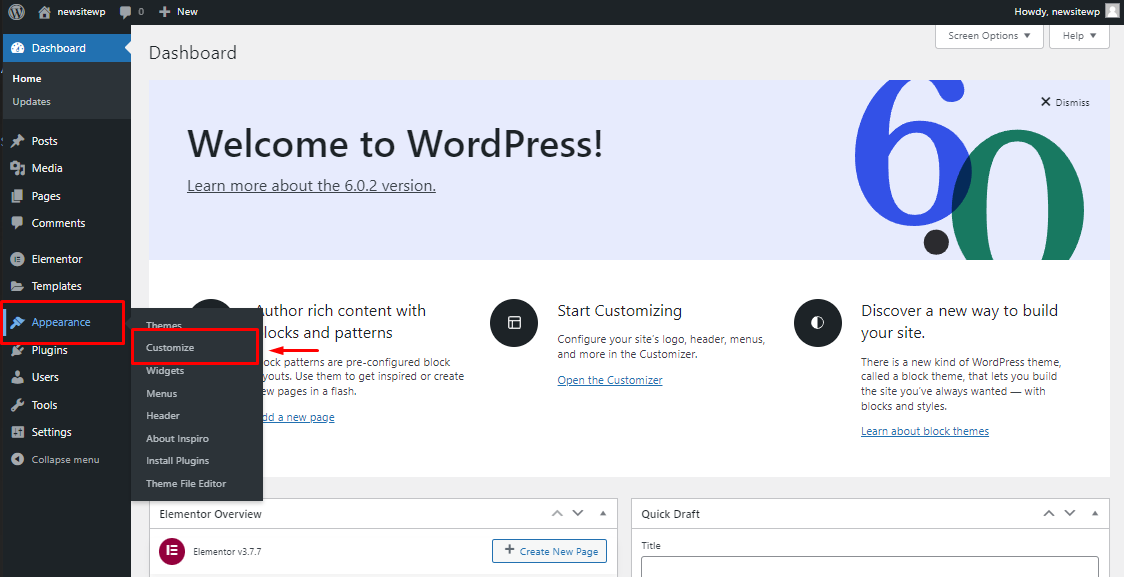
Start by opening the Customizer from the dashboard. Click “Appearance” then “Customize.” Explore each section to see options. Make changes and watch them update instantly.
This tool helps control many design elements. You can also add custom CSS if you know code. The Customizer keeps your site’s style consistent and clean.
Adding A Logo And Favicon
A logo gives your site a strong identity. It helps visitors recognize your brand quickly. Upload your logo through the Customizer under “Site Identity.”
The favicon is the small icon shown in browser tabs. It improves brand visibility and trust. Upload a favicon in the same “Site Identity” section.
Use simple, clear images for both. The right logo and favicon make your site look professional and complete.
Setting Up Menus And Widgets
Menus guide visitors through your site. Create menus under “Appearance” and then “Menus.” Add pages, posts, or custom links for easy navigation.
Widgets add extra features like search bars or recent posts. Manage widgets in the “Widgets” area of the dashboard. Drag and drop to arrange them in sidebars or footers.
Menus and widgets improve site usability. They help visitors find important content fast. Keep menus clear and widgets relevant for best results.
Creating Essential Pages
Creating essential pages is the first step in building a WordPress website. These pages give visitors important information. They also guide users through your site. Focus on simple, clear content. Use easy-to-read layouts. This helps visitors find what they need fast.
Adding Home And About Pages
The Home page is the main entry point for visitors. It should showcase your brand and key messages clearly. Use headings, images, and short paragraphs. Keep the design clean and inviting. The About page tells your story. Share who you are and what you do. Write in a friendly, honest tone. This builds trust and connection with readers.
Creating Contact And Blog Pages
The Contact page allows visitors to reach you. Include a simple form or your email address. Add phone numbers and social media links if possible. Make sure it’s easy to find and use. The Blog page shares updates and useful content. Post regularly to keep your site active. Use categories and tags to organize posts. This helps readers find topics they like.
Installing Plugins
Plugins add extra features to your WordPress website. They help customize your site without coding. Installing plugins is easy and important for better site function.
You can find plugins for security, design, SEO, and more. Choosing the right plugins improves user experience and site speed. Start with essential plugins before exploring others.
Must-have Plugins For Beginners
Start with plugins that help with security, SEO, and site speed. A security plugin protects your site from hackers. SEO plugins help search engines find your site. Speed plugins make your site load faster. Some popular plugins include Wordfence, Yoast SEO, and WP Super Cache. These plugins are easy to use and set up.
How To Install And Activate Plugins
Log in to your WordPress dashboard. Find the “Plugins” menu on the left side. Click “Add New” to search for plugins. Type the plugin name in the search box. Click “Install Now” on the plugin you want. Wait a few seconds for installation. After that, click “Activate” to start using the plugin. The plugin will now work on your website. You can change settings from the “Plugins” menu anytime.
Adding Content
Adding content is the heart of building a WordPress website. It lets you share your ideas, stories, and information with visitors. Content can be posts, pages, images, and other media. Each type serves a different purpose for your site.
Understanding how to add content helps you keep your site fresh and useful. WordPress makes this process simple with its tools. Let’s explore how to create posts and pages, use the Gutenberg editor, and insert images and media.
Creating Posts And Pages
Posts are for timely updates like news or blog entries. Pages hold static content like About or Contact information. Both are easy to create from the WordPress dashboard.
To create a post, go to the “Posts” menu and click “Add New.” For pages, choose “Pages” then “Add New.” Give your post or page a clear title. Write your content in the editor below the title. Save your work often to avoid losing changes.
Using The Gutenberg Editor
The Gutenberg editor uses blocks to build content. Each block can be a paragraph, image, heading, or list. Blocks help arrange content in a clean, organized way.
Add a new block by clicking the plus (+) sign. Choose the block type from the menu. You can move blocks up or down to change the order. Use the editor’s toolbar for text formatting and alignment. This tool makes content creation flexible and visual.
Inserting Images And Media
Images and media improve your site’s look and user experience. They break up text and add interest. To insert media, click the “Add Media” button above the editor.
You can upload files from your computer or select from the Media Library. Add alt text for images to improve SEO and accessibility. Resize or align images using the editor’s options. Proper media use keeps your site engaging and easy to read.
Optimizing For Seo
Optimizing your WordPress website for SEO helps search engines find your site. It improves your site’s visibility and attracts more visitors. Even simple SEO steps can make a big difference in ranking.
Start SEO optimization early. It saves time and effort later. Focus on tools and settings that boost your website’s search performance.
Installing Seo Plugins
SEO plugins help manage your site’s SEO easily. Popular plugins like Yoast SEO or All in One SEO offer many useful features. They guide you to improve content and technical SEO.
Install a trusted SEO plugin from the WordPress plugin library. Activate it and follow setup instructions. These plugins add fields for meta titles, descriptions, and keywords on each page.
Use the plugin’s analysis tools. They check your content for SEO best practices. Fix issues like missing keywords or poor readability directly in the plugin.
Basic Seo Settings
Set up basic SEO settings to improve search rankings. Choose clear and concise titles for your pages. Titles should include main keywords related to your topic.
Write short meta descriptions. These appear in search results and attract clicks. Use simple language and include keywords naturally.
Enable clean and readable URLs. WordPress allows you to change permalink settings for this. Avoid long or confusing URL structures.
Submit your sitemap to search engines. SEO plugins usually create sitemaps automatically. Sitemaps help search engines find all your pages faster.
Securing Your Website
Securing your WordPress website protects your content and visitors. It stops hackers and keeps your site running smoothly. Simple steps can make a big difference in website safety.
Using Security Plugins
Security plugins guard your website from attacks. They block unwanted visitors and monitor suspicious activity. Many plugins offer firewalls to stop threats early.
Choose plugins that update often and have good reviews. Some popular options are free and easy to use. Activate features like login protection and malware scanning.
Implementing Backups
Backups save a copy of your entire website. They help restore your site if something goes wrong. Regular backups reduce the risk of losing data.
Use backup plugins or services that store files safely. Schedule automatic backups to keep your site current. Store copies in different places, like cloud storage or a computer.
Launching Your Site
Launching your website is a big step. It means your site is ready for visitors. Before you hit the publish button, take time to check everything. A smooth launch helps your site make a good first impression. It also ensures visitors find your site useful and easy to use.
Final Checks Before Going Live
Check all links on your site. Make sure they work and lead to the right pages. Test your site on different devices like phones, tablets, and computers. Look for any loading issues or broken images. Review your content for spelling and grammar mistakes. Confirm your contact forms send messages correctly. Ensure your site loads fast to keep visitors happy. Set up basic SEO settings like titles and descriptions. Back up your site before launching to avoid losing data.
Promoting Your Website
Tell people about your new site on social media platforms. Share your site with friends and family to spread the word. Use email to reach out to potential visitors or customers. Join online groups related to your website’s topic and participate actively. Submit your site to search engines like Google for better visibility. Create valuable content that encourages visitors to return. Keep your site updated with fresh information regularly. These steps help your site get noticed and grow its audience.

Credit: www.geeksforgeeks.org
Credit: wpmet.com
Frequently Asked Questions
What Are The First Steps To Build A WordPress Website?
Start by choosing a domain name and reliable hosting. Then, install WordPress via your hosting dashboard. Finally, select a theme to customize your site’s design and layout.
How Do I Choose The Best WordPress Theme?
Pick a theme that matches your site’s purpose and style. Ensure it’s responsive, SEO-friendly, and regularly updated for security and performance.
Can I Build A WordPress Site Without Coding Skills?
Yes, WordPress offers a user-friendly interface with drag-and-drop builders. You can create pages, customize designs, and add features without coding knowledge.
How Do I Add Essential Plugins To WordPress?
Go to the WordPress dashboard, click Plugins > Add New. Search for needed plugins, then install and activate them to extend your site’s functionality.
Conclusion
Building a WordPress website is simple and doable. Start with clear goals and choose a good hosting provider. Pick a theme that fits your style and add helpful plugins. Write content that is easy to read and useful for visitors.
Keep your site updated and secure. Practice makes perfect—try new things and learn as you go. Your website can grow step by step, just like you. Ready to create your own space online? Take the first step today.


