

If you’re running a WordPress site, you know how important your content and data are. But have you ever stopped to ask yourself, “How do I backup my WordPress site?” Imagine losing everything overnight—your posts, images, and customer info—all gone without a safety net.
Backing up your site isn’t just a good idea; it’s essential to protect your hard work and keep your business running smoothly. You’ll discover simple, effective ways to back up your WordPress site, whether you prefer quick automated solutions or hands-on manual methods.
Stick with me, and by the end, you’ll have the confidence to safeguard your site like a pro.
Credit: www.wpbeginner.com
Backup Options
Backing up your WordPress site is essential to protect your content and data. There are several ways to create backups. Each option suits different needs and skills. Choose the best method to keep your site safe.
Using Plugins
Plugins simplify the backup process for WordPress users. They automate file and database backups regularly. Popular plugins include UpdraftPlus, BackWPup, and Duplicator.
Install a backup plugin from your WordPress dashboard. Set up the backup schedule and storage location, such as Google Drive or Dropbox. These plugins often allow easy restoration with one click.
Manual Backup Methods
Manual backups require downloading files and exporting the database yourself. Use an FTP client to download all WordPress files. These files include themes, plugins, and uploads.
Export your database through phpMyAdmin in your hosting control panel. Save the database as an SQL file. Store both files safely on your computer or external drive.
Hosting Provider Tools
Many hosting providers offer built-in backup tools. These tools often create full or partial backups automatically. Access these options through your hosting control panel.
Some hosts allow you to schedule backups and store copies on remote servers. This option is easy and requires no extra plugins or manual work.
Credit: agethemes.com
Plugin Backup Setup
Backing up your WordPress site with a plugin is simple and effective. Plugins automate the process and reduce the chance of errors. They help you save your website data securely and restore it when needed. Setting up a plugin backup gives peace of mind and saves time.
Choosing A Backup Plugin
Select a plugin that fits your needs and budget. Popular options include UpdraftPlus, BackWPup, and Duplicator. Check if the plugin supports cloud storage like Google Drive or Dropbox. Read reviews and confirm compatibility with your WordPress version. A reliable plugin ensures safe and quick backups.
Installing And Activating
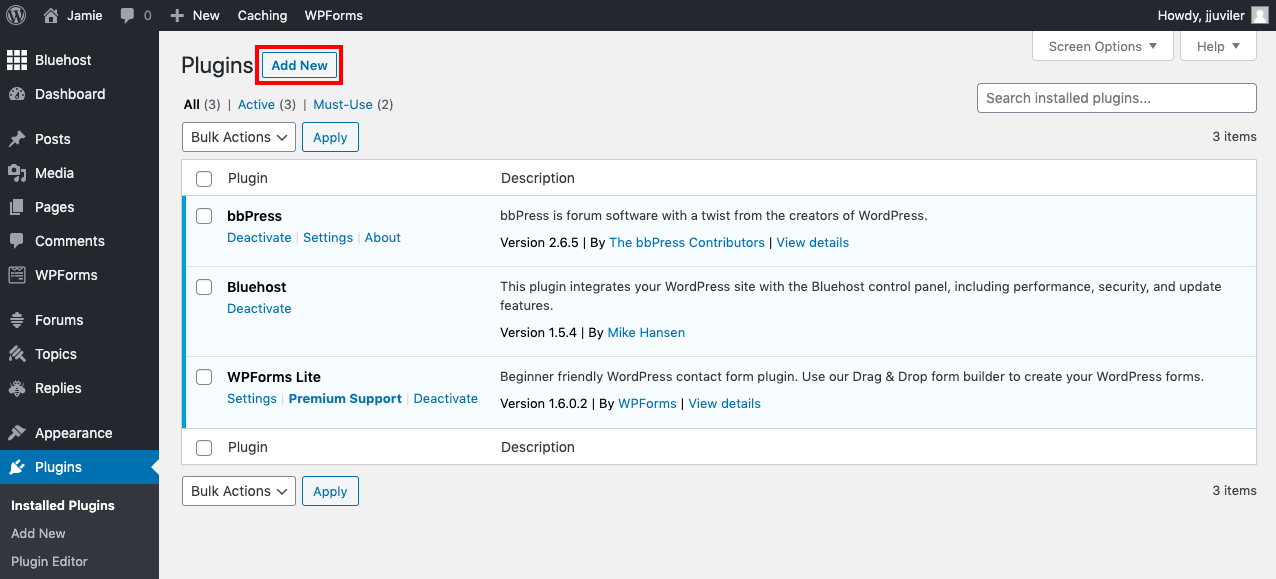
Go to your WordPress dashboard and click “Plugins” then “Add New.” Search for your chosen backup plugin. Click “Install Now” and wait for the process to finish. After installation, click “Activate” to enable the plugin. The plugin is now ready for setup.
Configuring Backup Settings
Open the plugin’s settings from the dashboard menu. Choose which files and database tables to include. Decide where to store the backups, like cloud storage or your server. Set the number of backup copies to keep. Save your settings to secure your choices.
Scheduling Automatic Backups
Set how often backups run automatically. Options usually include daily, weekly, or monthly backups. Pick a schedule that matches your website update frequency. Enable notifications to get alerts on backup status. Automatic backups keep your data safe without effort.
Running Manual Backups
Manual backups let you save your site immediately. Find the backup button in the plugin dashboard. Click it to start the backup process. Wait until the plugin confirms completion. Download a copy for extra safety or keep it in the cloud.
Manual Backup Steps
Performing a manual backup of your WordPress site ensures you have full control over your data. This method involves downloading your website files and exporting your database. It is a reliable way to keep a safe copy without relying on plugins. Follow these simple steps to create a complete manual backup.
Downloading Website Files Via Ftp
First, connect to your website server using an FTP client like FileZilla. Enter your FTP credentials provided by your hosting provider. Navigate to the root directory where WordPress is installed, usually named public_html or www. Select all files and folders, then download them to a secure location on your computer. These files include themes, plugins, and media uploads.
Exporting Database With Phpmyadmin
Log in to your hosting control panel and open phpMyAdmin. Select your WordPress database from the list on the left. Click the “Export” tab at the top. Choose the “Quick” export method and set the format to SQL. Click “Go” to download the database file. This file contains all your posts, pages, comments, and site settings.
Backing Up Using Ssh
SSH access allows you to back up your site using command-line tools. Connect to your server via an SSH client such as PuTTY. Use the tar command to compress your WordPress files into an archive. For example, run tar -czvf backup.tar.gz /path/to/wordpress/. Then export the database using mysqldump:
Download both files to your local machine. SSH backups are faster and efficient for large websites.
Backup Storage Options
Choosing the right storage option for your WordPress backup is key. It ensures your site data stays safe and easy to restore. Different storage methods suit different needs and budgets. You can store backups locally, on cloud services, or at remote locations. Each option has pros and cons. Here are the main backup storage choices to consider.
Local Storage
Local storage means saving your backup files on your computer or external drive. It gives you quick access to your backups. You do not need an internet connection to restore your site. However, local storage is vulnerable to hardware failure or theft. Regularly copying your backups to another place is wise. Local storage is simple and free but not the safest option alone.
Cloud Services
Cloud services store your backups online on servers from providers like Google Drive or Dropbox. They keep your data safe from local disasters. Cloud storage allows easy access from anywhere with internet. Many WordPress backup plugins support cloud storage. These services often offer automatic syncing and version control. Cloud storage usually requires a subscription for large space needs. It balances convenience and security well.
Remote Backup Locations
Remote backup locations are separate servers or hosting accounts away from your main site. These can include off-site FTP servers or managed backup providers. Remote backups protect your data if your main server fails or is hacked. Setting this up needs some technical knowledge or plugin support. Remote storage adds a strong security layer. It is a reliable choice for critical or business websites.
Restoring From Backup
Restoring from backup is crucial to recover your WordPress site after issues. It helps fix problems caused by updates, hacks, or accidental changes. Knowing how to restore files and database correctly saves time and prevents data loss. This section explains simple steps to restore your site using files, database, and backup plugins.
Restoring Files And Database
Start by restoring your website files. Use an FTP client to upload your backup files to the server. Replace the current WordPress files with the backup version. Next, restore your database using phpMyAdmin or a similar tool. Import the database backup file to overwrite the existing database. Ensure you select the right database to avoid errors. This method requires some technical knowledge but works well for manual restoration.
Using Backup Plugins For Restore
Backup plugins simplify the restore process. Popular plugins like UpdraftPlus or Duplicator allow easy restoration with a few clicks. Open the plugin on your WordPress dashboard and locate the restore option. Upload your backup files or select the stored backup from remote storage. The plugin handles both files and database restoration automatically. This method is user-friendly and reduces the risk of mistakes.
Verifying Site Functionality
After restoration, check your site carefully. Visit different pages and test key features like forms and login. Confirm that images and links load correctly. Clear your browser cache to see the latest version of your site. Make sure plugins and themes work without errors. If problems appear, try restoring the backup again or seek help from your hosting provider. Verifying ensures your site runs smoothly after restoration.
Best Practices
Following best practices ensures your WordPress backups are reliable and safe. Regular and secure backups protect your site from data loss and hacking. Testing backups confirms they work when needed. These steps help maintain your website’s health and uptime.
Backing up is not just about saving files. It is about making sure you can restore your site quickly and fully. Use clear methods to keep your backups organized and secure.
Backup Frequency Recommendations
Backup your site based on how often you update it. For active sites, daily backups are ideal. For sites with fewer changes, weekly backups may be enough. Always back up before major updates or changes. Keeping multiple backups from different dates adds extra protection.
Securing Backup Files
Store backups outside your main server to protect against hacks. Use cloud storage or external drives for backup files. Encrypt backup files to prevent unauthorized access. Limit access to backup locations to trusted users only. Regularly update your backup storage security methods.
Testing Backup Integrity
Test backups by restoring them in a safe test environment. Verify all files and databases are complete and error-free. Check that the restored site works as expected. Perform tests regularly to catch issues early. A backup that cannot restore your site is useless.

Credit: developer.wordpress.org
Frequently Asked Questions
How To Backup An Entire WordPress Site?
Use a backup plugin like UpdraftPlus to automate backups to cloud storage. Or manually download all WordPress files via FTP and export the database using phpMyAdmin. Regularly schedule backups to secure your entire WordPress site efficiently.
Can You Export An Entire WordPress Site?
Yes, you can export an entire WordPress site by backing up all files and the database. Use plugins like UpdraftPlus or Duplicator for easy, automated backups. Alternatively, manually download website files via FTP and export the database using phpMyAdmin for a complete site export.
How To Backup A Whole Website?
Access your hosting panel or use an FTP client to download all website files. Export the database via phpMyAdmin. Alternatively, install a backup plugin like UpdraftPlus for automated backups and remote storage. Regularly schedule backups to keep your website data safe and easily restorable.
Does WordPress Have A Backup?
WordPress does not have built-in backups but supports plugins like UpdraftPlus for automatic backups. You can also back up manually via FTP and phpMyAdmin. Regular backups ensure website data safety and quick recovery from issues.
Conclusion
Backing up your WordPress site protects your content and data from loss. Use plugins for easy, automatic backups. Manual backups also work but need more steps. Store backups safely on remote services or your computer. Regular backups keep your site secure and ready for any problem.
Don’t wait until something breaks. Start backing up today to stay worry-free.


