
Have you ever lost important data from your WordPress site and wished you had a safety net? Backing up your WordPress database is the key to protecting everything you’ve worked hard to create.
Without a backup, a simple mistake or unexpected issue can wipe out your content, settings, and more. But don’t worry—this guide will show you exactly how to backup your WordPress database quickly and easily, so you can keep your site safe and stress-free.
Keep reading to discover simple steps that anyone can follow, no technical skills needed.
Credit: duplicator.com
Why Backup Your WordPress Database
Backing up your WordPress database is very important for website safety. Your database holds all your posts, pages, comments, and settings. Losing this data can cause big problems. Regular backups help avoid data loss and save time during recovery.
Many things can cause data loss. Server crashes, hacking, or human errors. Without a backup, you may lose all your content. Backups give peace of mind and keep your website running smoothly.
Protect Against Data Loss
Your WordPress database contains everything about your site. Losing it means losing your work and visitors’ information. Backups protect your data from accidental deletion or corruption.
Recover From Hacks
Hackers can damage or steal your data. Backups let you restore your site to a safe state quickly. This reduces downtime and keeps your reputation intact.
Fix Human Errors
Mistakes happen. You might delete important content by accident. With a backup, you can restore lost data fast without stress or extra work.
Save Time And Effort
Rebuilding a site from scratch takes time. Backups let you restore your database in minutes. This saves hours or days of work and helps your business stay online.
Credit: www.wpbeginner.com
Choosing The Right Backup Method
Choosing the right backup method is key to protecting your WordPress database. You want a solution that fits your skill level and needs. Some methods give you full control, while others are easier and faster. Understanding each option helps you pick the best one. Here are the main ways to back up your WordPress database.
Manual Backup
Manual backup means you do the work yourself. You access your database using tools like phpMyAdmin. Then export your data as a file to save it. This method gives you full control over what you save. It can be a bit technical but works well for simple sites. Manual backups take time but offer a clear understanding of your data.
Using Plugins
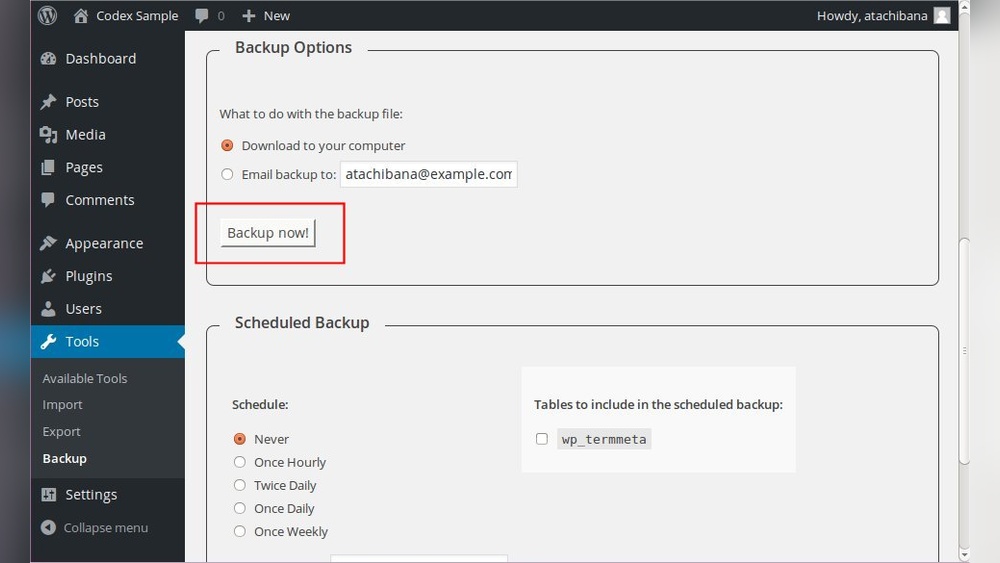
Plugins make backing up easy and automatic. They handle your database backup with few clicks. Many plugins let you schedule backups to run regularly. They often save backups to cloud storage or your computer. This method suits those who want a quick and simple solution. Plugins also help restore backups without hassle.
Hosting Provider Tools
Some web hosts offer backup tools in their control panel. These tools create backups automatically for you. They may include daily or weekly backup options. Hosting backups are reliable and do not need extra setup. This method is good if you want peace of mind without manual steps.
Backing Up Manually Via Phpmyadmin
Backing up your WordPress database manually is a straightforward process. It helps keep your data safe without using extra plugins. The most common tool for this is phpMyAdmin. This tool lets you access and export your database directly from your hosting control panel.
Manual backups give you control over your data. You choose when and how to save it. This method is perfect for users who prefer hands-on management or want to avoid third-party tools.
Accessing Phpmyadmin
First, log in to your web hosting control panel. Look for the phpMyAdmin icon or link. It is usually under the database section. Click it to open the phpMyAdmin interface.
Once inside, select your WordPress database from the list on the left. The database name might start with your website name or hosting username. This step leads you to your WordPress data tables.
Exporting The Database
After selecting your database, find the “Export” tab at the top of the page. Click on it to open export options. Choose the “Quick” export method for a simple backup. Set the format to “SQL” to save the file properly.
Click the “Go” button to start the export. Your browser will download the database file automatically. Store this file in a safe place. This file contains all your WordPress posts, pages, and settings.

Credit: it.wordpress.org
Top Plugins For Automatic Backups
Backing up your WordPress database is important for site safety. Automatic backup plugins make this task easy and stress-free. These tools save your data regularly without any extra work.
Choosing the right plugin helps keep your website secure. It also saves time and effort. Here are key features and popular options for automatic backups.
Features To Look For
Look for plugins with scheduled backups. This feature lets the plugin run backups at set times. It ensures your data is always saved.
Check if the plugin stores backups offsite. Cloud storage like Google Drive or Dropbox keeps backups safe.
Easy restore options are important. You want to restore your database with a few clicks.
Also, see if the plugin supports email notifications. This feature alerts you when backups finish or fail.
Compatibility with your WordPress version matters. The plugin should update regularly to avoid conflicts.
Popular Plugin Options
UpdraftPlus is a favorite for automatic backups. It offers scheduled backups and cloud storage support.
BackupBuddy is another solid choice. It allows full site backups and easy restores.
Jetpack Backup also works well. It provides real-time backups and simple recovery tools.
WPvivid Backup Plugin offers free and premium versions. It supports scheduled backups and remote storage.
All these plugins make database backup simple and reliable. Choose one that fits your needs and budget.
Using Hosting Services For Backups
Using your hosting service to back up your WordPress database is a smart choice. Many hosts offer built-in tools that simplify backups. These tools help protect your website data with minimal effort. No need for extra plugins or technical skills.
Hosting services often include options to create backups through their control panel. This makes it easy to save your database anytime. You can also set automatic backups, so you never forget. This way, your website stays safe even during updates or changes.
Control Panel Backup Options
Most hosting control panels have backup sections. You can find options to back up files and databases. Usually, a simple button starts the process. Some hosts let you download the backup files for extra security. Others store backups on their servers for quick recovery.
Using these tools saves time. No need to manually export your database from WordPress. Control panel backups are reliable and user-friendly. Even beginners can manage backups without stress.
Scheduled Backups
Scheduling backups is a helpful feature offered by hosts. You can set backups to run daily, weekly, or monthly. This keeps your data safe without manual work. Scheduled backups reduce the risk of losing recent changes.
Many hosting services send notifications after each backup. This lets you know the process was successful. You can rest easy knowing your WordPress database is protected regularly.
Storing Your Backup Safely
Backing up your WordPress database is only half the job. Storing your backup safely keeps your data secure and ready to restore. Without safe storage, your backup can get lost, damaged, or stolen. Choose a storage method that is reliable and easy to access when needed.
Cloud Storage Solutions
Cloud storage offers a secure place to save your WordPress database backups. Services like Google Drive, Dropbox, and Amazon S3 keep your files safe from hardware failure. Cloud storage allows access to backups from any device with internet. It also provides automatic syncing, reducing the risk of losing files. Use strong passwords and two-factor authentication for extra protection.
Local Storage Best Practices
Local storage means saving backups on your computer or external drives. Keep backups on a separate device from your website server. Use external hard drives or USB flash drives with enough space. Store these devices in a safe, dry place to avoid damage. Regularly check your backups to make sure they work. Encrypt your files to protect sensitive data from theft or loss.
Restoring Your WordPress Database
Restoring your WordPress database is a key step in recovering your website after issues like crashes or data loss. A backup file contains all your site’s content and settings. Restoring it brings your site back to the saved state. This process is simple with the right tools and guidance.
Using Phpmyadmin To Import
phpMyAdmin is a common tool for managing WordPress databases. To restore, log in to your hosting control panel. Open phpMyAdmin and select your WordPress database. Click the “Import” tab. Choose your backup file, usually a .sql file. Start the import process. Wait until it finishes successfully. Your database now holds the restored data.
Restoring Via Plugins
Many WordPress plugins help restore databases easily. Plugins like UpdraftPlus or WP-DB-Backup offer import options. Install and activate the plugin. Go to its restore section. Upload your backup file. Follow the plugin prompts to complete the restore. This method suits users who prefer a user-friendly interface.
When To Contact Support
Sometimes, restoration might fail or cause errors. If you see issues like database connection errors, seek help. Contact your hosting provider’s support team. Provide details about the problem and backup file. They can assist with restoring the database safely. Professional help avoids further damage to your site.
Tips To Automate And Secure Backups
Backing up your WordPress database is crucial for website safety. Automating this process saves time and reduces risks. Securing backups protects your data from theft and loss. Follow these tips to keep your backups regular and safe.
Scheduling Regular Backups
Set up automatic backups on a daily or weekly basis. Many plugins allow you to schedule backups easily. Choose a time when your website traffic is low. This avoids slowing down your site during busy hours. Regular backups ensure you always have recent data saved.
Encrypting Backup Files
Encryption locks your backup files with a password. It keeps your data safe from unauthorized access. Use plugins or tools that offer strong encryption methods. Store encrypted backups in secure locations like cloud storage. This adds an extra layer of protection for your website data.
Frequently Asked Questions
How Often Should I Backup My WordPress Database?
You should backup your WordPress database at least once a week. Frequent updates require more frequent backups. Regular backups prevent data loss during crashes or hacks.
What Is The Easiest Way To Backup A WordPress Database?
Using a WordPress plugin like UpdraftPlus or WP-DB-Backup is the easiest way. These plugins automate backups and store files safely. No coding knowledge is needed.
Can I Backup My WordPress Database Manually?
Yes, you can backup manually via phpMyAdmin. Export your database as an SQL file. This method requires access to your hosting control panel.
Where Should I Store My WordPress Database Backups?
Store backups in multiple locations like cloud storage, external drives, or email. This ensures safety if one source fails. Always keep backups off the server.
Conclusion
Backing up your WordPress database keeps your site safe. Regular backups prevent data loss from mistakes or hacks. Choose a method that fits your skills and needs. Manual backups give control; plugins offer ease. Store backups in more than one place for extra safety.
Test your backups to make sure they work well. Protect your website’s content and keep it running smoothly. Start backing up today to avoid future problems. Simple steps lead to big peace of mind.


