
Are you looking to make your WordPress page more interactive and user-friendly? Adding a widget is one of the easiest ways to do that.
Widgets can display important information, boost engagement, and improve your site’s overall look—all without needing to know any coding. If you’ve ever wondered, “How do I add a widget to my WordPress page? ” you’re in the right place. Keep reading, and you’ll discover simple, step-by-step instructions that will help you customize your site like a pro.
By the end, you’ll have the confidence to enhance your website quickly and easily. Let’s get started!
Choosing The Right Widget
Choosing the right widget for your WordPress page matters a lot. Widgets add extra features and improve user experience. Pick widgets that fit your site’s purpose and style. Avoid cluttering your page with too many options. Focus on what helps visitors most. Understanding widget types and matching them to your goals makes your site better.
Popular Widget Types
There are many widget types for WordPress. Some common ones include:
- Text widgets for adding simple content or messages.
- Image widgets to display photos or logos.
- Recent posts widgets to show your latest articles.
- Search widgets to help visitors find content fast.
- Social media widgets for sharing and following.
- Calendar widgets to display events or dates.
Each type serves a specific purpose. Choose what fits your site’s needs.
Matching Widgets To Your Goals
First, think about your website’s main goal. Do you want more readers, sales, or sign-ups? Pick widgets that support these aims.
For example, use a newsletter widget to grow your email list. Show recent posts to keep visitors engaged. Add social media widgets to build your online presence.
Widgets should improve user experience. Avoid distractions or slow loading times. Test widgets to ensure they work well on all devices.
Accessing The WordPress Widget Area
Accessing the WordPress widget area is the first step to customize your website. Widgets allow you to add content and features easily. You can place them in sidebars, footers, and other widget-ready areas. Knowing how to find this area saves time and effort.
WordPress offers two main ways to access widgets. Both ways are simple and user-friendly. You can choose the method that suits you best.
Navigating To Widgets In Dashboard
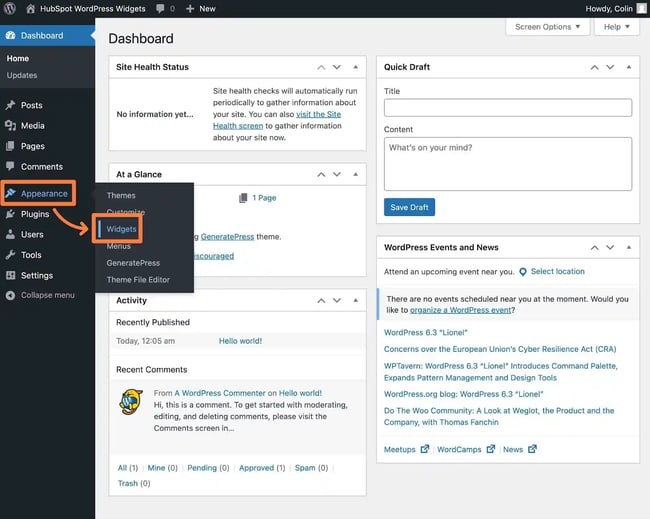
Start by logging into your WordPress dashboard. On the left menu, find and click on “Appearance.” Under this menu, select “Widgets.” Here, you will see all available widget areas. You can drag and drop widgets into these areas. This method shows a clear list of all widget spots on your site.
Using The Customizer For Widgets
The WordPress Customizer lets you edit widgets with live preview. Go to “Appearance” and then click “Customize.” Inside the Customizer, choose “Widgets.” Select the area you want to edit. Add, remove, or rearrange widgets easily. This way, you see changes immediately before saving.
Adding A Widget To Your Page
Adding a widget to your WordPress page can improve its design and function. Widgets show extra features like calendars, search bars, or recent posts. You can place widgets almost anywhere on your page to make it more useful for visitors. Below are two easy ways to add widgets to your WordPress pages.
Drag And Drop Method
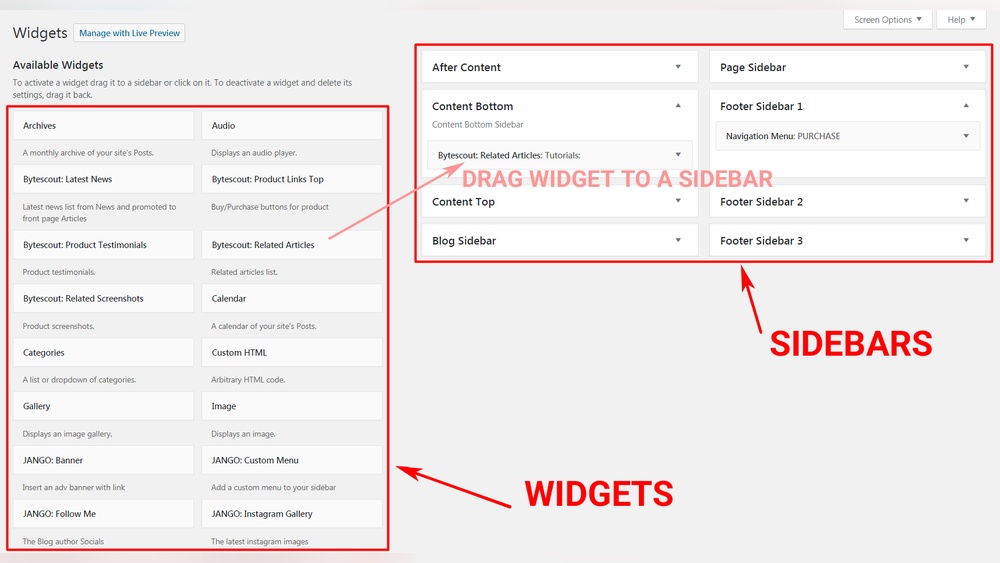
Go to your WordPress dashboard and click on Appearance. Then select Widgets from the menu. You will see a list of available widgets on the left side. On the right, find the widget area for your page. Click and hold the widget you want. Drag it to the widget area. Release the mouse to drop the widget there. You can reorder widgets by dragging them up or down.
After placing the widget, customize its settings by clicking on the down arrow. Make sure to save your changes. This method works well for classic themes and older WordPress versions.
Using Widget Blocks In Gutenberg Editor
Open the page where you want to add a widget in the Gutenberg editor. Click the plus (+) button to add a new block. Search for “Widget” in the block menu. You will see different widget blocks like Categories, Latest Posts, or Search.
Select the widget block you want to add. It will appear on your page. You can move the block up or down to change its position. Customize the block settings on the right sidebar to fit your page style. This method works smoothly with the latest WordPress editor.

Credit: wordpress.org
Customizing Widget Settings
Customizing widget settings lets you make your WordPress page more personal and useful. Widgets bring extra features and content to your site. Adjusting their settings helps match your site’s style and goals.
Each widget has options you can change. These options control what the widget shows and how it looks. Understanding how to edit these settings improves your site’s design and user experience.
Editing Widget Content
Start by opening the WordPress dashboard. Go to Appearance > Widgets. Find the widget you want to change. Click to open its settings panel.
Change the text, images, or links inside the widget. Some widgets let you add titles or descriptions. Others allow you to select categories or posts to show.
Keep the content clear and simple. Use short sentences and keywords related to your site’s topic. This helps visitors understand your message quickly.
Adjusting Appearance And Layout
Widgets often have options for colors, fonts, and sizes. Use these to match your site’s design. Choose colors that fit your brand palette.
Some widgets let you change layout settings. Adjust margins, padding, or alignment. This controls how the widget fits on the page.
Preview changes before saving. Make sure the widget looks good on desktop and mobile devices. A neat layout keeps visitors engaged longer.
Placing Widgets For Maximum Impact
Placing widgets in the right spots on your WordPress page can boost user experience. Proper placement helps visitors find important info quickly. It also improves the overall look of your site. Think about where users expect to see certain widgets. Use this knowledge to place widgets smartly for best results.
Sidebar Vs Footer Widgets
Sidebars are great for showing widgets that need attention. They stay visible while users scroll the page. Use sidebars for menus, recent posts, or search bars. Footers hold widgets that support the page without distraction. Common footer widgets include contact info, social links, or copyright notes. Choose sidebars or footers based on how much visibility you want.
Embedding Widgets In Page Content
Widgets inside page content can highlight specific info. Use this method to place calendars, forms, or galleries. Embedding widgets in content keeps users focused on important elements. WordPress lets you add widgets using block editor or shortcodes. Place these widgets where they fit the flow of your text. This method increases engagement and keeps your page dynamic.
Credit: blog.hubspot.com
Using Plugins For Advanced Widgets
Using plugins for advanced widgets expands your WordPress site’s functionality. Plugins offer many widget types beyond the default options. They let you add features like social feeds, contact forms, or custom menus. Plugins make it easy to customize your site and improve user experience.
Many plugins come with widgets that you can place anywhere on your pages. You don’t need to write any code. Just install the plugin, activate it, and add the widget through the WordPress dashboard.
Top Widget Plugins
Some plugins provide popular and useful widgets. Elementor lets you create custom widget designs with drag and drop. WPForms adds contact form widgets to any page. SiteOrigin Widgets Bundle offers multiple widgets like sliders and buttons. Each plugin fits different needs and style preferences.
Installing And Activating Plugins
First, go to your WordPress dashboard. Click “Plugins” then “Add New.” Search for the plugin name in the search bar. Click “Install Now” next to the chosen plugin. Wait a few seconds, then click “Activate.”
After activation, check the plugin’s settings. Some plugins need extra setup before using their widgets. You can now add the new widgets through the “Appearance” then “Widgets” menu.
Troubleshooting Widget Issues
Adding widgets to a WordPress page should be simple. Sometimes, widgets do not work as expected. This section helps solve common widget problems. It guides you to fix widget issues fast. Follow these tips to keep your site running smoothly.
Common Problems And Fixes
Widgets may not appear on your page. Check if the widget is active in the widget area. Sometimes, theme updates hide widgets. Refresh the page to see if the widget loads. Clear your browser cache if the widget still does not show.
Widgets might break your layout. This happens if the widget’s code conflicts with your theme. Try disabling other plugins to find conflicts. Update your WordPress, theme, and plugins to fix bugs. Always back up your site before changes.
Ensuring Widget Compatibility
Not all widgets work with every theme. Check if the widget supports your WordPress version. Read the widget’s description before installing. Use widgets from trusted sources to avoid problems. Test new widgets on a staging site first, not on your live site.
Widgets may need specific plugins to work. Install all required plugins for full functionality. Keep your plugins updated to avoid errors. Compatibility ensures widgets display and function correctly on your page.
Credit: www.greengeeks.com
Frequently Asked Questions
How Do I Add A Widget To A WordPress Page?
To add a widget, go to Appearance > Widgets in your dashboard. Drag the desired widget to the widget area or sidebar. Alternatively, use the WordPress block editor to add widgets directly to pages or posts.
Can I Add Widgets To Any WordPress Page?
Yes, with the block editor, you can add widgets to most pages. Classic widgets work in sidebars and footers. Some themes support widget areas on specific pages.
What Types Of Widgets Can I Add In WordPress?
You can add various widgets like text, image, calendar, search, recent posts, and social media. Plugins offer many custom widgets to enhance your site’s functionality.
Is It Possible To Customize Widgets After Adding?
Yes, most widgets allow customization. Click the widget settings to change titles, content, or style. Some plugins provide advanced customization options.
Conclusion
Adding a widget to a WordPress page is simple and quick. Widgets help improve your site’s look and function. You can choose from many types to fit your needs. Just drag, drop, and customize the widget easily. This small step makes your website more useful for visitors.
Keep experimenting with widgets to find what works best. Your site will look better and be more interactive in no time.


