

Are you wondering how to access your WordPress email quickly and without hassle? If you’ve ever felt stuck trying to find or manage emails tied to your WordPress site, you’re not alone.
Your WordPress email is key to staying connected with your audience, handling important notifications, and keeping your website running smoothly. In this guide, you’ll discover simple, step-by-step ways to access and manage your WordPress email so you never miss a message again.
Keep reading to take control of your email and make your WordPress experience easier than ever.
Credit: www.cozmoslabs.com
Setting Up WordPress Email
Setting up WordPress email is essential for smooth communication. It helps you send notifications, newsletters, and contact form messages. Proper email setup ensures your emails reach inboxes, not spam folders.
This process involves choosing an email provider and configuring settings inside WordPress. Both steps are simple but important for reliable email delivery.
Choosing The Right Email Provider
Select an email provider that matches your needs and budget. Popular options include Gmail, Outlook, and custom domain email services. Reliable providers offer good uptime and strong spam protection.
Consider features like storage space, ease of use, and integration with WordPress. Using a provider with SMTP support improves email sending reliability. Avoid free providers that limit daily email volume.
Configuring Email Settings In WordPress
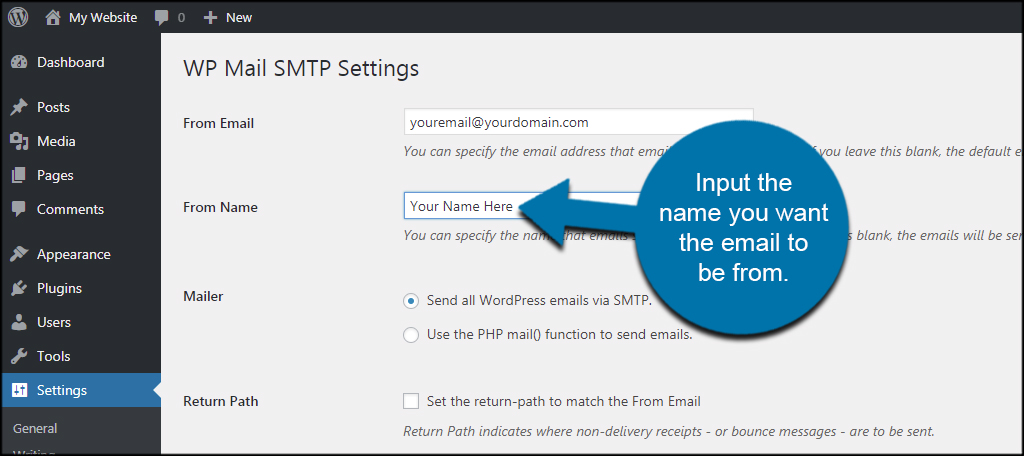
Access your WordPress dashboard to configure email settings. Use plugins like WP Mail SMTP to connect your email provider with WordPress. This plugin helps fix common email delivery issues.
Enter SMTP details such as server address, port number, username, and password. These settings come from your email provider. Test your configuration to confirm emails send correctly.
Setting up email notifications for new users and contact forms improves site interaction. Keep your WordPress and plugins updated to avoid email errors.
Accessing WordPress Email Accounts
Accessing your WordPress email accounts is simple once you understand the process. These email accounts often come with your hosting plan. You can manage and read your emails using different methods. Each method suits different preferences and needs.
Using Webmail Interfaces
Webmail allows you to check emails through a web browser. No extra software is needed. You just log in to your hosting provider’s webmail page. Enter your email address and password. After logging in, you can send, receive, and organize emails easily. Webmail is useful for quick access on any device with internet.
Connecting With Email Clients
Email clients like Outlook or Thunderbird provide another way to manage emails. These programs download emails to your device for offline use. To connect, you need server settings from your hosting provider. These include incoming and outgoing server addresses, and port numbers. After setup, the client syncs with your WordPress email account. This method offers more control and features for managing emails.
Troubleshooting Email Access Issues
Accessing your WordPress email is vital for managing communications. Sometimes, issues arise that block your access. Troubleshooting these problems quickly restores your workflow. Understanding common errors helps fix them faster. Focus on the main areas causing email access failures.
Common Login Problems
Login problems often stem from incorrect usernames or passwords. Double-check your credentials before trying again. Clear your browser cache to remove old data. Sometimes, browser extensions block login pages. Disable extensions temporarily to test access. Password reset links can help regain entry. Make sure your internet connection is stable. WordPress limits login attempts to protect accounts. Wait a few minutes before retrying if locked out.
Fixing Smtp And Pop3 Errors
SMTP and POP3 errors disrupt sending and receiving emails. Verify your email server settings carefully. Use the correct ports and encryption methods. Common SMTP ports are 465 or 587 with SSL/TLS. POP3 usually uses port 995 with SSL. Incorrect settings cause connection failures. Check your hosting provider for accurate details. Update your email client with the right information. Test sending and receiving emails after changes. Contact your host if errors persist beyond your control.
Credit: www.greengeeks.com
Enhancing WordPress Email Functionality
Enhancing WordPress email functionality improves communication and user experience. Proper email setup ensures reliable delivery and professional appearance. Many website owners miss out on these benefits due to default settings.
Optimizing email tools helps manage newsletters, notifications, and customer inquiries. It also prevents emails from landing in spam folders. Simple steps can make WordPress emails more effective and easier to access.
Installing Email Plugins
Email plugins add powerful features to WordPress. They improve sending reliability and allow customization of emails. Popular plugins like WP Mail SMTP or Easy WP SMTP help fix common email issues.
These plugins connect your site to trusted email services. They reduce bounce rates and increase inbox delivery. Installation is straightforward and requires minimal technical knowledge.
After installing, configure the plugin with your email provider’s details. Test emails to ensure proper setup. This step guarantees your WordPress emails reach the right audience.
Setting Up Email Forwarding
Email forwarding sends messages from your WordPress email to another account. This setup helps centralize communications for easier management. It is useful for small businesses and bloggers alike.
Most hosting providers offer email forwarding options in their control panel. Set the forwarding address to your preferred email account. This way, you receive all WordPress emails in one place.
Check forwarded emails regularly to avoid missing important messages. Proper forwarding improves response time and user interaction. It also simplifies monitoring of site notifications and contact form submissions.

Credit: wordpress.com
Frequently Asked Questions
How Do I Check My WordPress Email Settings?
To check WordPress email settings, log in to your dashboard. Navigate to Settings > General to verify the email address. For SMTP setup, use plugins like WP Mail SMTP to configure outgoing mail servers correctly.
Where Can I Find WordPress Email Notifications?
WordPress email notifications are sent to the admin email set in Settings > General. You can also manage notification preferences via plugins or your hosting control panel.
How Do I Fix WordPress Emails Not Sending?
Fix email issues by installing SMTP plugins like WP Mail SMTP. Verify your server’s email configuration and check spam folders. Ensure your hosting allows outbound email functionality.
Can I Access WordPress Emails From My Hosting Provider?
Yes, you can access WordPress emails via your hosting control panel’s email section. Use webmail interfaces like cPanel or Plesk to read and manage emails linked to your domain.
Conclusion
Accessing your WordPress email is simple once you know the steps. Check your hosting provider’s email settings first. Use the correct login details for your email account. You can access emails through webmail or an email client. Keep your password safe and change it regularly.
Stay organized by checking your emails often. Following these tips helps you manage your WordPress email easily. Stay connected with your website visitors and clients without hassle. Now, you can handle your WordPress email with confidence.


