
Are you tired of your current WordPress theme and want to switch things up? Choosing a new theme can refresh your website’s look and feel, attracting more visitors and keeping your content engaging.
But what if you’re unable to change it directly through the WordPress dashboard? Don’t worry, you can select a different WordPress theme using FTP! This method might sound technical, but with a few straightforward steps, you’ll be able to navigate through it smoothly.
Imagine the possibilities of customizing your site to truly reflect your brand or personal style. Dive in as we guide you through the process, ensuring that your website stands out and captivates your audience.
Accessing Your Ftp Server
Choose an FTP client like FileZilla or Cyberduck. Download and install it on your computer. Open the client after installation. Go to settings. Enter your FTP server details. You need host name, username, and password. Keep this information safe. You need it every time you access the server.
Start your FTP client. Find the connect button. Click on it. Enter your server details again. Wait for the connection. You will see your server files. Navigate through folders. Find your WordPress folder. You can now change themes. Be careful with files. Wrong moves can break things.

Credit: www.fixrunner.com
Locating WordPress Files
Find your FTP program. Open it on your computer. Connect to your website. Use your FTP credentials. These are your username and password. Look for a folder called public_html or www. Click on the folder. You will see your WordPress files.
Inside wp-content, there are several folders. Click on the themes folder. You will find many theme folders. Each folder is a different theme. Choose a theme you like. Remember its name. You will need it to change your theme. Be careful when selecting themes. Make sure it fits your website. You can also find new themes online. Download them to your computer. Then upload them to the themes folder.
Uploading A New Theme
First, find a WordPress theme you like. Many sites offer themes. Choose one and click download. You will get a .zip file. This file has all the theme parts. Keep it safe on your computer. You will need it soon.
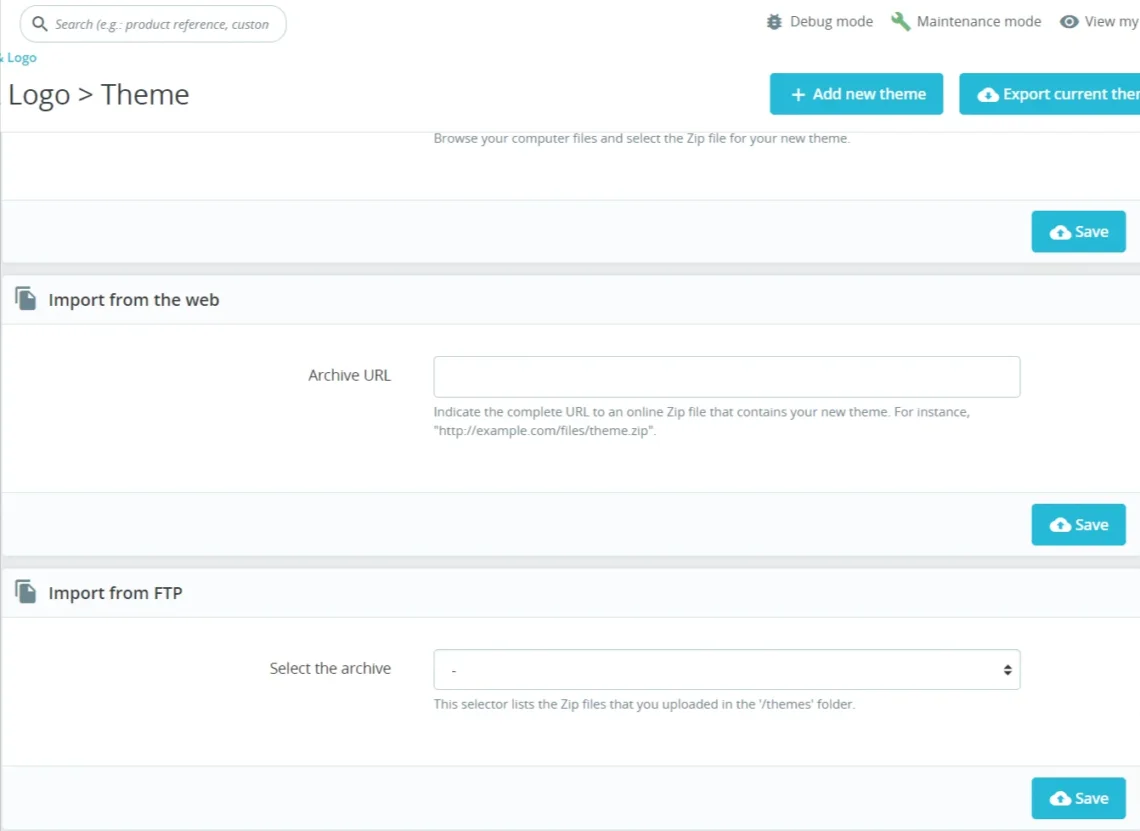
Open your FTP client. Enter your website details. Connect to your site. Find the folder named ‘wp-content’. Inside, click on ‘themes’. Now, go back to your downloaded theme file. Unzip it. You will see a new folder. Drag this folder to your FTP client. Drop it in the ‘themes’ folder. Wait for the files to transfer. Once done, your new theme is uploaded.
Activating The Theme
Open the FTP client on your computer. Find the wp-config.php file in the main folder. Download it to your computer. Open the file with a text editor. Look for the line that says define(‘WP_DEBUG’, false); Change it to true. Save the file and upload it back. This helps to see errors. Errors can show what is wrong. Always remember to change it back to false.
A Theme Switcher Plugin helps change themes easily. Install the plugin through FTP. Go to the wp-content/plugins folder. Upload the plugin files there. Go to WordPress dashboard. Activate the plugin. Select the theme you want to use. It is easy and quick. This tool helps when the dashboard is hard to use.
Troubleshooting Theme Issues
Changing your WordPress theme via FTP involves accessing your site’s files directly. First, connect to your server using an FTP client. Locate the wp-content/themes directory and rename the folder of the active theme. WordPress will then switch to a default theme automatically.
Resolving Compatibility Problems
Changing a WordPress theme via FTP can sometimes cause compatibility problems. These issues occur when the new theme doesn’t work well with existing plugins or settings. To fix this, ensure all plugins are updated. Try disabling plugins one by one. This helps identify the troublesome plugin. Check theme documentation for compatibility notes. If problems persist, consider selecting a different theme that matches your plugins. Always back up your website before making changes. This keeps your data safe.
Checking Error Logs
Error logs help find what went wrong. Access them through your hosting panel or FTP. Look for error messages related to your theme. These messages guide you in fixing issues. Common errors include missing files or incorrect settings. Make sure all theme files are uploaded correctly. Double-check file permissions. Change them if needed. If error messages are unclear, ask for help from your hosting provider. They can provide more specific guidance. Error logs are useful tools for solving theme problems.
Credit: www.scalahosting.com
Credit: blogvault.net
Frequently Asked Questions
How To Change WordPress Theme Via Ftp?
Access your server via FTP using an FTP client. Navigate to wp-content/themes. Upload your new theme folder here. Log in to WordPress dashboard. Go to Appearance > Themes. Activate the new theme. Ensure compatibility with your plugins and settings. Always back up your site before making changes.
How Do I Switch WordPress Themes?
To switch WordPress themes, go to your dashboard. Navigate to Appearance > Themes. Click “Add New” to search and install a theme. Once installed, activate it. Always back up your site before switching themes to prevent data loss. Ensure the new theme is compatible with your plugins.
How Do I Access My WordPress Site Via Ftp?
To access your WordPress site via FTP, use an FTP client like FileZilla. Enter your FTP credentials, including host, username, and password. Connect to your server and navigate to the desired directory for file management. Ensure your hosting provider supports FTP access for seamless operations.
How Do I Install WordPress Theme Ftp?
To install a WordPress theme via FTP, connect to your server using an FTP client. Navigate to “wp-content/themes” and upload the theme folder. After uploading, go to your WordPress dashboard, click “Appearance,” then “Themes,” and activate the new theme.
Conclusion
Selecting a new WordPress theme using FTP is straightforward. Start by accessing your site’s files via FTP. Locate the “wp-content” folder, then find “themes. ” Upload your new theme here. Next, log in to your WordPress dashboard and activate the theme.
Remember to check for compatibility with plugins and content. This process ensures a smooth theme transition. Always back up your site before making changes. This helps prevent data loss. With these steps, you can easily switch themes. Enjoy your new look and feel!


