
Are you looking to customize your WordPress site without losing your changes every time the theme updates? Creating a child theme might be the perfect solution for you.
It allows you to tweak your website’s design and functionality while keeping your primary theme intact and up-to-date. Imagine having the freedom to experiment and make changes without the fear of breaking your site. In this guide, you’ll discover how simple it is to create a child theme in WordPress, empowering you to take control of your website’s appearance and performance.
Stay with us, and by the end of this article, you’ll gain the skills to make your WordPress site uniquely yours, all while keeping it safe and sound.
Credit: happyaddons.com
What Is A Child Theme?
A Child Theme lets you change your website without losing updates. It works with a Parent Theme. You can add new styles or functions safely. This way, your site stays up-to-date and secure.
Creating a child theme is easy. You just need two files. The first is style.css. It controls how your site looks. The second is functions.php. This file adds new features.
Use WordPress for your child theme. It’s simple and helps protect your site. You can change colors, fonts, or layouts. Keep your original theme safe. Always test changes before going live.
Benefits Of Using Child Themes
Child themes keep your main theme safe. You can update the main theme without losing changes. Easy to switch back if needed. Customizing is simple. Just change the child theme files. This helps you learn coding skills. Child themes are perfect for testing new ideas. Avoid mistakes in your main theme. They save your time and effort. No need to redo work. Secure your site from bugs. Child themes are the best choice for any WordPress user.
Preparing For Child Theme Creation
Choose a parent theme with many features. This helps your child theme. Make sure it is compatible with WordPress updates. Check the reviews and ratings. This tells how good the theme is. Look at the design. It should fit your site’s style. Picking the right parent theme is crucial. It affects your child theme’s performance.
Backup your site before starting. This saves your work. Use backup plugins. They are easy to use. Save a copy of your site files. Store them in a safe place. Backing up prevents data loss. You can restore your site if needed. Regular backups are important. They protect your site from problems.
Creating A Child Theme Folder
The child theme folder needs a specific name. It should be simple and clear. The name should relate to the parent theme. Add -child at the end. For example, if the parent theme is twentytwenty, the child theme can be twentytwenty-child. This helps in identifying the child theme quickly.
The child theme needs some basic files. Create a new folder for it. Inside, add a style.css file. This file holds the theme’s style rules. Add a functions.php file too. This file can add or change features. These files make the child theme work. Make sure to keep them neat and organized.
Setting Up The Stylesheet
First, make a new folder for your child theme. Name it something simple. Inside, create a file called style.css. This file will hold all your styles. Write a line at the top to show it’s a child theme. Use this: / Theme Name: Your Child Theme Name /. This tells WordPress what it is. Add more lines for author, description, and version. This helps keep things organized.
To use the parent styles, add a special code. Write @import url("../parent-theme/style.css"); at the top of your style.css. This pulls in the parent theme’s styles. Now, you can add your own styles below. This method keeps things simple. It makes sure your child theme looks like the parent theme. You can change styles as you want.
Credit: www.cloudways.com
Configuring The Functions File
Create a new file named functions.php in your child theme folder. This file lets you add custom code to your theme. It works like a magic box for your website. You can add new features with it. Remember, this file should start with <?php. Always save changes after editing. Keep it simple and neat. Avoid complex codes that you don’t understand. This helps keep your site safe and fast.
To make your child theme look nice, you need to load stylesheets. Use the function wp_enqueue_style in your functions.php file. This function helps load the parent theme’s style. Also, it adds your child theme’s style. Use the code like this:
        function my_theme_enqueue_styles() {
            wp_enqueue_style('parent-style', get_template_directory_uri() . '/style.css');
            wp_enqueue_style('child-style', get_stylesheet_directory_uri() . '/style.css', array('parent-style'));
        }
        add_action('wp_enqueue_scripts', 'my_theme_enqueue_styles');
Place this code inside functions.php. Now your child theme will look great.
Customizing Your Child Theme
Creating a child theme in WordPress involves copying files from the parent theme. Customize styles and functions without altering the original theme. This approach ensures that updates won’t erase your changes.
Overriding Template Files
To change how your site looks, you can override template files. Copy the template file you want to change from the parent theme. Place it in your child theme folder. Make sure the file name stays the same. This tells WordPress to use your custom file instead. Only the changed files need to be in the child theme folder. This keeps your child theme neat and tidy.
Adding Custom Functions
Add custom functions to make your theme special. Open the functions.php file in your child theme. Write your custom code here. Use simple PHP code for small changes. This file is powerful and can change how your site works. Remember, only add code you understand. Simple changes make a big difference. Test your changes to make sure they work.
Testing Your Child Theme
Ensuring Compatibility is very important for your child theme. Check if your theme works with the parent theme. Make sure all functions are active. Look at the website layout. It should look right on all devices. Use different browsers for testing. Each browser may show the site differently. Fix any layout issues fast. Clear the cache to see changes. This helps in finding problems early.
Debugging Common Issues can be tricky. If the theme does not work, check the code. See if there are missing files. Look for any error messages. These messages can help you find the problem. Update all plugins. Sometimes, old plugins cause issues. Make sure your WordPress is up-to-date. This helps in solving many problems.
Activating The Child Theme
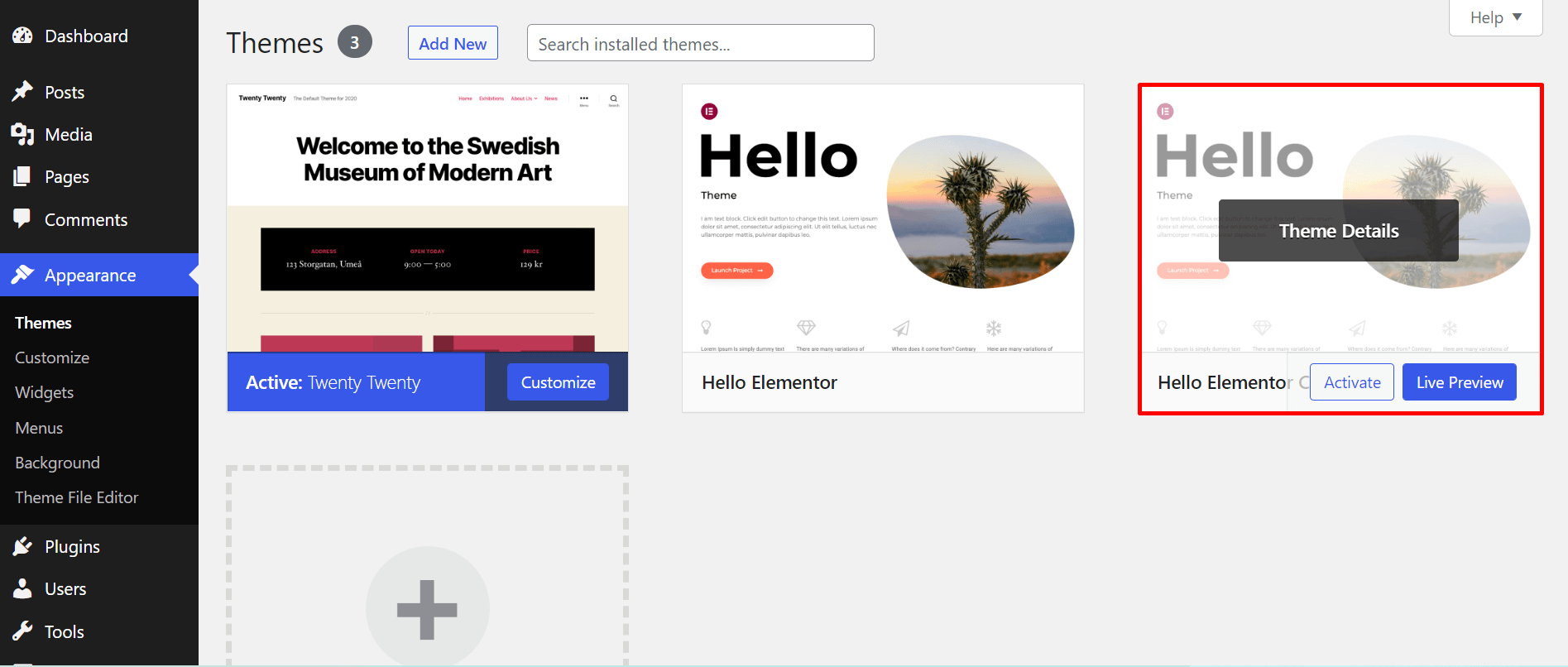
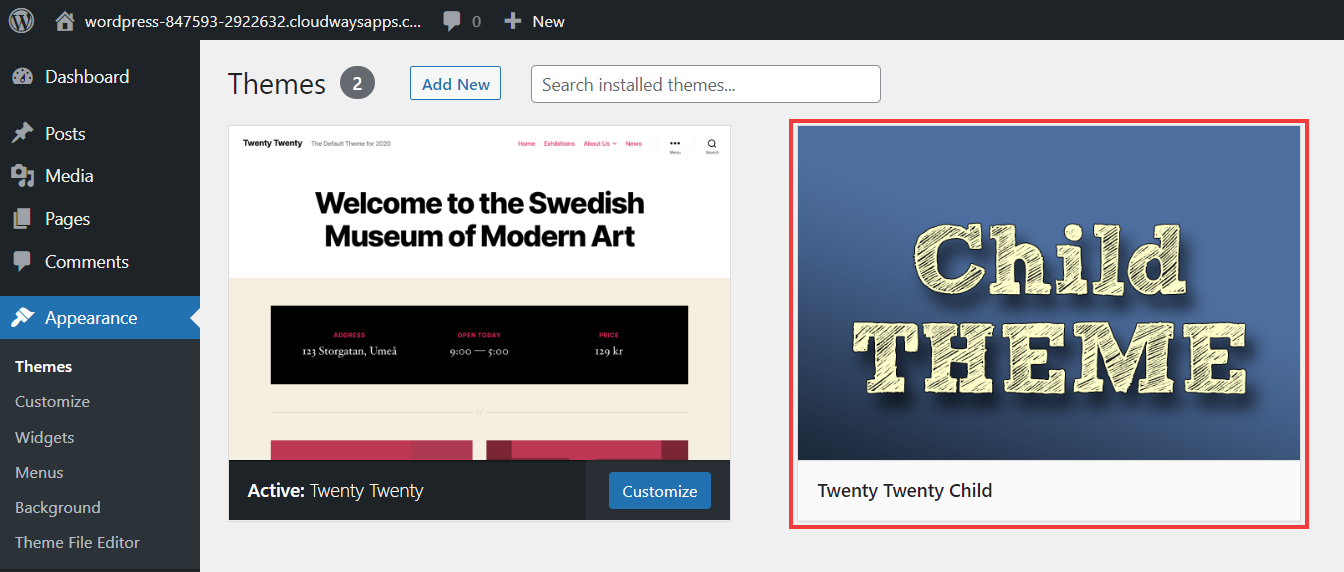
To use a child theme, first activate it. Open your WordPress dashboard. Go to Appearance, then click Themes. You will see a list of themes. Find your child theme. Click on Activate. Now, your website uses the child theme.
Switching Themes In WordPress
Switching themes is simple. Go to the Themes section. Choose a theme you like. Click Activate. Your site changes to this new theme. Always check your site after switching themes. Some elements might need fixing.
Verifying Changes
Check your site after activating the child theme. Look for changes in design. Ensure all features work well. If something is wrong, return to the dashboard. Make sure the correct theme is active. Check plugins and widgets too. They might need adjustments. This ensures your site looks and works as you want.
Credit: www.wpbeginner.com
Maintaining Your Child Theme
Creating a child theme in WordPress involves copying and customizing the parent theme. Start by creating a new folder in the themes directory. Add a style. css file, and import the parent theme’s styles. Finally, activate your child theme in the WordPress dashboard to start customizing.
Updating Parent Theme
Always keep the parent theme up to date. Updates fix bugs and improve security. Before updating, back up your site. This ensures safety if something goes wrong. Test updates in a staging environment first. This helps avoid issues on your live site. Check for compatibility with your child theme. Sometimes changes in the parent theme can affect your child theme. Fix conflicts promptly to keep your site running smoothly.
Keeping Code Clean
Organize your code neatly. Use comments to explain what each part does. This helps you and others understand the code later. Avoid using unnecessary code. Keep only what’s needed. This makes your site faster. Regularly check your code for errors. Fixing errors promptly prevents issues from growing. Use a code editor for better coding. It helps you spot mistakes early. Keep your child theme lightweight. This speeds up your site and improves user experience.
Frequently Asked Questions
How Do I Create A Child Theme In WordPress?
To create a child theme in WordPress, first, create a new folder in wp-content/themes. Add a style. css file with a template header. Create a functions. php file to enqueue the parent theme’s stylesheet. Activate the child theme in the WordPress dashboard under Appearance > Themes.
How Do I Create A Child Page In WordPress?
To create a child page in WordPress, first go to Pages. Click “Add New” to start a new page. In the Page Attributes section, select a parent page from the dropdown. Name your child page, add content, and click “Publish.
” Your child page is now linked to the parent page.
How To Create A Generatepress Child Theme?
To create a GeneratePress child theme, first create a new folder in your themes directory. Add a style. css file with Theme Name, Template, and Author. Include a functions. php file for enqueueing the parent theme’s stylesheet. Upload the child theme via WordPress admin, then activate it.
How To Make A Child Theme In WordPress Elementor?
Create a child theme by copying the parent theme’s files. Use FTP or a file manager. Customize the style. css and functions. php files. Activate the child theme in the WordPress dashboard. Use Elementor to design and modify the child theme as needed.
Conclusion
Creating a child theme in WordPress is simple and essential. It protects your customizations during updates. Follow the steps carefully to avoid errors. Start by creating a new folder in your themes directory. Next, add a style. css file. This file should include your parent theme details.
Finally, activate your child theme in the WordPress dashboard. Now you can safely customize your site. Remember, practice makes perfect. Experiment and learn as you go. A child theme ensures your site stays unique and secure. Enjoy building your WordPress experience!


