
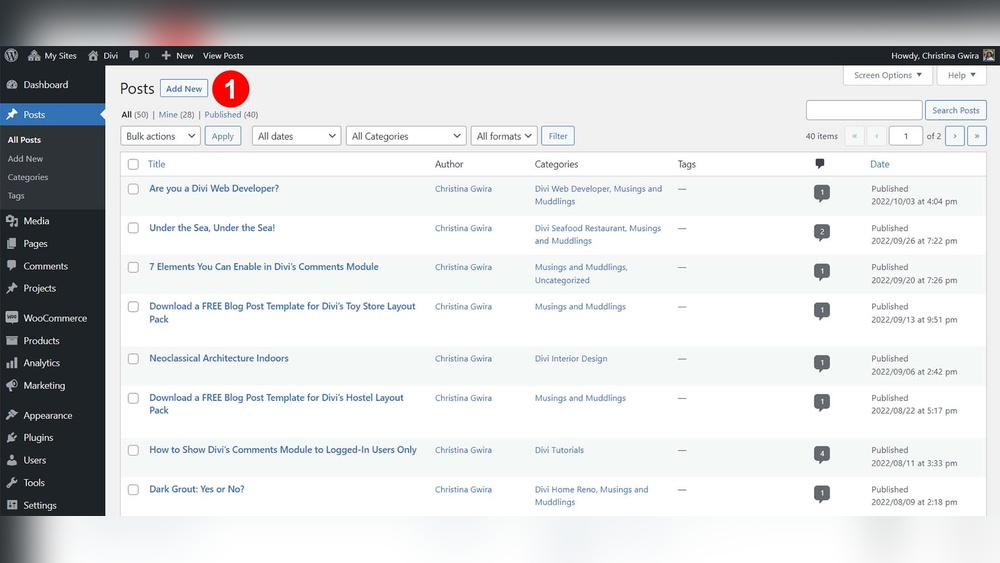
Are you looking to save time and effort when building your WordPress site? Duplicating a page can be a game-changer for you.
Instead of recreating layouts, content, and settings from scratch, you can simply copy an existing page and tweak it to fit your new needs. But how exactly can you duplicate a page in WordPress without messing up your site? In this guide, you’ll discover simple, step-by-step methods to duplicate your pages quickly and easily—even if you’re new to WordPress.
Keep reading, and you’ll be creating clones of your pages like a pro in no time!

Credit: wordpress.org
Ways To Duplicate A Page In WordPress
Duplicating a page in WordPress can save time and keep your website consistent. Several methods exist to copy pages easily. Choose the best way that fits your skills and needs.
Manual Copy And Paste Method
Open the page you want to duplicate in the WordPress editor. Select all content by pressing Ctrl + A (Cmd + A on Mac). Copy the content with Ctrl + C (Cmd + C on Mac). Create a new blank page in WordPress. Paste the copied content using Ctrl + V (Cmd + V on Mac). Save or publish the new page. This method works without plugins but may miss some settings or SEO data.
Using WordPress Plugins
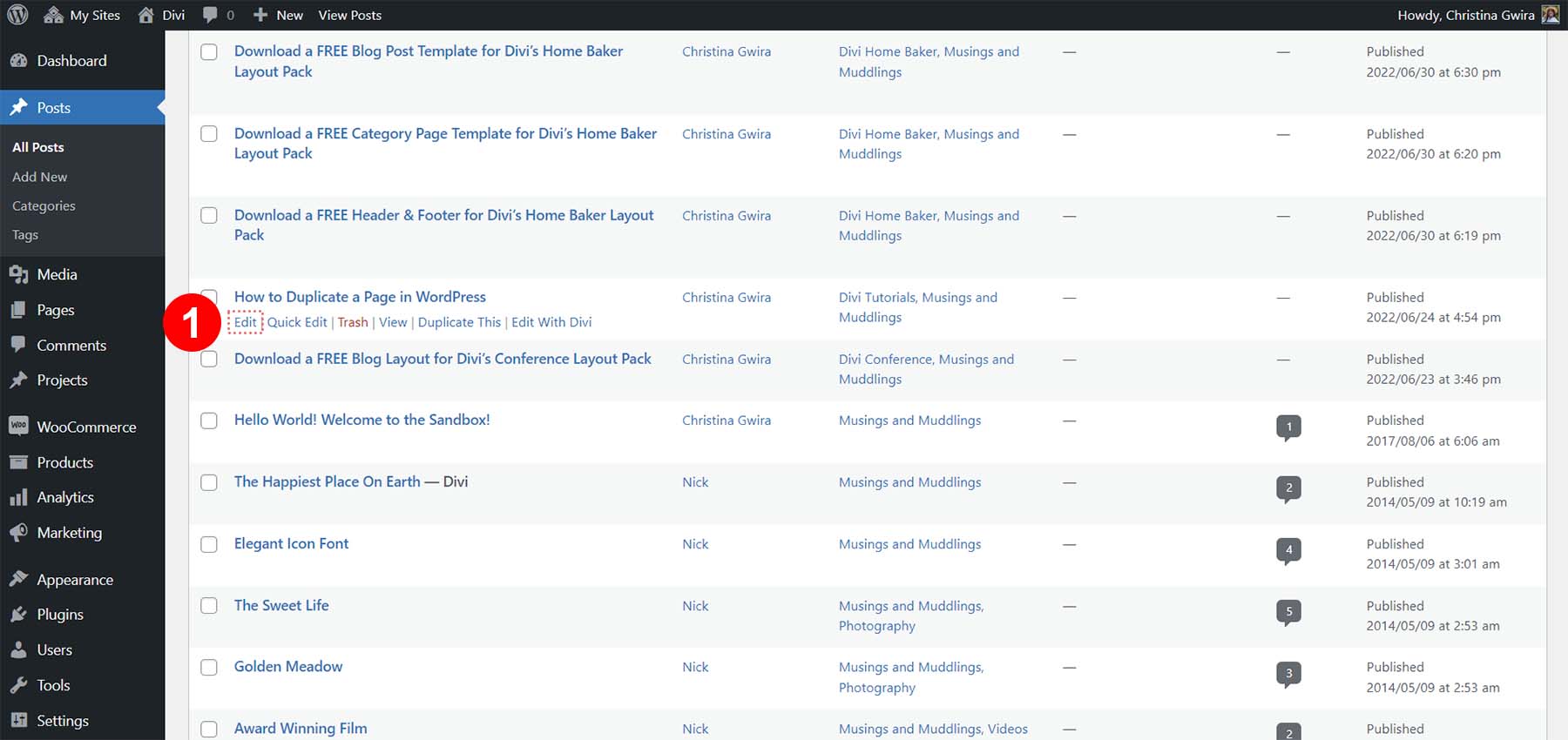
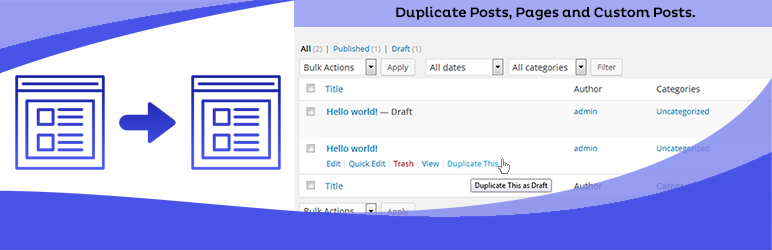
Several plugins help duplicate pages with one click. Plugins like “Duplicate Page” or “Yoast Duplicate Post” are popular choices. Install and activate the plugin from your dashboard. Go to the page list, find the page to copy, and click the duplicate link. The plugin creates a new draft with the same content and settings. This method is fast and keeps all page details intact.
Duplicating With Page Builders
Page builders like Elementor or Divi have built-in copy features. In Elementor, open the page, click the arrow next to the “Update” button, and select “Save as Template.” Create a new page and load the saved template. Divi offers similar options with its library feature. This method duplicates complex layouts easily. It is ideal for users who build pages visually.
Credit: www.elegantthemes.com
Popular Plugins For Page Duplication
Duplicating pages in WordPress saves time and ensures consistency across your website. Several plugins simplify this task by creating exact copies with a single click. These tools work seamlessly within your WordPress dashboard. They help avoid manual copying and pasting, reducing errors and effort.
Duplicate Post Plugin
The Duplicate Post plugin is popular for its ease of use. It allows cloning of posts and pages quickly. After installing, a “Clone” option appears in your post list. Clicking it creates a draft copy instantly. You can then edit or publish the duplicate as needed. This plugin is lightweight and does not slow down your site.
Yoast Duplicate Post
Yoast Duplicate Post is another trusted choice. It comes from the makers of Yoast SEO, a well-known plugin. This tool offers features like cloning, rewriting, and new draft creation. It supports custom post types and preserves all metadata. Users appreciate its clean interface and reliability. It fits perfectly in both small and large websites.
Other Recommended Plugins
Besides the top two, several other plugins help duplicate pages. “Duplicate Page” plugin offers simple cloning with one click. “Page and Post Clone” provides fast duplication for posts and pages. “WP Staging” creates a full site copy for testing purposes. Choose plugins based on your needs and compatibility. Always check reviews and update frequency for best results.
Step-by-step Guide To Duplicate A Page
Duplicating a page in WordPress saves time and keeps your design consistent. This step-by-step guide shows how to copy a page easily. Follow simple instructions to create an exact copy of any page on your website. This method is helpful for making templates or testing changes without altering the original.
Install And Activate A Plugin
Start by installing a page duplication plugin. Go to your WordPress dashboard and open the Plugins menu. Click “Add New” and search for “Duplicate Page.” Choose a popular plugin with good ratings. Click “Install Now” and then “Activate” to enable the plugin. Once activated, the plugin adds a duplicate option to your pages.
Choose The Page To Duplicate
Navigate to the Pages section in your dashboard. Find the page you want to copy. Hover over the page title to see new options. Click “Duplicate” or “Clone,” depending on the plugin. The plugin will create a copy without opening it. The new page usually appears as a draft with “Copy” added to the title.
Edit The Duplicated Page
Open the duplicated page by clicking on its title. Edit the page title to fit your new content. Change or update text, images, and other elements as needed. Review all settings, such as SEO and visibility options. When ready, click “Publish” to make the page live on your site.
Duplicating Pages With Elementor
Duplicating pages with Elementor is simple and efficient. It helps save time by reusing your existing designs. Instead of building a page from scratch, you can create a copy and modify it quickly. This method is perfect for maintaining a consistent style across your website.
Save Page As Template
Open the page you want to duplicate in Elementor. Look for the arrow next to the “Update” or “Publish” button. Click it and select “Save as Template.” Give your template a clear name. Click “Save.” Your page design is now saved and ready to use.
Insert Template On New Page
Create a new page in WordPress and launch Elementor editor. Click the folder icon in the Elementor panel to open the template library. Find the saved template under “My Templates.” Click “Insert” to add it to your new page. The page design will load instantly. Edit content as needed and publish your new page.
Tips For Managing Duplicated Pages
Managing duplicated pages in WordPress requires attention to detail. Proper handling helps maintain your site’s structure and user experience. It also prevents common SEO problems that can arise from duplicates. Follow these tips to keep your duplicated pages organized and effective.
Rename And Update Urls
Always rename duplicated pages to reflect their new purpose. Update their URLs to avoid confusion and errors. Clear, descriptive URLs help visitors understand the page content. Use simple words and avoid special characters. This keeps your site easy to navigate.
Avoid Duplicate Content Issues
Search engines may penalize sites with duplicate content. Change the text slightly on each duplicated page. Add unique information or images to make each page stand out. This prevents ranking problems and improves your site’s authority. Keep your content fresh and original.
Optimize For Seo
Each duplicated page needs its own SEO focus. Use unique titles and meta descriptions. Add relevant keywords naturally in the content. Include alt text for images and proper headings. These steps improve search engine visibility and user engagement. Make every page count in your SEO strategy.
Troubleshooting Common Issues
Troubleshooting common issues helps ensure smooth duplication of pages in WordPress. Problems can arise from different sources. Identifying the cause speeds up the fix. This section covers typical challenges and solutions.
Plugin Conflicts
Plugins sometimes interfere with each other. A page duplicator plugin may clash with a security or caching plugin. This can stop duplication or cause errors. Deactivate other plugins one by one. Check if duplication works after each deactivation. Update all plugins to the latest versions. Outdated plugins often cause conflicts. Use plugins from trusted developers only. Avoid installing too many plugins to reduce risks.
Permission Errors
Permission errors block page duplication. WordPress user roles control access. Make sure your user role allows page creation. The server’s file permissions can also affect duplication. Check that WordPress has write access to its folders. Contact your hosting provider if unsure. Fix incorrect permissions by setting folders to 755 and files to 644. This setup is safe and functional for most hosts.
Page Formatting Problems
Duplicated pages may lose formatting or styles. This happens if the page builder or theme styles do not copy correctly. Some plugins duplicate only content, not design. To fix this, use duplication plugins compatible with your page builder. Clear your site cache after duplication. Sometimes cached files show outdated styles. Preview the duplicated page in different browsers. Adjust styles manually if needed to restore the original look.
Credit: wordpress.org
Frequently Asked Questions
How Do I Duplicate An Entire Page?
Select all content on the page (Ctrl/Cmd + A), copy it (Ctrl/Cmd + C), create a new page, then paste the content (Ctrl/Cmd + V). Some apps offer a “duplicate page” option in the page navigation pane for quicker copying.
How To Duplicate A Single Page In Pages?
Open Page Thumbnails via View, Control-click the desired page, and select Duplicate. Alternatively, select all content with Command + A, copy with Command + C, create a new page, and paste using Command + V.
How To Duplicate A Page In WordPress Without A Plugin?
To duplicate a WordPress page without a plugin, open the page editor, select all content (Ctrl/Cmd + A), copy it (Ctrl/Cmd + C), create a new page, and paste the content (Ctrl/Cmd + V). Save the new page to complete duplication.
How Do I Copy An Entire Page On A Website?
Select all content on the page using Ctrl+A (Cmd+A on Mac), then copy it with Ctrl+C (Cmd+C). Create a new page and paste the content using Ctrl+V (Cmd+V). Some apps offer a “duplicate page” option in page navigation for easier copying.
Conclusion
Duplicating a page in WordPress saves time and effort. You can copy content quickly without starting from scratch. Use plugins or manual copy-paste methods based on your needs. This simple skill helps keep your website consistent and efficient. Try it today and see how easy managing pages becomes.


