

Are you ready to say goodbye to your WordPress account but not sure how to do it safely and completely? Deleting your WordPress account might seem tricky, but it doesn’t have to be.
Whether you want to remove your blog, protect your privacy, or just clean up your online presence, this guide will walk you through every step. By the end, you’ll know exactly how to delete your account without leaving anything behind.
Keep reading—your digital freedom is just a few clicks away.

Credit: wordpress.com
Prepare For Account Deletion
Preparing for your WordPress account deletion is important. It helps protect your website data and content. Taking a few steps first can save you trouble later. Follow these simple actions before deleting your account.
Backup Your Website Data
Backing up your website data is a must. It keeps your files safe from loss. Use a reliable plugin or your hosting service to create a backup. Store the backup file on your computer or cloud storage. This way, you keep a copy of your site’s important information.
Export Your Content
Export your posts, pages, and media before deleting the account. WordPress offers an easy export tool in the dashboard. It saves your content in an XML file. This file helps you move your data to another site later. Exporting ensures you do not lose your hard work.
Inform Your Users
Tell your users about the account deletion in advance. Post a notice on your website or send an email. Explain why you are deleting the account. This keeps your users informed and avoids confusion. Clear communication shows respect for your audience.
Credit: profilepress.com
Delete WordPress.com Account
Deleting your WordPress.com account is a straightforward process. It removes all your data, blogs, and content permanently. Take care before starting, as this action cannot be undone.
Log Into Your WordPress Account
First, visit the WordPress.com login page. Enter your username and password. Make sure you use the correct details to access your account. Without logging in, you cannot delete your account.
Navigate To Account Settings
After logging in, go to your profile menu. Find the “Account Settings” option and click it. This page holds all the personal and security options for your account.
Request Account Deletion
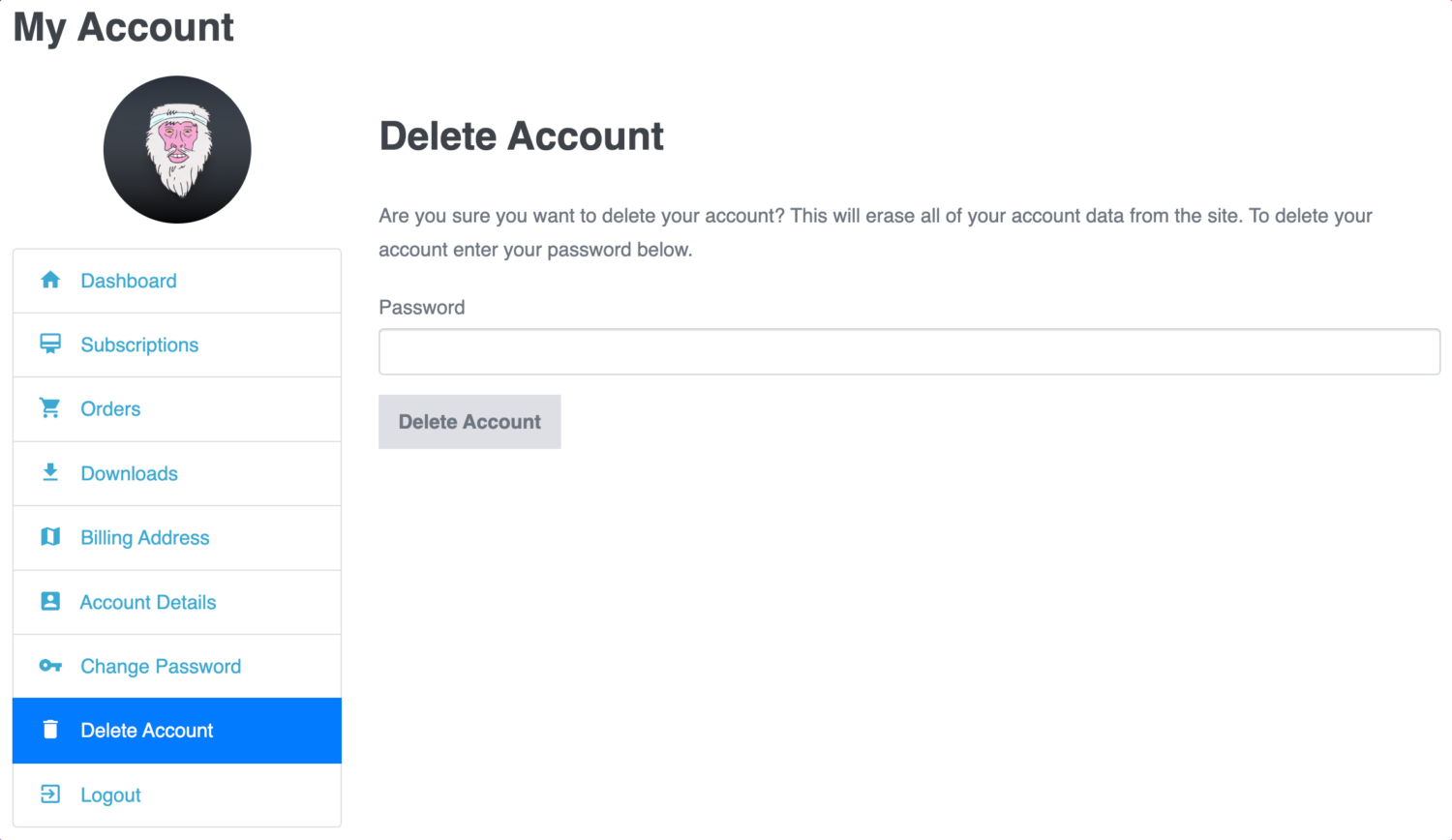
Scroll down to the bottom of the Account Settings page. Look for the “Close your account permanently” link. Click it and follow the instructions. Confirm your decision by entering your password again. Your WordPress.com account will be deleted shortly.
Delete Self-hosted WordPress Site
Deleting a self-hosted WordPress site means removing all your website data from your server. This process frees up space and stops your site from appearing online. It involves deleting files and databases connected to your WordPress installation. Follow these simple steps carefully to delete your site safely.
Access Your Hosting Control Panel
Start by logging into your hosting account. Find the control panel, often called cPanel or similar. This panel lets you manage files, databases, and other settings. Locate the file manager and database sections here. Accessing this control panel is the first step to removing your site.
Remove WordPress Files
Use the file manager to find your WordPress files. These usually sit in the public_html folder or a subfolder. Select all files and folders related to WordPress. Delete them permanently from the server. This action removes your website files but not the database yet.
Delete The Database
Next, open the database section in your control panel. Find the database linked to your WordPress site. Be sure to select the correct one. Delete the entire database to erase all your site’s content and settings. This step finishes the removal of your WordPress site from the host.
Cancel Domain And Hosting Services
Cancelling domain and hosting services is a key step in deleting your WordPress account. These services keep your website live and accessible. Stopping them ensures your site goes offline and you stop paying fees.
Many users forget to cancel these services, which can cause unwanted charges. It is important to handle this part carefully. Below are clear steps to help you cancel your domain and hosting properly.
Identify Your Domain Registrar
Your domain registrar is where you bought your website name. It may be different from your hosting provider. To find it, check your purchase email or use a WHOIS lookup tool online. Knowing your registrar helps you manage or cancel your domain name.
After identifying the registrar, log into your account there. Look for domain settings or management options. You can choose to let your domain expire or transfer it elsewhere. Make sure to save any important information before proceeding.
Terminate Hosting Subscription
Hosting services store your website files. You must cancel hosting to stop payments and remove your site from the internet. Log into your hosting account and find your active subscriptions.
Look for options like “cancel,” “terminate,” or “end service.” Follow the instructions carefully to avoid continued billing. Some hosts may require confirmation via email. Keep records of your cancellation for future reference.
After Account Deletion Tips
Deleting your WordPress account is a big step. After this, some important tasks remain. These tasks help protect your privacy and keep your online space clean. Follow these tips to finish the process smoothly.
Clear Browser Cache And Cookies
Your browser saves data from websites you visit. This data is called cache and cookies. They can keep old login info or site settings. Clear them to remove traces of your WordPress account. This also helps your browser work better.
Check For Residual Data
Deleting your account may not remove everything. Some files or posts might still be online. Look for any leftover content linked to your old account. Remove or update this content to protect your privacy and reputation.
Consider Alternatives
You may need another way to maintain your website or blog. Think about other platforms or services. Choose one that fits your needs and is easy to use. This keeps your online presence active without your old WordPress account.
Credit: profilepress.com
Frequently Asked Questions
How Do I Permanently Delete My WordPress Account?
To permanently delete your WordPress account, log in and go to Account Settings. Scroll down and click “Close your account. ” Follow the prompts to confirm deletion. This action removes all your data and content from WordPress. com permanently.
Can I Recover My WordPress Account After Deletion?
No, once you delete your WordPress account, recovery is not possible. All your posts, pages, and data are permanently erased. Make sure to back up any important content before proceeding with deletion to avoid losing valuable information.
What Happens To My WordPress Site After Account Deletion?
When you delete your WordPress account, your site and all its content are removed from WordPress servers. Visitors will no longer access your site. If you want to keep your content, export it before deleting your account.
Is It Possible To Delete Only My WordPress Blog?
No, WordPress does not allow deleting only the blog if it’s linked to your account. Deleting the account removes the entire site and all associated data. Consider transferring ownership if you want to keep the blog active.
Conclusion
Deleting your WordPress account is simple and quick. Just follow the right steps carefully. Always back up your data before deleting. This keeps your information safe and easy to restore. Remember, once deleted, you cannot recover the account. Take your time to decide if you really want to delete it.
The process helps keep your online presence clean and secure. Stay in control of your digital space by managing your accounts wisely.


