
Imagine this: you’ve spent countless hours curating your WordPress site, ensuring every detail aligns perfectly with your brand. But there’s one tiny detail that sticks out like a sore thumb—the theme name.
It might not seem like a big deal, but having a default or generic theme name can subtly impact your site’s professional appearance. Wondering how to make this small yet significant change? You’re in the right place. In this guide, we’ll walk you through the simple steps to change your WordPress theme name, helping you maintain a cohesive brand identity that captures your audience’s attention.
So, are you ready to take your website’s professionalism up a notch? Let’s dive in!
Prerequisites For Theme Name Change
Before changing a theme name in WordPress, check for theme compatibility and backup your site data. Ensure you have file access via FTP or cPanel, and understand basic WordPress file structure.
Backup Your Website
Backing up your website is very important. It keeps your data safe. Use backup plugins or manual methods to save your files. Store the backup in a secure location. You can use cloud storage or external drives. This step helps if something goes wrong.
Local Development Environment
Set up a local environment on your computer. It helps test changes safely. Install WordPress locally using tools like XAMPP or Local by Flywheel. This setup lets you work without affecting your live site. Always test theme changes here first. It keeps your live site error-free.
Credit: www.templatemonster.com
Modify Theme Files
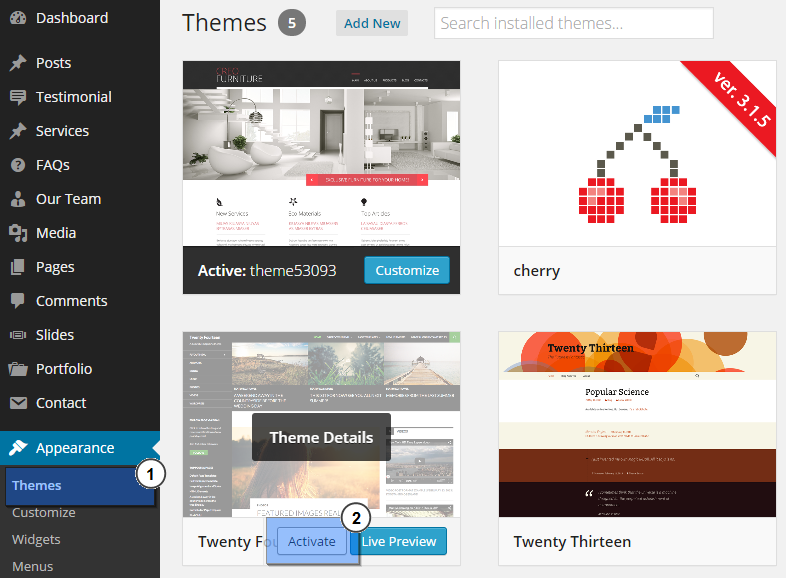
First, you need to access your WordPress theme directory. This is where all theme files are stored. You can use an FTP client or your hosting file manager. Look for a folder named wp-content. Inside, you will see another folder called themes. Open it. You will find your theme’s folder here.
Inside the theme folder, find the style.css file. This file holds important theme information. Right-click to edit it. Look for the line that starts with Theme Name:. Change the name to what you want. Make sure to save changes. Now, your theme will have a new name. It’s that easy!
Update Theme Name In Database
Changing a theme name in WordPress involves editing the database. Access phpMyAdmin in your hosting account, locate the wp_options table, and update the stylesheet and template fields with the new theme name. This process ensures your WordPress site runs smoothly with the renamed theme.
Use Phpmyadmin
Open phpMyAdmin in your hosting control panel. Select your WordPress database from the list. Click on the wp_options table. Look for the row with option_name as ‘template’ and ‘stylesheet’. Change the option_value to your new theme name. Be very careful here. Small mistakes can break your site.
Change Theme Name In Wp_options Table
Locate the wp_options table again. Find the row with option_name as ‘current_theme’. Update the option_value with your new theme name. Double-check your changes. Incorrect values can cause issues. Save your changes when done. Your theme name should now be updated.
Test The Changes
Changing a theme name in WordPress involves accessing your website’s files. First, use an FTP client to find the theme folder. Next, update the folder name and modify the theme name in the style. css file. Finally, ensure all changes are saved and the site functions correctly.
Check Theme Appearance
After changing the theme name, it’s important to verify its appearance. Open your website and look at the design. Make sure colors and fonts are correct. Check the layout of your homepage and other pages. Ensure images and text are displayed properly. If anything looks off, you might need to fix it. Compare the appearance with the old theme name. Everything should look the same as before. If something is different, it could be a problem with the theme files.
Verify Website Functionality
Test all features of your website. Click buttons and links to see if they work. Check forms and interactive elements. Ensure the website loads quickly. Try accessing your site from different devices. Make sure it looks good on mobile phones and tablets. Visit different pages and test navigation. See if the menus and sidebars function properly. If something is broken, it may need fixing. Verify plugins are working as intended. Ensure your website performs smoothly after the theme name change.
Troubleshoot Common Issues
Changing a theme name in WordPress involves editing files within the theme directory. Start by accessing your WordPress files through FTP or cPanel. Locate the theme’s folder, open the style. css file, and modify the “Theme Name” at the top.
Save changes and refresh your WordPress dashboard.
Fix Missing Styles
Sometimes styles vanish after changing a theme name. This can happen because of incorrect file paths. Check the theme’s CSS file. Ensure paths are correct. If paths are wrong, styles won’t appear. Update the paths to fix the issue. It’s important to save changes after editing.
Theme settings might also affect styles. Review settings in the WordPress dashboard. Adjust any wrong settings. This can restore missing styles. Always check changes on the website. Verify if styles are back to normal.
Resolve Broken Links
Broken links can frustrate users. They occur when theme names change. Links might point to old URLs. Update these links in your content. Use the WordPress editor for editing. Check links to ensure they work. Test each link after updating. This helps avoid user confusion.
Plugins can assist in finding broken links. Install a link checker plugin. This tool identifies bad links. Fix them to improve site navigation. Regular checks keep your site healthy.

Credit: www.nexgi.com

Credit: www.youtube.com
Frequently Asked Questions
How Do I Edit The Template Name In WordPress?
To edit the template name in WordPress, access the theme editor under “Appearance” in the dashboard. Locate the “style. css” file, then change the “Theme Name” line. Save your changes to update the template name. Always back up your theme files before editing.
How Do I Change The Title Name In WordPress?
To change the title name in WordPress, go to the dashboard. Click on “Settings” then “General. ” Locate the “Site Title” field. Enter your new title, and click “Save Changes. ” Your site title will be updated.
How Do I Change My WordPress Project Name?
To change your WordPress project name, update the “Site Title” in Settings > General. Also, revise the project name in any custom theme settings, plugins, or widgets. Ensure the new name reflects on search engines by updating meta titles and descriptions.
Backup your site before making changes.
How Do You Change The Name On WordPress?
To change the name on WordPress, log in to your dashboard. Navigate to Settings > General. Update the Site Title and Tagline fields. Click “Save Changes” to apply. This change affects your site’s title on search engines and browsers. Always ensure you save the changes.
Conclusion
Changing a theme name in WordPress is simple and rewarding. Follow the steps carefully. Your theme’s identity will be unique. Ensure a backup before making changes. This protects your work and saves time. Regular updates to themes are important too.
They keep your site secure and fast. Always check your website after changes. Ensure everything functions smoothly. This enhances user experience and boosts engagement. A well-named theme stands out. It reflects your brand perfectly. Enjoy the creative process. Customize your WordPress site with confidence and style.
Happy blogging!


