
Losing your WordPress website data can feel like a nightmare. Imagine all your hard work, posts, and designs disappearing without a backup.
You don’t want to face that kind of stress. So, how can you backup your WordPress website easily and securely? This guide will show you simple steps to protect your site. By the end, you’ll have the peace of mind knowing your website is safe no matter what happens.
Keep reading to learn how to make backing up your site a quick and worry-free task.

Credit: www.youtube.com
Why Backup Matters
Backing up your WordPress website is very important. It protects your hard work and data from loss. Many things can go wrong online. Without a backup, fixing problems can take a lot of time or may be impossible. Regular backups give you peace of mind. You can restore your site quickly after a problem.
Common Risks To WordPress Sites
WordPress sites face many risks. Hackers often try to break into websites. Malware can damage files and steal information. Hosting servers may crash or fail. Updates to WordPress or plugins sometimes cause errors. Human mistakes like deleting files by accident happen too. Losing data can stop your website from working. These risks make backups necessary and wise.
Benefits Of Regular Backups
Regular backups keep your website safe. They save all your pages, posts, and settings. You can restore your site to a working state fast. Backups help you recover from hacking or software errors. They reduce downtime and prevent loss of visitors. Backups protect your business and reputation. Having backups means less stress during problems.
Credit: www.elegantthemes.com
Backup Methods
Backing up your WordPress website is vital for safety. It protects your content and settings from loss. Different methods exist to save your site data. Each method covers important parts of your site. These include files and databases. Here are simple ways to back up your WordPress site.
Manual Backup Via Cpanel
Access cPanel from your hosting provider’s dashboard. Find the “File Manager” to view website files. Select your WordPress folder, usually named “public_html.” Compress the folder into a zip file. Download this zip file to your computer. This file contains all your WordPress files.
Using Ftp To Download Files
Use an FTP client like FileZilla to connect to your server. Enter your FTP username and password. Navigate to the WordPress root directory. Select all files and folders inside this directory. Download them to your local computer. This method backs up your site files safely.
Exporting The Database
Log in to your cPanel and open phpMyAdmin. Select your WordPress database from the list. Click on the “Export” tab at the top. Choose the “Quick” export method and format as SQL. Click “Go” to download your database file. This file stores all your site content and settings.
Backup Plugins
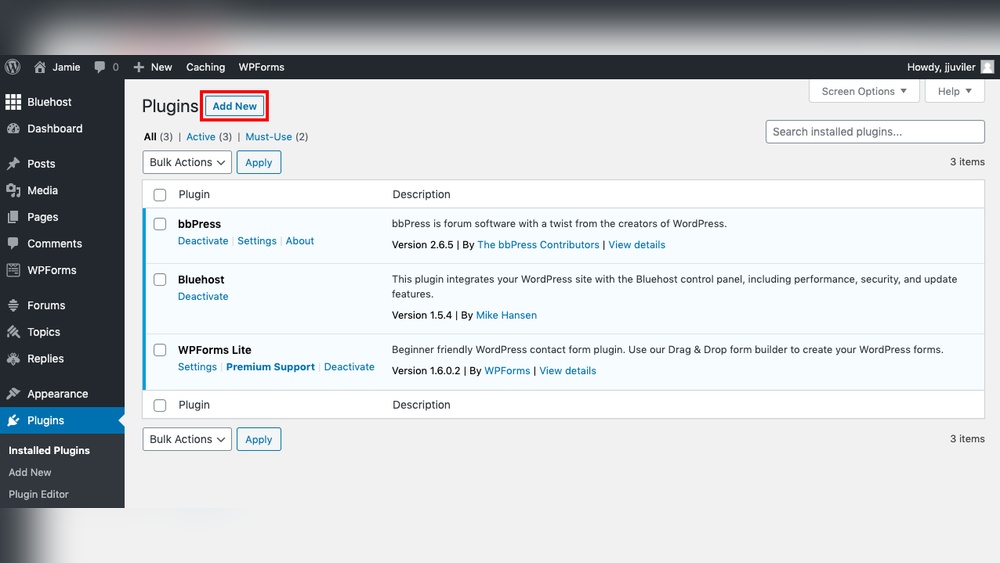
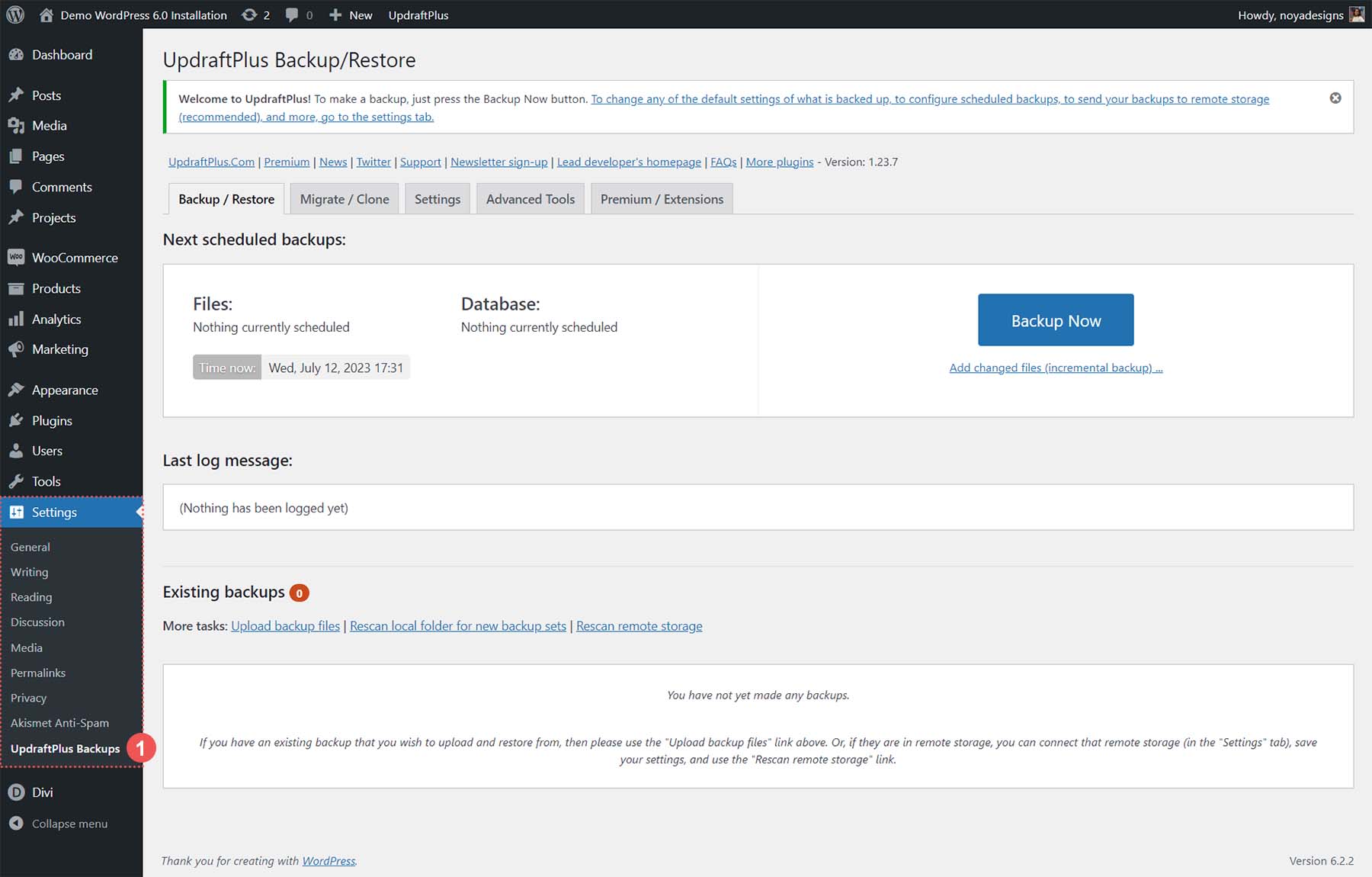
Backup plugins make saving your WordPress website easy and safe. They help copy your files and database. This protects your site from data loss or hacks. Many plugins offer simple setups and automatic backup options. You can choose one that fits your needs and budget.
Popular Free Plugins
Several free plugins provide reliable backup services. UpdraftPlus is one of the most used. It lets you backup to cloud storage like Google Drive or Dropbox. BackWPup is another free option with easy scheduling. Both support full and partial backups. These plugins suit beginners and small websites.
Premium Plugin Options
Paid plugins offer more features and support. BackupBuddy is a popular premium choice. It includes automatic backups and site migration tools. BlogVault offers real-time backup and easy restores. Premium plugins often provide priority support. They work well for busy or large sites.
Setting Up Automated Backups
Automation ensures your website stays backed up regularly. Most plugins let you schedule backups daily or weekly. Choose a backup time when your site has low traffic. Set your plugin to send backups to cloud storage. Regular automated backups reduce the risk of data loss.
Cloud Storage Options
Cloud storage offers a safe and easy way to back up your WordPress website. It keeps your data secure off-site. This means your site stays protected even if your computer or server fails. Cloud options work well for different needs and budgets. Choose a service that fits your backup size and frequency.
Using Google Drive
Google Drive is a popular cloud storage service. It gives you 15 GB of free space. You can store your WordPress backups here. Many plugins allow direct backup to Google Drive. It keeps your files organized and easy to access. You can restore your site from any device with Google Drive.
Backing Up To Dropbox
Dropbox is simple and reliable for website backups. It offers 2 GB of free storage to start. You can upgrade for more space if needed. Dropbox works with many WordPress backup plugins. It syncs your files automatically and keeps them safe. Access your backups anytime with Dropbox’s user-friendly interface.
Amazon S3 Integration
Amazon S3 is a strong option for larger sites. It provides scalable storage and high durability. Many WordPress plugins support Amazon S3 backups. It requires some setup but offers great flexibility. You pay for only the storage you use. Amazon S3 keeps your backups secure and ready to restore.
Scheduling Backups
Scheduling backups is a key step to protect your WordPress website. It ensures your data is saved regularly without extra effort. You can set times to back up your site automatically or choose to do it by hand. Consistent backups help you recover quickly if problems arise.
Choosing Backup Frequency
Decide how often you need to back up your site. For active sites with daily updates, daily backups work best. For sites with fewer changes, weekly backups may be enough. Consider the amount of new content and traffic on your site. More updates mean more frequent backups. Less activity means you can back up less often.
Automated Vs Manual Scheduling
Automated backups run on a set schedule without your input. They save time and reduce the risk of forgetting to back up. Many plugins offer easy setup for automatic backups. Manual backups require you to start the process yourself. This option gives you control but needs discipline. Choose automated if you want convenience. Pick manual if you want to manage backups directly.
Credit: www.elegantthemes.com
Restoring From Backup
Restoring your WordPress website from a backup is key to recovering from problems. It brings your site back to a safe state. The process involves replacing your files and database with saved copies. This step can fix errors, hacks, or broken updates.
Restoring is simple with the right backup files. Keep them organized for quick access. Follow clear steps to ensure your site works well after restoration.
Restoring Files And Database
Start by uploading your backup files to your web server. Use an FTP client or your hosting control panel. Replace the current WordPress files with those from the backup. Make sure to overwrite existing files carefully.
Next, restore the database. Access your hosting database tool like phpMyAdmin. Import the saved database backup file. This restores all your posts, pages, and settings.
Check the file paths and database connection settings. Correct any errors before moving on.
Testing The Restored Site
After restoration, visit your website in a browser. Check that all pages load correctly. Test forms, links, and images. Confirm plugins and themes work as expected.
Log in to your WordPress admin dashboard. Verify that your content appears intact. Make small changes to confirm everything saves properly.
Fix any visible issues immediately. A well-tested site avoids further downtime and problems.
Backup Best Practices
Backing up your WordPress website is essential for keeping your data safe. Following best practices helps avoid data loss and saves time. Careful backup habits protect your site from hacks, errors, and crashes.
Keeping Multiple Backup Copies
Store several copies of your backups in different places. Use cloud storage, external drives, or other servers. This approach reduces the risk of losing all data at once. Keep backups from different dates to restore older versions if needed.
Securing Backup Files
Protect backup files with strong passwords and encryption. Limit access to trusted people only. Avoid storing backups in public folders or unsecured locations. Secure backups prevent hackers from stealing your site data.
Regular Backup Verification
Check your backups often to make sure they work. Test restoring files on a test site before an emergency. Regular verification ensures your backups are complete and usable. This step saves time and stress during real recovery.
Frequently Asked Questions
What Are The Best Plugins To Backup WordPress Websites?
Top plugins like UpdraftPlus, BackWPup, and VaultPress automate backups efficiently. They offer scheduled backups, cloud storage options, and easy restoration. Choose based on your budget and feature needs for reliable WordPress site protection.
How Often Should I Backup My WordPress Site?
Backup frequency depends on site activity. For active blogs or e-commerce, daily backups are ideal. For less frequent updates, weekly backups suffice. Regular backups prevent data loss and ensure quick recovery after issues.
Can I Backup WordPress Manually Without Plugins?
Yes, manual backups involve exporting your database and downloading WordPress files via FTP. This method requires technical knowledge but gives full control. Regular manual backups are essential if you avoid plugins for site security.
Where Should I Store My WordPress Backups Securely?
Store backups offsite using cloud services like Google Drive, Dropbox, or Amazon S3. Avoid keeping backups only on your server to prevent loss from hacks or crashes. Multiple backup locations increase safety.
Conclusion
Backing up your WordPress website keeps your data safe and secure. Regular backups help you avoid losing important content. Choose a backup method that fits your skills and needs. Store backups in different places for extra protection. Test your backups to ensure they work correctly.
Stay consistent with backup schedules to prevent surprises. Protect your website, so you can focus on growing it. Easy steps lead to a safer online presence. Don’t wait until problems arise—back up today.


