
If you want to boost your WordPress site’s credibility and attract more visitors, adding Amazon reviews for multiple products is a smart move. But how can you do this easily and without breaking any rules?
You’re about to discover simple, effective ways to showcase genuine Amazon reviews right on your site. Whether you have one product or many, these methods will help you build trust with your audience and keep your site fresh with real feedback.
Keep reading to learn how to add Amazon reviews for multiple products on WordPress step-by-step—no technical hassle, just straightforward solutions you can start using today.

Credit: themeforest.net
Choose The Right Plugin
Choosing the right plugin is key to adding Amazon reviews for multiple products on WordPress. The plugin you pick affects how well your reviews display and how easy it is to manage them. A good plugin saves time and improves your site’s credibility. It also ensures your site runs smoothly without errors or slow loading times.
Consider the features and support each plugin offers. Some plugins focus on simplicity, while others provide advanced customization. Your choice should match your technical skills and site needs. Understanding plugin options helps you make the best decision for your WordPress site.
Popular Amazon Review Plugins
Some plugins are widely used for showing Amazon reviews on WordPress. Examples include WP Product Review, Amazon Auto Links, and EasyAzon. These plugins offer different ways to import and display reviews. They support multiple products and allow various layouts. Reading user reviews and ratings helps to find reliable options.
Free Vs Paid Options
Free plugins offer basic features and are good for small sites. They may have limits on the number of reviews or product imports. Paid plugins come with more features like automation, better support, and advanced designs. They often update regularly for security and compatibility. Choose based on your budget and the level of functionality you need.
Compatibility With WordPress Themes
Not all plugins work well with every WordPress theme. Check if the plugin supports your theme before installing. Compatibility ensures the reviews look good and function correctly. Some plugins may cause layout issues or slow down your site if not compatible. Test the plugin on a staging site or backup your site first.
Set Up Amazon Review Widgets
Setting up Amazon review widgets on your WordPress site helps showcase multiple product opinions easily. These widgets pull live reviews from Amazon and display them in a clean format. They improve trust and engagement without manual updates.
Using widgets saves time and keeps your content fresh. Let’s explore the key steps to set up these widgets effectively.
Using Third-party Services
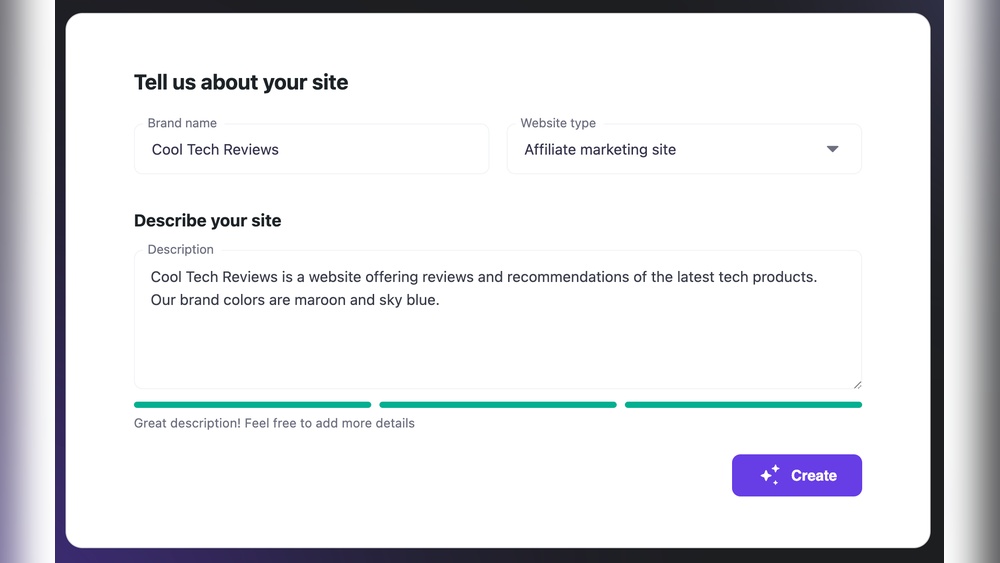
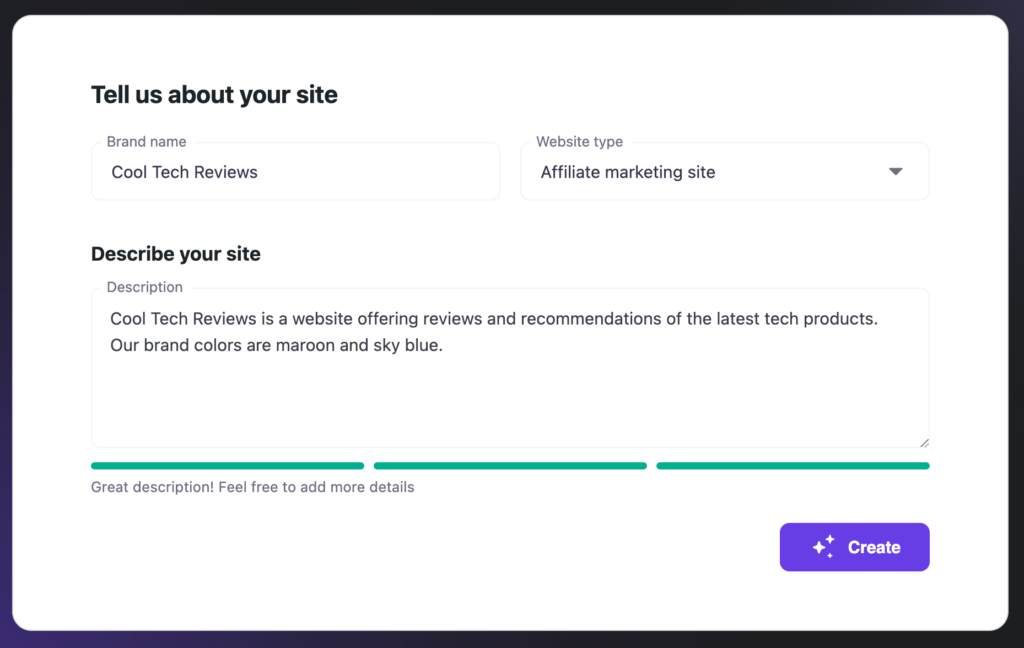
Third-party services offer ready-made tools to create Amazon review widgets. Platforms like Elfsight and SociableKIT provide user-friendly interfaces. They connect directly to Amazon to fetch reviews automatically.
Sign up on one of these services and enter your product details. The tool generates a widget with the latest reviews. It avoids manual copying, ensuring compliance with Amazon’s rules.
Customizing Widget Appearance
Customization lets you match the widget to your site’s style. Adjust colors, fonts, and layout to fit your theme. Some services allow selecting how many reviews show at once.
You can also choose review sorting options, like most recent or highest rated. This control helps highlight the best feedback. A well-designed widget blends seamlessly and attracts visitor attention.
Embedding Widget Code In WordPress
After customizing, the service provides an embed code. This code is usually in HTML or JavaScript format. Copy the code and open your WordPress dashboard.
Navigate to the page or post where you want the reviews. Use the Custom HTML block in the WordPress editor. Paste the widget code there and save your changes.
Check the front end to see the reviews live on your site. This method requires no coding skill and updates reviews automatically.
Linking To Amazon Reviews
Linking to Amazon reviews is a smart way to share customer feedback on your WordPress site. It helps visitors see real opinions without copying content. This approach respects Amazon’s rules and keeps your site safe from legal issues. Plus, linking saves you time and effort while providing fresh, trustworthy information.
Copying Product Review Urls
Start by visiting the Amazon product page with the reviews. Look for the URL in your browser’s address bar. Click to highlight and copy the full link. This link directs users straight to the reviews section. Keep these URLs handy for each product you want to feature.
Creating Text And Image Links
Add the copied URL to your WordPress post or page. Use simple text like “View Amazon Reviews” for the link. You can also link an image, such as the product photo or review stars. Highlight the text or image, click the link button, and paste the URL. This creates a clickable link to Amazon’s review page.
Benefits Of Linking Over Copying
Linking keeps your site legal and avoids copyright problems. It ensures reviews stay updated as Amazon adds new feedback. Linking also improves your SEO by directing traffic to Amazon. Visitors trust links more than copied reviews. This method is quick, clean, and easy to manage on WordPress.
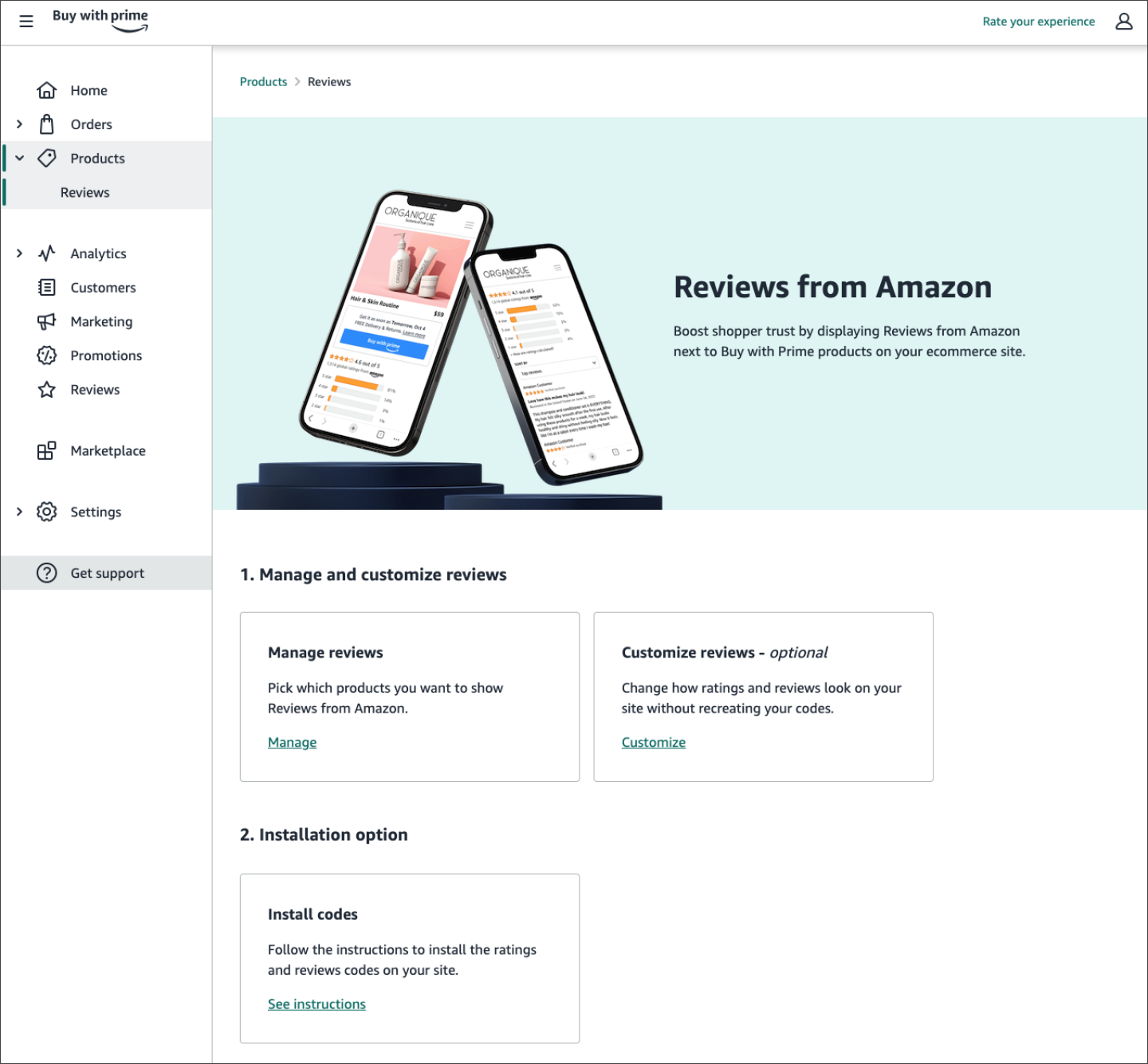
Credit: buywithprime.amazon.com
Add Reviews Via Shortcodes And Blocks
Adding Amazon reviews to your WordPress site enhances product trust. Using shortcodes and blocks is an easy way to display multiple reviews. These methods fit well with WordPress’s built-in tools. They allow you to show reviews neatly and manage them efficiently across posts and pages.
Inserting Shortcodes In Posts And Pages
Shortcodes are simple codes that insert content into WordPress. To add Amazon reviews, use the shortcode provided by your review plugin. Place it inside any post or page where you want the reviews to appear. The shortcode will load the reviews automatically. This keeps your content clean and organized without manual copying.
Shortcodes work well for multiple products too. Each product can have its own shortcode. You just copy and paste the shortcode for each product review section. This method saves time and avoids clutter.
Using WordPress Blocks For Reviews
WordPress blocks offer a visual way to add reviews. Many review plugins add custom blocks to the block editor. You can select the review block and choose the product to show reviews for. The block then displays all relevant Amazon reviews.
Blocks are user-friendly and flexible. You can move them around in the editor easily. This method suits users who prefer a drag-and-drop interface. It also helps maintain a consistent design across your site.
Managing Multiple Product Reviews
Handling reviews for many products requires clear organization. Use unique shortcodes or blocks for each product. Label each review section with the product name for clarity. Keep your review content updated regularly.
Use your plugin’s dashboard to track and edit reviews. This ensures each product’s reviews stay accurate and relevant. Proper management improves your site’s credibility and user experience.
Ensure Compliance With Amazon Policies
Ensuring compliance with Amazon policies is crucial when adding reviews for multiple products on WordPress. Amazon has strict rules on how their content, including reviews, can be used. Following these rules protects your website from legal issues and keeps your content trustworthy.
Using Amazon reviews correctly also respects the rights of customers who wrote them. It shows professionalism and builds a good relationship with your visitors. Let’s explore how to stay compliant while displaying Amazon reviews on your WordPress site.
Avoiding Manual Copying Of Reviews
Copying reviews manually from Amazon is against their terms of service. It can lead to copyright issues and penalties. Instead, use official methods like embedding widgets or linking directly to Amazon pages.
Embedding tools pull reviews automatically and keep the original format. This method avoids legal problems and shows accurate information. It also saves time and effort compared to manual copying.
Respecting Copyright And Terms Of Service
Amazon owns the rights to the reviews posted on their site. Using them without permission may violate copyright laws. Always check Amazon’s policies before displaying any content.
Respecting terms of service means not altering or misrepresenting reviews. Display reviews exactly as Amazon provides them. This keeps your site honest and trustworthy for visitors.
Maintaining Updated Reviews Automatically
Reviews change over time as customers add new feedback. Using plugins or widgets that update reviews automatically ensures your content stays fresh. This also helps avoid showing outdated or incorrect information.
Automatic updates reduce maintenance work on your site. They keep your product pages relevant and enhance user experience. Choose tools that sync directly with Amazon’s database for best results.
Tips For Managing Multiple Products
Managing multiple products on your WordPress site can be challenging. Keeping reviews clear and easy to find helps visitors trust your products. Organizing reviews well, updating them automatically, and keeping your site fast improves user experience. These tips help you handle many Amazon product reviews smoothly.
Organizing Reviews By Product
Group reviews under each product on your site. Use categories or tags to separate them clearly. This makes it easy for visitors to find reviews for a specific item. Avoid mixing reviews from different products on one page. Use shortcodes or widgets to display reviews right where they belong. Clear organization keeps your site neat and user-friendly.
Automating Review Updates
Update reviews automatically to save time and keep content fresh. Use plugins or services that sync reviews from Amazon. This avoids manual copy-pasting and reduces errors. Automated updates ensure your visitors always see the latest feedback. Set update intervals to fit your needs, such as daily or weekly. Automation keeps your site current without extra work.
Optimizing Page Load Speed
Fast-loading pages improve visitor satisfaction and SEO rankings. Limit the number of reviews shown at once to reduce load time. Use lazy loading for review widgets so they load only when visible. Compress images and scripts related to reviews. Choose lightweight plugins that do not slow your site. A quick site keeps visitors engaged and reduces bounce rates.
Troubleshooting Common Issues
Troubleshooting common issues helps keep Amazon reviews working smoothly on WordPress. Problems can arise with widgets, plugins, or review updates. Identifying and fixing these issues quickly improves user experience and site performance.
Widget Display Problems
Widgets may fail to show reviews properly. This often happens due to incorrect widget settings. Check the widget’s configuration and ensure the Amazon product ID is correct. Clear your site cache to refresh the display. Sometimes, a simple browser refresh or switching to another browser resolves display glitches.
Plugin Conflicts
Multiple plugins can interfere with each other. This causes the review plugin to malfunction. Deactivate other plugins one by one to find the conflict. After identifying the conflicting plugin, look for updates or alternatives. Keep your WordPress and plugins updated to reduce compatibility issues.
Review Update Delays
Reviews may not update immediately on your site. This delay often results from caching or slow API responses. Clear caches regularly to force updates. Some plugins offer manual refresh options; use these if available. Check your plugin’s connection to Amazon to ensure it works correctly.
Credit: www.hostinger.com
Frequently Asked Questions
How Do I Add Product Reviews To My WordPress Site?
Install a product review plugin on your WordPress site. Configure settings, then add reviews using shortcodes, widgets, or blocks.
Can I Use Amazon Reviews On My Website?
You can use Amazon reviews by linking to the product page or embedding widgets from third-party services. Avoid copying reviews directly to comply with Amazon’s policies and copyright laws. Using widgets ensures automatic updates and legal safety.
How To Add Product Reviews In Woocommerce?
Enable reviews in WooCommerce by going to WooCommerce > Settings > Products. Check “Enable product reviews” and save changes. Customers can then add reviews on product pages.
How To Download Amazon Reviews In Bulk?
Use third-party tools like Elfsight or SociableKIT to bulk download and embed Amazon reviews legally. Avoid manual copying to comply with Amazon’s policies.
Conclusion
Adding Amazon reviews for multiple products on WordPress is simple and effective. Use plugins or trusted third-party widgets to embed reviews safely. These tools keep your site updated and follow Amazon’s rules. Linking directly to Amazon reviews also protects copyrights and avoids legal issues.
Regularly showing genuine reviews builds trust with your visitors. Start adding reviews today to enhance your product pages and improve user experience.


