
Ever stumbled upon a stunning WordPress site and wondered, “What template are they using?” You’re not alone.
This curiosity is shared by many who desire that perfect look for their own website. Discovering the theme behind a beautifully crafted site can feel like unlocking a secret design treasure. It could be the key to transforming your site’s aesthetics and boosting its appeal.
Imagine the possibilities: attracting more visitors, keeping them engaged, and creating an unforgettable online presence. By understanding what makes a site visually compelling, you can replicate its success and elevate your brand. In this guide, you’ll learn simple yet effective ways to identify the WordPress template of any site you admire. Ready to boost your site’s allure and captivate your audience? Let’s dive in and uncover the mystery behind those eye-catching designs.
Detecting WordPress Themes
Want to know what template a WordPress site uses? It’s simple. First, visit the site you like. Right-click on the page. Choose “View Page Source.” A new tab will open with code. Search for “wp-content/themes/” in the code. You will see a folder name. That’s the theme name. Sometimes, tools can help too. Online tools like WhatTheme or Theme Detector are useful. Just type the site’s URL. They show theme details quickly. These methods are easy and fast. You’ll know the theme in minutes. Explore and enjoy finding new designs!

Credit: themeforest.net
Manual Inspection Techniques
To view the source code, right-click on the webpage. Then click on “View Page Source.” This option shows the code behind the webpage. In the code, find the term “wp-content/themes/”. This part of the URL tells you the theme name. You might also see folders named after the theme. This is a simple way to find the theme used.
Theme files tell more about the website’s design. Visit the “wp-content/themes/” folder. Here, you see many files. Look for “style.css.” Open this file in a text editor. The file usually has theme information. The theme name, author, and version are often at the top. This helps you know what template they use.
Using Online Tools
Theme detection websites help find the WordPress theme used. These websites are easy to use. Enter the website URL you want to check. The tool shows the theme name and details. ThemeIsle and WPThemeDetector are popular options. They provide information quickly. These tools are free to use. No need to install anything.
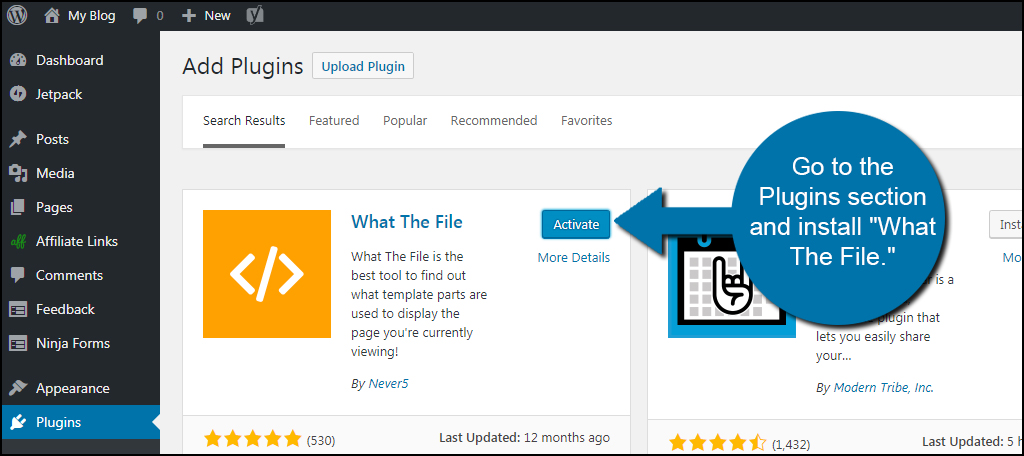
Browser extensions can also find WordPress themes. Install them to your browser. Click the extension icon on the website you visit. Wappalyzer and BuiltWith are common tools. They show theme details instantly. Useful for finding plugins too. Easy to install and use. Make sure your browser is updated.
Credit: www.greengeeks.com
Inspecting Css Stylesheets
To find the theme name, open the browser’s Developer Tools. Look for the Sources tab. The theme name often appears in the style.css file. Check for a folder named wp-content/themes. The theme name is usually the folder name.
Within the style.css file, search for the Theme Header. It contains version details. This section starts with / and ends with /. Look for lines with Version. This shows the theme’s version number.
Developer Tools In Browsers
Browsers have special tools for developers. These are called Developer Tools. They help you see the code behind websites. You can find them in the menu. Click on the three dots or lines. Choose “More Tools” then “Developer Tools”. A new window will appear. It shows HTML, CSS, and more. This is where magic happens.
Check the Theme of a WordPress site using Developer Tools. Look for style.css in the “Sources” tab. This file has theme details. It tells you the name and author. You can also see the version. This helps you learn about the site. You can even copy the theme name.

Credit: wordpress.com
Checking WordPress Dashboard
To check the template, first you need admin accessThemes section. You will need a username and password. Ask the site owner if you don’t have these details. Enter them to log in.
Once logged in, look at the left menu. Find the word Appearance. Click on it. A list will open. Click on Themes. You will see all the templates used. The active template is marked. Check its name and details.
Understanding Child Themes
A parent theme is the main theme in WordPress. It has all the designs and features. To find the parent theme, look in the WordPress dashboard. Go to the Appearance section, then Themes. The active theme is usually the parent. Parent themes control the basic look of a site. It is important to know the parent theme. It helps in making changes safely.
Custom modifications change how a theme looks or works. They can be edits in styles, colors, or layouts. Sometimes, people add special functions. These changes make a site unique. Use tools like browser inspectors to see changes. They show specific codes used for modifications. Knowing these helps in understanding the site better.
Interpreting Theme Information
Themes can be very popular. Some themes are used by thousands. Popularity shows if a theme is liked. It can mean many people trust it. Popular themes often get updates. Updates keep themes working well. This is important for security. Popularity can be seen by reviews. Reviews share what users think. High ratings mean people are happy.
Features are what a theme can do. Good features make a website better. They can include layouts, colors, and fonts. Easy customization is important. It lets you change how your site looks. Responsive design is a key feature. It makes sites work on phones. SEO features help sites show in searches. Features should match your needs. They make a site unique.
Frequently Asked Questions
How To Identify A WordPress Theme?
To identify a WordPress theme, use online tools like WPThemeDetector. These tools analyze a website’s code and reveal the theme’s name. Alternatively, inspect the site’s source code for theme-related information. This is a quick way to discover the theme used on any WordPress site.
Can I Find A Site’s WordPress Template Easily?
Yes, identifying a site’s WordPress template is simple. Use browser extensions like Wappalyzer or BuiltWith. They reveal the theme information. Additionally, view the page source code to find the theme’s name. This approach provides insights into the website’s structure.
Are There Free Tools To Detect WordPress Themes?
Yes, several free tools are available for detecting WordPress themes. WPThemeDetector and What WordPress Theme Is That are popular options. These tools analyze a website’s code and provide theme details. They are user-friendly and effective for discovering WordPress themes.
Why Should I Identify A Site’s WordPress Template?
Identifying a site’s WordPress template helps in understanding its design and functionality. It assists in replicating desired features for your website. Additionally, it provides insights into popular themes and trends. This knowledge is valuable for web developers and designers.
Conclusion
Exploring WordPress templates can boost your website design. A suitable template enhances user experience. It also makes your site look professional. Keep your audience engaged with clean, easy navigation. With the right tools, you can identify the best templates. This knowledge helps you choose wisely.
Experiment with different styles. Try new layouts. See what fits your brand best. Remember, a good template is key to your website’s success. Get started today. Discover what works for your site. Keep refining and improving your design. Your visitors will thank you.
Happy designing!


