

Are you struggling with large images slowing down your WordPress site? You might wonder, does WordPress resize images automatically?
Understanding how WordPress handles your pictures can save you time and boost your website’s speed. You’ll discover exactly what happens when you upload images and how WordPress manages their size. Stick around to learn simple tips that will make your site faster and look professional without extra effort.
Credit: themeisle.com
WordPress Image Handling
WordPress manages images in a smart and automatic way. It does more than just upload your pictures. It changes their size to fit different parts of your site.
This process helps your site load faster and look better on all devices. It saves you time by creating many sizes from one image.
Default Image Sizes
WordPress creates three main sizes by default. These sizes are thumbnail, medium, and large. Each size fits a different use on your site.
The thumbnail is small and used in galleries or previews. Medium size works well inside posts. Large size fits bigger areas like headers.
You can change these sizes in your WordPress settings anytime.
How WordPress Creates Thumbnails
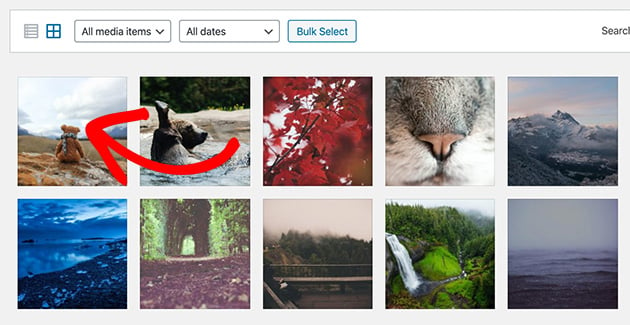
After you upload an image, WordPress makes smaller copies. It does this automatically, without extra work from you.
These copies are called thumbnails. They help show images faster on pages with many pictures.
WordPress keeps the quality while reducing the file size. This balance speeds up your site and saves space.
Credit: www.seedprod.com
Automatic Resizing Process
WordPress automatically resizes images to improve website speed and user experience. It creates multiple versions of the original image in different sizes. These versions help display images correctly on various devices.
This process saves you time and effort. You do not need to resize images manually before uploading them. WordPress handles the resizing during the upload process.
When Images Are Resized
Images resize right after you upload them to the media library. WordPress generates several copies at set dimensions. These include thumbnails, medium, and large sizes.
The system uses these copies depending on where the image appears on your site. For example, thumbnails show in galleries, while large images appear in posts.
Image Quality Settings
WordPress compresses images to balance quality and file size. The default quality is set to 82%, which keeps images clear but smaller in size.
You can change this quality using code or plugins. Lower quality speeds up the site but reduces sharpness. Higher quality keeps details but increases load time.
Customizing Image Sizes
Customizing image sizes in WordPress helps control how images appear on your site. WordPress creates several default sizes when you upload images. You can change these sizes or add new ones. This lets you match images to your site’s design perfectly. Adjusting image sizes also improves your site’s speed and appearance.
Changing Default Sizes
WordPress has default image sizes: thumbnail, medium, and large. You can change these sizes in the Media Settings. Go to your WordPress dashboard, then Settings > Media. Enter new dimensions for each size. WordPress uses these new sizes for future uploads. Existing images will not change automatically. You may need a plugin to resize old images.
Adding Custom Image Sizes
You can add custom image sizes with code in your theme’s functions.php file. Use the function add_image_size() to define a new size. Give it a name, width, height, and crop option. Custom sizes help you tailor images for special sections. After adding a size, you can use it in your posts or templates. This keeps your site looking clean and consistent.
Plugins For Image Resizing
Plugins for image resizing help manage website images easily. They resize and optimize images automatically. This keeps your site fast and saves storage space. Many WordPress users rely on these plugins for better image handling.
Popular Image Optimization Plugins
Several plugins offer image resizing and optimization features. Smush is a favorite for compressing images without losing quality. EWWW Image Optimizer automatically resizes images on upload. ShortPixel reduces file sizes while keeping clarity. Imagify offers easy resizing and optimization options. These plugins work quietly in the background.
Benefits Of Using Plugins
Plugins save time by resizing images automatically. They reduce image file sizes to improve site speed. Faster sites keep visitors engaged longer. Plugins also help with SEO by optimizing images. They offer easy control over image quality and dimensions. No need for manual editing before uploading images.
Impact On Website Performance
Website performance depends heavily on how images load and display. Large images slow down your site. WordPress resizing images helps manage this issue. It creates smaller versions of your images automatically. This process affects loading speed and SEO. Understanding these impacts is key to a fast, user-friendly site.
Loading Speed And Image Size
Large images take longer to load. WordPress resizes images to reduce file size. Smaller files load faster. Fast loading improves user experience. Visitors stay longer on a quick site. WordPress creates multiple image sizes for different uses. It serves the right size for each device. This prevents wasting bandwidth. Faster sites rank better in search engines.
Seo Considerations
Search engines favor fast websites. Resized images help improve your site speed. This boosts your SEO rankings. WordPress also adds alt text fields for images. Alt text improves accessibility and SEO. Proper image optimization signals quality to search engines. Resizing images reduces bounce rates. Visitors do not wait for slow pages. This positive user behavior supports better SEO.
Best Practices For Image Uploads
Uploading images to WordPress requires some care. Proper image handling improves site speed and user experience. Choosing the right size and format helps your images look good without slowing your site.
Follow these best practices to make sure your images work well with WordPress and your visitors.
Recommended Image Dimensions
Use images that fit your website layout. Too large images slow down your pages. Too small images look blurry and unprofessional.
For full-width images, aim for about 1200 pixels wide. For smaller pictures, 600 to 800 pixels is enough. Always check your theme’s recommended sizes.
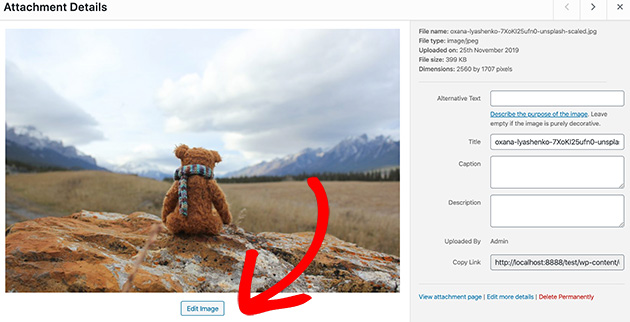
WordPress creates several sizes automatically, but uploading the right size saves space and boosts speed.
File Format Choices
Choose the right file format for better quality and faster loading. JPEG is best for photos with many colors. It compresses well and keeps file size low.
PNG works better for images with text, logos, or simple colors. It keeps edges sharp and supports transparency.
WebP is a newer format that offers good quality with smaller files. Not all browsers support it, but WordPress can create WebP versions automatically.
Credit: www.seedprod.com
Frequently Asked Questions
Does WordPress Automatically Resize Uploaded Images?
Yes, WordPress automatically creates multiple image sizes upon upload. It generates thumbnails, medium, and large versions for responsive display and performance.
How Can I Control Image Size In WordPress?
You can control image sizes via the WordPress media settings. Adjust default dimensions or use plugins to customize image resizing behavior.
Does WordPress Compress Images When Resizing?
WordPress applies basic compression to JPEG images during resizing. This reduces file size while maintaining reasonable image quality for faster loading.
Can I Prevent WordPress From Resizing Images?
Yes, you can disable default image sizes by adding code to your theme’s functions. php file or using specific plugins to stop resizing.
Conclusion
WordPress does resize images automatically to fit your site. It creates smaller versions to help pages load faster. You can control the sizes or add custom ones too. This saves time and keeps your site looking good on all devices.
Remember to upload good quality images first. That way, resizing keeps your site neat without losing clarity. Overall, WordPress makes image handling easier for everyone. Simple and effective.


