

Are you struggling with slow website loading times? One key factor might be your images.
You probably wonder, “Does WordPress optimize images automatically? ” If your site’s images aren’t properly optimized, they can drag down your page speed and hurt your user experience. You’ll discover exactly how WordPress handles image optimization and what you can do to make your pictures load faster and look sharper.
Keep reading to unlock simple tips that can boost your website’s performance and keep visitors engaged longer.
Why Image Optimization Matters
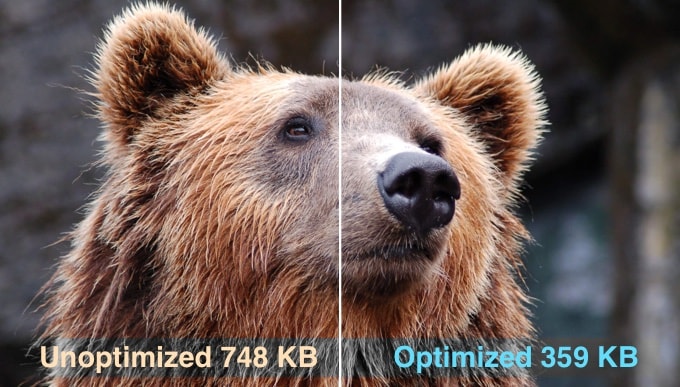
Images make websites attractive and informative. But large image files slow down your site. Image optimization reduces file size without losing quality. This helps your website load faster and work better. Optimizing images is important for many reasons.
Impact On Website Speed
Large images take longer to load. Slow websites frustrate visitors and increase bounce rates. Optimized images load quickly and save bandwidth. Faster loading pages improve overall website performance. Speed is a key factor for keeping users engaged.
Effects On User Experience
Visitors prefer websites that load fast and look good. Clear, sharp images attract attention and improve readability. Optimized images reduce waiting time and improve satisfaction. Users stay longer and explore more on fast sites. Good experience increases the chance visitors will return.
Seo Benefits
Search engines rank faster websites higher in results. Optimized images help improve page speed scores. Proper image tags and compression boost SEO rankings. Faster sites get more traffic from search engines. Good SEO helps your website reach more people.
Credit: www.wpbeginner.com
How WordPress Handles Images
WordPress manages images in ways that help your site load faster and look good. It does this by compressing images, resizing them, and supporting popular formats. These features work automatically after you upload an image. Understanding how WordPress handles images can help you improve your website’s performance and user experience.
Default Image Compression
WordPress reduces image file size by compressing images. This process lowers the quality slightly but keeps the image clear. It helps pages load faster and uses less storage space. The default compression level balances quality and speed well.
Automatic Resizing And Thumbnails
After uploading, WordPress creates multiple sizes of your image. It generates thumbnails, medium, and large versions automatically. This resizing helps display the right image size on different devices. It prevents slow loading caused by large images on small screens.
Image Formats Supported
WordPress supports common image formats like JPEG, PNG, and GIF. It also supports WebP, a newer format with better compression. These formats cover most needs for web images. Choosing the right format can improve site speed and quality.
Built-in WordPress Image Optimization Features
WordPress offers built-in features that help optimize images. These features improve website speed and user experience. They also reduce the need for extra plugins. Each feature targets specific aspects of image loading and display.
Lazy Loading Images
WordPress uses lazy loading to delay image loading. Images load only when users scroll near them. This saves bandwidth and speeds up page loading. It helps visitors see content faster without waiting for all images.
Responsive Images
WordPress creates multiple image sizes automatically. It serves the best size based on the visitor’s device. Smaller devices get smaller images, saving data and time. This feature ensures images look good on phones, tablets, and desktops.
Webp Support
WordPress supports WebP, a modern image format. WebP files are smaller but keep good quality. Using WebP lowers page size and improves load times. WordPress can convert and serve WebP images if the browser supports it.
Popular Image Optimization Plugins
Optimizing images is key for fast websites and better user experience. WordPress does some optimization by default, but plugins offer more powerful features. Popular image optimization plugins help reduce file size without losing quality. They make websites load faster and save bandwidth. Let’s explore some widely used plugins for image optimization.
Smush
Smush is easy to use and works automatically. It compresses images without visible quality loss. You can optimize images in bulk or one by one. Smush also resizes large images to fit your site’s needs. It supports JPEG, PNG, and GIF files. Lazy load feature delays offscreen images for faster loading.
Shortpixel
ShortPixel reduces image size with smart compression. It offers both lossy and lossless options. This plugin supports WebP and Retina images. It works with JPEG, PNG, GIF, and PDF files. ShortPixel can optimize existing images and new uploads. It also creates backups of original images.
Imagify
Imagify focuses on speed and simplicity. It offers three compression levels: normal, aggressive, and ultra. Imagify converts images to WebP format for faster loading. It supports JPEG, PNG, and GIF formats. The plugin can optimize images automatically on upload. It also has a bulk optimization feature.
Ewww Image Optimizer
EWWW Image Optimizer compresses images with no quality loss. It can optimize images on upload or in bulk. This plugin supports many file types, including WebP. It can convert images to the best format for speed. EWWW also offers CDN integration for faster image delivery.
Choosing The Right Image Format
Choosing the right image format is key to fast-loading websites. Different formats serve different needs. The best format keeps quality and file size balanced. This helps your site look good and run smoothly. Understanding common image types helps you pick the best one for your content.
Jpeg Vs Png
JPEG is great for photos with many colors. It compresses images to keep file sizes small. Some quality loss happens but is often unnoticeable. PNG works well for images with sharp edges and text. It supports transparency and keeps details clear. PNG files are larger but perfect for logos or icons.
Advantages Of Webp
WebP is a modern format that saves space. It offers better compression than JPEG and PNG. WebP supports transparency like PNG but with smaller sizes. This format speeds up page loading and reduces bandwidth use. Many browsers support WebP, making it a good choice.
When To Use Svg
SVG is for vector images like logos and icons. It scales without losing quality. SVG files are usually small and easy to edit. They work well for graphics that need resizing on different screens. Use SVG when you want sharp images at any size.
Credit: whitelabelcoders.com
Best Practices For Manual Image Optimization
Manual image optimization helps your website load faster. It improves user experience and boosts search rankings. Doing it yourself gives better control over image quality and size.
Compressing Images Before Upload
Compress images to reduce file size without losing quality. Use tools like TinyPNG or JPEG-Optimizer. Smaller files load faster and use less bandwidth. This step is crucial before uploading images to WordPress.
Proper Image Dimensions
Set image dimensions to match the display size on your site. Avoid uploading large images and resizing them in WordPress. Proper dimensions reduce page load time and save storage space.
Using Cdns For Delivery
Content Delivery Networks (CDNs) store images on multiple servers worldwide. They deliver images faster to visitors based on location. CDNs improve site speed and reduce server load.
Measuring Image Optimization Impact
Measuring the impact of image optimization is key to improving website performance. Optimized images load faster, which can boost site speed and user experience. Tracking this impact helps you understand the benefits of image optimization clearly. It shows if your efforts improve loading times and keep visitors engaged.
Tools To Test Website Speed
Use tools like Google PageSpeed Insights, GTmetrix, and Pingdom. These tools analyze how fast your website loads. They provide scores and suggestions for better speed. Testing regularly helps spot slowdowns caused by large images.
Analyzing Image Size And Load Time
Check the size of your images before and after optimization. Smaller images load quicker and save bandwidth. Look at the time each image takes to load on your pages. Faster load times mean a smoother user experience and better SEO.
Monitoring User Engagement
Watch how visitors interact with your site after optimizing images. Track metrics like bounce rate, time on page, and click-through rates. Improved engagement often means visitors find your site faster and easier to use. This reflects well on your image optimization efforts.
Common Image Optimization Mistakes
Many WordPress users struggle with image optimization. This affects website speed and user experience. Common mistakes reduce the benefits of using WordPress for image handling. Avoiding these errors can improve site performance and SEO.
Overcompression Issues
Overcompressing images lowers quality too much. Blurry or pixelated pictures hurt your site’s look. Visitors may leave due to poor visuals. Balance file size and image clarity for best results.
Ignoring Mobile Optimization
Mobile devices need smaller, fast-loading images. Using large desktop images on phones slows loading time. This frustrates users and increases bounce rates. Optimizing images for mobile improves user engagement.
Not Using Caching
Caching stores images for faster loading on repeat visits. Without caching, images load slowly every time. This creates a poor browsing experience. Use caching plugins or tools to speed up image delivery.
Future Trends In WordPress Image Handling
WordPress constantly improves how it handles images. Future trends show exciting changes. These updates focus on faster loading and better quality. They aim to help websites perform well on all devices. Let’s explore some key trends in WordPress image handling.
Ai-based Optimization
Artificial intelligence helps optimize images smarter. AI tools can reduce file size while keeping quality high. This means images load faster without looking blurry. WordPress may soon use AI to select the best image format. It can also adjust images based on user devices. This leads to a better browsing experience for visitors.
Native Webp Integration
WebP is a modern image format that reduces size greatly. WordPress plans to support WebP natively for all images. This change improves page speed and saves bandwidth. WebP images load faster on mobile and desktop. Native support means no extra plugins are needed. WebP will become the standard for WordPress sites.
Improved Lazy Loading Techniques
Lazy loading delays image loading until needed. WordPress currently uses lazy loading for faster pages. Future updates will make lazy loading smarter and smoother. Images will load just before users scroll to them. This reduces data usage and speeds up initial page load. The new methods will work well on all devices.

Credit: www.elegantthemes.com
Frequently Asked Questions
Does WordPress Automatically Optimize Images?
WordPress compresses images during upload by default. It reduces file size without losing visible quality. This helps improve website speed and performance.
How To Improve Image Optimization In WordPress?
Use plugins like Smush or EWWW Image Optimizer. They offer advanced compression, resizing, and lazy loading features. These tools enhance image quality and load times.
What Image Formats Does WordPress Support For Optimization?
WordPress supports JPEG, PNG, GIF, and WebP formats. WebP offers better compression with quality preservation. Using WebP improves site speed and reduces bandwidth use.
Can Image Optimization Affect Website Seo?
Yes, optimized images improve page load speed, a key SEO factor. Faster websites rank higher and provide better user experience. Proper image alt tags also boost SEO.
Conclusion
WordPress offers basic image optimization features by default. It automatically resizes and compresses images to some extent. Yet, these built-in tools may not fully meet your needs. For better speed and performance, consider using dedicated plugins. These tools help improve image quality and loading times.
Optimized images enhance user experience and SEO rankings. Regularly check your site’s images for size and quality. Good image practices keep your website fast and attractive. Small changes can make a big difference in site speed. Keep images optimized to maintain a smooth browsing experience.


