
Are you wondering if you really need a page builder for your WordPress site? You might be asking yourself if it’s worth the extra tool, or if you can get by with the basics.
The truth is, your website’s design and ease of use can make or break the experience for your visitors—and that directly impacts your success. You’ll discover exactly when a page builder helps you save time, adds flexibility, and boosts your site’s look without needing to know any coding.
Keep reading to find out if a page builder is the missing piece your WordPress site needs.

Credit: www.wpzoom.com
Why Page Builders Matter
Page builders matter because they simplify website design. They help users create pages without coding skills. This makes WordPress accessible to everyone. Users can design custom layouts quickly. This saves time and effort.
Page builders also improve website appearance. They offer tools to add images, text, and buttons easily. This helps create a professional look. Users can see changes instantly. This reduces guesswork and errors.
Benefits Of Using Page Builders
Page builders let you build pages with drag-and-drop tools. This means no coding is needed. They speed up the design process. You can create complex designs fast. Also, they offer many templates to start from.
They allow live previews of your design. This helps you see how your page looks. You can edit content and layout easily. Page builders also work with most WordPress themes. This makes them flexible to use.
Common Features To Expect
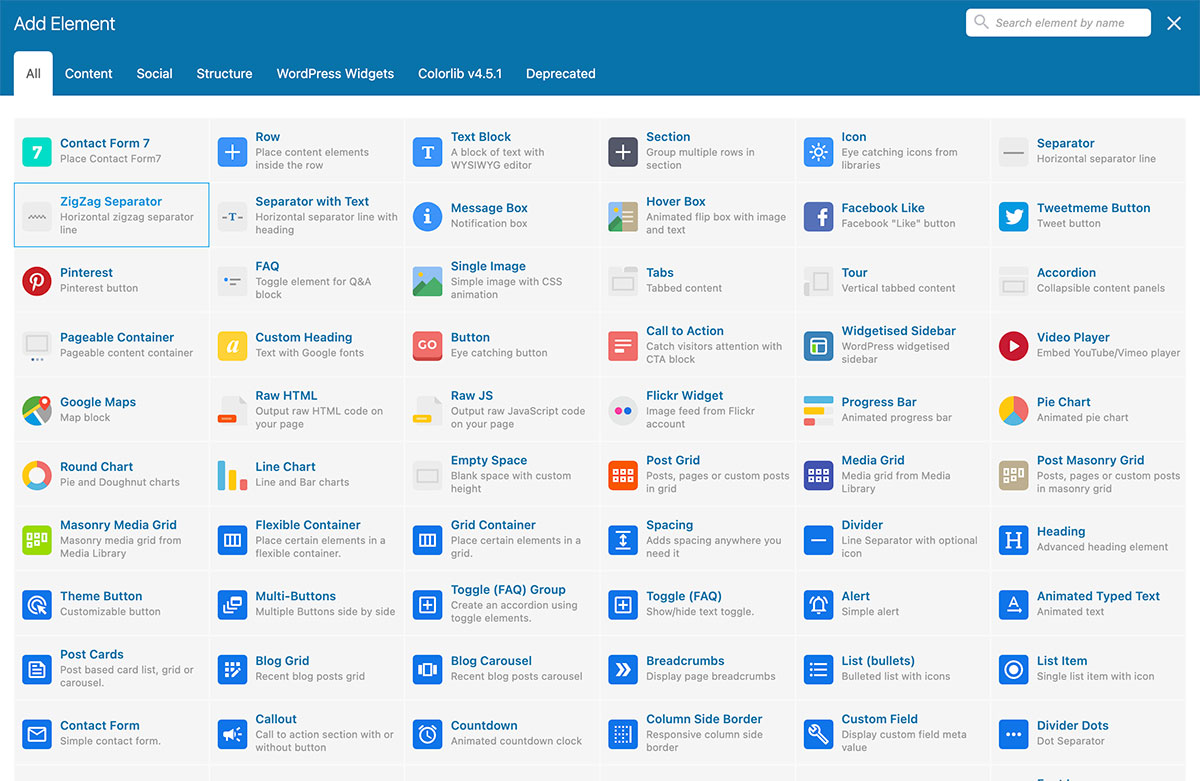
Most page builders include drag-and-drop editors. They offer pre-designed blocks like text, images, and buttons. You can customize fonts, colors, and spacing. Many have responsive design tools for mobile devices.
Some builders provide SEO settings to improve search rankings. Others include integration with popular plugins and widgets. Many allow saving and reusing custom templates. These features make page building simple and efficient.
Alternatives To Page Builders
Page builders offer many tools for building WordPress sites. Yet, they are not the only choice. Some users prefer simpler or more direct methods. These alternatives can suit different needs and skill levels. Exploring other options helps you decide what fits best for your site.
Using Default WordPress Editor
The default WordPress editor, called Gutenberg, lets you create content easily. It uses blocks for text, images, and other media. Each block can be moved or styled separately. This editor is built into WordPress and needs no extra plugins.
You can build pages and posts with a clean interface. It supports columns, buttons, and basic layouts. This editor works well for simple sites or blogs. It keeps your site lightweight and fast.
Custom Coding Options
Custom coding means writing your own HTML, CSS, and JavaScript. This method gives full control over your site’s design. You can create unique styles and features tailored to your needs.
It requires some knowledge of web coding. Beginners might find it challenging but can learn step by step. Custom coding avoids extra plugins, keeping the site fast and secure.
Developers often use child themes or custom templates for this. It’s a strong choice for those who want total freedom in design.
When To Choose A Page Builder
Choosing the right tool for building your WordPress site affects how easily you create pages. Page builders offer more design freedom than default tools. Knowing when to use them helps save time and effort. Below are clear signs that a page builder might be the best choice for your project.
Scenarios That Call For Page Builders
Complex layouts that default editors cannot handle need page builders. Creating columns, custom headers, or interactive elements often requires these tools. Users with little coding knowledge benefit from drag-and-drop interfaces. Designers wanting full control over page style prefer page builders. Building landing pages or portfolios with unique looks also calls for them.
Limitations Of Default Tools
Default WordPress editors work well for simple posts and pages. They lack advanced layout options like grids or animation features. Customizing designs beyond templates is difficult without coding skills. Limited control over spacing, colors, and fonts can restrict creativity. Users may find it hard to achieve a professional look using only default tools.
Credit: undsgn.com
Popular Page Builder Plugins
Choosing the right page builder plugin can change how you create your WordPress site. These tools help you design pages without coding skills. Many plugins offer drag-and-drop features. They let you see changes live. Some are free, while others need a purchase. Each has unique features and ease of use. Let’s explore popular options to find what fits best.
Top Free Options
Free page builders provide great value for beginners. Elementor and Beaver Builder are popular choices. They offer simple interfaces and basic widgets. SiteOrigin is another free option with flexible layouts. These plugins suit small projects and simple pages. They keep your site fast and easy to manage. Updates and community support keep them reliable.
Premium Choices
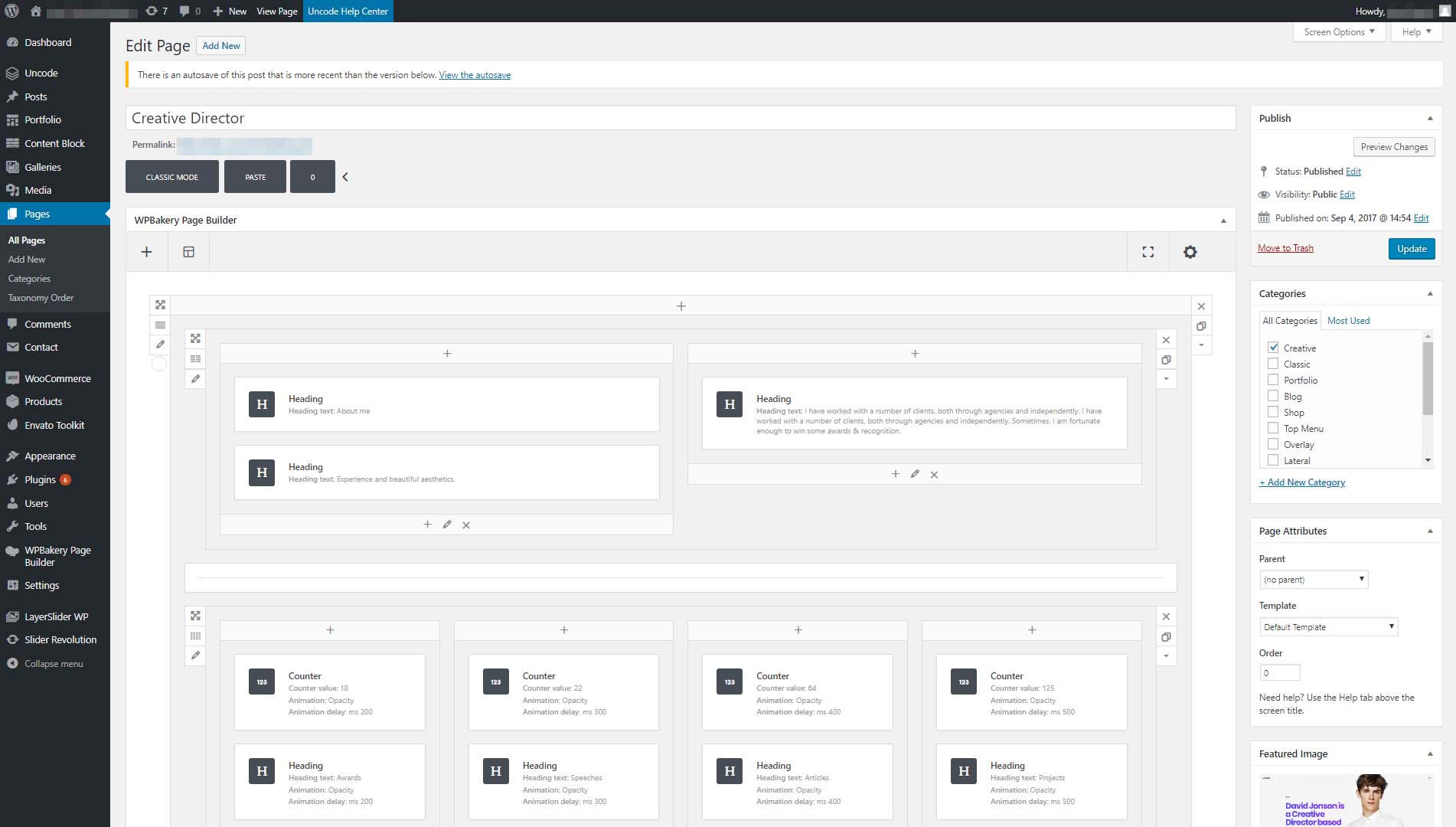
Premium page builders add advanced features and templates. Divi Builder stands out with many pre-made designs. WPBakery Page Builder offers powerful customization tools. These plugins include extra support and regular updates. They work well for businesses and complex sites. Premium tools save time with ready-made sections and styles. Investing in them can improve your site’s look and feel.
How To Pick The Right Page Builder
Choosing the right page builder is important for your WordPress site. It shapes how you create and manage your pages. The right tool makes building easier and faster. It fits your skill level and site needs. Consider key factors before making a choice.
Ease Of Use
Pick a page builder that feels simple. It should have a clear, clean interface. Drag-and-drop features help build pages fast. Look for tools with tutorials or guides. Avoid builders that need coding skills. Easy tools save time and reduce frustration.
Performance And Speed
Page builders affect your website’s loading time. Choose one that keeps your site fast. Test demos to see how quickly pages load. Slow builders hurt user experience and SEO. Lightweight builders with clean code work best. Speed matters for keeping visitors on your site.
Compatibility With Themes
Check if the page builder works with your theme. Some builders clash with themes and cause errors. Pick builders known for wide theme support. Compatibility avoids design problems and extra fixes. Make sure your theme and builder play well together.
Credit: colorlib.com
Setting Up Your Page Builder
Setting up your page builder is the first step to creating a custom WordPress site. This process helps you design pages without coding. A good setup makes building pages easier and faster. Follow simple steps to install and customize your builder correctly.
Installation Steps
Start by choosing a page builder plugin from the WordPress plugin directory. Click “Install Now” and then “Activate.” After activation, you will see a new menu item in your dashboard. Open this menu to access the page builder settings. Some builders may ask you to enter a license key. Check the plugin’s documentation for this detail. Make sure your theme supports your chosen builder for best results.
Basic Customization Tips
Begin with setting global colors and fonts for your site. This keeps your design consistent. Use the page builder’s drag-and-drop feature to add sections and elements. Try adding text blocks, images, and buttons to see how they work. Save your work often to avoid losing changes. Preview your page on different devices to check responsiveness. Adjust margins and padding to improve spacing and layout.
Avoiding Common Mistakes
Avoiding common mistakes can save time and improve your WordPress site. Many new users make errors that slow their site or cause poor user experience. Knowing what to avoid helps you build a better website. Focus on key areas to keep your site fast and user-friendly.
Overloading With Plugins
Installing too many plugins can harm your site. Each plugin adds extra code that can slow your pages. Some plugins may conflict and cause errors. Use only essential plugins that add real value. Regularly review and delete plugins you do not need.
Ignoring Mobile Optimization
Most visitors use phones or tablets to browse websites. A site not optimized for mobile looks broken or hard to use. Page builders often help create mobile-friendly pages. Always check your site on different devices. Make sure text and buttons are easy to read and tap.
Enhancing Your Site With Page Builders
Page builders make it easier to improve your WordPress site. They offer tools that help add style and function. You can change your site without coding skills. This saves time and effort. Page builders give you control over design and layout. Your website can look more professional and user-friendly.
These tools come with many features that enhance your site. You can add interactive parts and arrange elements to keep visitors interested. Page builders help create a better user experience. This can lead to more visits and longer site stays.
Adding Interactive Elements
Interactive elements catch visitors’ attention. Buttons, sliders, and forms can make your site lively. These features invite visitors to click, scroll, or fill out information. Adding videos or image galleries also keeps users engaged. Interactive parts make your site feel modern and dynamic.
Page builders provide easy ways to add these elements. You just drag and drop them where you want. No need to write any code. This helps create a more engaging website quickly.
Optimizing Layouts For Engagement
Good layout design guides visitors through your content smoothly. Page builders offer grid systems and pre-made templates. These tools help organize text, images, and buttons clearly. A neat layout reduces confusion and keeps visitors on your page longer.
Adjusting spacing and alignment is simple with page builders. You can test different layouts to see what works best. Optimized layouts improve readability and user interaction. This leads to a better overall website experience.
Frequently Asked Questions
What Is A WordPress Page Builder?
A WordPress page builder is a plugin or tool that allows you to design and customize your website’s layout without coding. It provides drag-and-drop features, making it easy to create professional pages quickly and visually.
Do I Need A Page Builder For A Simple WordPress Site?
If you want a basic blog or simple site, a page builder isn’t essential. However, it helps if you want more control over design without coding skills or want to create complex layouts easily.
How Does A Page Builder Affect Website Speed?
Page builders can add extra code, which might slow down your website. Choosing a lightweight, optimized builder helps maintain speed while offering design flexibility.
Are Page Builders Compatible With All WordPress Themes?
Most popular page builders work well with many themes. Still, checking compatibility with your chosen theme is important to avoid design or functionality issues.
Conclusion
Choosing a page builder depends on your needs and skills. It can save time and simplify design tasks. Yet, WordPress also works well without one. Think about how much control you want over your site. Simple pages might not need extra tools.
Complex layouts often benefit from a builder’s features. Test a few options before deciding. Your website should be easy to manage and update. The right choice helps your site look good and work well.


