
Have you ever found yourself lost in the sea of WordPress themes, unsure of which one to choose for your website? If so, the Divi WordPress Theme might be just what you need.
Imagine having a powerful, flexible tool that allows you to create stunning websites without needing to know a single line of code. But first, you need to know how to install it. Picture this: within minutes, you could be on your way to crafting a website that not only looks professional but also engages your visitors and keeps them coming back for more.
The Divi theme is renowned for its versatility and user-friendly design, and learning how to install it is your first step toward unlocking its potential. Are you ready to transform your website into a dynamic, eye-catching hub? Let’s dive into the simple steps to install the Divi WordPress Theme, so you can start creating your dream site today.
Credit: stewartgauld.com
Getting Started With Divi
Before installing Divi, ensure you have a WordPress account. You need a hosting plan too. Your website should have the latest WordPress version. Check your PHP version as well. It should be 5.6 or higher. Always back up your site before changes. This protects your data.
First, log into your Elegant Themes account. Go to the Members Area. Find the Divi theme. Click the download button. Save the file on your computer. The file will be a .zip format. Do not unzip it yet. You will need this for installation. Keep it safe.
Installing Divi Theme
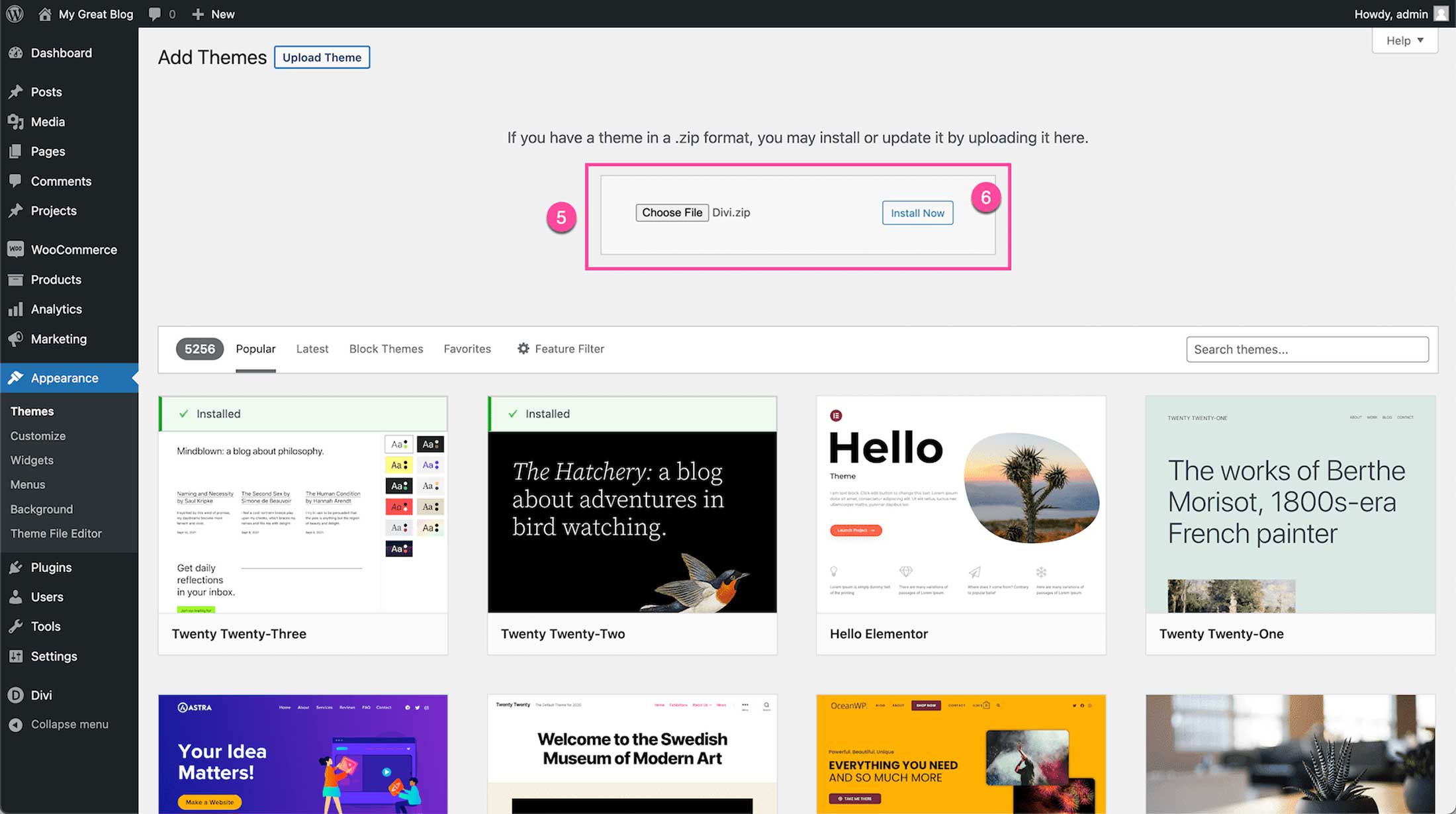
First, log into your WordPress dashboard. This is where everything starts. Locate the Appearance tab on the left. Click on it. Find the Themes option under Appearance. Click on Themes. Now you see a button labeled Add New. Click on it. A new page opens. Look for the Upload Theme button at the top. Click on Upload Theme.
You need the Divi theme ZIP file ready. Click on Choose File on the dashboard. Locate the Divi ZIP file on your computer. Select the file and click Open. Now, press Install Now. Wait a few seconds. WordPress installs Divi for you. Once done, activate the theme. Click Activate to use Divi.
Activating Divi Theme
First, log in to your WordPress dashboard. Look for the Appearance option on the left side. Click on it. Find the Themes tab. Click on it to open the themes page. There, you see the Divi theme. Click on the Activate button. Now, your Divi theme is active.
After activation, go to the Divi tab on the dashboard. Click on it. Choose Theme Options. Here, you can set defaults. Adjust colors, fonts, and more. Save changes by clicking the Save button. Your settings are now updated.
Credit: www.elegantthemes.com
Configuring Divi Settings
Installing the Divi WordPress Theme simplifies website design. First, download the theme from your Elegant Themes account. Then, upload it to WordPress, activate it, and begin customizing.
Customizing Appearance
Start by logging into your WordPress dashboard. Click on Divi in the menu. Choose the Theme Customizer. Here, you can change colors, fonts, and more. Adjust the header style to match your brand. Pick a background image or color. Make sure everything looks nice and neat. Save your changes often. This keeps your work safe. Remember, small changes can make a big difference.
Setting Up Basic Features
Go to the Divi Theme Options panel. Turn on the builder to start creating pages. Set your logo and site icon here. Adjust the navigation settings for a better user experience. Enable important features like SEO options. This helps search engines find your site. Don’t forget to save your settings. Check how your site looks on different devices. This ensures it works well for everyone.
Troubleshooting Installation Issues
Installing the Divi WordPress theme sometimes causes issues. Check compatibility with your WordPress version first. Ensure correct file formats and proper server settings to avoid errors.
Common Problems And Solutions
Some face issues during the Divi theme installation. The most common problem is a file size limit. WordPress sometimes restricts large files. Another issue might be memory limits. This can cause installation failures. To solve, increase file upload size and memory limit in your server settings.
Another common issue is theme compatibility. Ensure your WordPress version is up to date. Updating plugins can also help. Some users encounter permissions errors. This means your server settings block certain actions. Check and adjust file permissions if needed.
Where To Get Support
Support is available through Divi’s official website. You can find help forums there. Elegant Themes also offers email support. If you face issues, contact them. Many users find answers in community forums. Search for similar problems. This often leads to quick solutions. Remember, always back up your site before changes.

Credit: divitheme.net
Frequently Asked Questions
How To Install Divi Theme In WordPress?
Download the Divi theme from Elegant Themes. Log into your WordPress dashboard. Navigate to “Appearance” > “Themes”. Click “Add New”, then “Upload Theme”. Choose the Divi ZIP file and click “Install Now”. After installation, click “Activate” to enable the Divi theme.
How To Import Divi Theme In WordPress?
To import the Divi theme in WordPress, first download the theme zip file. Log into your WordPress dashboard, go to Appearance > Themes > Add New > Upload Theme. Select the Divi zip file, then click Install Now. After installation, click Activate to start using Divi.
How Do I Manually Install Divi?
Download the Divi theme from Elegant Themes. Go to WordPress dashboard, select “Themes” under “Appearance”. Click “Add New”, then “Upload Theme”. Choose the Divi ZIP file, click “Install Now”, and activate it.
How Do I Manually Install A WordPress Theme?
Download the theme’s zip file. Navigate to WordPress dashboard, go to Appearance > Themes > Add New. Click “Upload Theme,” select the downloaded zip file, and click “Install Now. ” Once installed, activate the theme to apply it. Ensure compatibility with your WordPress version for optimal performance.
Conclusion
Installing the Divi WordPress theme is straightforward and rewarding. Follow the steps, and your site will shine. Remember to activate the theme after installation. This ensures you see the changes immediately. Customize to suit your style and needs. The Divi theme offers flexibility and ease.
Explore its features to enhance your website. A well-designed site attracts more visitors. Keep your site updated for the best performance. Enjoy the creative process with Divi. Happy designing!


