

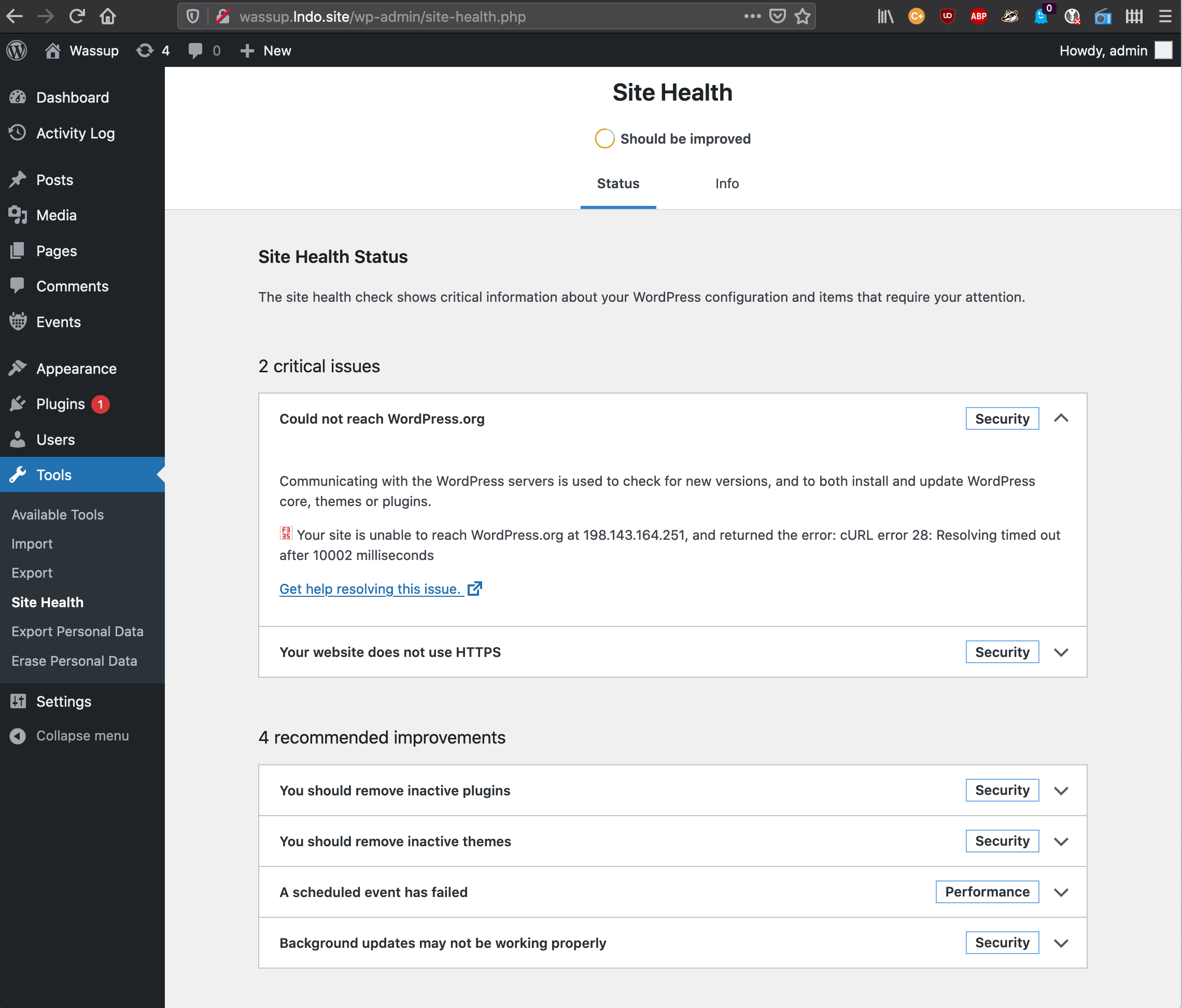
Have you ever tried to visit WordPress.org only to see an error message saying “Could Not Reach WordPress.org”? It’s frustrating, especially when you need to download themes, plugins, or updates right away.
You might feel stuck, unsure if the problem is on your side or theirs. But don’t worry—this issue is more common than you think, and there are simple steps you can take to fix it quickly. Keep reading to discover exactly why this happens and how you can get back online without hassle.
Your website’s smooth running depends on it.
Credit: github.com
Common Causes Of Connection Issues
Connection issues with WordPress.org can be frustrating. Many users face trouble reaching the site due to several common causes. Understanding these causes can help fix the problem quickly. Below are some main reasons why you might see a “Could Not Reach WordPress.org” error.
Network Problems
Network problems often block access to WordPress.org. Your internet connection might be slow or unstable. Sometimes, your router or modem needs a reset. Public Wi-Fi networks can have restrictions that stop connections. Testing your internet on other sites helps check if the issue is network-related.
Dns Errors
DNS errors happen when your browser cannot find the WordPress.org server. This issue occurs if DNS settings are wrong or outdated. Clearing your DNS cache or changing to a public DNS server can fix this. DNS problems stop your browser from translating the site address properly.
Firewall Restrictions
Firewalls protect your device but sometimes block WordPress.org accidentally. Security software or network firewalls may see the site as unsafe. This causes your connection to be blocked. Checking firewall settings and allowing WordPress.org can restore access.
Server Downtime
WordPress.org servers may be down for maintenance or technical issues. During this downtime, the site will be unreachable. Server problems are temporary and usually fixed quickly. Monitoring server status pages can tell you if the site is offline.
Basic Troubleshooting Steps
Basic troubleshooting steps help fix common connection problems fast. These steps work for many users facing issues reaching WordPress.org. Follow each step carefully to find and solve the problem. Simple actions can restore access without extra help.
Check Internet Connection
Start by checking your internet connection. Make sure your device is online. Open other websites to see if they load correctly. If they don’t, the issue might be with your internet service.
Clear Browser Cache
Old cache files can block website loading. Clear your browser’s cache and cookies. This action removes stored data that might cause errors. After clearing, reload WordPress.org to check access.
Try Different Browsers
Sometimes, the browser causes connection issues. Open WordPress.org in another browser like Chrome, Firefox, or Edge. Different browsers handle websites differently. This step helps identify if the problem is browser-specific.
Restart Router And Devices
Restart your router by turning it off and on. Restart your computer or mobile device too. This refreshes network settings and clears temporary glitches. Try accessing WordPress.org after restarting.
Advanced Solutions To Restore Access
Advanced solutions help fix access problems to WordPress.org fast. These methods target deeper issues in your system and network. They ensure your computer connects without errors. Follow these steps carefully for best results.
Flush Dns Cache
DNS cache stores website addresses on your computer. Sometimes, this cache gets outdated or corrupt. Flushing it clears old data and forces fresh lookups. On Windows, open Command Prompt and type ipconfig /flushdns. On Mac, use Terminal with sudo killall -HUP mDNSResponder. This step often fixes connection errors.
Modify Hosts File
The hosts file links domain names to IP addresses. Incorrect entries here block websites. Check your hosts file to remove any WordPress.org references. On Windows, find it in C:\Windows\System32\drivers\etc\hosts. On Mac, it’s at /etc/hosts. Use a text editor with admin rights to edit safely.
Disable Vpn And Proxy
VPNs and proxies change your internet path. Some block or slow access to certain sites. Turn off any VPN or proxy settings temporarily. Test if WordPress.org loads better without them. This simple action can solve many access troubles quickly.
Adjust Firewall Settings
Firewalls protect devices but may block WordPress.org by mistake. Check firewall rules and allow connections to WordPress.org domains. On Windows, use Windows Defender Firewall settings. Mac users can find this in Security & Privacy preferences. Changing these settings helps restore website access.
Credit: github.com
Using Command Line Tools
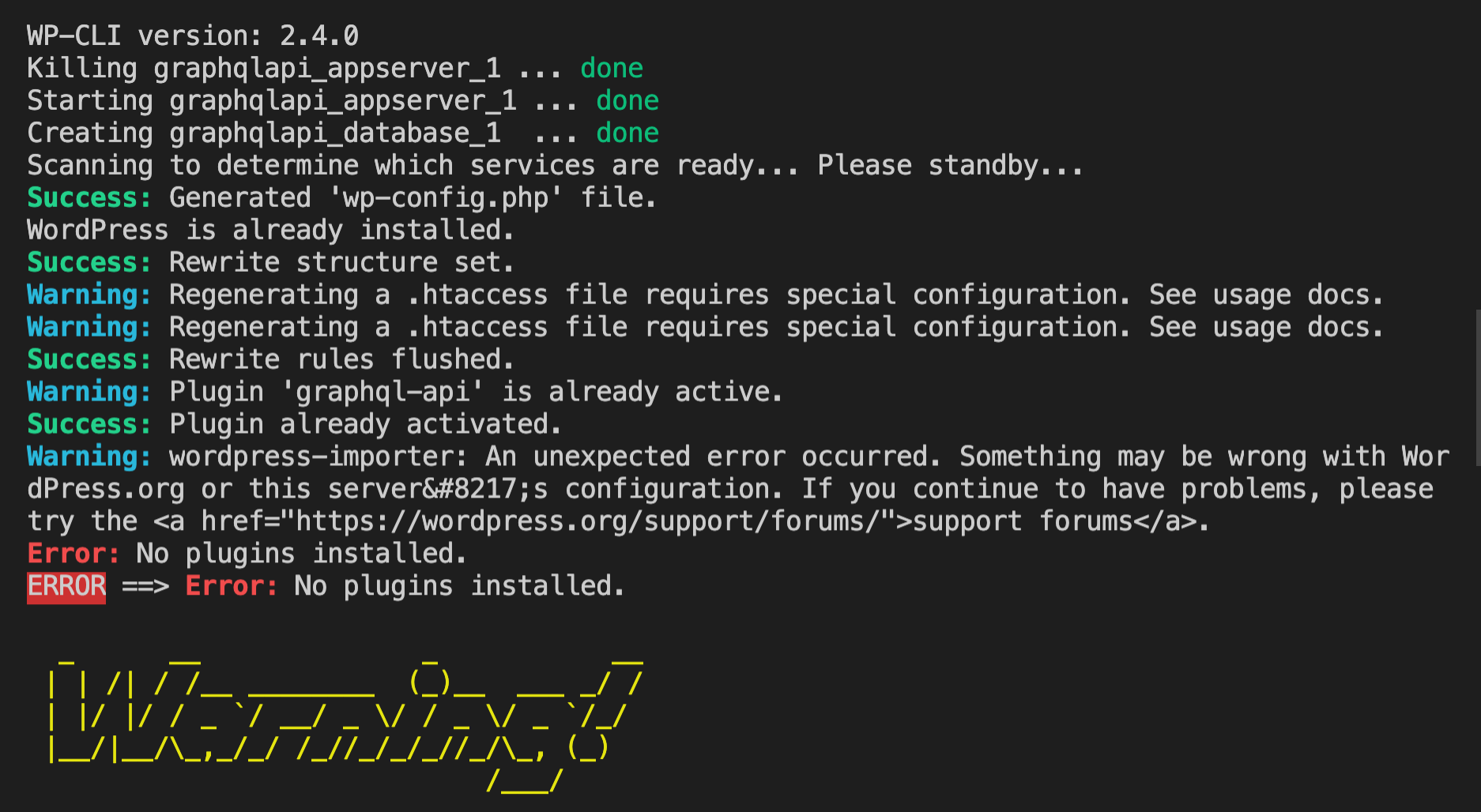
Using command line tools can help you find why you cannot reach WordPress.org. These tools check your internet connection and DNS settings. They give clear answers about network problems. You do not need special software. Just open the command prompt or terminal on your computer.
Ping And Traceroute Tests
Ping sends small packets to WordPress.org to test connection. It shows if the site is reachable and how fast the response is. If Ping fails, there may be a network block or site issue.
Traceroute maps the path your data takes to WordPress.org. It shows each stop along the way. This helps find where the connection breaks down. You can see if the problem is close to you or far away.
Nslookup For Dns Issues
NSLookup checks the DNS address for WordPress.org. DNS translates the website name into an IP address. If NSLookup fails, your computer cannot find the site’s IP. This points to DNS server problems or wrong settings.
Running NSLookup can help confirm if DNS is the cause of the connection error. It is a quick way to spot DNS issues without extra tools. Fixing DNS often solves the “Could Not Reach WordPress.org” error.
Preventing Future Connection Problems
Connection problems with WordPress.org can slow down your work. Preventing these issues helps keep your site running smoothly. Taking simple steps can reduce downtime and save frustration.
Regularly Update Software
Keep WordPress and all plugins updated. Updates fix bugs and improve security. Old software may cause connection errors. Set reminders to check for updates weekly. Updated tools work better with WordPress.org servers.
Use Reliable Dns Providers
DNS providers translate your website’s name into an address. Poor DNS service can block access to WordPress.org. Choose trusted DNS providers with good uptime. This reduces the risk of connection failures. Test DNS speed and reliability regularly.
Monitor Network Health
Network problems affect your connection to WordPress.org. Use simple tools to check your internet speed and stability. Watch for downtime or slow responses. Fixing network issues quickly keeps your site connected. Stay alert to avoid future connection problems.
When To Contact Support
Knowing when to contact support can save time and reduce frustration. Some problems need expert help. Others can be fixed with simple guidance. Understanding the right moment to ask for support helps you get back online faster.
Hosting Provider Assistance
Your hosting provider manages your server and network. Issues like server downtime or DNS errors need their help. Contact them if your website stays offline or you see connection errors. They can check server status and fix network problems quickly.
WordPress Community Forums
Community forums are great for common WordPress issues. Many users and experts share solutions there. Post your problem with details and error messages. You can get advice on plugin conflicts, themes, or setup questions. Forums offer free, fast, and helpful support.
Professional Help Options
Some problems require advanced skills. Complex errors, security breaches, or custom development need experts. Hiring a WordPress professional can save time and protect your site. Choose trusted developers or support services for reliable help and peace of mind.

Credit: wordpress.org
Frequently Asked Questions
Why Does WordPress.org Fail To Load Sometimes?
WordPress. org may fail to load due to server issues, internet connectivity problems, or DNS errors. Temporary outages on their end can also cause access problems.
How Can I Fix “could Not Reach WordPress.org” Error?
Check your internet connection, clear your browser cache, and disable conflicting plugins. Also, verify DNS settings and firewall rules blocking WordPress. org.
Does Firewall Or Security Plugin Block WordPress.org Access?
Yes, some firewalls or security plugins may block WordPress. org. Review your settings and whitelist WordPress. org domains to restore access.
Can Dns Issues Cause WordPress.org Connection Problems?
Yes, incorrect or slow DNS servers can prevent reaching WordPress. org. Switching to reliable DNS services like Google DNS often resolves this.
Conclusion
Facing issues connecting to WordPress. org can be frustrating. Small problems like internet glitches or server downtime often cause this. Checking your connection and trying again usually helps. Clearing your browser cache might also fix the issue. Patience is key while waiting for the site to come back online.
Staying calm and following these steps can save time. Keep your WordPress updated to avoid future troubles. Remember, occasional access problems happen to everyone. Don’t give up; solutions are often simple and quick.


