
Picture this: You log into your WordPress site, ready to manage your content, but you’re met with a cluttered dashboard filled with widgets and information you don’t need. It’s overwhelming, isn’t it?
But here’s the good news: you have the power to customize your WordPress dashboard to show only what’s important to you. Imagine a workspace where every tool, every snippet of information, is tailored to your needs. This isn’t just about aesthetics; it’s about boosting your productivity and focus.
By controlling what appears on your dashboard, you can streamline your workflow and improve your site management efficiency. Stick around, and you’ll discover how to make your WordPress dashboard work for you, not against you.
Customizing WordPress Dashboard Widgets
New widgets can make your dashboard more useful. First, go to the plugin store. Then, find widgets that fit your needs. Install and activate them. Now, they should show on your dashboard. You can find many free widgets. Some are for news, others for quick notes. Explore and pick what you like.
Too many widgets can be confusing. Remove the ones you don’t need. Click on “Screen Options” at the top right. Uncheck the boxes of unwanted widgets. This makes your dashboard cleaner. It’s easier to focus on important tasks. Less clutter means more focus.
Change the order of widgets for better organization. Click and hold a widget’s title bar. Drag it to a new position. Release to drop it there. Now, the dashboard looks how you want. Easy to find what you need. Customize it to match your workflow.

Credit: publishpress.com
Utilizing Plugins For Dashboard Control
Plugins are tools to change your WordPress dashboard. Some plugins are better than others. Adminimize is a popular choice. It lets you hide parts of the dashboard. Another option is WP Admin UI Customize. This plugin helps you change the look of the dashboard.
Ultimate Dashboard is also useful. It gives you custom widgets. These widgets show what you want on the dashboard. Choose a plugin that meets your needs.
First, go to your WordPress admin area. Find the “Plugins” menu. Click on “Add New.” Search for the plugin you want. Click “Install Now.” After that, click “Activate.”
Once activated, configure the plugin. Go to its settings page. Follow the steps to customize your dashboard. Adjust the settings to fit your needs. This process is usually simple.
Modifying Dashboard With Code
You can change your WordPress dashboard using functions.php. This file helps in adding or removing features. It is like a toolbox for your site. Add new code to this file. It will change what you see on the dashboard. You can remove unwanted widgets. Or add new ones. Always make a backup before changing the code. Mistakes can break your site. Be careful and check your changes.
Custom CSS and JavaScript help make your dashboard unique. CSS changes the look. JavaScript adds new functions. You can style your dashboard. Or add animations with JavaScript. Add these codes in the WordPress customizer. Or use a plugin. Test the changes to make sure they work. Small changes can make a big difference.
User Role-specific Dashboard Settings
Setting Permissions for Different Roles is important. Admins have full control. Editors need access to content. Authors write posts and need fewer tools. Contributors can draft but not publish. Each role needs different dashboard settings.
Permissions help users do their job. Too many options confuse users. Keep dashboards simple for each role. Use plugins to manage permissions. Ensure security by limiting access. Each role sees only what they need.
Creating Role-Based Dashboard Layouts improves user experience. Admins see site stats and settings. Editors focus on content management. Authors and contributors see a writing-friendly dashboard. Customize layout to fit each role.
Organize tools based on role needs. Use drag-and-drop features to arrange widgets. Hide unnecessary items for each role. Make sure layout is easy to use. A clean dashboard helps users work better.
Optimizing Dashboard For Performance
Faster load times help users. Clean up dashboard widgets. Remove unnecessary widgets. Fewer widgets, less load. Use lightweight plugins. Heavy plugins slow down WordPress. Choose plugins wisely. Optimize images on the dashboard. Large images take time to load. Smaller images load faster. Limit external scripts. Too many scripts slow things. Simplify dashboard design. Simple design loads quicker.
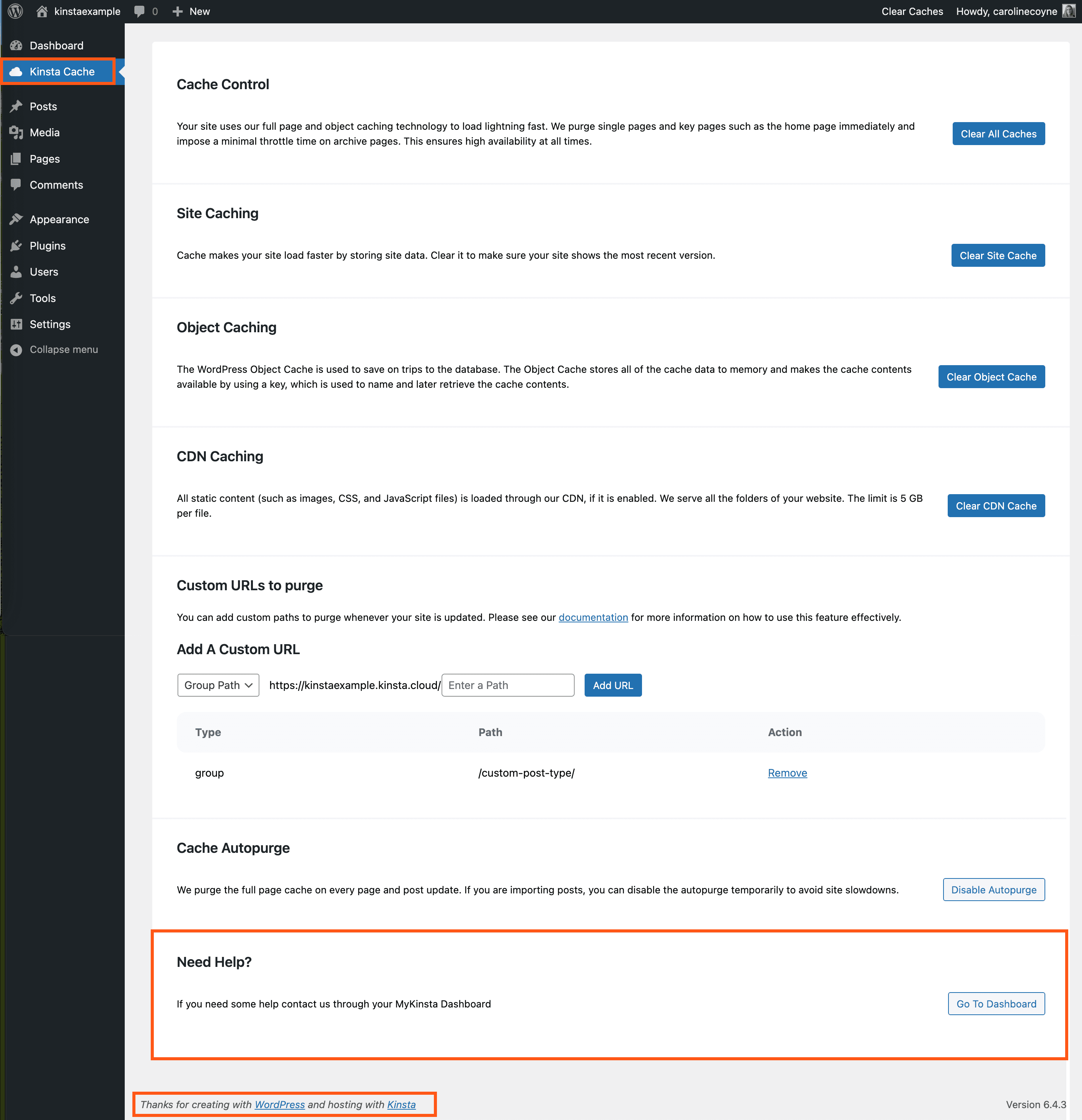
Reduce data clutter. Organize dashboard data. Arrange data neatly. Prioritize important data. Hide less-used information. Use caching for speed. Cache saves data locally. Cached data loads faster. Monitor resource usage. Watch CPU and memory. High usage means slow dashboard. Regular updates keep dashboard smooth. Updates fix bugs and improve speed. Set regular checks for performance.
Credit: kinsta.com
Best Practices For Dashboard Management
A clean dashboard is easy to use. Remove unnecessary widgets. Too many widgets can confuse users. Keep only what you need. This makes tasks faster. Group similar items together. This helps find things easily. Use simple labels for clarity.
A tidy dashboard looks nice. It also makes work easier. This way, you spend less time searching. More time working on what matters.
Regular updates keep dashboards fresh. They ensure everything works well. Check for new versions often. Update plugins and themes. This keeps your site safe.
Outdated elements slow things down. They can cause errors too. Always backup before updates. This prevents data loss. Stay updated for a smooth experience.
Credit: help.one.com
Frequently Asked Questions
How Do I Customize My WordPress Dashboard?
Customizing your WordPress dashboard is simple. Navigate to ‘Screen Options’ at the top right corner. Here, you can toggle visibility for different dashboard widgets. You can also drag and drop widgets to rearrange them. For more advanced customization, consider using plugins like ‘Adminimize’ or ‘Dashboard Widgets Suite’.
Can I Remove Widgets From The Dashboard?
Yes, you can remove widgets from the WordPress dashboard. Go to ‘Screen Options’ at the top right of your dashboard. Uncheck the boxes for any widgets you want to remove. For a more permanent solution, use a plugin like ‘Widget Disable’ to manage dashboard widgets.
What Plugins Help Customize The Dashboard?
Several plugins help customize the WordPress dashboard. ‘Adminimize’ allows you to hide dashboard elements. ‘Dashboard Widgets Suite’ offers additional widgets and customization options. ‘WP Admin UI Customize’ provides various layout modifications. These plugins are user-friendly and enhance the dashboard’s functionality.
How Can I Change Dashboard Colors?
To change dashboard colors, navigate to ‘Users’ > ‘Your Profile’ in the WordPress admin panel. Here, you can select from different color schemes under the ‘Admin Color Scheme’ section. Choose your preferred color scheme and save your changes. This customization enhances your personal user experience.
Conclusion
Managing your WordPress dashboard improves your workflow. Customize it to match your needs. Hide unnecessary items to reduce clutter. This makes navigation faster and smoother. Focus on what matters most to you. A clean dashboard boosts productivity. You save time by accessing tools quickly.
Enjoy a personalized workspace that enhances your WordPress experience. Keep experimenting with settings to find the best fit. Simplicity often leads to efficiency. Remember, a tidy dashboard is a happy dashboard. So take control, and make WordPress work for you.


