
Are you ever curious about which page template WordPress is using for your website? You’re not alone.
Understanding the page template your site is using can help you gain more control over your site’s design and functionality. If you’ve ever felt the frustration of not knowing why a page looks a certain way or why certain features aren’t appearing as expected, you’re in the right place.
This guide will unravel the mystery behind WordPress page templates and empower you with the knowledge to enhance your website. By the end of this article, you’ll have the tools to identify page templates like a pro, giving you the power to customize your site to perfectly fit your vision. Let’s dive in and discover how you can take your WordPress experience to the next level.
Credit: themezee.com
Page Template Basics
WordPress uses page templates to control the layout of your site. Each page can have a different template. This means they can look unique. Templates help in making the site design flexible. A template affects how a page looks and functions.
Themes often come with several templates. You can choose a different one for each page. Some templates show content in a single column. Others might show content in two columns. Knowing which template you are using is important. It helps in troubleshooting design issues.
Identifying Page Templates
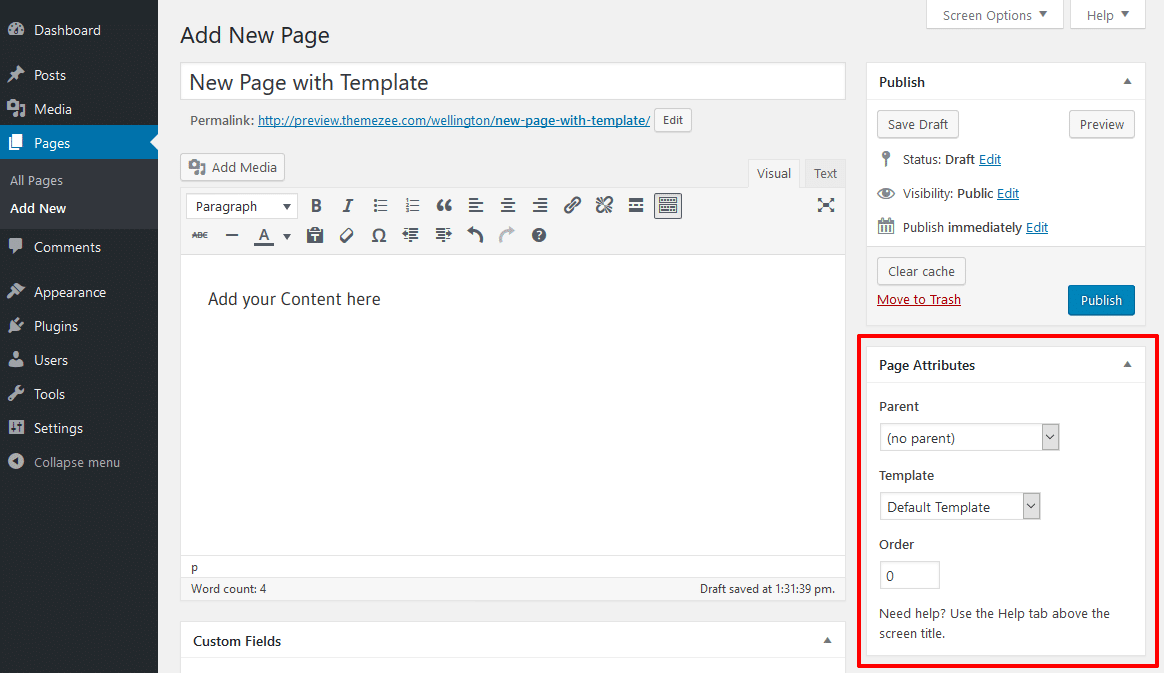
The WordPress admin area is useful for checking page templates. First, log into the admin panel. Go to the Pages section and select the page you want. Look at the right side of the editor. You will see a box called Page Attributes. This box shows the template name. If no template is listed, the page uses the default template.
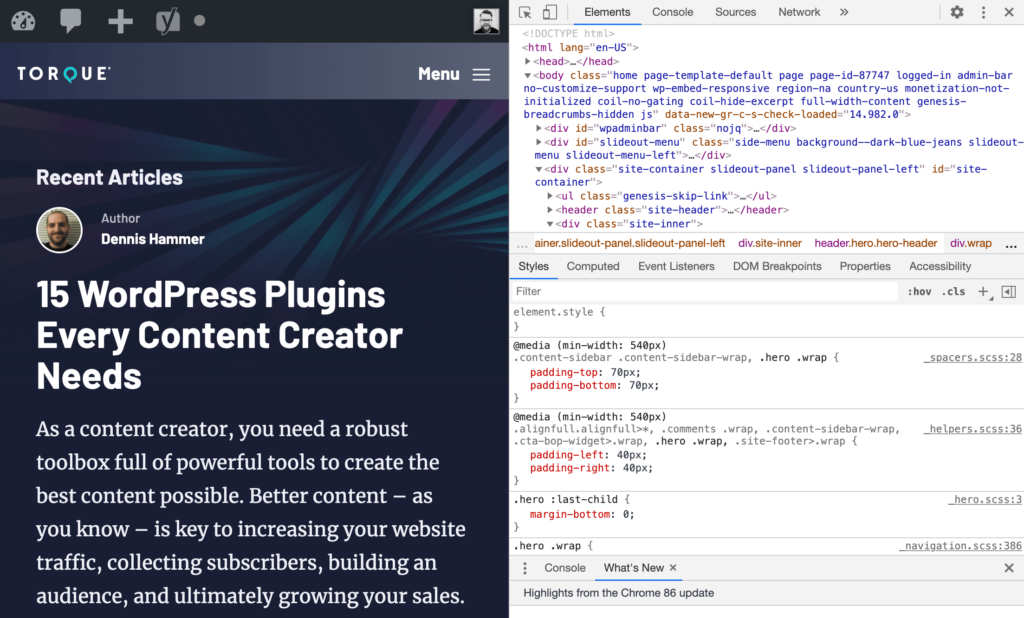
Open your web browser and go to the page. Right-click on the page and select Inspect or Inspect Element. A panel will open showing the page’s code. Look for a line with template in it. The template name is usually between the comments. This tells you the template the page uses.
Template Hierarchy
WordPress uses a system to decide which template to show. This system is called template hierarchy. It checks different files in a set order. The order starts with the most specific file. It ends with the general file. For example, WordPress checks if there’s a template for a single post. If not, it moves to the next file. This process continues until it finds a suitable template. Understanding this helps in knowing how pages are displayed. It also helps when customizing themes.
Custom templates allow you to create unique page designs. You can make pages look different from others. To use a custom template, save the file with a unique name. Add a special comment at the top of the file. Then select the template when editing a page. This feature gives flexibility in design. It helps in achieving specific layout needs. Custom templates are great for special pages. They help in making a website stand out.
Credit: tommcfarlin.com
Template File Locations
WordPress themes are stored in the theme directory. This is found in the wp-content folder. Each theme has its own folder here. Inside, there are files that make the theme work. Common files include header.php and footer.php. These files build parts of your website.
A child theme is a copy of a main theme. It lets you make changes without affecting the original. The child theme has its own folder in the theme directory. It may contain style.css and functions.php files. These files can change how the theme looks. Child themes are safe for making custom changes.
Using Template Tags
WordPress uses different page templates for pages. To see the template, use get_page_template() function. This function checks which template is used. It is handy for developers.
The function returns the path of the template. This helps in identifying the layout. Developers often use this for debugging. It’s a simple way to understand a website’s design.
Another useful function is is_page_template(). This function checks if a specific template is used. It is very useful for conditional checks. Developers use it to run specific code.
It returns true or false. True if the template matches. False if it does not. This helps in applying certain styles or scripts. Makes WordPress flexible for custom designs.
Plugins For Template Detection
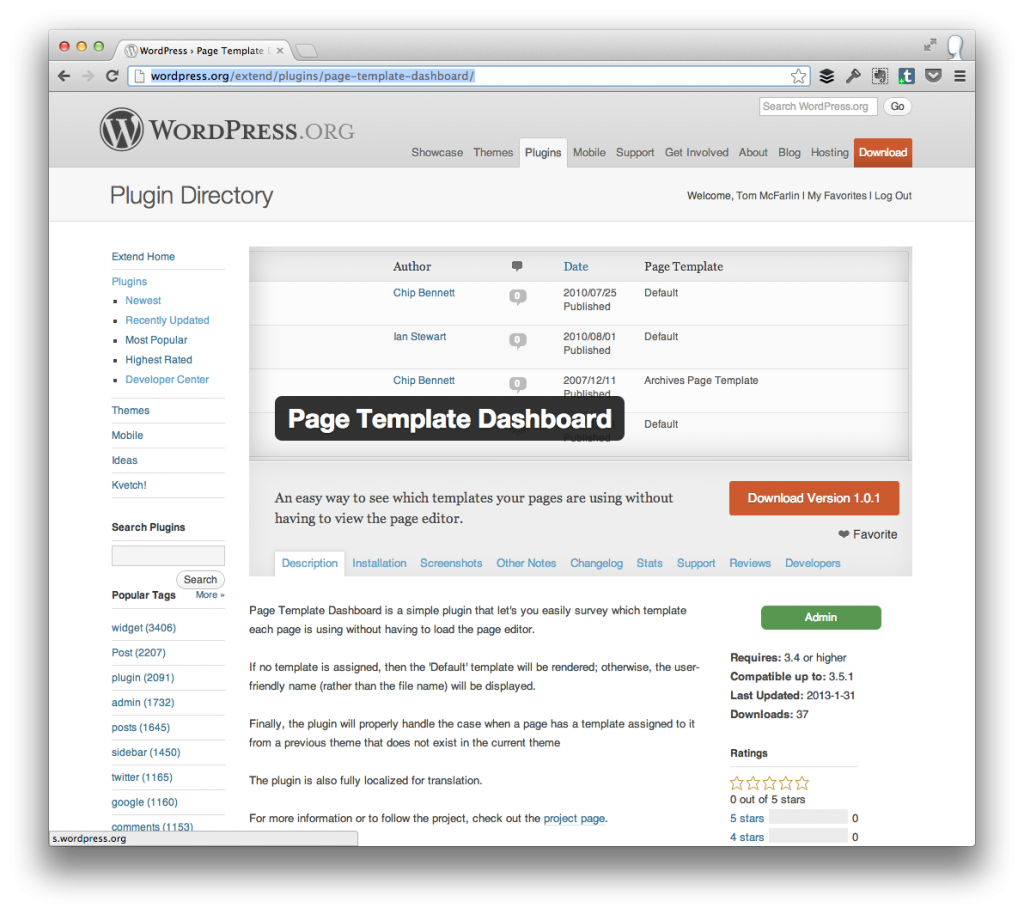
Plugins can help you find out which page template a WordPress site uses. One popular choice is What The File. It shows the current template in use. Another good option is Show Current Template. This plugin displays template details in the admin bar.
First, visit the WordPress Plugin Directory. Search for a template detection plugin. Click the Install Now button. After installation, activate the plugin. You can now see the template details on your site.
Plugins make it easy to check templates. They save time and effort. You don’t need to dig into code. Just a few clicks and you have the information.
Common Issues
Debugging Template Errors can be tricky in WordPress. Sometimes, wrong templates load. This makes your site look broken. Errors may show after updates. It is important to check for coding mistakes. Mistakes can cause template errors. Sometimes plugins cause problems. Deactivate them one by one. This helps find the issue. Always clear the cache. This ensures changes are visible. Use debugging tools. They help identify errors. Look for error messages. They give clues about the problem.
Template Compatibility is crucial for a smooth site. Not all themes work with every plugin. Check compatibility before installing. Look at theme requirements. Make sure your WordPress version matches. Update themes regularly. This fixes compatibility issues. Read reviews about the theme. Users share their experiences. Choose themes with good support. This helps solve problems quickly. Always test changes on a staging site first. This prevents live site errors.
Best Practices
Keeping templates tidy is important. Use folders for each type. For instance, create folders named header, footer, and sidebar. It makes finding files simple. Label files clearly. Use names that explain their job. This helps in quick identification. A well-organized site is easy to manage. It saves time and reduces errors.
Always make a backup before changes. Backups keep your site safe. If something breaks, you can fix it. Use a child theme for changes. This keeps the original theme safe. Always test changes on a demo site. Ensure everything works well before going live. This protects your main site from problems.
Credit: torquemag.io
Frequently Asked Questions
How To Identify WordPress Page Template?
To identify the page template in WordPress, check the page’s PHP code. Look for the `Template Name` comment at the top. Alternatively, use plugins like “What Template” to easily determine the template. This helps in customizing or troubleshooting your website effectively.
Can Plugins Show Active Page Templates?
Yes, plugins like “What Template” can display active page templates in WordPress. These plugins are user-friendly and offer insights into the template being used. This is especially helpful for non-developers, simplifying the process of template identification without delving into code.
Why Check WordPress Page Template?
Checking the WordPress page template is essential for customization and troubleshooting. Knowing the template helps in making targeted design changes or resolving layout issues. It ensures that your site appears and functions as intended, enhancing both user experience and SEO performance.
Are Child Themes Affected By Templates?
Yes, child themes can be affected by parent theme templates. Modifications in the parent theme’s template may impact the child theme. It’s crucial to understand template hierarchy and inheritance when working with child themes, ensuring consistent styling and functionality across your site.
Conclusion
Understanding which page template WordPress uses simplifies customization. It aids in creating a consistent look across your site. This knowledge ensures your design aligns with your brand vision. With clear steps, even beginners can confidently manage templates. Remember, templates shape user experience significantly.
Regular checks guarantee your site functions smoothly. Dive into WordPress to explore its full potential. Your website deserves a professional touch. Keep learning and experimenting. With practice, managing templates becomes second nature. Happy designing!


