
Are you curious about the MySQL version running behind your WordPress site? You’re not alone.
Knowing your MySQL version is more than just a technical detail; it can impact your site’s performance, security, and compatibility with plugins and themes. By understanding this, you gain the power to optimize your site and troubleshoot issues more efficiently.
Imagine the peace of mind that comes from knowing your site is running smoothly and securely. In this guide, we’ll walk you through the simple steps to check your MySQL version on WordPress. Stick with us, and you’ll uncover the technical secrets that keep your site running at its best. Let’s dive in and empower your WordPress experience!

Credit: www.youtube.com
Checking Mysql Version Via WordPress Dashboard
Open your WordPress dashboard. Find the Tools menu on the side. Click on Site Health. The page will open. You will see tabs. Click on the Info tab. This tab shows many details. Look for the database section.
Scroll down to find Database. It’s usually near the bottom. Here, you will see the MySQL version. It is important to know this. It helps with updates. You can ensure compatibility with plugins. Always keep your version up to date. It helps with security.
Credit: www.scalahosting.com
Using Phpmyadmin To Find Mysql Version
Logging into cPanel is easy. First, visit your hosting site. Find the cPanel login page. Enter your username and password. Click login. You are now inside cPanel.
Now, navigating to phpMyAdmin is next. Look for the “Databases” section. Click on phpMyAdmin. It opens in a new tab. You can see your databases there.
Identifying MySQL Version is simple. In phpMyAdmin, find the “Home” tab. Look to the right. The MySQL version is displayed there. It shows the number. Now you know your MySQL version.
Finding Mysql Version Via Command Line
To start, you need to access your server with SSH. Use a tool like PuTTY for this. First, open the tool and enter your server’s IP address. Click open to connect. You’ll see a login prompt. Here, type your username. Press Enter. Now, type your password. Press Enter again. You are now connected to your server.
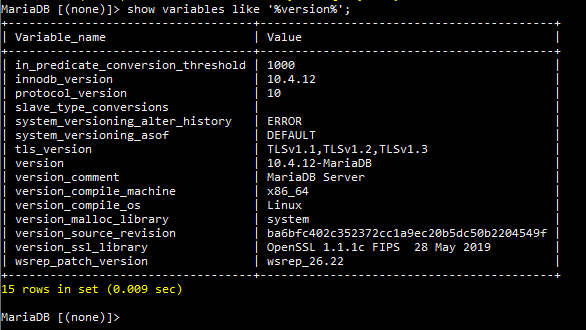
Once connected, type the command mysql -V. This command shows your MySQL version. You will see a message on the screen. It looks like mysql Ver 14.14 Distrib 5.7.26. The numbers tell your MySQL version. Remember, knowing this is important. It helps you manage your WordPress site better.
Alternative Methods For Mysql Version Check
WordPress plugins can help. Install a plugin that shows server info. WP System Health is a good choice. After installing, go to the plugin settings. There you will find the MySQL version. Plugins are easy to use. You don’t need coding skills. They save time and effort. Just follow the steps and check the version. Plugins update automatically. So, you always see the latest info. This method is user-friendly.
Your hosting control panel is another way. Log into your hosting account. Find the database section. Look for MySQL version details there. Most panels have this info readily available. cPanel is very popular. It shows MySQL version in the database section. Some providers use custom panels. Check their help guides if needed. This method is direct and reliable. Always verify the version for accuracy. It’s quick and straightforward.
Reasons To Know Your Mysql Version
Compatibility with WordPress is crucial for your website. WordPress needs a specific MySQL version to work smoothly. An older version might cause errors. You may face issues with plugins and themes. Checking the MySQL version helps avoid these problems. It ensures WordPress functions correctly. This keeps your site running without interruptions.
Security and Performance Considerations are vital for any website. Newer MySQL versions come with security updates. They protect your data from hackers. Improved performance is another advantage. Your website loads faster with an updated MySQL version. This provides a better user experience. Keeping MySQL updated is essential for a safe and fast site.
Troubleshooting Common Issues
Sometimes, your WordPress site may face version mismatch problems. This happens if your MySQL version is not supported. Your WordPress might act slow or not work. It’s important to know the right MySQL version. Check the version in your WordPress dashboard. Go to the phpMyAdmin tool. Look for the version number there. If you see a mismatch, update your MySQL. This can fix many issues.
Always backup your data before an update. This keeps your information safe. Find a step-by-step guide online. Follow the guide carefully. Update MySQL during low-traffic times. This helps avoid site downtime. Test your site after the update. Make sure everything works fine. If errors occur, contact your hosting provider. They can offer help.

Credit: premiumaddons.com
Frequently Asked Questions
How Do I Check Mysql Version In WordPress?
To check MySQL version in WordPress, access your hosting provider’s control panel. Look for a “Database” or “MySQL” section. Find the version information there. Alternatively, use phpMyAdmin from the control panel to view the version under the “Database” tab.
Can I Update Mysql In WordPress Manually?
Yes, updating MySQL manually requires accessing your hosting’s control panel. Locate the “Database” or “MySQL” section. Follow instructions provided by your hosting provider. Ensure compatibility with your WordPress version before proceeding. Always backup your database to prevent data loss during the update process.
Why Is Mysql Version Important For WordPress?
The MySQL version is crucial for WordPress performance and security. Newer versions offer improved speed, security features, and compatibility. Outdated versions may pose risks, affect plugin functionality, and hinder updates. Ensure your MySQL version meets WordPress’s recommended requirements for optimal site performance.
What Mysql Version Is Best For WordPress?
WordPress recommends using MySQL version 5. 7 or higher. These versions offer better security, performance, and compatibility with recent WordPress updates. Always check WordPress’s official requirements page for the most up-to-date version recommendations to ensure optimal site functionality.
Conclusion
Checking your MySQL version on WordPress is crucial. It ensures compatibility and smooth performance. This simple task helps avoid potential issues. Use the tips provided to find your version easily. Regular checks keep your site running efficiently. Remember, staying updated prevents security risks.
Your website’s stability depends on it. Follow these steps to ensure everything works seamlessly. A few minutes can save you from bigger problems later. Stay informed, stay secure. Always know what powers your WordPress. Keep your site healthy and efficient.
Enjoy a smoother WordPress experience with proper maintenance.


