

Are you struggling to upload an MP4 file to your WordPress site? It’s frustrating when you want to share your video but hit a wall with errors or upload limits.
You’re not alone, and the good news is, there are simple solutions you can use right now. In this post, you’ll discover exactly why your MP4 won’t upload and how to fix it fast. Keep reading, and you’ll have your video playing smoothly on your site in no time.
Common Upload Issues
Uploading MP4 files to WordPress can sometimes be tricky. Various issues might stop your video from uploading correctly. Understanding common problems helps fix them quickly. Below are frequent upload issues many users face.
File Size Limits
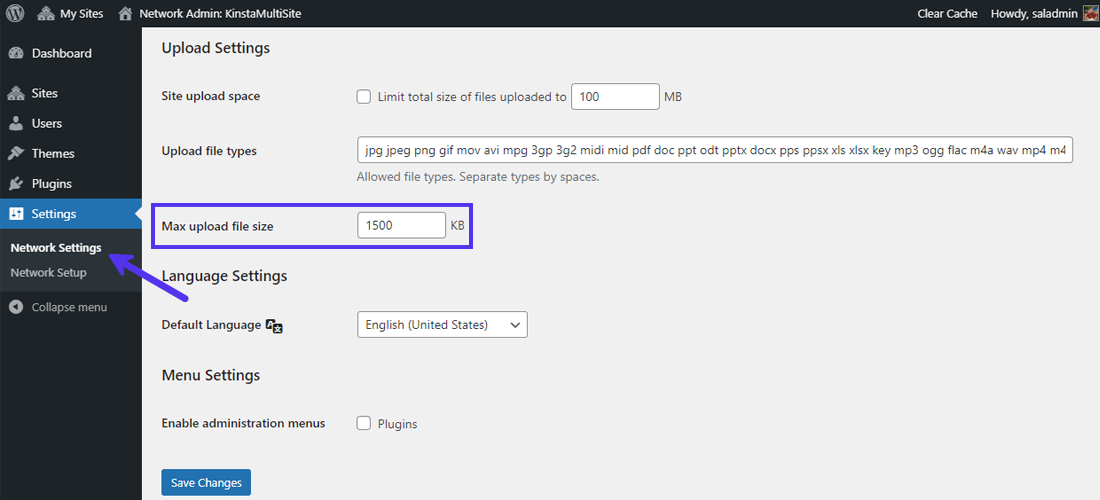
WordPress has a maximum file size for uploads. Large MP4 files often exceed this limit. When the file is too big, the upload fails without clear errors. You can check the max upload size in your WordPress dashboard or hosting settings. Reducing video size or increasing upload limits can solve this issue.
Unsupported File Types
WordPress supports many video formats but sometimes blocks MP4 files. This happens if your MP4 uses an uncommon codec or encoding. The system might not recognize your file as a video. Changing the file format or re-encoding the video can help. You can also add support for more file types using plugins or code.
Server Configuration
Your web server settings affect file uploads. Some servers have strict rules on file size, types, or upload time. If these limits are too low, uploads stop midway. Check your server’s PHP settings like max_execution_time and post_max_size. Adjusting these values can improve upload success. Contact your hosting provider if you cannot change these settings yourself.
Credit: kinsta.com
Check WordPress Settings
Checking your WordPress settings is crucial when you cannot upload MP4 files. Sometimes, the problem lies in simple configuration issues. Fixing these settings often solves the upload problem quickly. Let’s explore key areas in WordPress that affect media uploads.
Media Upload Restrictions
WordPress limits the types of files you can upload. MP4 files should be allowed, but some hosts block them. Check the allowed file types list in WordPress settings or your hosting control panel. Also, verify the maximum upload size limit. Large MP4 files might exceed this limit and fail to upload. Adjust the limit or compress your video to fit the size.
Permalink Settings Impact
Permalink settings control how WordPress handles URLs. Incorrect permalink settings can cause upload errors. Resetting permalinks to default often fixes issues. Go to Settings > Permalinks and select “Plain.” Save changes and try uploading your MP4 again. Proper permalinks ensure WordPress routes uploads correctly.
Modify Php Settings
Uploading large MP4 files to WordPress can be tricky due to server limits. These limits are set in PHP settings. Adjusting these settings helps you upload bigger videos smoothly. You can change the max upload size, post size, and execution time. Each setting plays a key role in handling uploads.
Increase Upload Max Filesize
This setting controls the largest file size you can upload. The default size is often small, blocking big MP4 files. Increase this value in the php.ini file by editing upload_max_filesize. For example, set it to 64M for 64 megabytes.
After saving changes, restart your server. This update lets WordPress accept bigger video files.
Adjust Post Max Size
The post max size limits the total data in a single post request. It must be larger than upload_max_filesize. Change post_max_size in php.ini to a higher value like 64M or more.
Setting this correctly ensures large files upload without errors. It also affects forms and media uploads.
Change Max Execution Time
This setting defines how long a script can run. Uploading big MP4 files can take time. Increase max_execution_time in php.ini to prevent timeouts.
Try setting it to 300 seconds or higher. This keeps uploads from failing due to slow connections or large files.
Credit: www.wpbeginner.com
Use Plugins To Enable Mp4 Upload
Uploading MP4 files to WordPress can be tricky due to default settings. Using plugins helps solve this issue easily. Plugins add extra functions that manage file uploads and support video formats. They make WordPress accept MP4 files without errors. This guide explains two types of plugins that help upload MP4 videos smoothly.
File Upload Management Plugins
These plugins control how WordPress handles file uploads. They allow larger file sizes and more file types. Some popular plugins let you set limits for video uploads. They also organize files better in your media library. This makes uploading MP4 files faster and less stressful. Users can upload videos directly without technical issues.
Mime Type Support Plugins
WordPress blocks some file types by default for safety. MP4 files use specific MIME types that may be restricted. MIME type support plugins add these types to WordPress’s allowed list. This lets you upload MP4 files without changing core settings. The plugins work quietly in the background. They ensure your videos upload smoothly and play correctly on your site.
Troubleshoot Theme And Plugin Conflicts
Sometimes, WordPress themes or plugins can stop you from uploading MP4 files. Conflicts between these elements cause errors or block uploads. Troubleshooting these conflicts helps find the root issue. This way, you can fix the problem quickly and get your videos online.
Deactivate Plugins Temporarily
Plugins often clash with WordPress functions. To check if a plugin causes the issue, deactivate all plugins. Then try uploading the MP4 file again. If the upload works, reactivate plugins one by one. This process shows which plugin creates the conflict. Once found, keep it off or seek an update.
Switch To Default Theme
The active theme might block MP4 uploads. Switch to a default WordPress theme like Twenty Twenty-Three. Test the upload again. If it works, the theme is the problem. Contact the theme developer or change your theme. Using a reliable theme avoids such upload errors.

Credit: www.youtube.com
Alternative Upload Methods
Uploading MP4 files to WordPress can sometimes be tricky. The default upload method might fail due to size limits or server restrictions. Alternative methods help you bypass these issues easily. These options let you add videos without stress. Explore simple ways to upload your MP4 files below.
Upload Via Ftp
FTP allows direct file transfer to your website server. Use an FTP client like FileZilla to connect to your hosting. Upload the MP4 file into your WordPress uploads folder. After uploading, copy the file URL. Use this URL to embed the video in your posts or pages. This method avoids WordPress upload limits and works well for large files.
Use External Video Hosting
External hosting sites store and play your videos online. Platforms like YouTube or Vimeo offer free hosting services. Upload your MP4 video to one of these sites. Then, embed the video link or code into your WordPress content. This reduces your website’s storage use and improves loading speed. It also makes sharing and managing videos easier.
Frequently Asked Questions
Why Can’t I Upload Mp4 Files To WordPress?
WordPress restricts file uploads based on server settings and file size limits. Your MP4 may exceed size limits or lack proper MIME types. Check your PHP settings and allowed file types to fix this issue quickly.
How To Increase Mp4 Upload Size In WordPress?
Adjust your server’s PHP configuration by increasing the upload_max_filesize and post_max_size values. You can also edit the. htaccess file or contact your hosting provider for assistance to upload larger MP4 files.
What File Types Does WordPress Support For Video Uploads?
WordPress supports common video formats like MP4, MOV, AVI, and WMV. MP4 is preferred due to wide compatibility and smaller file sizes. Ensure your MP4 file is properly encoded to avoid upload errors.
Can WordPress Plugins Help Upload Mp4 Files?
Yes, plugins like WP Add Mime Types can add support for additional file types. Other plugins optimize video uploads and management, making it easier to handle MP4 files on your site.
Conclusion
Uploading MP4 files to WordPress can be tricky sometimes. Check file size limits and allowed formats first. Use plugins if WordPress blocks your upload. Clear your browser cache and try again. Keep your WordPress updated to avoid errors. Simple steps often fix most upload problems.
Don’t give up—small changes help your site run smoothly. Keep sharing your videos with confidence and ease.


