
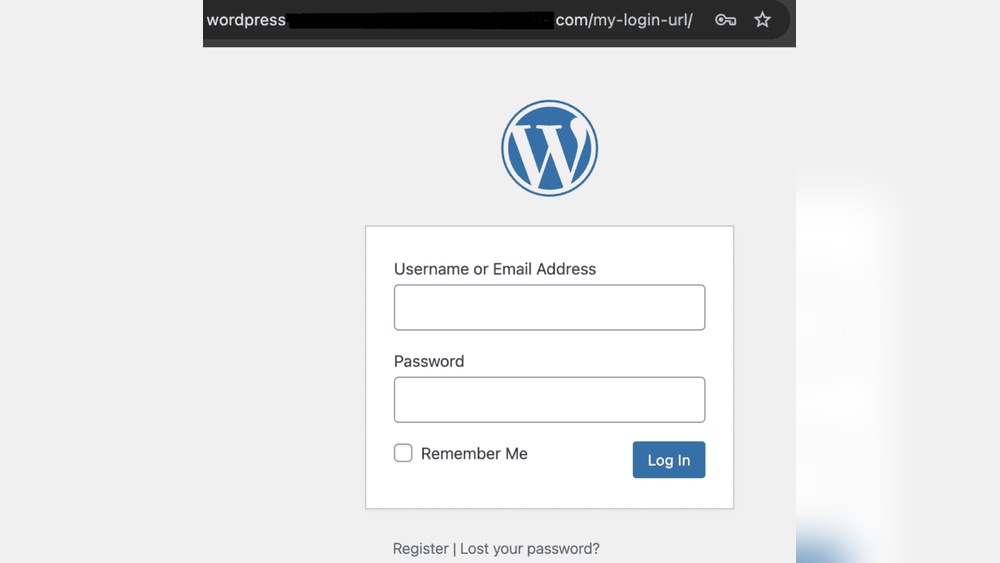
Can’t get into your WordPress site? You’re not alone, and it’s more frustrating than you might think.
Imagine having important content, your business, or even your passion project locked behind a screen you can’t open. Every second you’re stuck feels like a missed opportunity. But don’t worry—this guide will help you find the root of the problem and get you back inside quickly.
Keep reading, because the solution might be simpler than you expect.
Common Login Issues
Many users face problems logging into their WordPress site. These issues can stop you from accessing your dashboard. Understanding common login problems helps you fix them fast. Knowing what to check first saves time and stress.
Incorrect Credentials
Typing the wrong username or password is the main login issue. Sometimes, the keyboard layout may change, causing errors. Caps lock can also cause password mistakes. Double-check your details before trying again. If unsure, use the password reset option.
Password Reset Problems
Resetting your password can fail for several reasons. Sometimes, the reset email goes to the spam folder. Your hosting service may block password reset emails. Make sure your email address is correct in WordPress settings. Contact your hosting provider if no reset email arrives.
Browser And Cache Errors
Your browser cache or cookies can block WordPress login. Old data might cause login loops or errors. Clear your browser cache and cookies regularly. Try logging in using a private window or different browser. This simple step often solves many login problems.

Credit: www.reddit.com
Quick Password Recovery
Quick password recovery helps you regain access to your WordPress site fast. Losing your password can stop your work and cause stress. This section shows easy ways to reset your password securely. Follow these simple steps to get back in without delay.
Using Password Reset Link
Go to the WordPress login page. Click the “Lost your password?” link below the login form. Enter your username or email address. WordPress sends a reset link to your email. Open your email and click the link. Choose a new password and save it. You can now log in with your new password.
Resetting Via Phpmyadmin
Access your hosting control panel and open phpMyAdmin. Select your WordPress database. Find the table named “wp_users.” Locate your username in the list. Click “Edit” next to your user entry. In the “user_pass” field, select MD5 from the dropdown. Enter your new password in the value box. Save the changes. Your password is now updated in the database.
Using Ftp To Reset Password
Connect to your site using an FTP client. Download the “functions.php” file from your active theme folder. Open the file in a text editor. Add this code to reset the password:
wp_set_password('newpassword', 1);Replace ‘newpassword’ with your desired password. Upload the edited file back to the server. Visit your site’s login page and log in with the new password. Remove the code from “functions.php” after logging in to keep your site safe.
Fixing Plugin Conflicts
Plugin conflicts can stop you from accessing your WordPress site. These conflicts happen when two or more plugins do not work well together. Fixing these conflicts is important to regain control of your site quickly. The process involves disabling plugins, finding the one causing issues, and safely turning them back on.
Disabling Plugins Via Ftp
Access your website files using an FTP client like FileZilla. Go to the wp-content folder. Rename the plugins folder to something like plugins-disabled. This action disables all plugins at once. Try logging into your site now. If you can log in, a plugin is causing the problem.
Identifying Problematic Plugins
Rename the plugins-disabled folder back to plugins. Inside the folder, rename each plugin folder one by one. After renaming a plugin folder, check your site. Repeat this until the problem returns. The last plugin you renamed is likely the cause.
Reactivating Plugins Safely
Once you find the problematic plugin, leave it disabled. Reactivate the other plugins normally through the WordPress dashboard. Look for updates for the problematic plugin. Contact the plugin developer for support or find an alternative plugin. Keep your plugins updated to avoid future conflicts.

Credit: devcommunity.x.com
Resolving Theme Issues
Theme problems can stop you from entering your WordPress site. Themes control how your site looks and works. A bad theme or a broken file can cause errors. Fixing theme issues often solves the login problem. This section shows easy ways to handle theme troubles.
Switching To Default Theme
Switch your site to a basic WordPress theme. This test shows if your theme causes the problem. Use the default themes like Twenty Twenty-One or Twenty Twenty-Two. You can do this through your hosting control panel or FTP. Rename your current theme folder to disable it. WordPress will use the default theme automatically. Try logging in again after switching themes.
Theme File Repair
Sometimes theme files get corrupted or missing. Replace damaged files with fresh copies from the original theme. Download the latest theme version from the official source. Upload new files via FTP, overwriting old ones. Check your site for errors after repair. This method fixes broken code or missing templates causing login issues.
Using Recovery Mode
WordPress has a recovery mode for fatal errors. It activates when a theme crash stops access. Check your email for a special recovery link from WordPress. Use this link to enter recovery mode safely. You can deactivate or fix the problematic theme here. Recovery mode helps regain control without full site access.
Database Connection Errors
Database connection errors stop your WordPress site from loading. These errors happen when WordPress cannot connect to your database. The problem may be due to wrong settings, corrupted files, or server issues. Fixing this quickly restores your site and avoids loss of visitors.
Checking Wp-config.php Settings
The wp-config.php file holds your database details. Check the database name, username, password, and host. Even a small typo breaks the connection. Use a text editor to open this file. Confirm all details match what your hosting provider gave you.
Correct any mistakes and save the file. Refresh your website to see if it works. This step solves many connection problems fast.
Repairing The Database
Database corruption can cause connection errors. WordPress has a built-in repair tool. To enable it, add this line to wp-config.php: define('WP_ALLOW_REPAIR', true); Visit yoursite.com/wp-admin/maint/repair.php to repair the database.
Run the repair and optimization process. Remove the repair line from wp-config.php afterward. Check your site again. This fixes many database issues without complex steps.
Contacting Hosting Provider
Sometimes the problem is with the server. Your hosting provider can check server status and database service. Contact them through support channels. Explain the error and steps you tried.
They may fix server-side issues or restore your database. Keep your account details ready for quick help. Hosting support is a key resource for stubborn database errors.
Security Lockouts
Security lockouts can stop you from accessing your WordPress site. These lockouts happen to protect your site from threats. Sometimes, the protection can block your own access. Understanding common causes helps fix the problem quickly.
Start by checking if your IP address is blocked. Many security tools block repeated login attempts. This block can prevent you from entering your site.
Clearing Ip Blocks
Log in to your hosting control panel. Find the security or firewall section. Look for blocked IP addresses or banned lists. Remove your IP address if it is blocked. Use a different internet connection to test access. This helps confirm if your IP was the problem.
Disabling Security Plugins
Security plugins can block users after multiple failed logins. Disable these plugins to regain access. Use FTP or your hosting file manager. Rename the plugin folder in wp-content/plugins. This action stops the plugin from running. Try logging in again after disabling.
Checking .htaccess Rules
The .htaccess file controls access rules on your site. Sometimes, rules block certain IPs or users. Access your site files via FTP or hosting panel. Open the .htaccess file in the root folder. Look for deny or allow rules blocking your IP. Remove or adjust these lines carefully. Save the file and test your login.
Preventing Future Lockouts
Getting locked out of your WordPress site can cause stress and delay your work. Preventing future lockouts helps keep your site safe and accessible. Taking simple steps can protect your login details and avoid common problems.
Using Strong Passwords
Create passwords that are long and mix letters, numbers, and symbols. Avoid simple words or easy-to-guess phrases. Change passwords regularly to keep accounts secure. Strong passwords make it harder for hackers to break in.
Enabling Two-factor Authentication
Two-factor authentication adds a second step to login. It asks for a code sent to your phone or email. This extra step stops unauthorized users from entering, even with the password. Turn on this feature in your WordPress security settings for better protection.
Regular Backups
Back up your site data often. Save a copy on your computer or cloud storage. Backups let you restore your site quickly after a lockout or problem. Use plugins or hosting tools that automate backups for ease and safety.

Credit: www.reddit.com
Frequently Asked Questions
Why Can’t I Log Into My WordPress Site?
You may be entering the wrong username or password. Clear browser cache, reset your password, or check for plugin conflicts.
How To Fix WordPress Login Issues Quickly?
Try resetting your password or disabling plugins via FTP. Also, check your site URL and clear browser cookies.
What Causes WordPress Login Page To Reload Repeatedly?
It often happens due to corrupted cookies or URL mismatch. Clear cookies and ensure WordPress and site URLs match in settings.
How To Recover WordPress Admin Password If Forgotten?
Use the “Lost your password? ” Link on the login page or reset via phpMyAdmin by updating the user_pass field.
Conclusion
Getting locked out of your WordPress site can feel frustrating. Simple checks often solve the problem quickly. Reset your password or clear your browser cache. Make sure your internet connection is stable. Sometimes, plugins or themes cause issues. Try disabling them one by one.
Keep your login details safe and updated. Remember, patience helps when fixing access problems. Stay calm and follow steps carefully. Soon, you will regain control of your website. Don’t give up—your site is worth it.


