
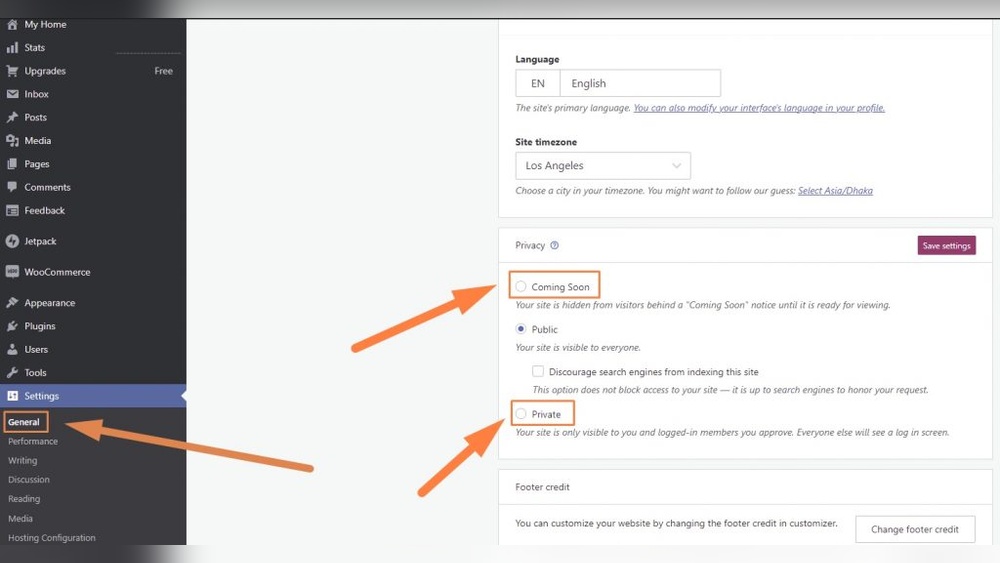
Have you just launched your WordPress site but now wonder if you can take it back offline? Maybe you spotted some errors or need more time to perfect your content before the big reveal.
The good news is, yes—you can unlaunch your WordPress site. But how exactly do you do it without losing your progress or confusing your visitors? You’ll discover simple, effective ways to pause your site’s public view and keep control in your hands.
Keep reading to learn how to manage your launch like a pro and avoid common pitfalls.

Credit: www.polygon.com
Reasons To Unlaunch A WordPress Site
Unlaunching a WordPress site means taking it offline after it has gone live. This step is sometimes necessary to fix problems or make important changes. Many site owners consider unlaunching to improve their website’s quality and user experience. Understanding the main reasons helps you decide if unlaunching is right for your site.
Technical Issues And Bugs
Technical problems can affect how a site works. Bugs may cause pages to load slowly or break features. Security risks also appear if the site is not properly protected. Unlaunching allows time to fix these issues. It helps prevent visitors from facing errors or unsafe content.
Content Revisions Needed
Content on a site may need updates or corrections. Typos, outdated information, or unclear messages can harm the site’s reputation. Taking the site offline gives a chance to improve content. Clear, accurate content attracts and keeps visitors engaged.
Strategic Business Changes
Business goals can change unexpectedly. New strategies might require a website redesign or new features. Unlaunching helps align the site with fresh plans. It creates space to make changes without confusing visitors. This ensures the site supports the company’s direction well.
Credit: wordable.io
Methods To Reverse A WordPress Launch
Reversing a WordPress launch can seem tricky. Yet, several methods help you quickly unlaunch your site. These methods let you hide your site, restore old versions, or pause live updates. Choose the best option based on your needs and technical skill. Below are some practical ways to reverse a WordPress launch.
Restoring From Backup
Restoring from a backup returns your site to an earlier state. It removes recent changes and brings back old content. Many hosting providers offer automatic backups. You can also create manual backups using plugins. Restore the backup through your hosting panel or plugin. This method works well if you want to undo many changes at once.
Using Maintenance Mode Plugins
Maintenance mode plugins hide your site from visitors. They show a simple “Under Maintenance” message instead. You can still work on the site behind the scenes. This method is fast and easy to activate. Popular plugins include “WP Maintenance Mode” and “Coming Soon Page.” Turn off the plugin to launch the site again.
Reverting Dns Settings
Reverting DNS settings stops visitors from reaching your live site. DNS controls where your domain points. Change it back to your old server or a holding page. This method takes time to update due to DNS propagation. It is useful if you want to pause your site without deleting files. Check your domain registrar’s control panel to make changes.
Steps To Safely Unlaunch Your Site
Unlaunching a WordPress site requires careful steps to avoid losing data or confusing users. Follow clear actions to keep your site safe and ready for future updates. Proper planning makes the process smooth and risk-free.
Backing Up Current Data
Start by saving all your website data. Use a reliable backup plugin or your hosting control panel. Download files, databases, themes, and plugins. Store the backup in a secure location. This protects your site from accidental loss.
Communicating With Stakeholders
Inform your team, clients, or users about the unlaunch. Explain the reasons and expected timeline. Clear communication prevents misunderstandings. It keeps everyone updated and prepared for changes.
Testing Before Relaunch
Before making the site live again, test everything carefully. Check links, forms, and functionality. Ensure content looks correct on all devices. Fix any issues found during testing. This ensures a smooth relaunch without surprises.
Common Mistakes To Avoid
Unlaunching a WordPress site can be tricky. Many make errors that cause bigger problems later. Avoiding common mistakes helps keep your site safe and running well.
Skipping Backups
Never skip making backups before unlaunching your site. Backups save your content and settings. Without them, you risk losing everything. Always create a full backup before making changes.
Ignoring Seo Impacts
Unlaunching can hurt your site’s SEO if not done right. Search engines may see your site as unavailable. This lowers your rankings and traffic. Plan to keep SEO intact during the process.
Overlooking User Experience
User experience matters even when unlaunching. Visitors should see clear messages or alternative options. Confusing or broken pages drive users away. Make sure your site stays user-friendly throughout.
Tools And Plugins For Site Reversal
Reversing a WordPress site’s launch can be tricky. The right tools and plugins make this process easier. They help protect your work and allow you to pause or undo changes. Choosing the right plugin depends on what you want to achieve. Below are some key tools to consider.
Backup Solutions
Backing up your site is essential before making changes. Plugins like UpdraftPlus and BackupBuddy save your entire site. These backups let you restore your site to an earlier state quickly. Regular backups protect your content from loss or errors. They offer peace of mind during site changes.
Maintenance Mode Options
Maintenance mode plugins hide your site from visitors temporarily. SeedProd and WP Maintenance Mode show a simple page instead of your live site. This keeps your visitors informed while you work behind the scenes. It gives you time to fix issues or prepare your site.
Version Control Plugins
Version control plugins track changes to your website files and content. Git-based tools and WP Rollback allow you to undo updates safely. They help manage different versions of themes, plugins, and core files. This control reduces risks when you want to reverse updates or changes.
Preparing For A Smooth Relaunch
Preparing for a smooth relaunch ensures your WordPress site works well from day one. This step helps avoid mistakes that can hurt user experience or search rankings. Careful preparation builds trust and keeps visitors coming back.
Finalizing Content Updates
Check all pages for errors or outdated information. Make sure text is clear and easy to read. Update images and videos to match your current brand. Confirm all links lead to the right places. Fresh, accurate content keeps visitors interested.
Optimizing Site Performance
Test your site speed on different devices. Compress images to reduce load time. Use caching tools to help pages load faster. Remove unused plugins and themes. Fast sites improve user experience and boost SEO.
Marketing And Communication Plans
Create a plan to announce your relaunch. Use email, social media, and other channels. Prepare messages that explain new features or changes. Engage your audience before and after the launch. Clear communication builds excitement and trust.
Credit: exertpro.com
Frequently Asked Questions
What Does It Mean To Unlaunch A WordPress Site?
Unlaunching a WordPress site means temporarily disabling or hiding it from public view. It allows you to work on updates without visitors seeing incomplete content. You can unlaunch by enabling maintenance mode or password-protecting the site.
How Can I Unlaunch My WordPress Site Safely?
Use a maintenance mode plugin or restrict access via password protection. These methods hide your site without deleting content. Always backup your site before making changes to avoid data loss.
Will Unlaunching Affect My WordPress Seo Rankings?
Temporarily unlaunching can impact SEO if search engines see downtime. Using “503 Service Unavailable” status helps preserve rankings. Avoid long-term unlaunching to maintain your site’s search visibility.
Can I Unlaunch My WordPress Site Without Losing Data?
Yes, unlaunching only hides your site; your data remains intact. Use maintenance mode plugins or password protection to avoid data loss. Ensure regular backups for added security.
Conclusion
Unlaunching a WordPress site is possible with the right steps. You can hide or remove your site from public view. This helps you make changes without visitors seeing them. Always back up your content before making big changes. Use plugins or hosting tools to control site visibility.
Keep your site safe and ready for launch again. Take your time to fix issues or update design. Your WordPress site can stay private until you choose to share it. Simple, clear actions make unlaunching easy and stress-free.


