

Are you thinking about moving your website from WordPress to Squarespace but aren’t sure how to start? You’re not alone.
Many people wonder if it’s even possible to transfer their content smoothly without losing important data or design elements. The good news is, yes—you can make the switch. But there are some key things you need to know before diving in.
Keep reading, and you’ll discover exactly how to transfer your WordPress site to Squarespace with ease, avoiding common pitfalls that could cost you time and stress. Your website upgrade is closer than you think.
Why Move From WordPress To Squarespace
Many website owners think about moving their site from WordPress to Squarespace. The reason is simple. They want a platform that is easy to use and requires less technical work. Squarespace offers a clean, all-in-one solution that fits small businesses, bloggers, and creatives well. It helps users focus on their content without worrying about hosting or updates.
Benefits Of Squarespace
Squarespace provides a user-friendly interface that is perfect for beginners. It includes built-in templates that look good on all devices. Users get hosting, security, and support all in one place. No need to manage separate services or plugins. The drag-and-drop editor makes designing pages simple and fast. You can also add e-commerce features easily to sell products or services.
Limitations Of WordPress
WordPress is powerful but can be complex for new users. It needs regular updates to keep the site secure. Choosing themes and plugins can be confusing and may cause conflicts. Hosting and backups require extra work or additional costs. Sometimes, technical issues demand hiring a developer. These factors can slow down site management and cause stress.
When To Consider The Switch
Consider moving to Squarespace if you want less technical work. It fits well if you prefer an all-in-one platform with support included. Choose Squarespace when design simplicity and ease of use matter most. It works best for small sites that do not need heavy customization. If managing updates and security feels overwhelming, switching might help.
Credit: taylornguyen.ca
Preparing Your WordPress Site
Preparing your WordPress site is the first step to move it to Squarespace. This process helps keep your content safe and organized. It also makes sure nothing gets lost during the transfer. Proper preparation saves time and avoids stress later.
Backup Your Website
Backing up your website is very important. It creates a copy of all your files and data. This copy keeps your site safe if anything goes wrong. Use a reliable plugin or your hosting provider to make the backup. Store the backup on your computer or cloud storage. This way, you can restore your site anytime.
Export Content From WordPress
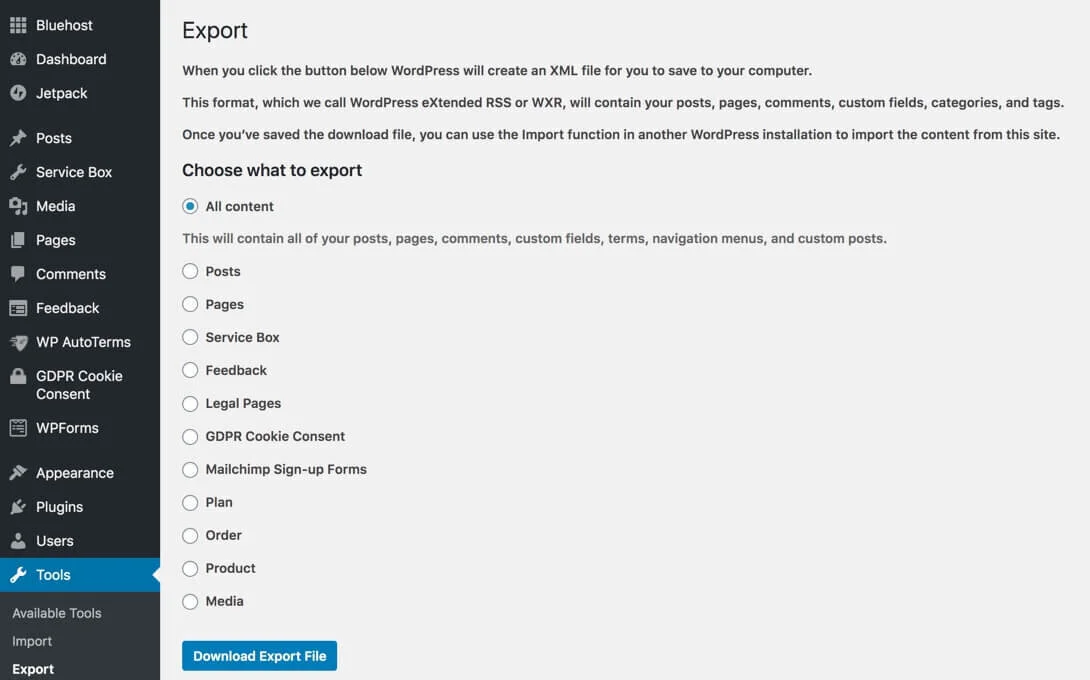
Exporting content means saving your posts, pages, and comments. WordPress has a built-in export tool for this task. Go to the WordPress dashboard and find the export option. Choose what content to export and download the file. This file will be used to import your content into Squarespace.
Organize Your Media Files
Media files include images, videos, and documents on your site. Organize these files in folders on your computer. Check for any missing or broken links to media. Save high-quality versions to keep your content looking good. This step helps you upload media smoothly to Squarespace later.
Setting Up Your Squarespace Account
Setting up your Squarespace account is the first step in moving your website. The process is simple and user-friendly. It helps create a strong foundation for your new site. Take time to understand the options available. This knowledge saves time later and makes your site look professional.
Choosing A Template
Squarespace offers many templates for different types of websites. Each template has a unique style and layout. Pick one that fits your content and brand. Templates are customizable, so you can change colors and fonts. Think about your visitors and what design suits them best. Starting with the right template makes your website easier to build.
Understanding Squarespace Features
Squarespace includes tools for blogging, e-commerce, and SEO. These features help your website perform well and attract visitors. Learn how to use the built-in editor to add pages and content. Explore options for adding images, videos, and contact forms. Knowing these features helps you create a complete and functional website.
Configuring Basic Settings
Basic settings include site title, logo, and contact info. Set these correctly to make your site clear and trustworthy. Choose a domain name or connect one you already own. Adjust language, time zone, and other preferences to match your needs. Proper setup here ensures your website runs smoothly and looks polished.

Credit: taylornguyen.ca
Importing Content To Squarespace
Importing content to Squarespace is an important step when moving your website. It helps keep your posts, pages, and media in one place. Squarespace offers tools to make this process easier. Some content moves automatically, while some needs manual work. Understanding how to import content saves time and reduces errors.
Using The Import Tool
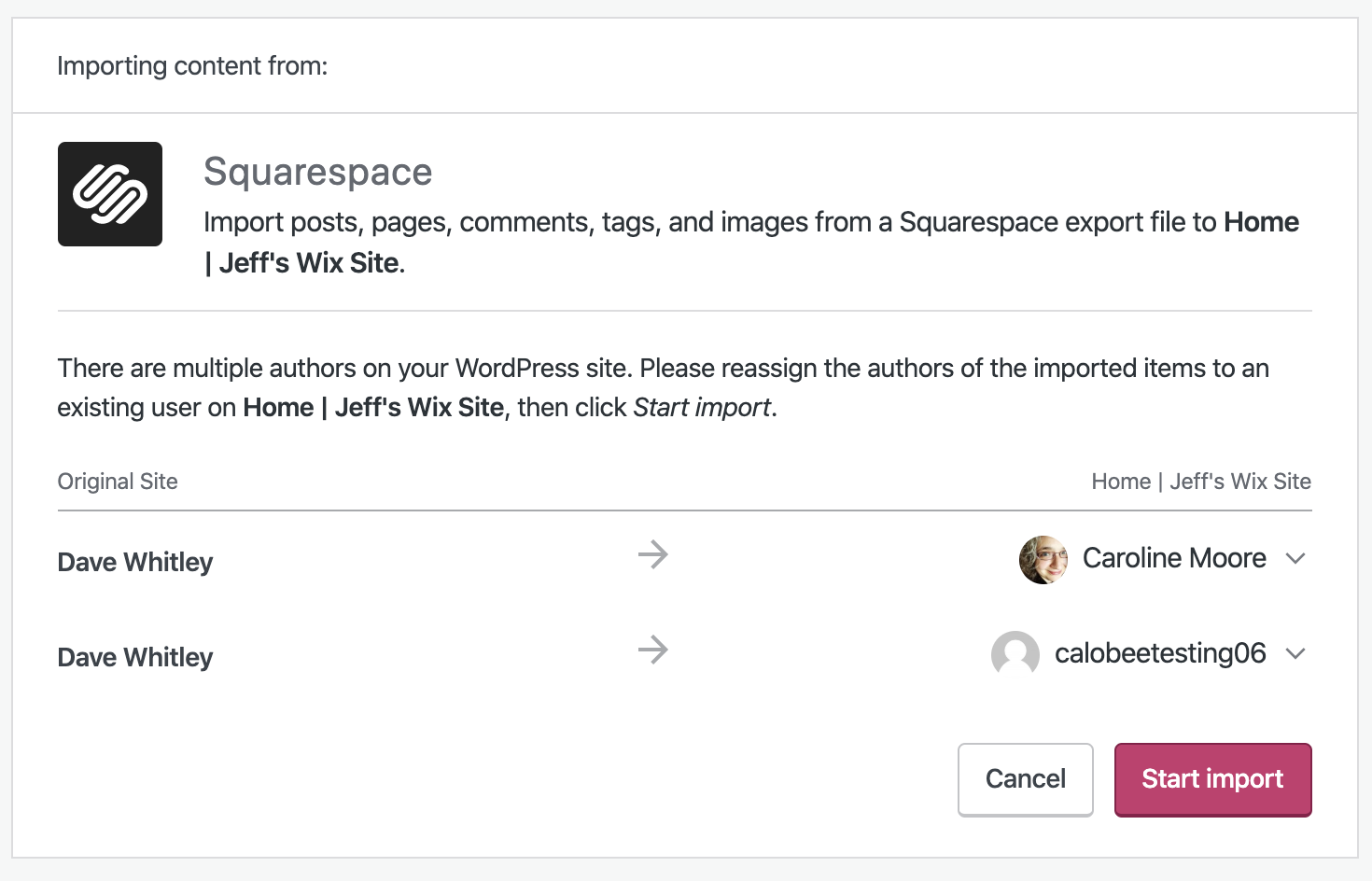
Squarespace has a built-in import tool. It supports importing from WordPress using an XML file. Export your WordPress content first by going to Tools > Export. Download the XML file to your computer. Then, open Squarespace and select the import option. Upload the XML file and start the transfer. This tool brings over posts, pages, and images. Some formatting may need adjustments after import.
Manual Content Transfer
Not all content transfers with the import tool. Some items, like custom layouts or widgets, need manual copying. Copy and paste text from WordPress to Squarespace. Upload images separately to the new platform. This method gives full control over content layout. It takes more time but ensures accuracy. Manual transfer works well for small websites or specific pages.
Handling Blog Posts And Pages
Blog posts usually import well with the tool. Check that titles, dates, and authors are correct. Some posts may lose images or formatting. Fix these issues by editing posts in Squarespace. Pages often need more manual work. Rebuild pages using Squarespace’s editor for best results. Organize posts and pages to keep your site clear and easy to use.
Rebuilding Your Site Design
Rebuilding your site design on Squarespace means creating a fresh look for your content. Squarespace uses templates that are easy to change and adapt. This lets you shape your site to fit your style and needs. The process includes choosing a template, adding your images, and organizing your pages. Each step helps your new site feel complete and professional.
Customizing Templates
Squarespace offers many templates for different types of sites. Pick one that fits your style or business. Change colors, fonts, and layouts to match your brand. Use the drag-and-drop editor to move sections around. This helps make your site unique and easy to use.
Adding Images And Media
Images make your site look good and catch visitors’ eyes. Upload photos, videos, and other media to your Squarespace site. Use clear and high-quality pictures to show your products or services. Make sure your media files are not too large for fast loading. This keeps visitors happy and engaged.
Setting Up Navigation
Good navigation helps visitors find what they need quickly. Create menus that are simple and clear. Organize your pages in a logical order. Use labels that explain what each page contains. Easy navigation keeps people on your site longer and improves their experience.
Migrating Domain And Seo Settings
Migrating your WordPress site to Squarespace involves more than copying content. The domain and SEO settings need careful handling. These elements keep your website visible and reachable after migration. Without proper steps, you risk losing traffic and search rankings. This section covers essential tasks to maintain your site’s performance during the move.
Transferring Your Domain
Your domain name is your website’s address on the internet. You can transfer your domain from WordPress to Squarespace or point it to Squarespace servers. To transfer, unlock the domain at your current registrar and get an authorization code. Enter this code in Squarespace’s domain transfer tool. The transfer process can take up to seven days. Alternatively, update the domain’s DNS settings to point to Squarespace. This method keeps your domain registered where it is but connects it to your new site.
Setting Up Redirects
Redirects tell browsers and search engines your site has moved. Without redirects, visitors may land on broken pages. Create 301 redirects from old WordPress URLs to new Squarespace URLs. Squarespace has a built-in URL mapping feature for this task. List all important pages and link them correctly. This step preserves user experience and search engine indexing. Test redirects after setup to ensure they work properly.
Preserving Seo Rankings
SEO rankings depend on consistent site structure and content. Keep your page titles, meta descriptions, and URLs similar. Use Squarespace’s SEO settings to add meta tags and alt text. Submit your new sitemap to Google Search Console. Monitor your site’s traffic and rankings after migration. Fix any broken links or missing content quickly. These actions help maintain your search visibility and organic traffic.
Testing And Launching
Testing and launching your new Squarespace site is a key step after transferring from WordPress. This phase ensures everything works well and looks good before visitors arrive. Careful checks help avoid errors and broken links. A smooth launch builds trust and keeps visitors happy.
Previewing Your Site
Preview your site on different devices. Check desktop, tablet, and phone views. Make sure images load correctly. Confirm text is easy to read. Look for layout problems or design issues. Fix anything that looks out of place. Previewing helps catch visual errors early.
Checking For Broken Links
Broken links frustrate visitors and harm SEO. Use tools or manual checks to find broken links. Verify all internal and external links work. Replace or remove any broken URLs. Ensure navigation menus lead to correct pages. Fixing links improves user experience and ranking.
Going Live
Choose the right time to launch your site. Avoid busy hours or holidays. Double-check all content and settings. Set up redirects from old WordPress URLs if needed. Announce your new site on social media or email. Monitor site performance after launch to catch issues fast.
Credit: wordpress.com
Tips For A Smooth Transition
Moving your website from WordPress to Squarespace needs careful steps. A smooth change saves time and stress. Some tips help you avoid problems and keep your content safe. Follow simple advice to make the switch easier.
Planning ahead and knowing what to expect makes the process faster. You can keep your site looking good and working well. Here are key tips for a smooth transition.
Avoiding Common Mistakes
Do not rush the transfer. Take time to back up all your WordPress files. Missing this step can cause data loss. Check your new Squarespace template fits your old design. Some WordPress features may not work the same. Test each page after moving it. Fix any broken links or missing images quickly.
Using Third-party Tools
Tools can help move content faster. Some apps export WordPress posts and pages into Squarespace format. Choose tools with good reviews and support. They reduce manual work and errors. Still, review the imported content carefully. Tools do not catch every detail perfectly.
Seeking Professional Help
Experts can guide you through the transfer. A professional knows both platforms well. They can save you time and avoid mistakes. Hiring help is useful if you have a big site. They manage technical parts and customize your new site. This option is worth considering for smooth results.
Frequently Asked Questions
Can I Move My WordPress Blog To Squarespace Easily?
Yes, you can move your WordPress blog to Squarespace. It requires exporting your WordPress content and importing it into Squarespace. Some manual adjustments may be needed for formatting and design to match your new site.
Will I Lose Seo Rankings When Transferring To Squarespace?
Transferring can impact SEO if not done carefully. Use proper 301 redirects and replicate SEO settings like meta descriptions to maintain rankings. Squarespace offers built-in SEO tools to help preserve your site’s search visibility.
How Do I Export Content From WordPress To Squarespace?
Export your WordPress content as an XML file via the WordPress dashboard. Then, import this file into Squarespace using their import tool. This transfers posts and pages but may require manual fixes for images and formatting.
Are All WordPress Features Available On Squarespace?
Squarespace offers many features but lacks some advanced WordPress plugins. It is ideal for simpler sites or portfolios. Complex customizations and plugins from WordPress might not be supported in Squarespace.
Conclusion
Transferring WordPress to Squarespace is possible with careful steps. The process takes time but can improve website ease. Squarespace offers simple tools for building and managing sites. Some WordPress features may not move over exactly. Planning helps avoid common problems during transfer.
Choose the best platform that fits your needs and skills. A smooth switch means less stress and better control. Take your time and follow guides to succeed. Your website can shine on Squarespace after the move.


