Are you thinking about moving your website from Wix to WordPress but don’t know where to start? You’re not alone.
Many website owners wonder if it’s even possible to transfer everything smoothly without losing content or traffic. The good news is, yes—you can make the switch. But it takes more than just a click. You’ll discover exactly how to transfer your Wix site to WordPress step-by-step, what challenges to expect, and how to avoid common mistakes.
Keep reading, and you’ll gain the confidence to take control of your website’s future.
Why Move From Wix To WordPress
Many website owners start with Wix for its simplicity. But as needs grow, Wix can feel limiting. WordPress offers more control and flexibility. Understanding why to move from Wix to WordPress helps in making the right choice. This section covers key reasons to consider the switch.
Limitations Of Wix
Wix limits design options and customization. You cannot fully control your website’s code. SEO tools are basic and less effective. E-commerce features are limited for growing stores. Wix also locks your content inside its platform. This makes expanding your site hard.
Benefits Of WordPress
WordPress offers full control over your site. Thousands of themes and plugins are available. You can improve SEO with advanced tools. WordPress supports large e-commerce stores easily. It allows custom code and design changes. Your website data is yours to keep and move.
When To Consider Migration
Move when Wix no longer fits your needs. If your site grows beyond Wix’s limits. When you want better SEO and site speed. If you need more design freedom and features. Also, consider migration for full ownership of your site. WordPress suits those ready for more control.
Preparing For Migration
Preparing for migration is an important step before moving your site from Wix to WordPress. Proper preparation helps prevent data loss and site downtime. It also makes the transition smoother and less stressful. Follow these key steps carefully to set up your new WordPress site right.
Backup Your Wix Site
Start by saving all your Wix site content. Export your images, text, and files to your computer. Wix does not offer a direct export option, so manual backup is necessary. Copy your blog posts, pages, and media files. Keep everything organized for easy access later. A good backup protects your data during migration.
Choose The Right WordPress Hosting
Pick a reliable hosting provider for your WordPress site. Hosting affects your site speed and uptime. Look for hosts with good support and easy WordPress installation. Shared hosting is budget-friendly for small sites. Managed WordPress hosting offers more features and security. Choose a plan that matches your site needs.
Set Up Your WordPress Site
Install WordPress on your new hosting account. Many hosts offer one-click installation for simplicity. Choose a clean, responsive theme that fits your brand. Install essential plugins for SEO, security, and backups. Customize your settings before importing content. A well-set-up site ensures a smooth migration process.
Exporting Content From Wix
Exporting content from Wix is the first step to move your website to WordPress. Wix does not have a direct export feature. This means you need to use different methods to get your content out. Your choice depends on how much content you have and how comfortable you are with technical steps.
Manual Content Copying
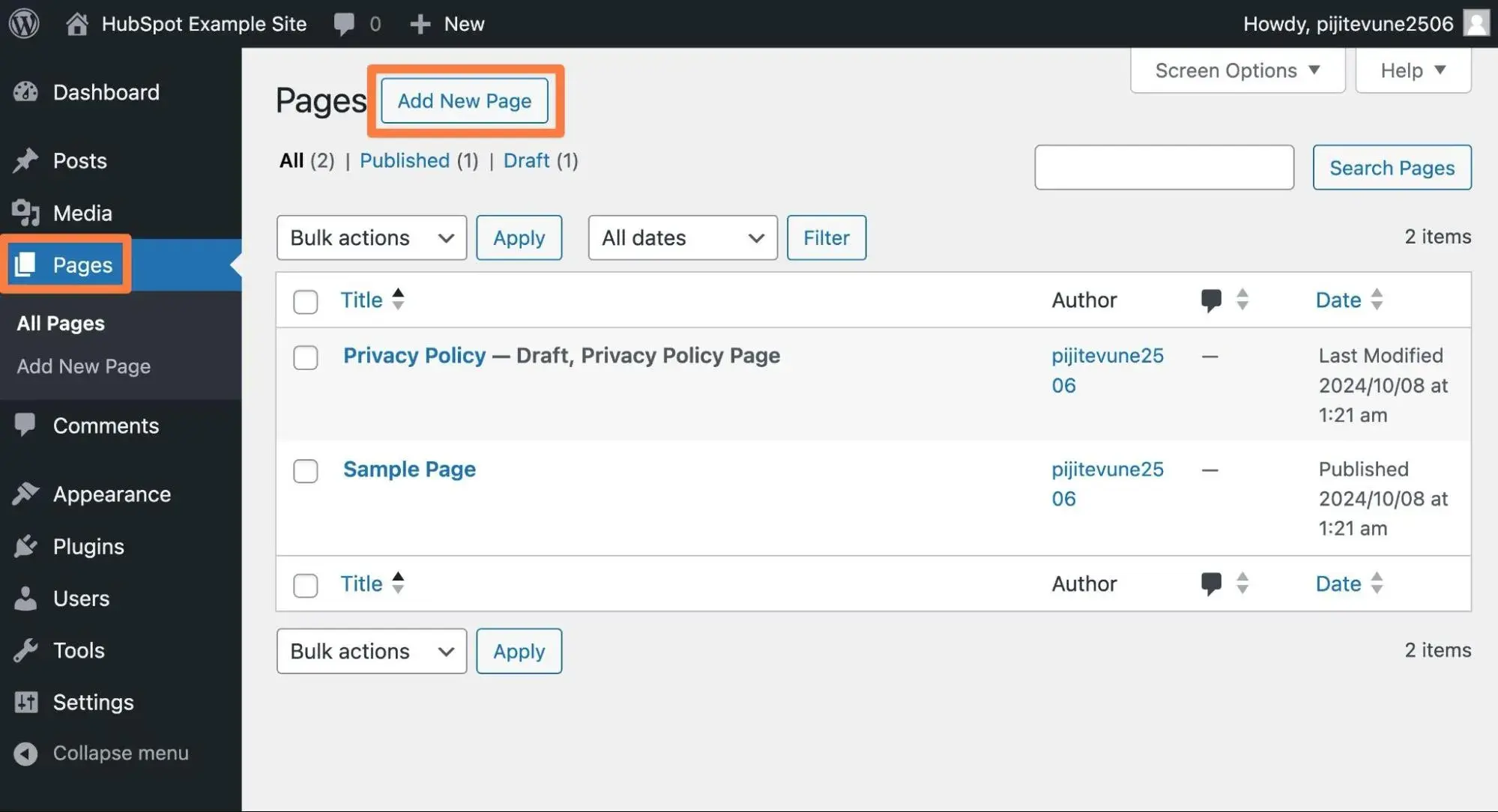
Manual content copying is the simplest method. Open your Wix website and copy the text you want. Paste it into WordPress editor. This works well for small websites with few pages. Images and design need to be added separately. It takes time but gives full control over content.
Using Rss Feeds
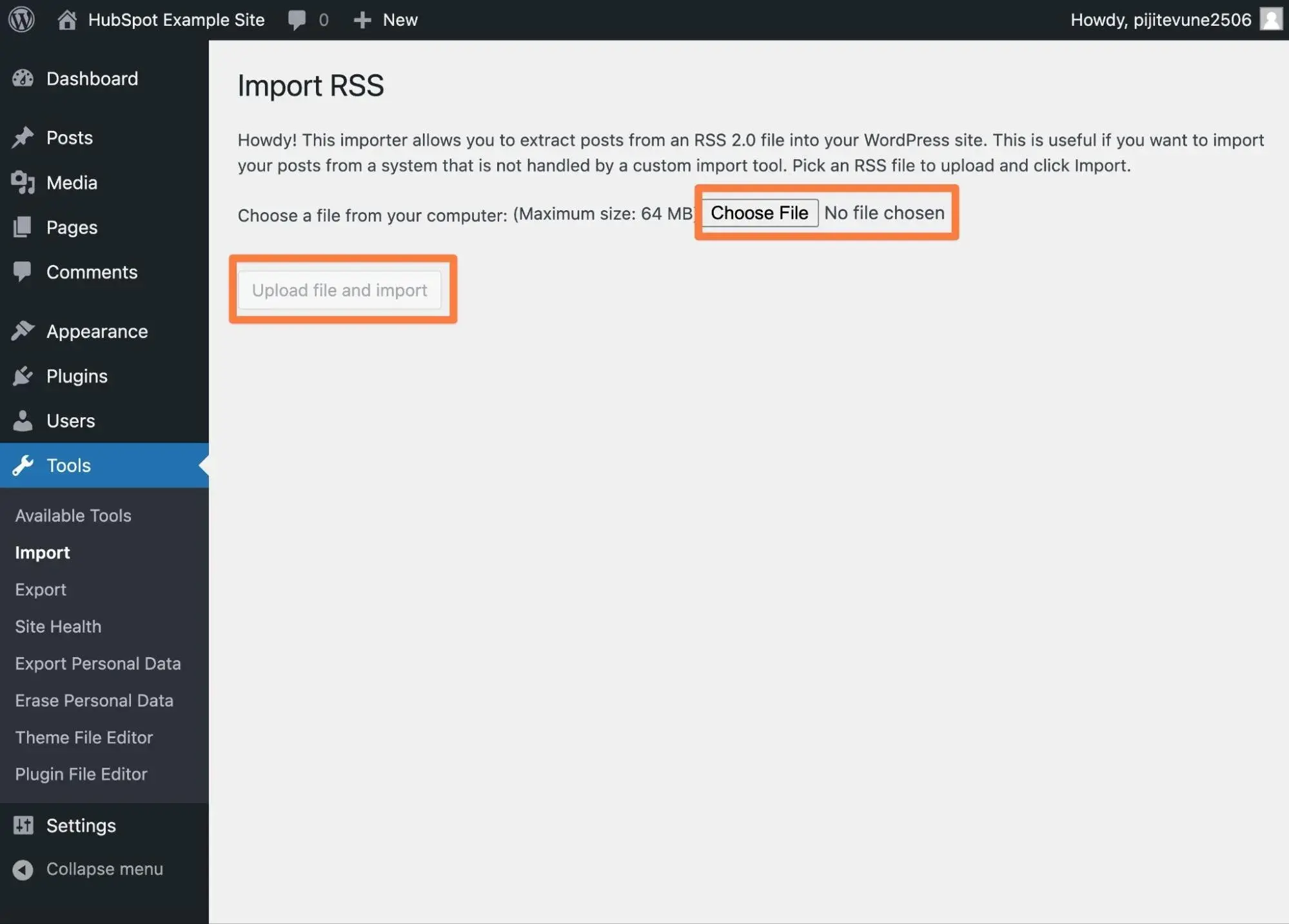
Wix offers an RSS feed for your blog posts. You can use this feed to export your blog content. Download the RSS file from Wix and import it into WordPress. This method transfers posts but not pages or images. It is faster than copying manually but limited to blog articles.
Third-party Tools For Export
Some third-party tools claim to help export Wix content. They can automate copying text and images. These tools may save time for large websites. Check the tool’s reviews and compatibility before use. Some tools require payment or technical knowledge. Use them carefully to avoid data loss.

Credit: www.youtube.com
Importing Content To WordPress
Importing content to WordPress is a key step when moving your website from Wix. This process helps transfer your posts, pages, and other important data. It requires careful handling to keep your content safe and organized. WordPress offers tools to make this task easier. Understanding how to use these tools will save time and reduce errors.
Using WordPress Importer
The WordPress Importer is a simple tool to upload your Wix content. First, export your Wix blog posts in an XML file. Then, go to your WordPress dashboard and find the Import tool. Choose “WordPress” and upload the XML file. This tool imports your posts, pages, and comments automatically. It helps keep your text and basic structure intact.
Handling Media Files
Media files like images do not always transfer smoothly. The importer may miss some pictures or videos. You need to upload media files separately. Use the WordPress Media Library to add your images. Organize them in folders to keep your site clean. Check your posts and pages to ensure media files appear correctly.
Rebuilding Pages And Layouts
Wix uses a drag-and-drop editor, which WordPress does not support directly. This means page layouts might not look the same after import. You need to rebuild your pages using WordPress themes and page builders. Choose a theme that matches your old design. Use page builder plugins to arrange content blocks easily. This step is important to keep your website user-friendly and attractive.
Migrating Design And Functionality
Migrating your website from Wix to WordPress means moving both design and functionality. This step is important to keep your site looking good and working well. WordPress offers many tools to help recreate your Wix design and add features.
You will choose a new theme, add plugins, and customize the look. This process gives your site a fresh start while keeping your style and functions.
Choosing A WordPress Theme
Pick a WordPress theme that fits your site’s style. Themes control the design and layout of your pages. Find a theme that looks similar to your Wix site or matches your brand colors.
Many themes are free and easy to use. Choose one that works well on phones and tablets. This helps visitors see your site clearly on any device.
Adding Plugins For Features
Plugins add extra functions to your WordPress site. You can add contact forms, galleries, SEO tools, and more. WordPress has thousands of plugins to choose from.
Look for plugins that match the features you used on Wix. Install and activate them to bring those functions to your new site. This keeps your website useful and interactive.
Customizing Your Site’s Appearance
Customize your WordPress site to match your brand and style. Change colors, fonts, and layouts easily in the theme settings. Add your logo and images to make it personal.
Use the WordPress editor to adjust pages and create new content. This helps your site feel unique and professional. Small changes can improve user experience and site appeal.
Seo And Url Management
Moving your website from Wix to WordPress involves careful SEO and URL management. This step keeps your search engine rankings safe. Also, it helps visitors find your site easily after the switch. Managing URLs correctly prevents broken links and lost traffic. Let’s explore key actions to keep SEO strong during the transfer.
Preserving Seo Rankings
SEO rankings depend on many factors like keywords and backlinks. Keeping the same content helps retain your rankings. Copy text and images exactly from Wix to WordPress. Use similar page titles and meta descriptions. Avoid changing URLs unless necessary. This consistency tells search engines your site is still relevant.
Setting Up 301 Redirects
301 redirects send visitors from old Wix URLs to new WordPress pages. They stop visitors from landing on broken pages. Redirects also pass SEO value to the new site. Create a list matching Wix URLs with WordPress URLs. Use a plugin or edit your .htaccess file to add redirects. Check all redirects work before launching your new site.
Submitting Sitemap To Search Engines
A sitemap shows search engines your website’s structure. WordPress plugins can create a sitemap automatically. Submit this sitemap to Google Search Console and Bing Webmaster Tools. This helps search engines find and index your new pages fast. Keep the sitemap updated as you add new content.
Testing And Launching
Testing and launching your website after transferring from Wix to WordPress is critical. This step ensures your site works well and delivers a smooth experience. It helps catch issues before visitors see them. Spend time checking every detail.
Checking Site Performance
Speed matters. Test how fast your pages load on different devices. Use tools like Google PageSpeed Insights to find slow spots. Fix images that take too long to load. A quick site keeps visitors happy and reduces bounce rates.
Fixing Broken Links
Broken links frustrate visitors and hurt SEO. Scan your entire site to find links that lead nowhere. Update or remove these links. Make sure all internal and external links work correctly. This step boosts user trust and site ranking.
Final Launch Checklist
Review your site’s design and content one last time. Check mobile responsiveness and navigation menus. Confirm SEO settings like meta titles and descriptions are in place. Test contact forms and any interactive features. Backup your website before going live.
Common Migration Challenges
Migrating a website from Wix to WordPress can be tricky. Many challenges can slow down the process or cause issues after migration. Knowing these common problems helps prepare for a smooth transition.
Content Formatting Issues
Content often looks different after migration. Wix uses a unique editor, which does not always transfer well. Text, images, and layouts may break or shift. Fixing formatting takes time and patience. Some manual adjustments are usually needed to restore the look.
Plugin Compatibility
WordPress uses plugins for extra features. Wix has built-in tools that may not exist in WordPress plugins. Some Wix features might not have direct WordPress equivalents. Finding the right plugins and configuring them correctly can be a challenge.
Downtime Risks
Website downtime is a risk during migration. Visitors may see errors or broken pages. Planning the move carefully can reduce downtime. Backups and testing are important steps. Minimizing downtime keeps users and search engines happy.
Post-migration Tips
After moving your website from Wix to WordPress, some important steps follow. These steps help keep your site safe, fast, and easy to find. They also help you understand how visitors use your site.
Regular Backups
Backups save your website data. They protect your site from loss or damage. Set up automatic backups in WordPress. Store backups in a safe place. Check backups often to make sure they work well.
Ongoing Seo Optimization
SEO helps your site appear in search results. Keep updating your content with keywords visitors use. Use plugins to improve SEO settings. Fix broken links and missing images quickly. Track your site’s ranking to stay ahead.
Monitoring Site Analytics
Analytics show how visitors behave on your site. Use tools like Google Analytics for data. Watch visitor numbers, popular pages, and bounce rates. Use data to improve user experience. Adjust your content based on visitor interests.
Credit: blog.hubspot.com
Credit: blog.hubspot.com
Frequently Asked Questions
Can I Directly Transfer My Wix Site To WordPress?
No, Wix does not offer direct export options. You must manually migrate content or use third-party tools to rebuild your site on WordPress.
What Is The Easiest Way To Move Wix Content To WordPress?
Copy and paste your text and media manually. Use WordPress plugins or import RSS feeds for blog posts to simplify migration.
Will My Wix Seo Rankings Transfer To WordPress?
SEO rankings won’t transfer automatically. You must set up proper redirects, optimize SEO settings, and submit sitemaps on WordPress.
Can I Keep My Wix Domain When Switching To WordPress?
Yes, you can keep your domain. Update your domain’s DNS settings to point to your new WordPress hosting provider.
Conclusion
Transferring a Wix site to WordPress takes careful steps and some time. It allows more control over your website’s design and features. The process is not automatic but can be done with patience. You will need to move content, images, and set up new themes.
WordPress offers many tools to help build your site. Choosing WordPress can grow your website’s potential in the long run. Take it step by step, and your site will be ready soon.