
Are you wondering if you can edit WordPress themes to make your website truly yours? The answer is a big yes—but how you do it can make all the difference.
Whether you want to change colors, rearrange layouts, or add new features, knowing the right way to edit your theme can save you time and frustration. Stick with me, and you’ll discover simple steps to customize your WordPress theme, even if you’re not a tech expert.
Ready to unlock the full potential of your website? Let’s dive in.
Why Customize WordPress Themes
Customizing WordPress themes allows you to create a unique website. It helps your site stand out from others using the same theme. Customization also improves user experience and matches your brand style. You can change colors, fonts, layouts, and more. This makes your site look professional and trustworthy.
Benefits Of Theme Customization
Theme customization gives you full control over your website’s look. It helps you create a consistent brand image that visitors recognize. Custom themes improve site navigation, making it easier for users to find information. You can also enhance your site’s performance by removing unnecessary features. Customizing themes supports SEO by optimizing headings and content layout. A personalized design can increase visitor engagement and conversions.
Common Customization Needs
Many users change colors and fonts to match their brand. Adding a custom logo helps build brand identity. Adjusting header and footer layouts improves site navigation. Users often modify homepage sections to highlight key content. Custom widgets and menus help organize information better. Mobile responsiveness tweaks ensure the site looks good on phones. Sometimes, users add custom CSS to fine-tune the design.
Credit: www.greengeeks.com
Methods To Edit WordPress Themes
Editing WordPress themes allows you to change your website’s look and feel. Different methods suit different needs and skill levels. Some ways are simple, while others need coding knowledge. Choose the right method to keep your site safe and unique.
Using The WordPress Customizer
The WordPress Customizer lets you change theme settings easily. It shows a live preview of your edits. You can adjust colors, fonts, and layouts without code. This tool works well for quick style updates. It keeps your changes safe during updates.
Editing Theme Files Directly
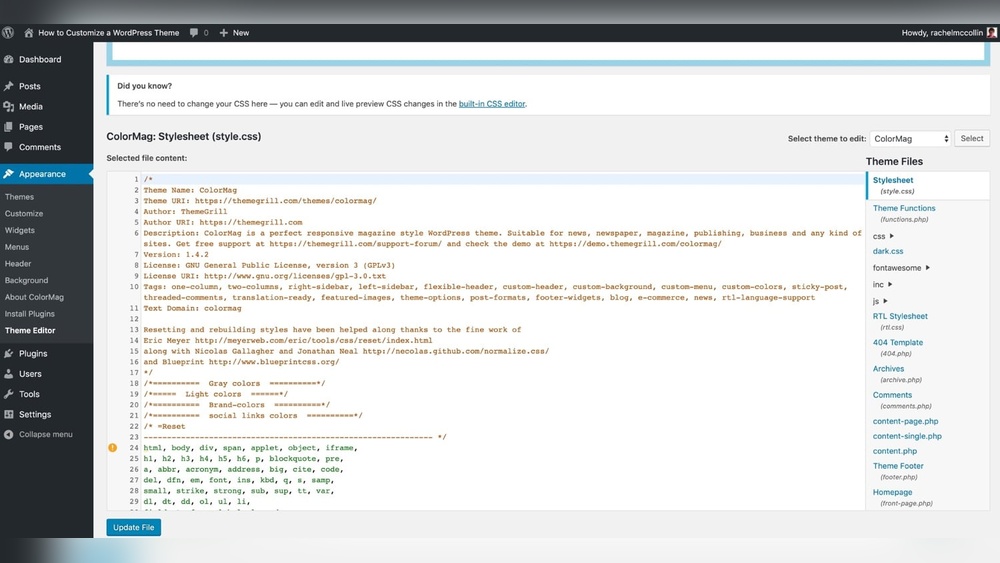
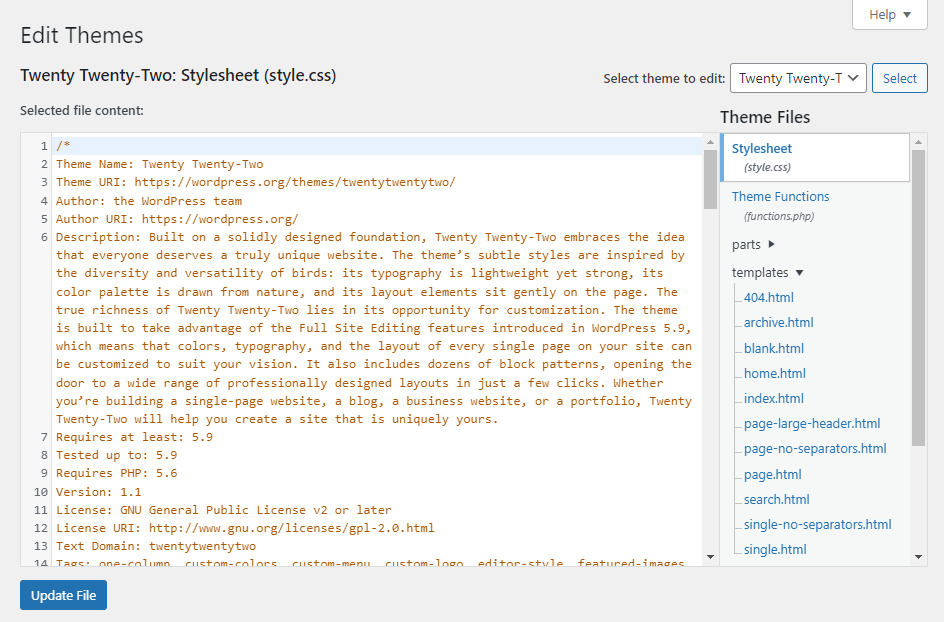
Editing theme files gives full control over design and functions. You can change HTML, CSS, and PHP files. Use a text editor or the WordPress theme editor. This method needs coding skills and care. Mistakes can break your site or cause errors.
Child Themes For Safe Customization
Child themes let you modify a theme without losing changes. They use the parent theme’s features but allow custom edits. Create a child theme to add new styles or templates. Updates to the parent theme won’t overwrite your work. This method is safe and recommended for developers.
Page Builders And Plugins
Page builders offer drag-and-drop tools to design pages visually. They require no coding and are beginner-friendly. Popular plugins include Elementor and Beaver Builder. These tools work with most themes. Plugins can add extra features and design options.
Editing Theme Files Safely
Editing WordPress theme files can improve your site’s look and functionality. Doing it safely keeps your website working well. Small mistakes can break your site or cause errors. Follow best steps to avoid problems and keep your site live.
Accessing Theme Files
Access theme files using the WordPress dashboard or FTP. In the dashboard, go to Appearance > Theme Editor. You see the files on the right side. Use FTP for direct file access. It is safer and gives more control. Always avoid editing files on a live site without backup.
Backup Best Practices
Backup your website before changing any theme files. Use plugins or your hosting service to create a full backup. Save a copy on your computer or cloud storage. Backups help restore your site if something breaks. Regular backups protect your data from loss.
Using A Child Theme
Use a child theme to edit safely. It keeps your changes separate from the main theme. Updates to the main theme won’t erase your work. Create a child theme with a few simple files. Edit the child theme instead of the original one. This method protects your edits and keeps your site stable.
Customizing Css For Styling
Customizing CSS is a key way to change the look of your WordPress theme. It lets you control colors, fonts, spacing, and more. This makes your site unique and matches your style. You do not need to change the whole theme to make small design changes. CSS allows easy tweaks without touching the main code.
Many WordPress themes let you add custom CSS directly in the dashboard. This keeps your changes safe during updates. CSS is simple to learn and gives great control over design. Even small edits can improve your site’s appearance a lot.
Adding Custom Css
To add custom CSS, go to your WordPress dashboard. Find the “Appearance” menu and click “Customize.” Look for the “Additional CSS” section. You can write your CSS code here. After adding code, click “Publish” to save changes.
This method is safe and does not affect theme files. Your CSS changes stay even after theme updates. Use simple CSS rules to change colors, fonts, or layout.
Using Browser Inspect Tool
The browser inspect tool helps find CSS styles on your site. Right-click on any part of your site and select “Inspect.” A panel will open showing the HTML and CSS behind that element.
Look at the styles applied and try changing values live. This shows how your edits will look before adding code to WordPress. Copy the CSS rules you want and paste them in the “Additional CSS” section.
Common Css Tweaks
Changing colors is a common CSS tweak. Use “color” for text and “background-color” for backgrounds. Adjust fonts with “font-family” and “font-size.” Add space using “margin” and “padding.”
Hide elements by setting “display: none.” Make buttons round with “border-radius.” Small changes like these improve your site’s look fast.
Editing Theme Templates
Editing theme templates lets you change how your WordPress site looks and works. Themes use different template files to show pages, posts, and other content. By editing these files, you can create a unique site that fits your needs.
Understanding how templates work helps you make safe and effective changes. You can edit code, add new features, or change layouts. This section covers the basics of editing theme templates.
Understanding Template Hierarchy
WordPress uses a system called template hierarchy to decide which file to use. It checks files in a specific order to display content. For example, single posts use single.php first, then index.php if single.php is missing.
This order helps you find the right file to edit. Editing the correct template file ensures your changes appear where you want them. Knowing this hierarchy avoids editing wrong files.
Modifying Php Files
Theme templates are mostly PHP files. You can open them in a text editor to make changes. PHP code controls what content shows and how it looks.
Make small edits to avoid breaking your site. Always back up files before changing PHP. Simple edits include changing text, adding HTML, or adjusting layout code.
Adding Custom Functions
You can add custom functions to your theme’s functions.php file. Functions add new features or change existing ones. For example, you can add a custom menu or change image sizes.
Write clear and simple code. Test your site after adding functions to check for errors. This method improves your site without changing core files.

Credit: wordpress.org
Using Plugins To Enhance Themes
Using plugins to enhance WordPress themes offers great flexibility. Plugins allow you to add features without changing the theme’s core code. This approach keeps your site safe and easy to update. Plugins can improve design, add new functions, and boost user experience. Many plugins work well with most themes, making customization easier.
Popular Customization Plugins
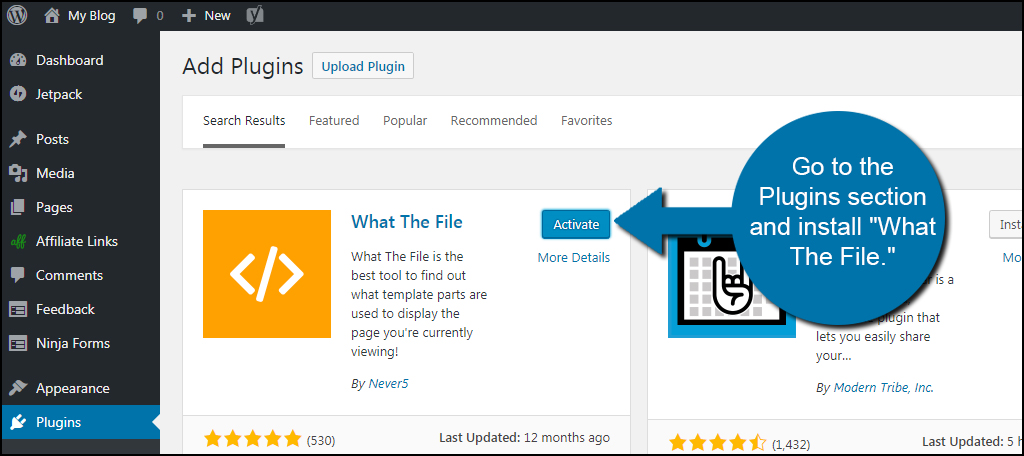
Many plugins help customize WordPress themes quickly. Elementor and Beaver Builder offer drag-and-drop page building. They let you design pages without coding. Customizer plugins like YellowPencil allow style changes in real time. Plugins such as WPForms add contact forms to your site. These plugins improve site look and function without complex steps.
Integrating Plugins With Themes
Plugins work best when integrated properly with themes. Choose plugins compatible with your theme version. Test plugins on a staging site before using them live. Avoid using too many plugins to prevent slow loading. Some themes come with built-in plugin support for smoother integration. Keep plugins updated to avoid conflicts and security issues.
Troubleshooting Theme Edits
Editing WordPress themes can sometimes cause problems. Small changes may lead to unexpected errors. Troubleshooting theme edits helps fix these issues fast. It keeps your site looking good and working well.
Understanding common errors and their fixes saves time. Knowing how to restore the original theme is important. It ensures you can undo changes that cause trouble.
Common Errors And Fixes
One common error is a white screen on your site. This often means a PHP error in the theme files. Fix it by checking the code for typos or missing parts.
Another issue is broken layout after editing CSS. Clear your browser cache and refresh the page. Sometimes, the old style still shows up.
Errors can also come from plugin conflicts. Deactivate plugins one by one to find the cause. Fix or remove the conflicting plugin to restore site function.
Restoring Original Theme
Restoring the original theme is simple but important. Use a backup if you have one saved before editing. Upload the original theme files via FTP or the WordPress dashboard.
You can also switch to a default WordPress theme temporarily. This helps check if the problem is with your custom theme. After fixing, switch back to your original theme.
Always keep a backup before making edits. This protects your site and saves stress during troubleshooting.
Credit: www.hostinger.com
Frequently Asked Questions
Can You Customize WordPress Themes Without Coding?
Yes, you can customize WordPress themes using built-in customizers and page builders. These tools allow editing colors, layouts, and fonts easily without coding knowledge.
Is Editing WordPress Theme Files Safe?
Editing WordPress theme files is safe if done correctly. Always use a child theme to avoid losing changes during theme updates and back up your site first.
What Tools Help Edit WordPress Themes Effectively?
Popular tools include the WordPress Customizer, Elementor, and Beaver Builder. These tools offer drag-and-drop features, making theme editing intuitive and beginner-friendly.
Can I Edit WordPress Themes On Mobile Devices?
Yes, you can edit WordPress themes on mobile using responsive admin dashboards or apps. However, desktop editing offers more control and ease.
Conclusion
Editing WordPress themes is possible and often simple. You can change colors, fonts, and layouts with ease. Some edits require basic coding knowledge, but many tools help you. Always back up your site before making changes. Small tweaks can improve your site’s look and feel.
Customizing themes lets your website stand out. Keep your changes clear and organized to avoid confusion. With patience, you can create a site that fits your needs perfectly.


