
Are you wondering if you can change your WordPress domain name without losing your website’s traffic or rankings? Maybe you’ve found a better domain, or your current one no longer fits your brand.
Changing your domain name might seem tricky, but it doesn’t have to be a headache. You’ll discover exactly how to switch your WordPress domain safely and smoothly. Keep reading to learn the simple steps that protect your site’s visitors, SEO, and overall online presence.
You don’t want to miss these crucial tips!
Reasons To Change Your Domain
Changing your domain name in WordPress is a big step. Many site owners consider it for different reasons. A new domain can reflect changes in the brand or improve site performance. Understanding why to change your domain helps make the right choice.
Rebranding And Business Growth
Businesses often change names as they grow. A new domain can match the updated brand. It helps show a fresh image to customers. This change can attract a wider audience. It also supports new products or services.
Improving Seo And Traffic
Sometimes, the current domain does not rank well. A better domain name can improve search results. Using keywords in the domain helps with SEO. It makes the site easier to find. More visitors can come to the website this way.
Fixing Domain Issues
Old domains may have problems like penalties or poor reputation. Changing the domain solves these issues. It also fixes confusing or long domain names. A simple, clear domain improves user trust. This leads to better site performance overall.

Credit: wordpress.com
Preparing For The Domain Change
Preparing to change your WordPress domain name requires careful planning. It ensures a smooth transition without losing your site’s data or traffic. Taking the right steps before the switch helps avoid common issues. This preparation saves time and prevents frustration later.
Backing Up Your WordPress Site
Backing up your site is crucial before any domain change. It protects your content, settings, and media files. Use a reliable backup plugin or your hosting provider’s backup tool. Store the backup in a safe place, like your computer or cloud storage. This step allows quick recovery if something goes wrong during the domain switch.
Choosing The Right Domain
Pick a domain that matches your brand and is easy to remember. Keep it short, simple, and relevant to your content. Avoid complicated spellings or long names. A good domain improves user experience and helps with search engine ranking.
Checking Domain Availability
Check if the domain name you want is available. Use domain registration sites to search for your desired name. Make sure it is not already taken or trademarked. Confirming availability early prevents legal problems and delays in your website change.
Changing Domain In WordPress Settings
Changing the domain name in WordPress settings is a key step when moving your site. It tells WordPress where your site lives now. This step helps avoid broken links and keeps your site running smoothly after the change.
Adjusting these settings is simple but important. It ensures visitors reach the right address. Let’s look at the main parts to update in WordPress settings.
Updating Site Address
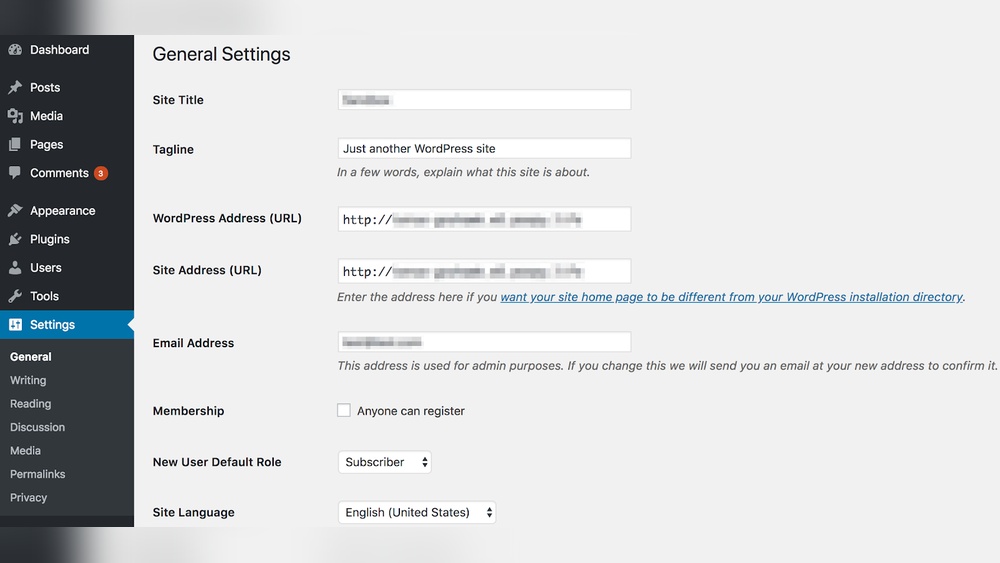
The Site Address is the public URL visitors use. Changing this tells browsers your site has a new home. Go to WordPress dashboard, then Settings > General.
Find the “Site Address (URL)” box. Replace the old domain with the new one. Save changes. This updates your site’s main web address.
Modifying WordPress Address
The WordPress Address is where your WordPress files are. Usually, it is the same as the Site Address. Change it only if your files move to a new domain.
Go to Settings > General. Find “WordPress Address (URL).” Enter the new domain if needed. Save your changes carefully.
Handling Permalinks
Permalinks control the links to your posts and pages. These links often include your domain name. After changing domains, update permalinks.
Go to Settings > Permalinks. Click “Save Changes” without changing anything. This refreshes the link structure and prevents errors.
Credit: www.hostinger.com
Updating Database Urls
Updating database URLs is a key step when changing your WordPress domain name. The database holds all your website’s links, images, and settings. If URLs are not updated, your site may show broken links or missing images. This section explains easy ways to update your database URLs safely.
Using Search And Replace Plugins
Search and replace plugins help update URLs quickly. They scan the database and replace old URLs with new ones. These plugins are user-friendly and do not require coding skills. Always back up your database before running the plugin. Popular plugins include Better Search Replace and Velvet Blues.
Manual Database Updates
Manual updates involve running SQL queries directly in the database. This method is fast but needs care to avoid errors. Use phpMyAdmin or a similar tool to access your database. Run queries like UPDATE wp_options SET option_value = REPLACE(option_value, 'oldurl.com', 'newurl.com'). Make sure to update all tables containing URLs.
Dealing With Serialized Data
Serialized data stores complex information, including URLs, in a special format. Simple search and replace can break this data. Use tools or plugins designed to handle serialized data safely. WP-CLI’s search-replace command is a good choice. Proper handling keeps your site working without errors.
Configuring Domain And Hosting
Changing your WordPress domain means updating your domain and hosting settings. This step is crucial to make sure your website runs smoothly on the new domain. Proper configuration avoids downtime and keeps visitors happy.
Each part of the setup plays a role. The Domain Name System (DNS) points your domain to the right server. Hosting settings ensure your server knows about the new domain. Secure Sockets Layer (SSL) certificates keep your site safe with HTTPS.
Changing Dns Settings
DNS settings tell the internet where to find your website. You must update the DNS records to point to your hosting server’s IP address. Usually, you change the A record or CNAME record in your domain registrar’s control panel.
Wait for the changes to spread across the internet. This process can take a few hours or up to 48 hours. During this time, some users may see the old site while others see the new one.
Updating Hosting Configuration
Your hosting provider needs to know about the new domain name. Log in to your hosting control panel and add the new domain as an addon or primary domain. This step links your domain with your website files.
Update your WordPress settings with the new domain URL. You can do this in the WordPress dashboard or by editing the wp-config.php file. Check that your website loads correctly after these changes.
Setting Up Ssl For New Domain
SSL certificates secure your website and build trust with visitors. Most hosting providers offer free SSL through services like Let’s Encrypt. Activate SSL for your new domain to enable HTTPS.
After installing SSL, update your WordPress settings to use HTTPS in URLs. Test your site to confirm it loads securely without errors. This step protects user data and improves SEO rankings.
Redirecting Old Domain To New
Redirecting your old domain to a new one helps visitors find your website easily. It also tells search engines that your site has moved. This keeps your website’s traffic and search rankings steady. Setting up proper redirects is important for a smooth transition.
Setting Up 301 Redirects
Use 301 redirects to send visitors from the old domain to the new. This type of redirect tells browsers and search engines the move is permanent. Add redirect rules in your old domain’s .htaccess file or use a plugin. Make sure all old URLs point to the correct new URLs. This avoids errors and lost visitors.
Maintaining Seo Rankings
301 redirects help keep your SEO rankings intact. Search engines transfer ranking power from the old domain to the new one. Avoid deleting pages without redirects, as this can harm your SEO. Check for broken links regularly and fix any redirect chains. This keeps your site’s authority strong.
Monitoring Redirect Performance
Track how well your redirects work using tools like Google Search Console. Look for crawl errors and fix them quickly. Monitor traffic patterns to see if visitors reach the new domain. Adjust redirects as needed to improve user experience. This helps maintain your website’s visibility and traffic.
Testing And Troubleshooting
After changing your WordPress domain name, testing and troubleshooting are crucial steps. These steps ensure your website works well and visitors have a smooth experience. Small issues can cause big problems if left unchecked. Follow these tips to keep your site running perfectly.
Checking Site Functionality
Start by visiting your website on different devices and browsers. Check all main pages to confirm they load correctly. Test forms, buttons, and menus to ensure they work. Pay attention to page speed and loading times. Any errors or missing content need immediate fixing.
Fixing Broken Links
Changing the domain often breaks links within your site. Use tools like Broken Link Checker or online scanners to find broken links. Update internal links to point to the new domain. Also, fix links in images, buttons, and navigation bars. Broken links hurt user experience and SEO rankings.
Clearing Cache And Cdn
Clear your browser cache to view the latest site version. Clear your WordPress cache through your caching plugin or hosting panel. If you use a CDN, purge its cache to remove old files. This step ensures visitors see the updated content without errors or delays.
Credit: wedevs.com
Post-migration Best Practices
Changing your WordPress domain name is just the first step. Post-migration actions ensure your site stays healthy and visible. These best practices help maintain search rankings and user trust. Follow these steps carefully to avoid traffic loss and confusion.
Updating Google Search Console
Log in to your Google Search Console account. Add your new domain as a property. Verify ownership using the recommended method. Submit a change of address request from your old domain. This tells Google about your new site location. Check for crawl errors or issues regularly. Keep monitoring until Google fully indexes the new domain.
Informing Your Audience
Tell your visitors about the domain change. Use emails, social media, and website banners. Explain why the domain changed and what to expect. Update your contact information everywhere it appears. Clear communication reduces confusion and builds trust. Loyal visitors will appreciate the transparency.
Monitoring Analytics And Traffic
Set up Google Analytics on your new domain. Compare traffic patterns before and after migration. Watch for sudden drops or unusual changes. Track user behavior and popular pages carefully. Fix any broken links or redirects quickly. Ongoing monitoring helps keep your site performance steady.
Frequently Asked Questions
Can I Change My WordPress Domain Name Easily?
Yes, you can change your WordPress domain name by updating settings and migrating files. It involves updating URLs and database entries carefully.
Will Changing Domain Affect My WordPress Seo Rankings?
Changing your domain can impact SEO rankings temporarily. Proper 301 redirects and updating backlinks help retain SEO value.
How Do I Redirect Old Domain To New WordPress Domain?
Use 301 redirects in your. htaccess file or hosting settings. This ensures visitors and search engines reach your new domain.
Do I Need To Update WordPress Settings After Domain Change?
Yes, update the WordPress Address and Site Address in the settings to reflect your new domain.
Conclusion
Changing your WordPress domain name is possible with clear steps. Plan carefully to avoid losing traffic or data. Update settings, links, and backups to keep your site running smoothly. Take time to test everything after the change. This helps your visitors find your site without trouble.
A well-handled domain change keeps your website strong and ready for growth.


