
Are you wondering if you can change your domain name on WordPress without losing your website’s traffic or hard work? You’re not alone.
Many website owners face this question when rebranding or wanting a fresh start. The good news is, yes—you can change your domain name on WordPress. But it’s important to do it the right way to keep your site running smoothly and maintain your search rankings.
You’ll discover exactly how to change your domain name step-by-step, what to watch out for, and how to avoid common mistakes that could cost you visitors. Keep reading to make sure your website switch is seamless and successful.
Reasons To Change Your Domain
Changing your domain name on WordPress is a big step. It can help your website grow and improve its performance. There are several good reasons to change your domain. This section explains the main reasons that might make you consider a new domain name.
Branding And Marketing Benefits
A new domain can match your brand better. It can make your website name easier to remember. A clear and simple domain helps visitors find you quickly. It also makes your marketing efforts stronger. Using a domain that fits your brand builds trust with your audience. This can lead to more visitors and sales.
Fixing Seo Issues
Sometimes, your current domain has SEO problems. It could have penalties from search engines. Or it might not rank well for important keywords. Changing the domain can help fix these issues. A fresh domain can improve your search engine rankings. This brings more organic traffic to your site. It also gives you a chance to optimize your site better.
Avoiding Legal Problems
Some domain names cause legal trouble. They might be similar to other brands or trademarks. Using such domains can lead to lawsuits or fines. Changing your domain helps you avoid these risks. It protects your business and reputation. Choosing a unique domain name keeps your website safe from legal issues.
Credit: wedevs.com
Preparing For The Domain Switch
Preparing for a domain switch on WordPress requires careful steps. It ensures your website stays safe and works well after the change. Taking time to prepare helps avoid common problems.
Backup Your Website
Create a full backup of your WordPress site. Save your database, themes, plugins, and media files. Backups protect your content if something goes wrong. Use a reliable plugin or your hosting control panel to download the backup.
Check Domain Availability
Verify that the new domain name is free to use. Use a domain registrar to search for availability. Choose a domain that matches your brand and is easy to remember. Confirm the domain extension fits your website purpose, like .com or .net.
Update Hosting Settings
Adjust your hosting account to recognize the new domain. Add the new domain in your hosting control panel. Update DNS records to point to your web server. Check SSL settings to secure your website with HTTPS after the switch.
Step-by-step Domain Change On WordPress
Changing your domain name on WordPress can seem tricky. Follow these simple steps to do it right. This guide helps you update your site’s domain with minimal issues.
Each step covers important parts of the process. Take your time and check each carefully. Your website will be ready on the new domain in no time.
Update Domain In WordPress Settings
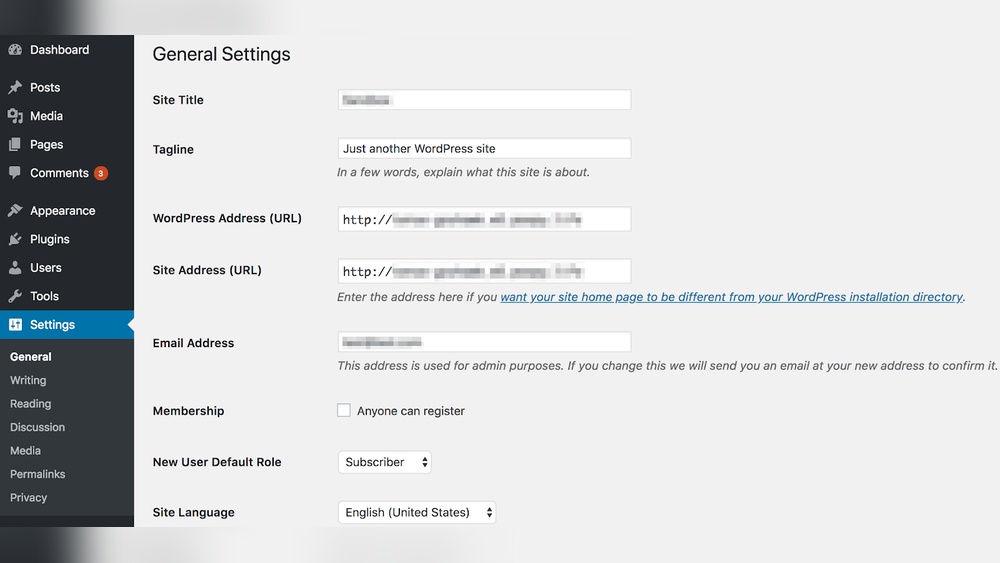
Start by logging into your WordPress dashboard. Go to Settings, then General. Find the fields for “WordPress Address (URL)” and “Site Address (URL).” Replace the old domain with your new one. Save your changes. This tells WordPress where your site lives now.
Modify Wp-config.php File
Access your website files using FTP or a file manager. Locate the wp-config.php file in your root folder. Open it for editing. Add these two lines, replacing with your new domain:
define('WP_HOME','http://newdomain.com'); define('WP_SITEURL','http://newdomain.com');Save and close the file. This step forces WordPress to use the new domain name.
Change Urls In The Database
WordPress stores URLs in the database. These need updating to avoid broken links. Use a plugin like Better Search Replace or a database tool. Search for the old domain and replace it with the new one. Do this carefully to avoid errors. Backup your database before making changes.
Set Up 301 Redirects
Redirects send visitors and search engines from old URLs to new ones. This keeps your SEO intact. Add 301 redirects in your .htaccess file or use a plugin. Redirect all pages from the old domain to the new domain. This ensures users find your updated site without issues.
Credit: www.hostinger.com
Handling Seo After Domain Change
Changing your domain name on WordPress can affect your site’s SEO. It needs careful handling to keep your search rankings and traffic stable. Taking the right steps after a domain change helps search engines find and index your new site quickly. It also guides visitors smoothly from the old address to the new one.
Submit New Sitemap To Search Engines
After changing your domain, create a new sitemap for the new URL. A sitemap helps search engines understand your site structure. Submit this sitemap to Google Search Console and Bing Webmaster Tools. This speeds up the process of indexing your new domain pages. It ensures search engines see your updated content fast.
Monitor Traffic And Rankings
Track your website traffic closely after the domain switch. Use tools like Google Analytics to watch visitor numbers. Check if your search rankings change for important keywords. Small drops in traffic and ranking can be normal at first. Watch for long-term drops and fix problems quickly if they appear.
Update Backlinks
Backlinks play a big role in SEO strength. Contact websites linking to your old domain and ask them to update the links. This passes your SEO value to the new domain. Fix broken or outdated links on your own site too. Strong backlinks help maintain your site’s authority and ranking.
Common Issues And Fixes
Changing your domain name on WordPress can cause some common issues. These problems often affect your site’s performance and user experience. Knowing how to fix them is important. This section covers the most frequent problems and simple fixes.
Fixing Broken Links
Broken links appear when URLs do not update after a domain change. They lead visitors to error pages. Use a plugin like “Better Search Replace” to update old URLs in your database. Check internal links manually to ensure they point to the new domain. Fix broken links quickly to keep your site user-friendly and SEO strong.
Resolving Mixed Content Errors
Mixed content errors happen when your site loads both HTTP and HTTPS content. This usually occurs after switching domains without updating links. These errors can make your site look unsafe. Use a plugin such as “Really Simple SSL” to force HTTPS on all content. Also, update hard-coded links in your theme and posts to HTTPS. This fix improves site security and trust.
Troubleshooting Redirect Loops
Redirect loops cause your site to reload endlessly. They happen if redirects are not set correctly after a domain change. Check your .htaccess file for conflicting redirect rules. Clear your browser cache and site cache to test changes. Use online tools to detect redirect loops quickly. Fixing these loops restores smooth site access for visitors.
Tools To Simplify Domain Change
Changing your domain name on WordPress can feel tricky. The good news? Several tools make this process easier. These tools help update URLs, manage SEO, and keep your data safe. Using them saves time and avoids common errors.
Plugins For Url Updates
URL update plugins change old links to the new domain automatically. They scan your website content and fix links everywhere. This stops broken links and keeps visitors happy. Popular options include “Better Search Replace” and “Velvet Blues Update URLs.”
Seo Management Tools
SEO tools help maintain your search rankings after a domain change. They update sitemaps and notify search engines about the new address. Tools like “Yoast SEO” and “Rank Math” guide you through the process. This keeps your site visible to search engines and users.
Backup And Migration Plugins
Backup plugins protect your website before making changes. Migration plugins move your entire site to the new domain safely. Plugins like “UpdraftPlus” and “All-in-One WP Migration” make backup and transfer easy. This prevents data loss and downtime during the switch.

Credit: wordpress.com
Frequently Asked Questions
Can I Change My WordPress Domain Name Easily?
Yes, you can change your WordPress domain name. Update it in your WordPress settings and adjust DNS records. Also, redirect your old domain to the new one to maintain SEO and traffic.
Will Changing Domain Affect My WordPress Seo?
Changing your domain can impact SEO temporarily. Use 301 redirects and update links to preserve rankings. Notify Google Search Console about the domain change for smoother transition.
How To Update WordPress Url After Domain Change?
Go to WordPress dashboard > Settings > General. Update “WordPress Address” and “Site Address” with your new domain. Save changes and clear caches to apply the update correctly.
Do I Need To Update Permalinks After Domain Change?
Yes, after changing the domain, update permalinks by going to Settings > Permalinks and clicking “Save Changes. ” This refreshes URL structures and prevents broken links.
Conclusion
Changing a domain name on WordPress is possible and often needed. It takes careful steps to avoid losing traffic or content. Back up your website before starting the process. Update all settings and links after the change. Be patient as search engines adjust to the new domain.
This helps keep your site running smoothly. Stay focused and follow the guidelines carefully. Your WordPress site can work well with a new domain name.


