
Are you wondering if you can add WordPress to your existing website without starting from scratch? You’re not alone.
Many website owners want the flexibility and power of WordPress but worry about disrupting their current site. The good news is, you can integrate WordPress smoothly, and it might be easier than you think. You’ll discover how to do it step-by-step, what to watch out for, and the benefits you’ll gain.
Keep reading to unlock the full potential of your website with WordPress.

Credit: learn.wordpress.org
Benefits Of Adding WordPress
Adding WordPress to your existing website brings many benefits. It helps you manage content easily and customize your site to fit your needs. WordPress also supports better search engine ranking, which means more visitors. Here are some key advantages.
Improved Content Management
WordPress offers a simple dashboard to add and edit content. No coding skills are needed. You can upload images, videos, and text quickly. Scheduling posts is easy, which helps keep your site fresh. Multiple users can work together, each with different roles.
Enhanced Customization Options
WordPress has thousands of themes and plugins. These let you change your site’s look and features. You can create a unique style without hiring a developer. Plugins add tools like contact forms, galleries, and social media buttons. This flexibility helps your site grow over time.
Seo Advantages
WordPress is built with search engines in mind. It generates clean code, which helps Google read your site. SEO plugins guide you to improve titles and descriptions. Mobile-friendly designs increase your ranking on phones and tablets. Fast loading times keep visitors happy and improve SEO scores.
Assessing Your Current Website
Before adding WordPress to your existing website, check your current setup carefully. This helps avoid technical problems and saves time. Understanding your website’s platform, hosting, and security makes the process smoother.
Website Platform Compatibility
Find out which platform your website uses now. Common platforms include HTML, Joomla, Drupal, or custom-built systems. WordPress can work with many platforms but may need special setup. Some platforms do not support WordPress well. Knowing this helps plan how to add WordPress correctly.
Hosting Requirements
Check if your hosting supports WordPress. WordPress needs PHP and MySQL or MariaDB databases. Most hosts offer these but confirm your plan includes them. Also, check your hosting storage and bandwidth limits. WordPress sites need enough space for files and traffic. Good hosting ensures your WordPress runs smoothly.
Backup And Security Considerations
Backup your current website before making changes. Backups protect your data in case something goes wrong. Use reliable tools or your hosting service’s backup options. Also, review your website’s security. Adding WordPress means updating security settings. Protect your site from hackers and malware at all times.
Choosing The Right Integration Method
Choosing how to add WordPress to your current website needs careful thought. Each method has pros and cons. The right choice depends on your goals and technical skills. The integration should keep your site easy to manage and user-friendly. Let’s explore some common ways to add WordPress smoothly.
Installing WordPress In A Subdirectory
This method places WordPress in a folder within your main website. For example, yoursite.com/blog. It keeps your main site separate and clean. You can manage WordPress without affecting your original website. It is easy to set up and good for blogs or news sections. Visitors see WordPress as part of your site but in a clear, distinct area.
Using A Subdomain
A subdomain looks like blog.yoursite.com or shop.yoursite.com. It acts like a separate website under your main domain. This method gives more freedom to design and manage WordPress independently. It is useful for different business parts or projects. Search engines treat subdomains as separate sites, so plan your SEO strategy carefully.
Integrating With Existing Design
Matching WordPress to your current website’s look is key. Use the same colors, fonts, and layout styles. This keeps a consistent experience for visitors. You can create custom WordPress themes or use page builders. The integration makes WordPress feel part of your original site. It helps maintain brand identity and user trust.
Step-by-step WordPress Installation
Installing WordPress on an existing website can be simple. Follow these clear steps to get WordPress running smoothly. Each step builds on the last. This way, you avoid common errors and save time. Let’s start with downloading the WordPress files.
Downloading WordPress Files
Go to the official WordPress website. Download the latest version of WordPress. The file will be in a zip format. After downloading, unzip the file on your computer. This folder contains all the files needed for installation. Next, upload these files to your website’s server using FTP or your hosting file manager.
Creating A Database
WordPress needs a database to store information. Access your hosting control panel. Find the database section, usually called MySQL Databases. Create a new database and note its name. Create a database user and assign a strong password. Give this user full rights to the new database. Save these details for the next step.
Running The Installation Script
Open your web browser. Enter your website URL followed by “/wp-admin/install.php”. This opens the WordPress installation page. Choose your language and click continue. Fill in the database details saved earlier. Enter the database name, username, and password. Click submit to connect WordPress with your database. Finally, fill out site details like title and admin account. Click install, and WordPress will set up your site.
Migrating Content To WordPress
Migrating content to WordPress is a key step when adding it to an existing website. It moves your valuable pages and posts into the new system. This process helps keep your website organized and easy to manage.
The goal is to transfer everything without losing any content or SEO value. Careful planning makes the switch smooth and efficient. Below are some important steps to follow during migration.
Importing Existing Pages And Posts
Start by exporting content from your current website. Many platforms offer export tools in formats like XML or CSV. WordPress has a built-in importer for these files. Use it to upload your pages and posts quickly.
Check each imported page carefully. Fix any missing images or broken links. This keeps your site professional and user-friendly.
Setting Up Menus And Navigation
Menus guide visitors through your website. Recreate your existing menu structure in WordPress. Use the Appearance > Menus section to add pages and links. Organize them in the same order as before.
Test the menus on different devices. Confirm they work well on phones and tablets. Good navigation improves visitor experience and lowers bounce rates.
Configuring Permalinks
Permalinks are the URLs for your pages and posts. Set them to match your old website’s structure. WordPress allows easy permalink customization under Settings > Permalinks.
Matching old URLs helps keep search engine rankings stable. It also prevents visitors from landing on broken links. Use simple formats like /post-name/ for clarity.
Customizing WordPress To Match Your Site
Customizing WordPress to match your existing website helps keep your brand consistent. It allows visitors to enjoy a smooth experience across all pages. You can adjust the look and feel to blend WordPress seamlessly with your current design. This section explains simple ways to do that.
Selecting Themes And Templates
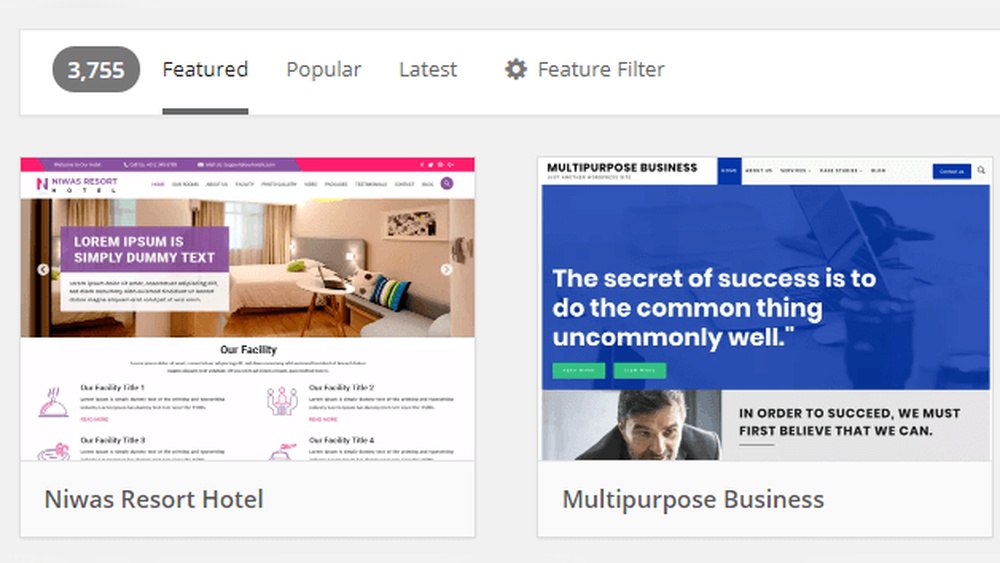
Choose a WordPress theme that fits your website’s style. Many themes offer flexible designs and color options. Pick one that matches your site’s colors and layout. Free and paid themes are available to suit various needs. A well-chosen theme helps your WordPress section look like part of your main site.
Adding Plugins For Extra Features
Plugins extend WordPress with new tools and functions. Find plugins that add the features your site requires. For example, contact forms, SEO tools, or social media buttons. Avoid too many plugins to keep your site fast. Choose reliable plugins with good reviews for best results.
Adjusting Layout And Styles
Modify your WordPress layout to fit your current website design. Use the WordPress customizer or page builders for easy changes. Adjust colors, fonts, and spacing to match your site’s style. Small tweaks make WordPress blend in perfectly with your existing pages. This creates a unified look for visitors.
Testing And Launching The Integrated Site
Testing and launching your integrated site is a key step after adding WordPress to an existing website. This phase ensures everything works smoothly. It helps avoid errors that could harm user experience or SEO. Careful checks confirm all parts of your site function well together.
Taking time to test can save headaches later. It builds confidence that your site is ready for visitors. Follow these steps to verify your site’s performance before going live.
Checking For Broken Links
Broken links damage user trust and hurt SEO rankings. Scan your site for links that lead to missing pages. Use tools or plugins to find broken links quickly. Fix or remove these links to keep navigation smooth. Test both old and new content after integration.
Ensuring Responsive Design
Visitors use many devices to view your site. Your integrated site must look good on phones, tablets, and desktops. Check layouts, images, and buttons on different screen sizes. Adjust styles or use responsive themes to improve appearance. A mobile-friendly site keeps visitors engaged longer.
Optimizing Site Speed
Speed affects user experience and search rankings. Test your site’s loading time using online tools. Compress images and minimize scripts to reduce load time. Use caching plugins to speed up WordPress pages. A fast site encourages visitors to stay and explore more.

Credit: wpengine.com
Maintaining WordPress Within Your Website
Maintaining WordPress within your website ensures smooth performance and security. It involves regular care and attention to keep everything running well. Proper maintenance helps avoid problems and keeps your site fast and safe. Simple steps can make a big difference in managing your WordPress site effectively.
Regular Updates And Backups
Updating WordPress core, themes, and plugins is essential. Updates fix bugs and close security gaps. They also add new features and improve speed. Create backups before updates to save your data. Backups help restore your site if something breaks. Schedule backups regularly and store them safely.
Security Best Practices
Protect your WordPress site from hackers with strong security. Use strong passwords and change them often. Limit login attempts to block unauthorized access. Install a security plugin for extra protection. Keep your site’s software always updated. Monitor your site for suspicious activity daily.
Ongoing Content Management
Keep your website content fresh and relevant. Update pages and posts regularly to engage visitors. Check for broken links and fix them quickly. Use simple language for easy reading. Organize your content with categories and tags. Regularly review old content to improve or remove it.

Credit: www.youtube.com
Frequently Asked Questions
Can I Integrate WordPress Into My Existing Website?
Yes, you can add WordPress to your existing site. It can be installed in a subdirectory or subdomain without affecting current pages. This allows you to manage content easily while keeping your original website intact.
Will Adding WordPress Affect My Current Website’s Seo?
Adding WordPress won’t harm your SEO if done correctly. Use proper URL structures and avoid duplicate content. Ensure smooth navigation between WordPress and existing pages to maintain search engine rankings.
Is It Difficult To Add WordPress To An Existing Site?
No, adding WordPress is relatively straightforward. You need hosting that supports WordPress and access to your website files. With basic technical knowledge, you can install and configure WordPress alongside your current site.
Can I Keep My Current Website Design After Adding WordPress?
Yes, you can maintain your website’s design by customizing WordPress themes. Use themes or page builders that match your existing style for a seamless user experience across both platforms.
Conclusion
Adding WordPress to an existing website is possible and practical. It lets you manage content easily without rebuilding your site. Choose the right method based on your site’s needs and technical skills. Keep backups before making changes to avoid data loss.
Test everything after setup to ensure smooth performance. WordPress can enhance your site’s functionality and design. Small steps lead to big improvements. Start simple, then explore more features as you grow.


