
Are you ready to transform your Bluehost WordPress site into something truly unique? Whether you’re a beginner or looking to refine your skills, understanding the basics of themes, plugins, and widgets is essential.
Imagine the thrill of customizing your site to perfectly reflect your style and purpose. It’s easier than you think, and the payoff is a website that not only attracts visitors but keeps them engaged. You’ll discover straightforward steps to make your site stand out.
You’ll learn how to choose the right theme, select must-have plugins, and utilize widgets to enhance functionality. These simple tweaks can significantly impact your site’s performance and appearance. Let’s dive into the essentials that will empower you to take full control of your WordPress experience.

Credit: www.youtube.com
Bluehost And WordPress Setup
Picking the right hosting plan is important. Bluehost offers different plans. There is a Basic plan for beginners. The Plus plan is for growing websites. For big sites, choose the Choice Plus plan. Each plan has its own features. You get a free domain name with each plan. This is great for starting out. Choose the plan that fits your needs.
Installing WordPress is easy with Bluehost. First, log into your Bluehost account. Then, find the WordPress icon. Click to start the installation. Follow the simple steps. Choose a username and password. Now, your WordPress site is ready. You can start building your site. WordPress makes it easy to create a website. Enjoy your new site!
Exploring WordPress Basics
The WordPress dashboard is the control center. You see it after logging in. It has many options on the left side. You can find Posts, Pages, and Media there. Each option helps you manage your site. Click the icons to explore. The dashboard is easy to use.
The dashboard also shows site health. It alerts you about updates. The dashboard is your friend. It keeps your site running well. Learn where things are to use it best.
Posts are for blogs. Pages are for important info. Like contact or about us. To start a post, click “Add New” under Posts. Type your words in the box. You can add pictures too. Pages are similar. Click “Add New” under Pages. Write your text. Choose “Publish” to make it live. Posts and pages are easy to create.
You can edit posts and pages anytime. Click “Edit” to change them. Add more words or pictures. Keep your site fresh and interesting. Make posts often. Share news or stories with everyone.
Selecting A Theme
Choosing a theme is fun! Free themes cost nothing. They are great for beginners. These themes have basic features. They work well for simple sites. Premium themes cost money. They offer more options. They are good for advanced users. These themes have better support. They often come with updates. Free themes are easy to find. Premium themes need research. Both have pros and cons. Decide what suits your needs.
Installing a theme is easy. Go to the theme section in WordPress. Click on “Add New”. Pick your theme. Click “Install”. Wait a few seconds. Click “Activate”. Your theme is live! It’s that simple. Try different themes. Find the best look for your site. Happy designing!
Credit: www.bluehost.com
Essential Plugins
Bluehost WordPress Basics offers essential plugins to customize themes and widgets easily. Enhance your site’s functionality with user-friendly tools. Perfect for beginners aiming to create a dynamic website.
Must-have Plugins For Beginners
Beginners need some basic plugins. These plugins help manage your site. Yoast SEO helps with search engines. Jetpack offers security and backups. Akismet fights spam in comments. WP Super Cache makes your site faster. Elementor helps design pages easily. These plugins make your site better.
Installing And Managing Plugins
You can add plugins from the dashboard. Go to Plugins, then click Add New. Search for the plugin you want. Click Install Now and then Activate. Always keep plugins updated. This keeps your site safe. Too many plugins can slow your site. Choose only the ones you need. You can remove plugins anytime.
Understanding Widgets
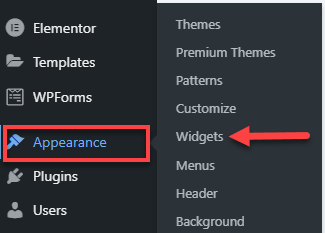
Widgets are small tools that help your website. They can show things like your latest posts or a calendar. You can find them in your WordPress dashboard. Click on “Appearance” and then “Widgets” to start.
Adding Widgets To Your Site
Drag the widget you want to your sidebar or footer. This is how you add a widget. You can place them anywhere you like. Each theme may have different widget areas. Try them out to see what fits best for you.
Customizing Widget Areas
You can change how widgets look on your site. Click on the widget you want to edit. You can change its title or settings. Some widgets have more options than others. Explore these to make your site unique.

Credit: www.bluehost.com
Customizing Your Website
WordPress Customizer helps you change your website’s look. It’s easy to use. You can add your own style. Choose colors that you like. Change the fonts to make text look nice. You can see changes in real-time. This means you see changes as you make them. You don’t have to save first.
This tool lets you adjust your site layout. Move things around until you are happy. It’s like painting on a canvas. The customizer makes it easy to make your site unique.
Your site needs a strong identity. This includes a site title and a tagline. These tell visitors what your site is about. You can also add a logo. This is a picture that represents your site. Logos are important for brand identity.
Favicon is another small icon for your site. It appears in the browser tab. A unique favicon helps users recognize your site easily. Adjusting these settings helps your site stand out.
Frequently Asked Questions
How To Make A Custom Widget In WordPress?
To create a custom widget in WordPress, use the “Widgets” API. First, define your widget class extending WP_Widget. Implement the widget(), form(), and update() methods. Register your widget using add_action() with widgets_init. Finally, add your custom widget to a widget area via the WordPress dashboard.
How Do I Edit Widgets In WordPress?
To edit widgets in WordPress, go to your dashboard, click “Appearance,” then “Widgets. ” Drag and drop widgets to desired areas. Use the “Customize” option for live previews. Save changes once satisfied.
How Can You Customize The Appearance Of A WordPress Theme?
Customize a WordPress theme by accessing the Customizer in the admin dashboard. Modify colors, fonts, and layouts. Use the Theme Editor for advanced changes. Install plugins for additional design options. Always backup your site before making major alterations to prevent data loss.
Why Can’t I Customize My WordPress Theme?
You might lack permissions or the theme may have limited customization options. Check for theme restrictions or update it. Ensure you have the necessary tools or plugins for customization. Contact support if issues persist.
Conclusion
Customizing your Bluehost WordPress site is simple with themes and plugins. Start with a basic theme that suits your style. Plugins add functionality and make your site unique. Widgets enhance usability and keep visitors engaged. Follow these steps to customize your site effectively.
It’s easy to create a site that looks professional. No need for complex coding skills. Just explore the options available. Practice makes perfect. Experiment with different elements. Your website can reflect your personality and purpose. Enjoy the process and see your ideas come to life.
Keep learning and updating your site regularly.


